
Rate Tables define the pricing structure used for Self Perform estimating in DESTINI Cloud Estimator. They determine how resources are priced and ensure that labor, equipment, subcontractor, material, and other costs are calculated consistently across an estimate.
A Rate Table serves as the connection between pricing data and estimating workflows. When a Rate Table is applied, DESTINI Cloud uses the rates and markup rules defined within that table to calculate resource costs, crew costs, and line-item costs.
Table of Contents
Why Rate Tables Matter
Construction costs often vary based on location, market conditions, union requirements, labor availability, fuel costs, and other regional factors. Rate Tables allow organizations to maintain multiple pricing structures and quickly apply the appropriate rates to an estimate.
Example
A laborer may have different costs depending on project location:
| Rate Table | Laborer Base Rate |
|---|---|
| Dallas, TX | $42.00/hr |
| Phoenix, AZ | $46.00/hr |
| San Francisco, CA | $68.00/hr |
Instead of creating separate crews and resources for every region, the estimator can simply select a different Rate Table.
How Rate Tables Work with Self Perform
Rate Tables are closely connected to Resources and Crews.
Resources
Resources contain:
- Base rates
- Time-based units
- Resource markups
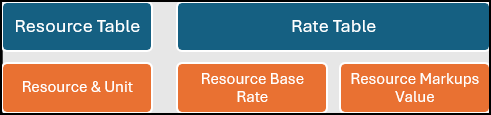
Resource costs are calculated using the active Rate Table.
Crews
Crews consist of one or more resources and a count of how many of each Resource. You can define crews in an estimate or in Cost Library. Crews are available throughout your estimates, regardless of which Rate Table you selected.
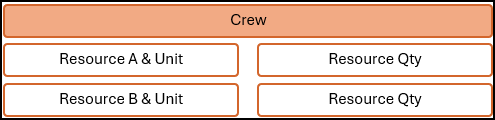
Estimate Line Items
Line items combine Crews and Rate Tables to establish a time-based unit cost. The unit cost is then multiplied by the Productivity set for the line item to derive a unit price for the line item.
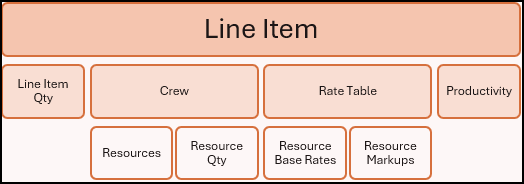
Changing the Rate Table can update the pricing used by new line items and allows estimators to compare different pricing scenarios without rebuilding resources or crews.
How Rate Tables Relate to Cost Library
Rate Tables are typically created and maintained in Cost Library, which serves as the organization's centralized pricing repository.
You can create Rate Tables in templates and estimates, but we recommend reserving these one-off Rate Tables for special cases when available tables in Cost Library don’t reflect the project’s needs.
When an estimate is created, a published Cost Library snapshot is selected. Adding a Rate Table from that snapshot activates Self Perform data within the estimate.
When a Rate Table is added:
- Resources populate the Resource Manager.
- Crews populate the Crew Manager.
- Resource Markup definitions become available in Settings.
This means a Rate Table is more than a pricing tool. It is also the mechanism that brings Self Perform data into the estimate.
Add a Rate Table from Cost Library
- Open an estimate in DESTINI Cloud Estimator.
- Click the gear icon in the top right corner of Estimator to open Settings.
- Under Self Perform, select Rate Tables.
- Click Add Rate Table.
- Select From Cost Database.

- Select one or more Rate Tables, and then click Add Tables.
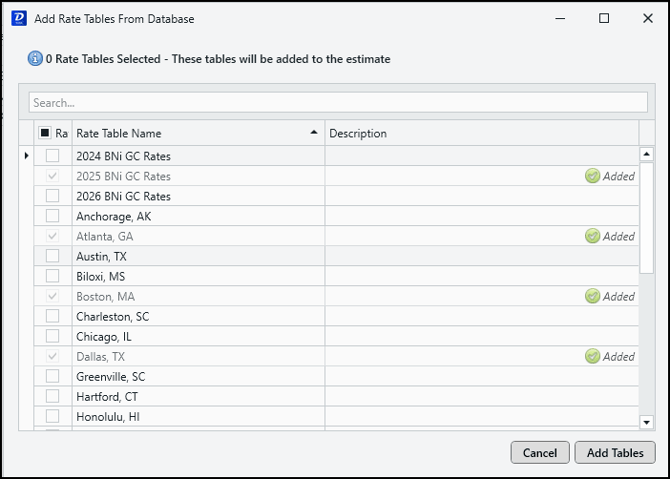
- Hover over the desired Rate Table and click Current to make it active.
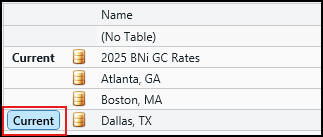
After the Rate Table is added:
- Resources become available in Resource Manager.
- Crews become available in Crew Manager.
- Resource Markups become available in Settings.
Understanding the Current Rate Table
Only one Rate Table can be designated as Current at a time. The function of the Current Rate Table is similar to the function of Sticky WBS. The selected Rate Table will apply to all new line items introduced to the estimate from the database.
The Current Rate Table:
- Becomes the default pricing structure for new line items.
- Provides rates used by Self Perform workflows.
- Serves as the active pricing source for resource calculations.
Changing the Current Rate Table does not automatically update existing line items. Existing line items continue to use their current pricing unless changed separately.
Compare Pricing Scenarios Using Rate Tables
One advantage of Rate Tables is the ability to compare pricing conditions without rebuilding the estimate structure.
Example
An estimator may need to evaluate:
- Current market pricing
- Budget pricing
- Historical pricing
- Different geographic locations
- Separate pricing for non-union vs prevailing wage projects
- Price work based on the projected year’s escalated labor rates
With multiple Rate Tables available, the estimator can switch between pricing scenarios and evaluate cost impacts while continuing to use the same crews and resources.
This approach helps organizations:
- Standardize estimating practices
- Evaluate regional pricing differences
- Compare market conditions
- Reduce manual pricing updates
Duplicate or Delete a Rate Table
Each Rate Table contains an ellipsis (...) menu that provides maintenance actions.
Duplicate a Rate Table
Use duplication when you want to create a variation of an existing pricing structure without changing the original.
For example:
- Create a "Dallas, TX - Escalated Pricing" version.
- Test alternative labor rates.
- Build project-specific pricing scenarios.
- Select the ellipsis next to the Rate Table.
- Select Duplicate Rate Table.

A copy is created with a number appended to the name.
Delete a Rate Table
- Select the ellipsis next to the Rate Table.
- Select Delete Rate Table.
- Confirm the deletion.
The Rate Table is immediately removed from the list.
Best Practices
Consider the following recommendations when working with Rate Tables:
- Maintain master pricing in Cost Library whenever possible.
- Use descriptive names that identify the market or pricing source.
- Create separate Rate Tables for different geographic regions, wage determinations, and projected years.
- Duplicate a Rate Table before testing major pricing changes.
- Review the Current Rate Table before adding new Self Perform line items.
- Use Rate Tables to evaluate multiple pricing scenarios without rebuilding crews or resources.
Related Topics