
Rate Table Markups allow you to apply additional costs to Resources within a Rate Table. These markups are commonly used to account for the following:
-
Indirect costs
-
Business overhead
-
Risk
-
Insurance
-
Taxes
-
Burden
-
Profit
- Other related costs
By centralizing markup calculations in a Rate Table, organizations can establish standardized pricing practices and ensure that Labor, Equipment, Material, Subcontractor, and Other resources are priced consistently throughout an estimate.
Table of Contents
- Why Use Rate Table Markups?
- How Rate Table Markups Work
- Rate Table Markups and Resource Markups
- Supported Resource Categories
- Create a Rate Table Markup
- Create Multiple Markups
- Delete a Rate Table Markup
- Best Practices
- Related Topics
What Are Rate Table Markups?
A Rate Table Markup is a percentage-based adjustment that increases the cost of a Cost Category. Rate Table Markups are applied at the Rate Table level, meaning they affect all category costs associated with that Rate Table.
The following examples illustrate a Rate Table Markup of 15% for the Labor category:
- Line Item 032113 Steel Reinforcing Bar placement uses Crew 03-21 Rebar Crew. This
Crew has a combined hourly rate of $230.00 with a productivity of 4 tons of bar per Crew Hour.
Raw Labor Cost for the line item = $230 / 4 tons = $57.50 per ton
With the Rate Table Markup of 15% for Labor, the actual rate = $66.13. - Line Item 013116 Site Supervision does not use a crew to calculate it’s cost. It’s Labor Cost is a direct unit price of $16,000.00 per month.
With the Rate Table Markup of 15% for Labor, the actual rate = $18,400.
Rate Table Markups don't affect productivity costs. Rate Table Markups are applied after productivity costs are converted to a unit rate for each line item to which the Rate Table is applied.
Why Use Rate Table Markups?
Rate Table Markups help estimators account for costs that are not directly included in a resource's base rate.
Common examples include:
- Payroll burden
- Workers' compensation insurance
- General liability insurance
- Small tools
- Fuel adjustments
- Corporate overhead
- Profit allowances
- Escalation factors
- Market condition adjustments
Rather than manually adjusting hundreds of individual line items, estimators can define markup rules once and have them applied consistently across the estimate.
How Rate Table Markups Work
Rate Table Markups are applied on top of the base category rate for a line item. The general calculation is:
Base Rate + Rate Table Markups = Adjusted Unit Cost
Modifying a Rate Table Markup can impact multiple areas of an estimate simultaneously.
Rate Table Markups and Resource Markups
Rate Table Markups and Resource Markups serve different purposes and are often used together.
Rate Table Markups:
- Are stored within a Rate Table
- Apply to an entire resource category
- Affect both Resource based and unit rate-based costs
- Support market-specific pricing strategies
Resource Markups:
- Are attached to individual resources
- Define how markups are calculated
- Can use Percent or Dollar calculations
- Support resource-specific pricing requirements
Example
A Rate Table may contain:
- Labor Burden = 20%
- Equipment Overhead = 10%
Meanwhile, an individual labor resource could also include:
- Certification Premium = $3.00/hr
In this scenario, both markup structures contribute to the final resource cost.
Supported Resource Categories
Rate Table Markups can be configured for the following categories:
|
Category |
Typical Use |
|
Labor |
Burden, insurance, payroll taxes, profit |
|
Equipment |
Fuel, maintenance, equipment overhead |
|
Material |
Sales/use tax, handling, waste factors, escalation |
|
Sub |
Overhead, contingency, management costs |
|
Other |
Miscellaneous pricing adjustments |
Each category can have multiple markup entries.
Example: Labor Markup Structure
An organization may apply the following Labor markups:
|
Markup |
Percentage |
|
Payroll Burden |
12% |
|
Workers' Compensation |
6% |
|
General Liability |
2% |
|
Profit |
8% |
Total Labor Markup:
The calculated rate becomes available throughout Self Perform estimating.
Create a Rate Table Markup
- Open an estimate in DESTINI Cloud Estimator.
- Click the gear icon in the top right corner of Estimator to open Settings.
- Under Self Perform, select Rate Table Markups.
- In the Rate Table list, select a rate table.
- For one of the following resource categories, click the green Plus (+) icon:
- Sub
- Labor
- Equipment
- Material
-
- Other
- In the Name column, enter a markup name.
- In the Rate column, enter a markup percentage.
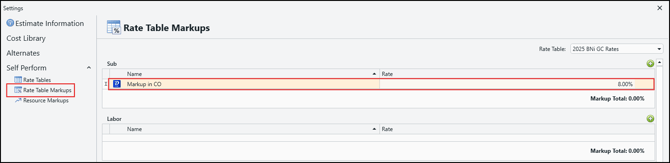
- Press Enter on your keyboard to save the entry.
The markup is added immediately to the selected category.
Example
You might create:
|
Name |
Value |
|
Labor Burden |
18% |
|
Equipment Overhead |
7% |
|
Material Escalation |
5% |
These markups become part of the Rate Table's pricing structure.
You can change a markup at any time by entering a new name or percentage and pressing Enter on your keyboard. When a markup percentage changes, the affected resource calculations update based on the revised value.
For Rate Table markups to be applied to estimate line items, the appropriate Rate Table must be assigned to those line items. You can assign a Rate Table to individual line items in the Cost Information View or apply it to multiple line items simultaneously using multi-select. 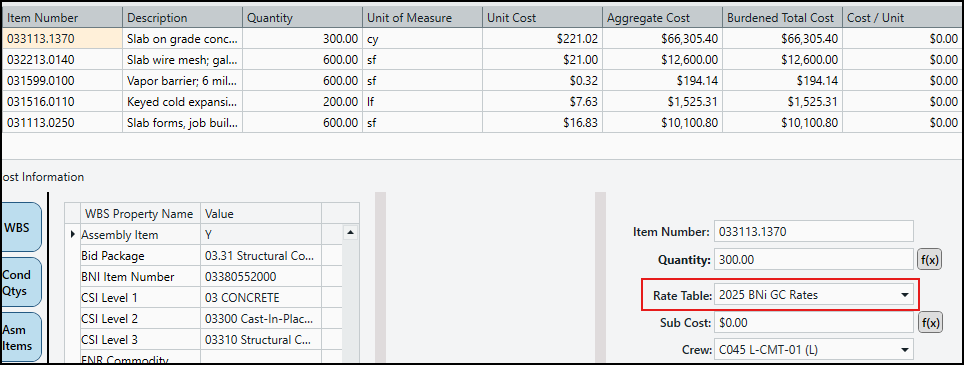
Create Multiple Markups
Many organizations prefer to separate indirect costs into individual markup entries rather than using a single combined markup.
Benefits
- Easier auditing
- Improved transparency
- Simplified maintenance
- Better pricing analysis
For example, instead of:
This approach makes it easier to understand how final costs are derived.
Delete a Rate Table Markup
To remove a markup:
- Open an estimate in DESTINI Cloud Estimator.
- Click the gear icon in the top right corner of Estimator to open Settings.
- Under Self Perform, select Rate Table Markups.
- Hover your cursor over the column to the right of the markup percentage.
- Click the red Minus (-) icon.

The markup is immediately removed from the selected category.
Deleting a markup affects pricing calculations that rely on that markup. Review estimate impacts before removing values from an active Rate Table.
Best Practices
When creating Rate Table Markups:
- Use descriptive names that clearly identify each markup.
- Separate indirect costs into individual markup entries whenever possible.
- Keep markup structures consistent across Rate Tables.
- Document the purpose of each markup category.
- Review markup percentages regularly to reflect current business conditions.
- Create project-specific Rate Tables when unique pricing requirements exist.
- Verify markup impacts before using a Rate Table in production estimates.
Related Topics
- An Overview of Self Perform in DESTINI Cloud Estimator
- Working with Rate Tables in DESTINI Cloud Self Perform