
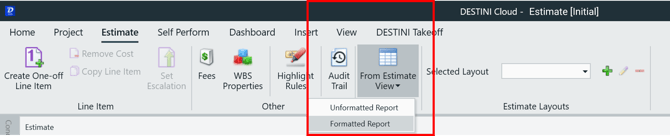
Don't have the reports? Download them here: Estimate View Excel Report Downloads
Formatted Reports generated from the Estimate View rely on two primary components:
-
Tokens
-
Cell Styles
- Column widths
These elements work behind the scenes to populate data, apply branding, and provide the correct amount of space for the data to be reported.
Tokens
Tokens are used to pull estimate data into the Formatted Report. They may look familiar, as the same token mechanism is used in Dashboards to push raw data into sheets like $$LineItems$$ Sheets.
A wide variety of tokens are available for building custom Formatted Reports from the Estimate View.
Download the token list EVReporting_Documentation and reference/use it while building or modifying a report.
Cell Styles
Cell Styles control the visual formatting of the Formatted Report, including colors and layout.
Modify a Cell Style
-
Open the report in Excel.
-
Go to the Styles ribbon.
- Click the Cell Styles drop-down.
-
Right‑click the Cell Style you want to change.
-
Select Modify.
-
Select Format and update the desired formatting (for example, fill color).
.gif?width=552&height=277&name=ezgif.com-animated-gif-maker%20(3).gif)
Preview Styles
-
Navigate to the Styles sheet to view a visual representation of how each style appears in the report.
-
Use this sheet to validate styling changes as you customize the report.
Never used Excel Styles before? Review the linked article from Microsoft for more in-depth information about Excel Cell Styles.
Update the Logo
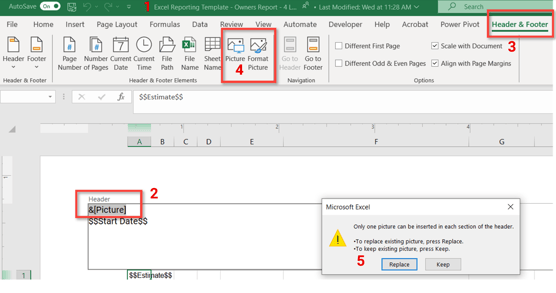
The logo in the Excel Reporting Template is managed through Excel’s header and footer settings.
Change the Logo
-
Open the report in Excel.
- Select View on the Ribbon
- Select Page Layout
-
Highlight the logo, which will convert to &[Picture] text
-
Go to the Header & Footer tab.
-
Select Picture from the ribbon.
-
Follow the Excel prompts to browse to and insert the new logo file.
Adjust the Columns Width
The primary difference between each of the reporting templates provided by Beck Tech are the columns width. As the number of groups increases, more columns are required in Excel. With additional columns, the widths of the first few columns must be smaller to accommodate the indented/waterfall group list.
- Adjust the column widths as needed to accommodate the number of groupings in your Estimate Layout.
- Save the reporting template in your company's file location for team access.
Run the Report in Estimator
Run the report in Estimate View with the appropriate Estimate Layout that matches the number of levels and column widths setup in the reporting template.Prepare the Report for Printing
Before printing or sharing the report, a few final adjustments may be required.
Final Checks
-
The estimate identification information is stored in the report header, so it automatically adjusts to the width of the report.
-
Resize columns as needed to ensure all data is visible.
-
Review the Fees section at the bottom of the report to confirm that column resizing did not hide any values.
- Adjust print settings or the print area as needed to ensure the report prints correctly.
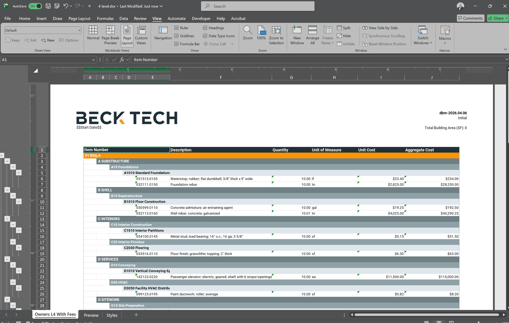
Formatted Estimate View Excel Reports are meant to be an easy way to report what you see in the Estimate View branded and ready to be submitted in your proposal or shared with other teams and Executives for review.
Related article: Estimate View Excel Reporting Template - At a Glance
Suggest an Improvement for this Article