
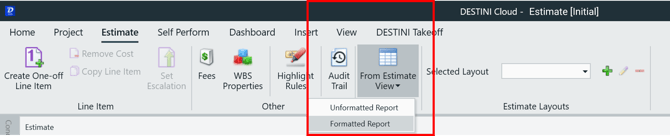
Beck Technology provides four Standard Owner Reports to be used in the Estimate View formatted reports. These four Excel files may be utilized while in the Estimate View by navigating to them after clicking the From Estimate View button > Formatted Report
The primary difference between these reports is the column widths. As the number of groups increases, more columns are required in Excel. With additional columns, the widths of the first few columns must be smaller to accommodate the indented / waterfall group list.
Excel Reporting Template Overview
- Open the Excel Reporting Template - Owners Report – 4 Level in Excel.
- Click on the sheet labeled Owners L4 With Fees.
Don't have the reports? Download them here: Estimate View Excel Report Downloads
The sheet will appear mostly blank, except for items with $$ at the beginning and end. These items are called Tokens. Tokens populate information driven from the estimate.
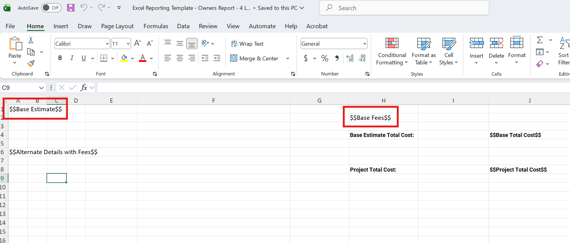
Tokens
There are many tokens that may be used to build a custom Formatted Report from the Estimate View.
Preview Sheet
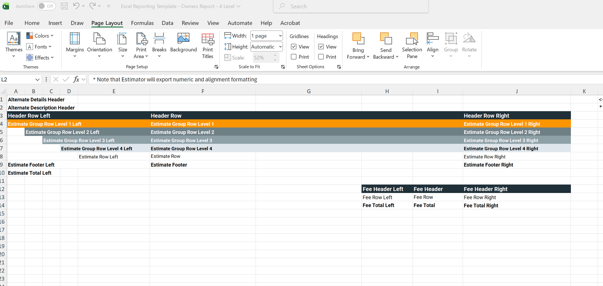
Clicking on the sheet labeled Preview provides a visual look at how the Styles and data will present in Excel.
Styles Sheet
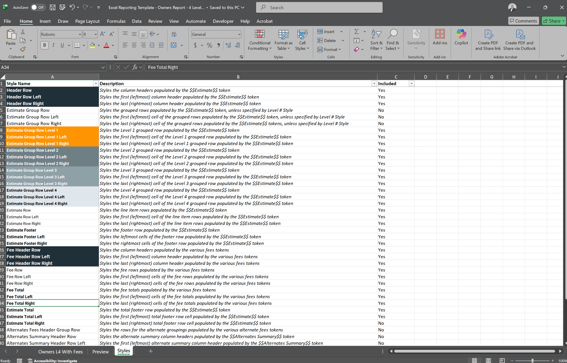
Changing and modifying Styles is done in the Excel workbook, but not on a specific sheet. The Style sheet simply provides a key to help you locate the style and see what it looks like if updated.
Go to the Home tab in Excel, and locate Cell Styles in the Styles section of the ribbon.
The Styles sheet includes:
- A visual representation of each Style
- The Style name
- A description of what the Style is doing
- A column indicating whether the specific Style is included in the Excel Report
Formatted Estimate View Excel Reports are meant to be an easy way to report what you see in the Estimate View branded and ready to be submitted in your proposal or shared with other teams and Executives for review.
Related article: Modify an Estimate View Excel Reporting Template
Suggest an Improvement for this Article