
Crews are one of the most powerful features of Self Perform estimating in DESTINI Cloud Estimator. A Crew represents the combination of labor, equipment, and other resources required to perform a specific type of work.
Rather than manually entering labor and equipment costs for every estimate line item, you can build a Crew once and reuse it throughout the estimate. When a Crew is assigned to a line item, DESTINI Cloud automatically calculates costs using:
- Crew composition
- Resource rates
- Rate Table pricing
- Productivity values
This approach improves estimating consistency, reduces manual calculations, and makes it easier to evaluate production assumptions across a project.
Table of Contents
Understanding Crews
A Crew represents how work is actually performed in the field. Crews typically include:
- Labor Resources
- Equipment Resources
- Other Resources
Each resource contributes to the Crew's overall cost and production capability.
Example: Sitework Crew
A sitework Crew might contain:
|
Resource |
Quantity |
|
Foreman |
1 |
|
Laborer |
2 |
|
Excavator |
1 |
|
Dump Truck |
2 |
When this Crew is assigned to an excavation line item, DESTINI Cloud uses the crew composition and productivity values to calculate labor and equipment costs automatically.
Why Use Crews?
Without Crews, estimators must manually calculate the following for every line item:
- Labor costs
- Equipment costs
- Other direct costs
- Productivity impacts
Crews simplify this process by encapsulating these calculations into a reusable production unit. Crews help organizations:
- Standardize estimating practices.
- Reuse proven production methods.
- Reduce manual data entry.
- Improve estimate consistency.
- Evaluate productivity scenarios.
- Compare pricing across Rate Tables.
- Increase estimating speed.
Organizations often maintain standard Crews for recurring work such as:
- Concrete placement
- Excavation
- Utilities
- Framing
- Drywall installation
- Structural steel erection
- Site cleanup
How Crews Work
The relationship between Self Perform components can be visualized as:
Rate Table > Resources > Crew > Productivity > Estimate Line Item > Final Cost Calculation
The Crew serves as the connection between individual Resources and project cost calculations.
Crew Components
A Crew typically contains three key elements:
Resources
Resources define who and what performs the work. Examples include:
Labor
- Carpenter
- Laborer
- Electrician
- Foreman
Equipment
- Excavator
- Skid Steer
- Crane
- Concrete Pump
Other
- Small Tools
- Safety Equipment
- Survey Instruments
Quantities
Each resource has an assigned quantity.
Example
|
Resource |
Quantity |
|
Carpenter |
3 |
|
Laborer |
2 |
|
Forklift |
1 |
These quantities determine how much of each resource contributes to Crew cost.
Productivity
Productivity defines how much work a Crew can complete within a given period.
Examples:
- 150 square feet per hour
- 25 linear feet per hour
- 10 cubic yards per hour
Productivity is what converts resource costs into unit costs. Because labor productivity often has a greater impact on project cost than labor rate differences, maintaining realistic production assumptions is critical to accurate estimating.
Create a Crew
- Open an estimate in DESTINI Cloud Estimator.
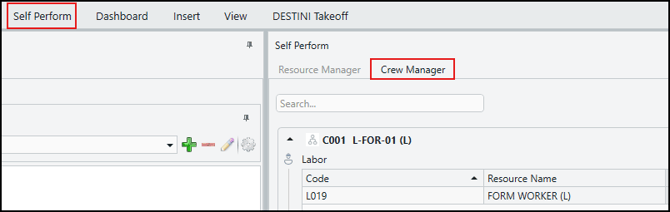
- Click Self Perform > Crew Manager.
- In the Rate Table list, select a rate table.
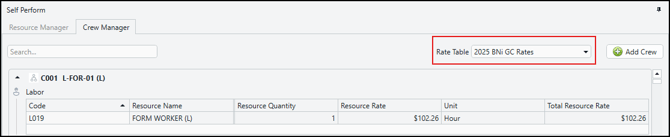
- Click Add Crew.
- For Crew Code, enter a code. We recommend creating standard codes to help identify crews. For example, if you create codes that specify 'L' for Laborer, a painter code could then be L-PNT-01.
- For Crew Name, enter a name.
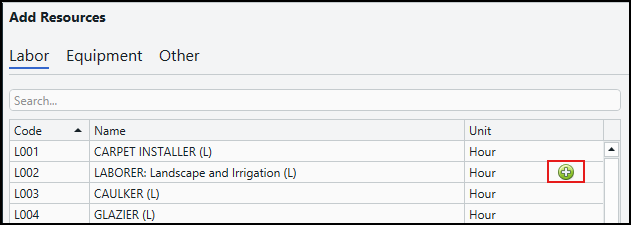
- In the left pane, hover over a resource in the Labor, Equipment, or Other tab and click the green + icon.
Continue adding labor, equipment, and other resources to your crew until you've selected all required resources.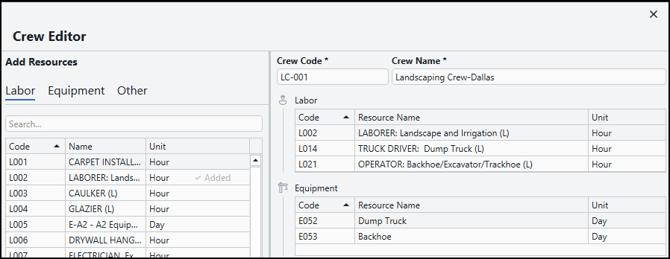
- Click Save.
- On the Crew Manager tab, enter quantities for each resource.
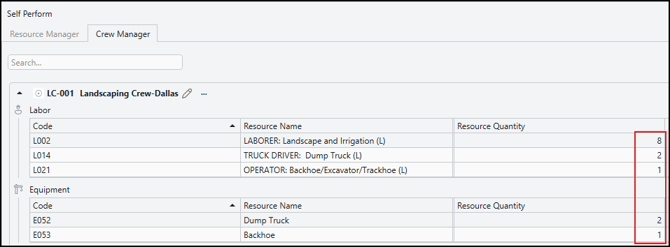
The Crew becomes available for use throughout the estimate.
Example: Concrete Placement Crew
|
Resource |
Quantity |
|
Foreman |
1 |
|
Carpenter |
2 |
|
Laborer |
2 |
|
Concrete Pump |
1 |
|
Pickup Truck |
1 |
After creating it, this Crew could be assigned to multiple concrete-related line items.
Edit a Crew
Estimators frequently adjust Crews to reflect project-specific conditions. Common modifications include:
- Changing labor quantities.
- Adding equipment.
- Removing equipment.
- Testing alternative production methods.
- Evaluating different staffing levels.
Example
An excavation Crew may normally contain:
1 Excavator
2 Laborers
For a larger project, the estimator may test the following quantities to determine the impact on production and overall cost:
1 Excavator
4 Laborers
1 Additional Dump Truck
To edit a Crew:
- Open an estimate in DESTINI Cloud Estimator.
- Click Self Perform > Crew Manager.
- Use the search field to locate the Crew to edit and then click the pencil icon.
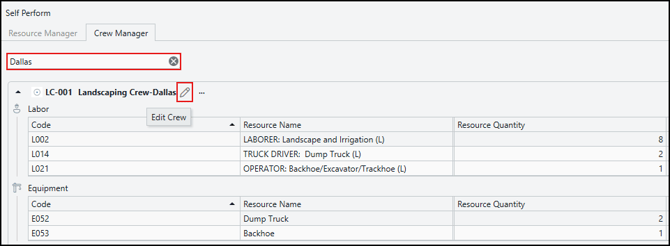
- Hover over a resource you want to delete and click the red Minus (-) icon. The resource is removed immediately from the Crew.
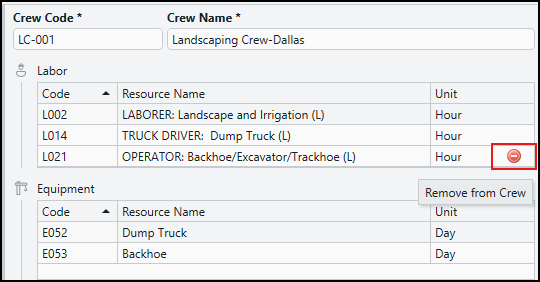
Or, add resources as you did using the previous procedure. - Click Save.
- Enter new quantities, if necessary.
Removing resources can affect:
- Labor costs
- Equipment costs
- Productivity assumptions
- Unit pricing
Review Crew calculations after making changes.
Using Crews Created in Cost Library
Many organizations maintain standard Crews in Cost Library.
When a Rate Table is added to an estimate:
- Standard Resources become available.
- Standard Crews become available.
- Resource and markup definitions are imported.
These imported Crews provide estimators with proven production assemblies that can be reused across projects.
Estimate-Specific Changes
Crews imported from Cost Library can be modified within an estimate.
Changes made in the estimate:
- Affect only the current estimate.
- Do not update Cost Library.
- Do not impact other projects.
This allows estimators to adapt standard production methods for unique project conditions while preserving company standards.
Assign a Crew to a Line Item
After you create a Crew, you can assign it to line items in your estimate.
- Open an estimate in DESTINI Cloud Estimator.
- Click Estimate.

- Either select a line item in your estimate or locate one in the Cost Database view.
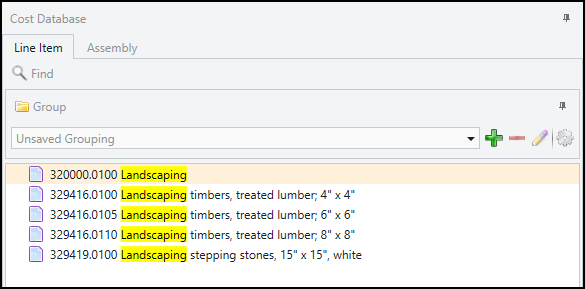
- In the Cost Information view, enter a quantity in the Quantity field.
- In the Crew dropdown, select a Crew.
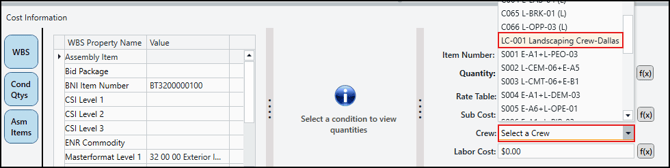
- DESTINI Cloud Estimator populates the productivity fields and calculates costs based on the resources and rates entered for the selected crew.
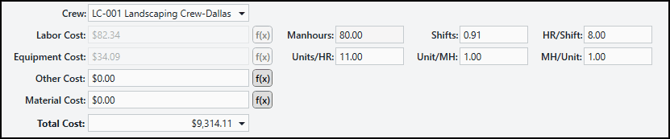
What Happens When a Crew Is Assigned?
When a Crew is attached to a line item, DESTINI Cloud evaluates:
Resources + Resource Rates + Rate Table Pricing + Productivity Values = Line-Item Cost
The system automatically calculates the following while allowing Material and Subcontractor pricing to remain independently managed when required:
- Labor cost
- Equipment cost
- Other cost
Productivity and Cost Calculations
Productivity is often the most important variable in Crew-based estimating.
Example
Assume a Crew costs:
$400 per hour
Scenario A
Productivity = 20 LF/hour
Unit Cost: $400 ÷ 20 = $20 per LF
Scenario B
Productivity = 25 LF/hour
Unit Cost: $400 ÷ 25 = $16 per LF
A relatively small productivity improvement can produce significant savings across a project.
Change the Crew Assigned to a Line Item
Project conditions change frequently during estimating.
To replace a Crew:
- Locate the line item in your estimate.
- Open the Crew dropdown.
- Select a different Crew.
DESTINI Cloud immediately recalculates costs using:
- The new Crew composition
- Associated Resource Rates
- Productivity values
This makes it easy to compare alternative construction approaches.
Remove a Crew from a Line Item
If Crew-based costing is no longer needed:
- Locate the line item in your estimate.
- Open the Crew dropdown.
- Select No Crew.
Result
Crew calculations are removed. Labor, Equipment, and Other costs become manually editable again. Productivity-related calculations are no longer used for that line item.
Use Different Rate Tables with a Crew
A Crew can be used with different Rate Tables. This allows estimators to evaluate the following without rebuilding Resources or Crews:
- Regional cost differences
- Alternate labor markets
- Budget vs. current pricing
- Escalated pricing scenarios
Change the Rate Table
- Locate the line item in your estimate.
- In the Cost Information View, locate the Rate Table dropdown.
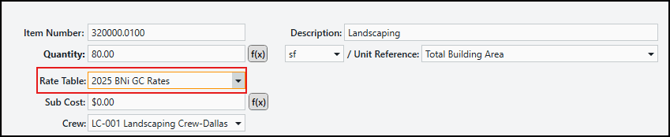
- Select a different Rate Table.
The line item's costs are recalculated using the pricing structure defined by the selected Rate Table.
For example, a Crew may cost $1,250/day in the Dallas Rate Table. The same Crew may cost $1,680/day in Seattle because of differing labor and equipment rates.
By adjusting the Rate Table, the Crew composition remains the same, but pricing changes based on the selected Rate Table.
Best Practices
To maximize accuracy and consistency:
- Build Crews around actual field production practices.
- Use descriptive Crew names and codes.
- Reuse standard Crews whenever possible.
- Review productivity assumptions regularly.
- Test multiple productivity scenarios on major work items.
- Use Rate Tables to compare regional pricing conditions.
- Modify imported Crews only when project conditions require it.
- Validate cost impacts after changing Crew composition.
Related Topics
- An Overview of Self Perform in DESTINI Cloud Estimator
- Working with Rate Tables in DESTINI Cloud Self Perform
- How to Create and Manage Rate Table Markups in DESTINI Cloud Self Perform
- How to Manage Resources in DESTINI Cloud Estimator
- How to Manage Resource Markups in DESTINI Cloud Estimator