
This article serves as a quick-start guide for pre-existing users who simply need to setup their existing Hosted Environment account on a new laptop or workstation.
IMPORTANT: This guide is not for first-time setup of a brand new account. New users should refer to the detailed instructions in our full Hosted Setup Guide.
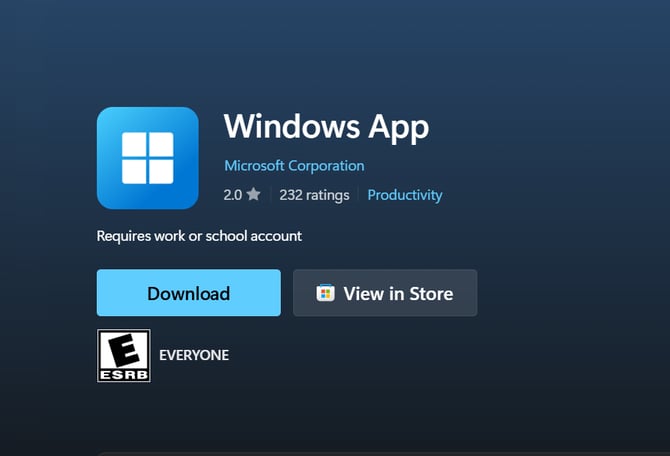
- Download the Windows App:
- For Windows PC users, locate the app in the Downloads folder and run it to install it. For Mac users, no installation is necessary - the Apple App Store download will automatically place the app in the Launchpad, ready for use.
- Once the Windows App is installed, open it.
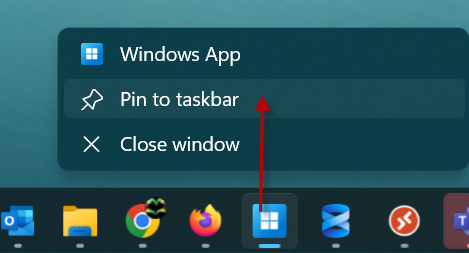
- Once open, right-click and pin the Windows App to the Taskbar:
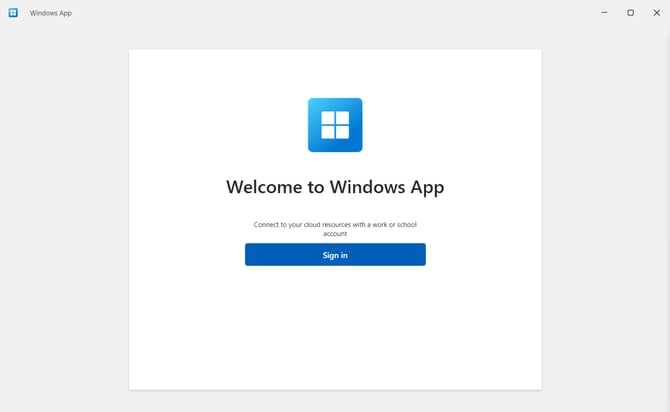
- Click the "Sign in" button.
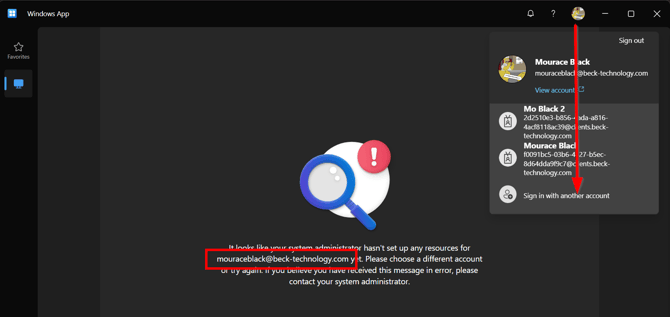
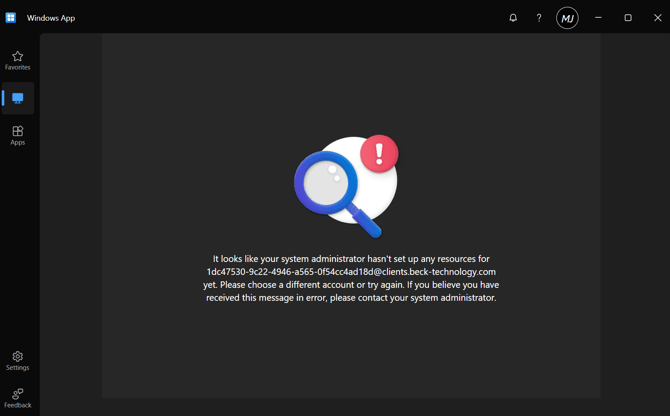
- If you get the an error that shows your company email and the message below, click your name/icon and "Sign in with another account."
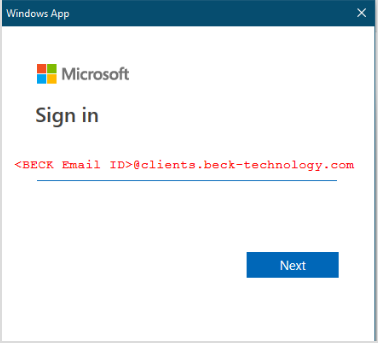
- Enter your Beck Email (use Ctrl+V to paste the value and click Skip to bypass Getting Started information).
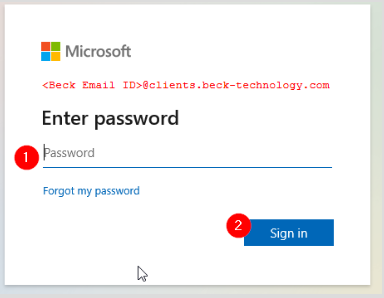
- Enter your Beck Email password.
- Your account is now set up and you should see the below notice. This is expected. Please move on to the next step.
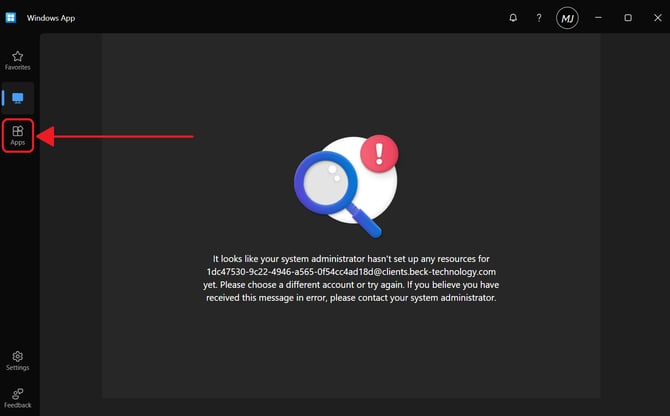
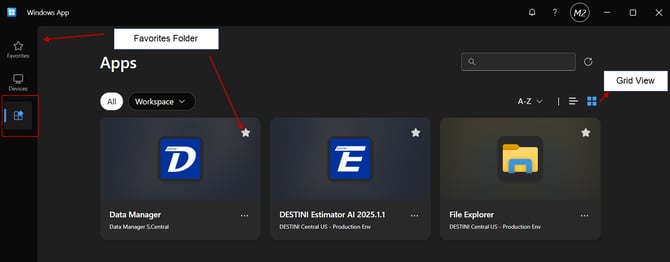
- Click the Apps button on the left to see the DESTINI apps that you have access to (Estimator, File Explorer and, for some users, Data Manager).
- We recommend that you switch to the Grid View, and then click the Favorites star on each app so you can access them from both your Apps or Favorites folders.
- Launch the Estimator app, enter your password and click the Remember Me option.
License Login
IMPORTANT: There are two ways to sign into the license platform in Estimator; via Active Directory, or via a Beck Tech DESTINI account.
- The sign-in method required is not a user choice. Your company elects whether to enable Active Directory or not.
- Licensing in Estimator is tied to your company email domain - you must use your company email to get a license.
- Hosted clients: DO NOT use the long Beck email ending in @client-becktecnology.com. This email is for Windows App / Remote Desktop login only, and will not work for licensing.
- Active Directory-enabled users must use the Active Directory method.
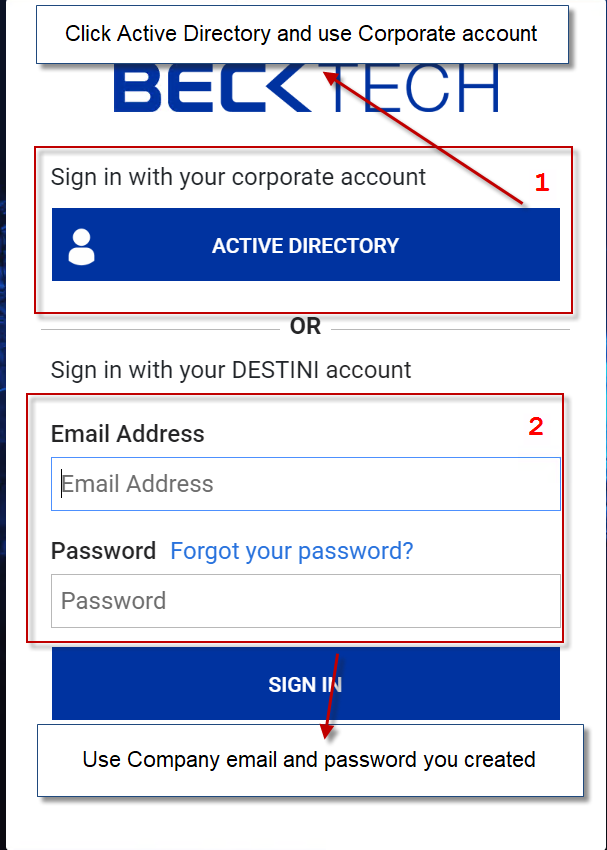
- Via Active Directory (AD)
- The vast majority of clients will use method 1 - sign in via Active Directory. This system uses your company's own credentials to authenticate you - meaning that the same email and password used to log into your work computer and email will work here. Click here for step by step instructions for Active Directory Login Steps.
- Via a dedicated Corporate Email and user created password
- Companies that do not use Azure Active Directory or do not wish to configure theirs to work with Estimator will instead use method 1 - sign up with a Corporate Email Account. This requires users to run through a one-time setup process, as detailed below. Click here for step by step instructions for Sign up With Your Corporate Email .
Password Resets:
- Method 1 Active Directory password resets are handled by your IT department. Beck Tech does not control AD login credentials.
- Method 2 DESTINI Account users can reset their password manually. Click here for password reset instructions.
If you have any questions or concerns, please reach out to support@beck-technology.com and we will be happy to assist you.