
Setting up Estimate View layouts in DESTINI Estimator is simple, fast, and flexible. Layouts let you rearrange windows, set up columns, and set filters based on those columns (or WBS Properties) to view your projects in the exact way you want them.
We encourage users to set up standard layouts in their estimate templates, so that all future estimates created from these templates will automatically have access to a standard set of layouts.
Set up your Layout
There are three main components of a layout:
- Estimate View columns and column order
- Estimate View Grouping
- View/window arrangement
Columns and Column Order
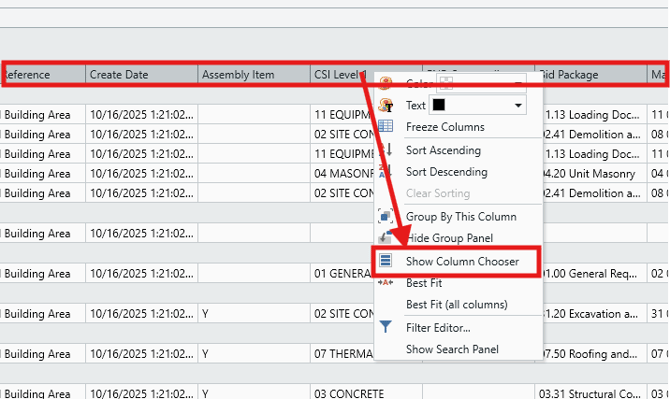
Adding and removing columns in the Estimate View is easy using the Column Chooser. Right-click on any column header and select Show Column Chooser.
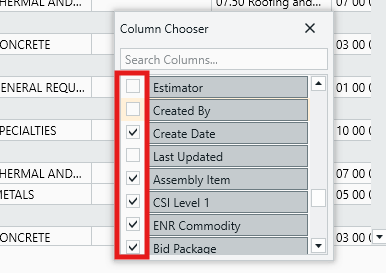
In the Column Chooser window, check the columns you'd like to see, and uncheck the ones you want to remove.
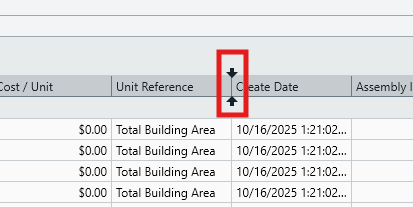
Reorder your columns by simply clicking and dragging them to the desired position. You will see two black arrows to indicate where the column being dragged will be moved to:
Estimate View Grouping
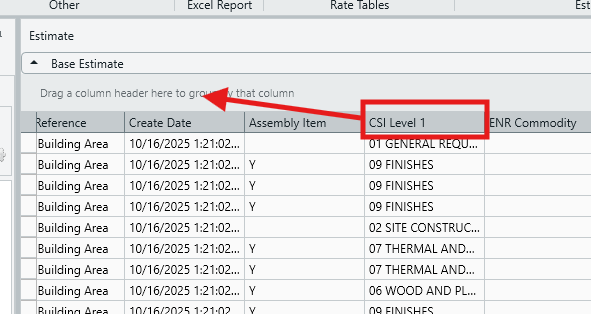
You can group line items in your Estimate View by any column (or WBS Property) that you like. Grouping is managed in the space above your Estimate View row headers:
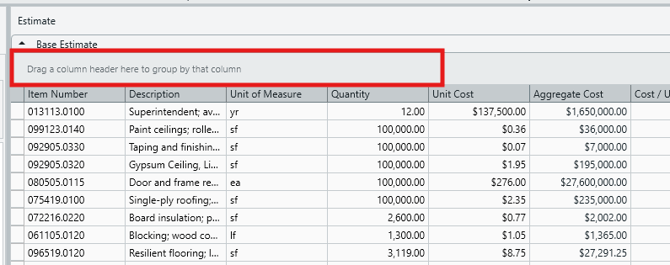
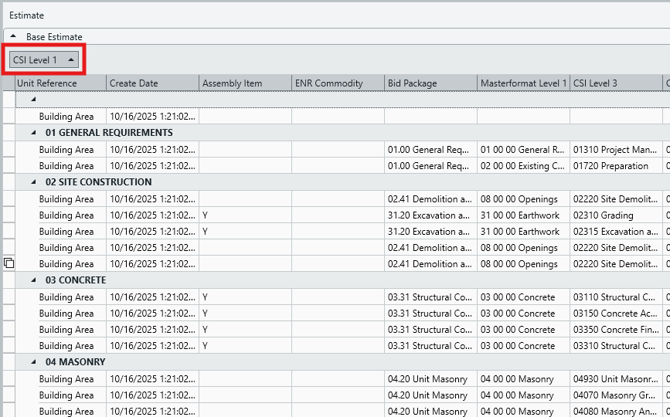
As stated in the UI, one easy way to set grouping is to simply click-and-drag any column header into the Grouping space. In the below example, we have dragged the CSI Level 1 column header into the Grouping space to group all line items by their CSI Level 1 classification.
You can also use the Column Chooser. Drag-and-drop any column in the Column Chooser to the Grouping space to achieve the same result.
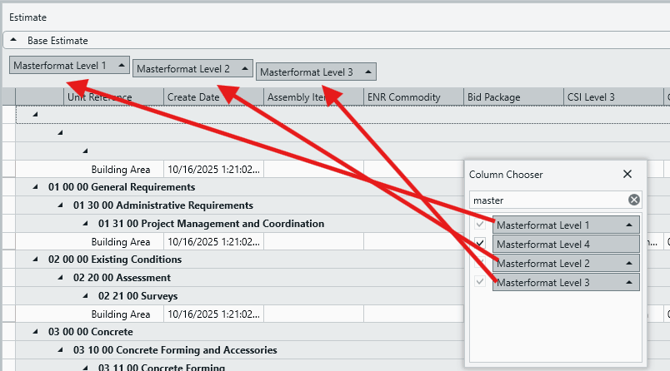
As you can see above, grouping can also be stacked to further compartmentalize your line items.
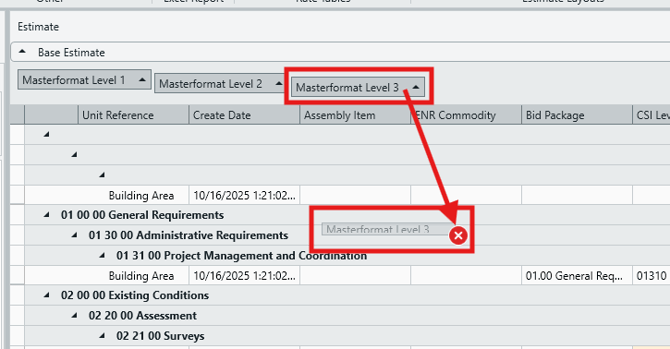
To remove a grouping, simply grab the grouping in question and drag it away from the Grouping space until you see a red circle with an 'x' in it, then release it to discard it.
View/Window Arrangement
Users can completely rearrange the Views (aka windows or panes) in Estimator to suit their needs. Grabbing and dragging the header of any View will allow you to reposition that view as you see fit. See this article for more detailed instructions: Manage Views in Estimator: How to Float, Dock, and Reset Views.
Saving Your Layouts
Once you have your layout set, the next step is to save it so you can access it in future, or switch between layouts to suit any given workflow.
In the upper Ribbon menu, you will see a section called Estimate Layouts. When you make a change to your layout (e.g. change Estimate View columns or grouping), you will see a red asterisk indicator to let you know that your current layout configuration has unsaved changes.
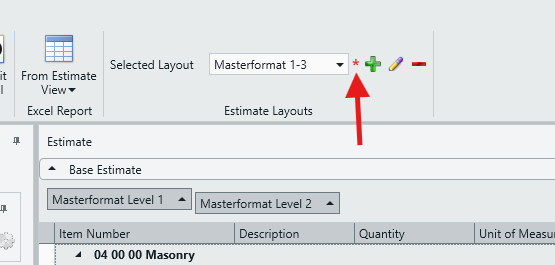
You have three options for managing your layouts, and a drop-down for accessing previously saved layouts.
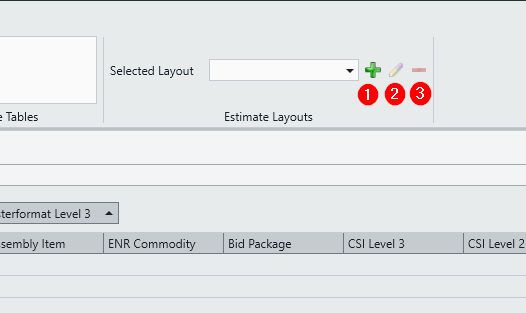
- Save Layout: Click to create a new saved Layout. You will be prompted to give the new layout a name (this name must be unique - duplicate layout names are prohibited).
- Edit Layout: Click this to save your new configuration to the currently selected Layout. You will be given the option to rename the Layout.
- Delete Layout: Click to delete the currently selected layout from the drop-down list.
To save the current layout, click on the '+' symbol in the Estimate Layouts section of the upper Ribbon Menu.
Set Company-Standard Layouts Using Estimate Templates
We encourage team leaders to create a set of standard layouts in their Template Estimates. This way, all users who create estimates from those templates will have access to a standard suite of layouts as determined by their leaders.
Submit Your Suggestions to Help Improve This Article