
Update Overview:
- Feature: Condition Manager (WO-6106)
- Feature: Split Takeoff Zones, Polygonal Takeoff Zones (WO-6347)
- Feature: Drawing Preview with Revisions (WO-5978)
- Feature: Reorder Sheets Before Publishing a Revision (WO-5979)
- Improvement: Preserve the Order of Sheets from Source Document (WO-5839)
- Improvement: Mouse Scroll Navigation in Adjust Calibration and Previews (WO-6285, WO-6242)
Release Notes:
Condition Manager
- Conditions now have a separate space where they can be organized; click the Conditions tab in the top panel of the main app screen:
-2.png?width=426&height=73&name=image%20(9)-2.png)
-
The Conditions Manager screen consists of three zones:
-
The navigation panel on the left.
-
The main area, which now shows a ‘Global’ set from the Global Library.
-
The Information panel on the right, which may be transformed to the second area showing another condition set:
-1.png?width=670&height=380&name=image%20(10)-1.png)
-
-
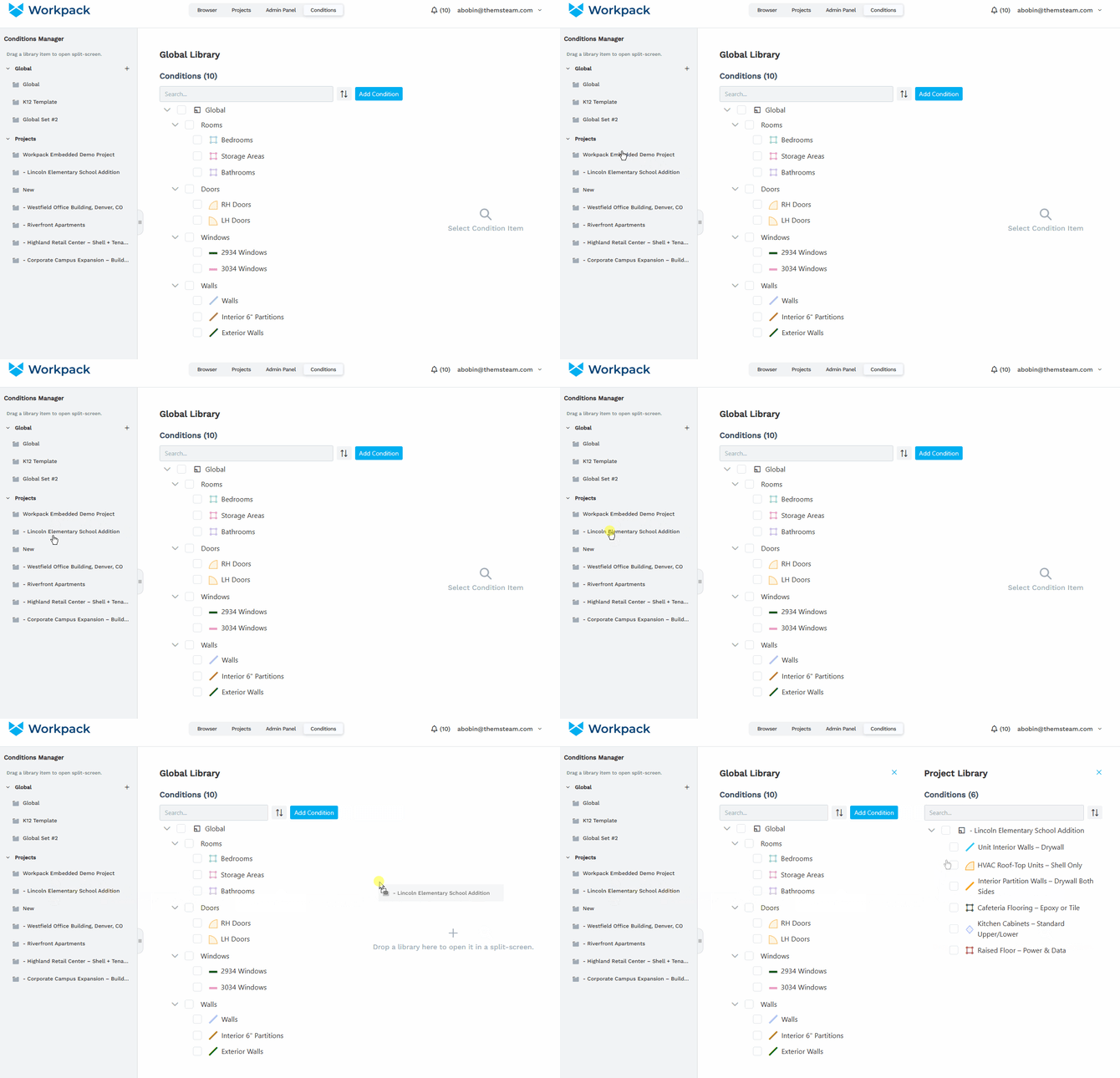
Navigation Panel shows the list of Condition sets which are divided by scopes:
- Global scope show sets managed by the app administrators.
- Projects scope shows project sets - a single set per project.
-
To switch the main area, click a set in navigation. To get two sets in two areas, drag another item from navigation:
-
Conditions can be copied from one project to another, or from a global set to a project:
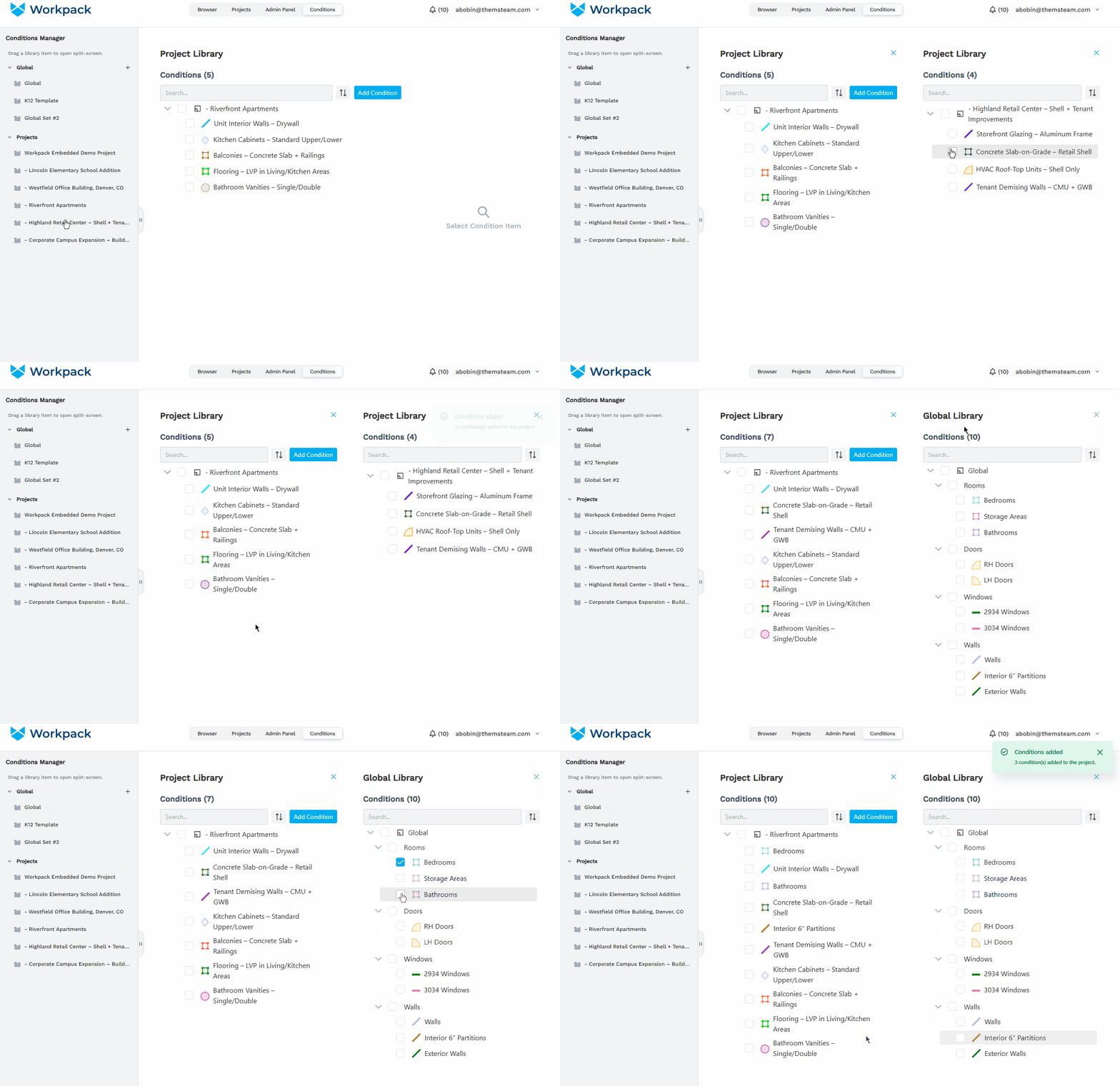
- To copy a condition, check it and drag to the target set.
- Conditions can’t be copied to the global set or to the same set.
-
In main area, you can create a new Condition, adding it to the active set. Also, edit name and remove options are available.
Split Takeoff Zones. Polygonal Takeoff Zones
- Condition Takeoff Zones can now be drawn as polygons.
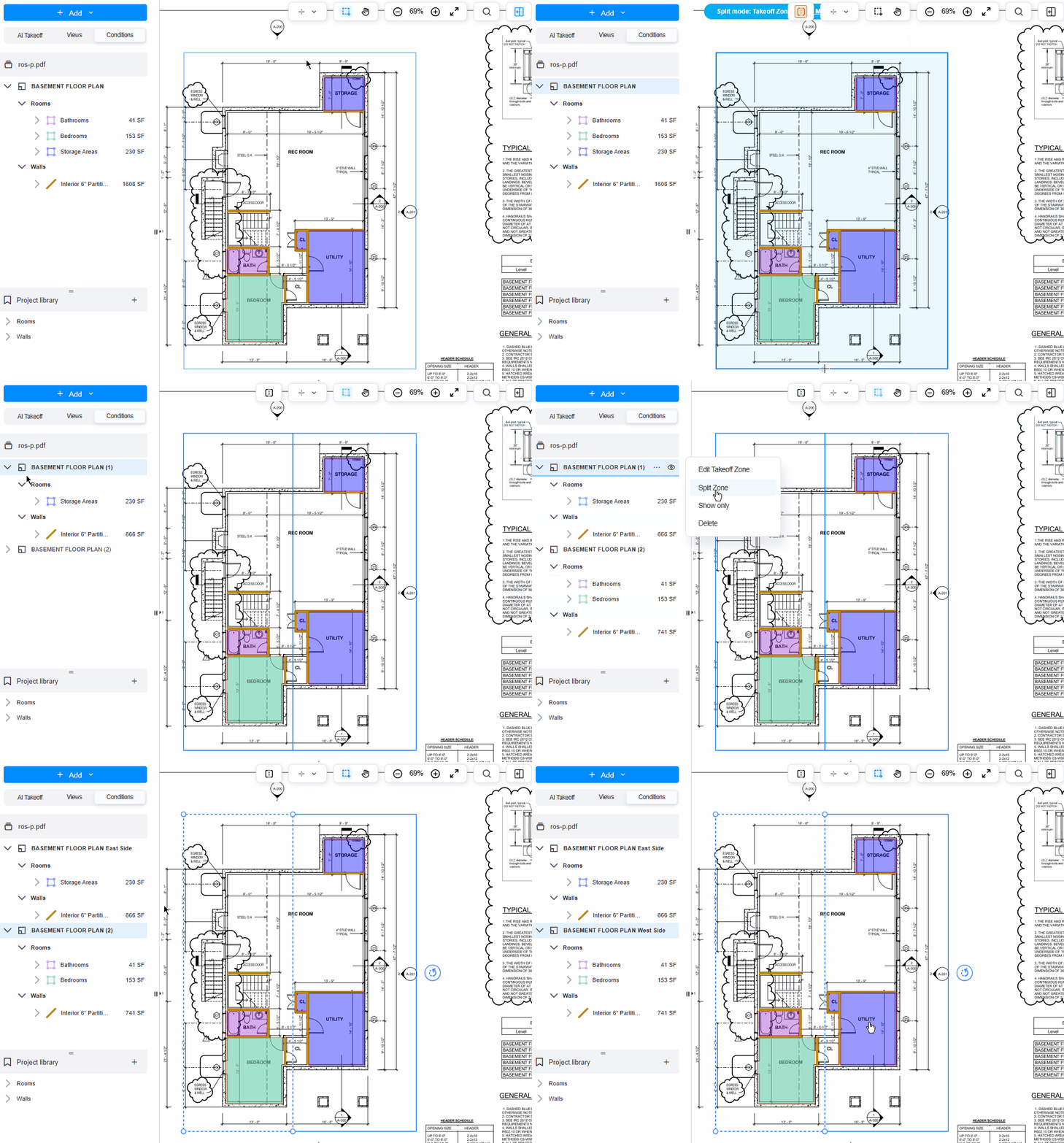
- In Conditions Takeoff mode, Takeoff Zones now can be split.
- To enter Split mode, select a Takeoff Zone, then click the appeared icon in the top toolbar:
-1.png?width=319&height=175&name=image%20(11)-1.png)
- Alternatively, click the three-dot menu for a Takeoff Zone in the left panel.
-1.png?width=494&height=211&name=image%20(12)-1.png)
- Split mode highlights the active Takeoff Zone and is indicated in the blue badge at the top.
-1.png?width=399&height=375&name=image%20(13)-1.png)
-
Start drawing a split line from one edge to another. You can add points in between forming the required shapes of the new Takeoff Zones:
Drawing Preview with Revisions
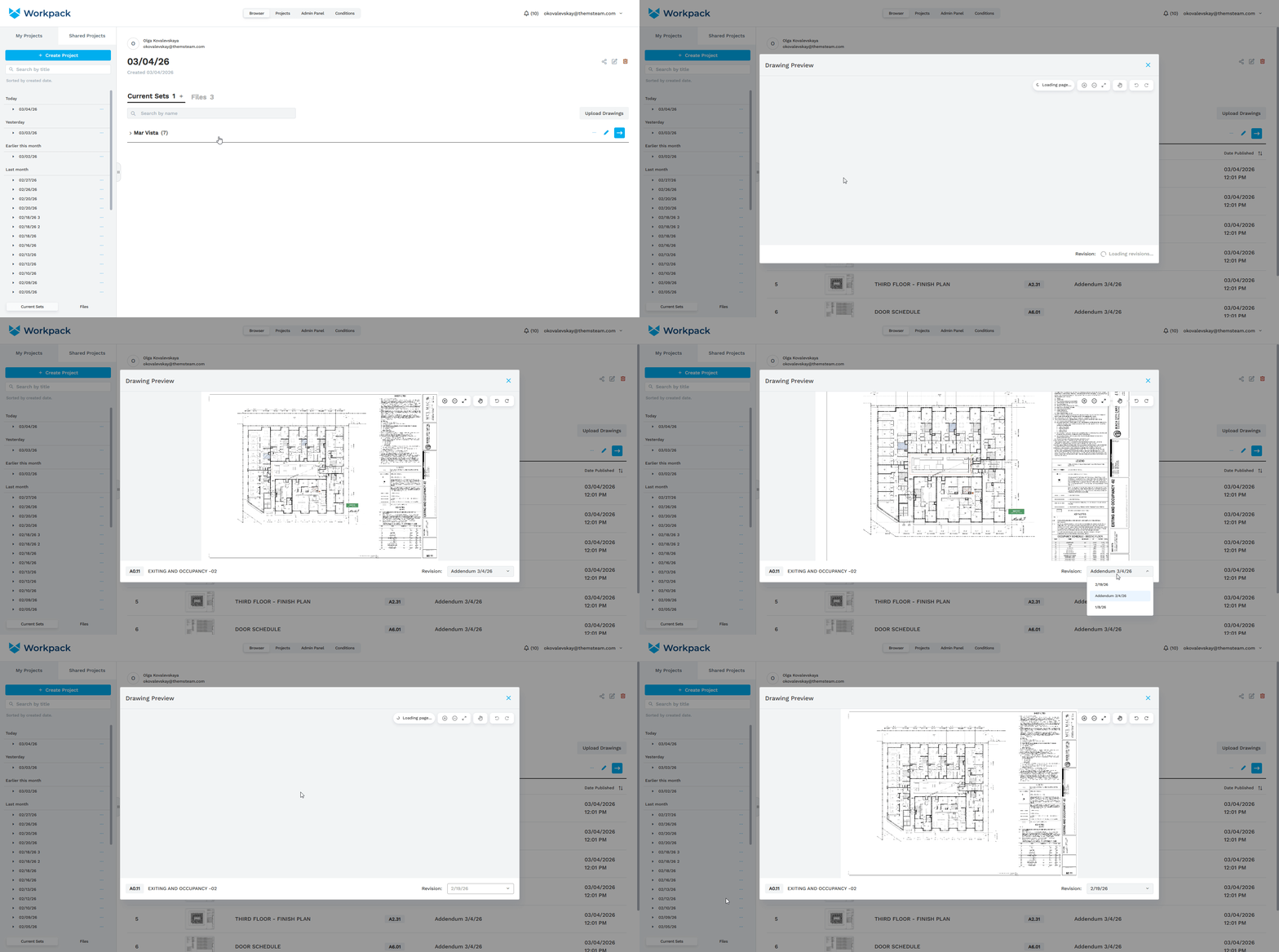
- You can now view and compare all published revisions of a drawing in one place.
- To use this feature:
-
- Open the Current Set.
- Click on any drawing thumbnail.
- Once the preview opens, use the dropdown in the bottom-right corner to switch between all published revisions of that drawing.
- This makes it easy to compare changes across revisions without leaving the preview window.
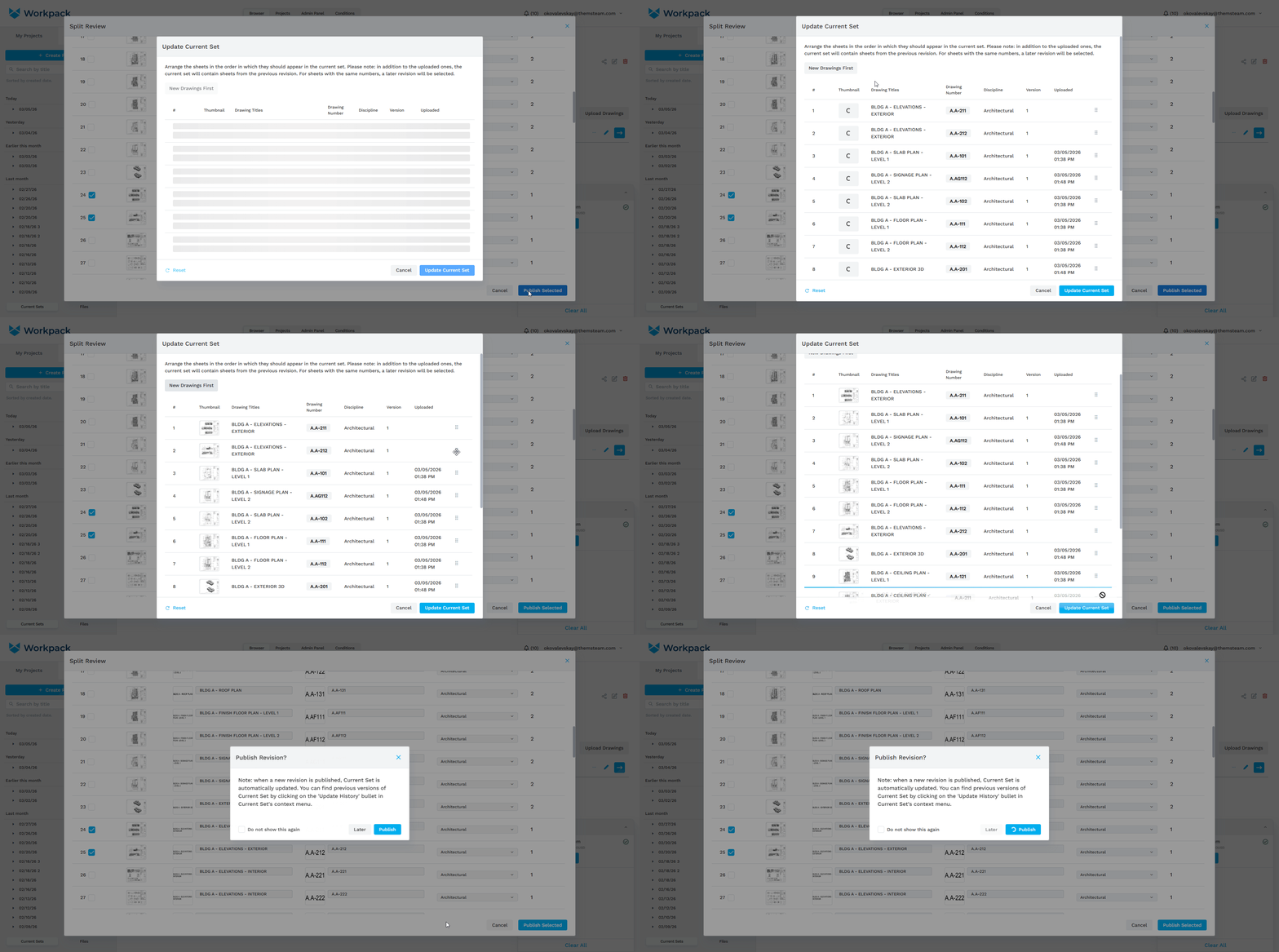
Reorder Sheets Before Publishing a Revision
- There is now an additional step in the publishing workflow.
- After clicking “Publish Selected” in Split Review, the Update Current Set window opens. This allows you to control the order of sheets before the revision is finalized.
- What You Can Do:
- Reorder sheets using drag and drop.
- Position newly uploaded sheets relative to sheets already in the Current Set.
- Preview how the updated Current Set will look before publishing.
- Display Modes - At the top of the window, you can toggle between two display modes:
- New Drawings First - Newly uploaded sheets appear at the top, followed by sheets already in the Current Set.
- Old Drawings First - Existing sheets appear first, followed by newly uploaded sheets.
- To reorder sheets, drag and drop them using the handle on the right side of each row.
- This step ensures your Current Set appears exactly as intended before it is updated.
Preserve the Order of Sheets from Source Document
- The sheet order in Split Review now matches the order in the original uploaded documents.
- Sheets are no longer automatically reordered based on drawing numbers.
Mouse Scroll Navigation in Adjust Calibration and Previews
- The Adjust Calibration and Preview viewers now support full mouse scroll navigation: use scroll to move vertically, Shift + scroll - move horizontally, Ctrl + scroll – zoom in and out.