Update Overview:
-
Feature: Map AI Takeoff to Conditions (WO-6048)
-
Feature: Projects Tab in Project Library (WO-6115)
-
Feature: Navigation Panel for Drawing Sets (WO-5892)
-
Improvement: Other Ways to Open Sets in Viewer (WO-6184)
Release Notes:
Map AI Takeoff to Conditions
-
Users can transfer AI takeoff to Conditions.
-
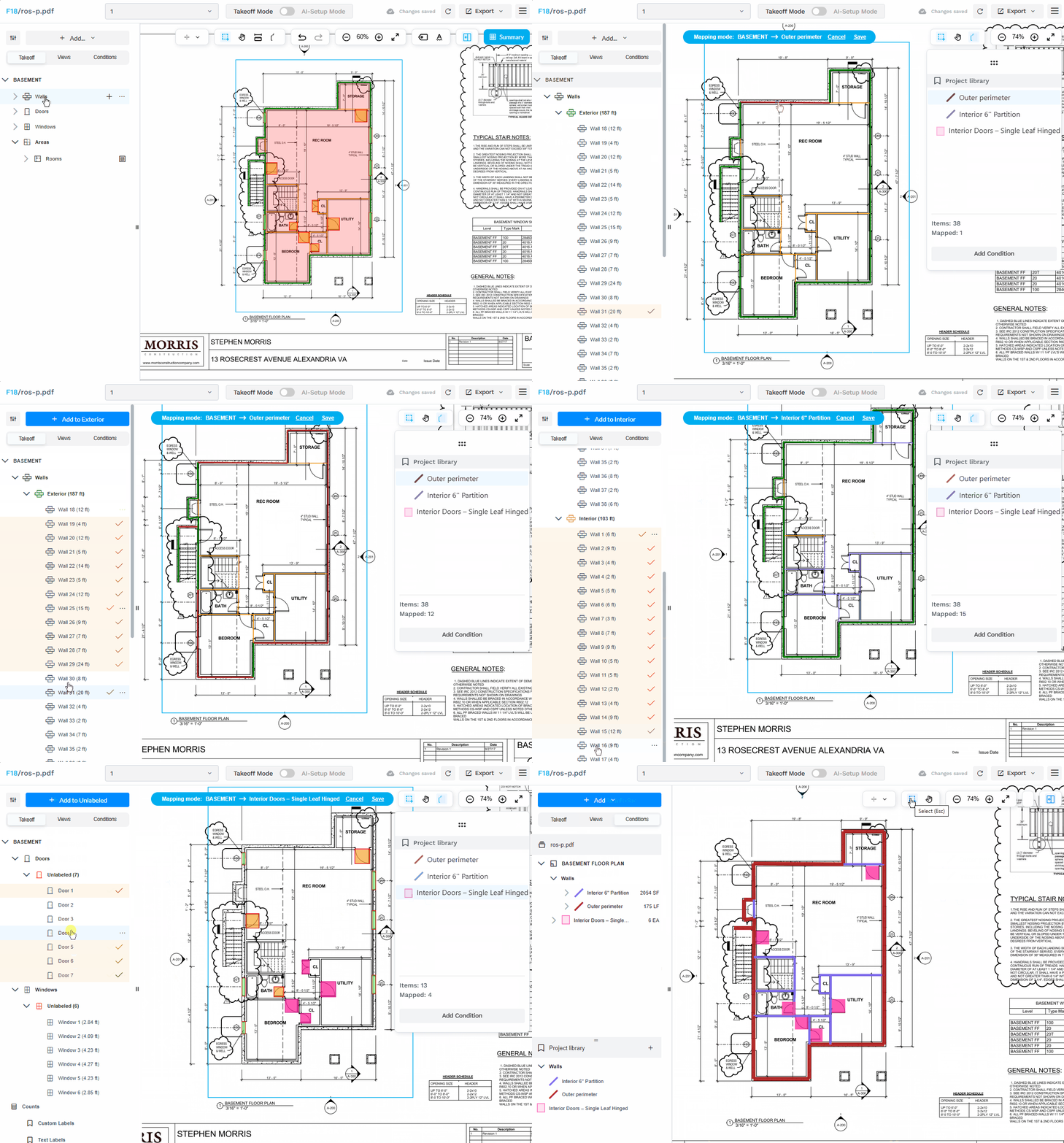
There are two ways to enter Mapping mode:
-
In AI takeoff, click on the three dots of a Takeoff Zone in the left panel to open the options, then click Map Conditions:
-
-4.png?width=508&height=287&name=image%20(4)-4.png)
-
-
This will initiate Mapping Mode.
-
-
In the Mapping Mode, you will see your Conditions in the Project library panel to the right.
- It loads all conditions from the Project library (even if they aren't yet tied to items in Condition Takeoff):
- Note that users can create a new Condition right from this panel (click Add Condition).
-3.png?width=670&height=335&name=image%20(5)-3.png)
-
You can now map AI Takeoff items to Conditions via the following steps:
- Select a condition in the panel.
- All takeoff items will be filtered; only items of an appropriate type will remain.
- Click the items; they change color to the color of the selected condition, which means new condition items will be created from the selected AI takeoff items.
- When all required items are selected for the appropriate conditions, click the Save link in the blue badge at the top to exit mapping mode and apply changes.
- Users are redirected to the Conditions tab, where they see the updated Conditions Takeoff.
- Changes can be canceled; when canceled, no new condition takeoff items are created.
-
AI Takeoff items can be mapped into multiple Conditions.
-
The same AI Takeoff items can be mapped to a selected Condition several times in consequent mappings.
Projects Tab in Project Library
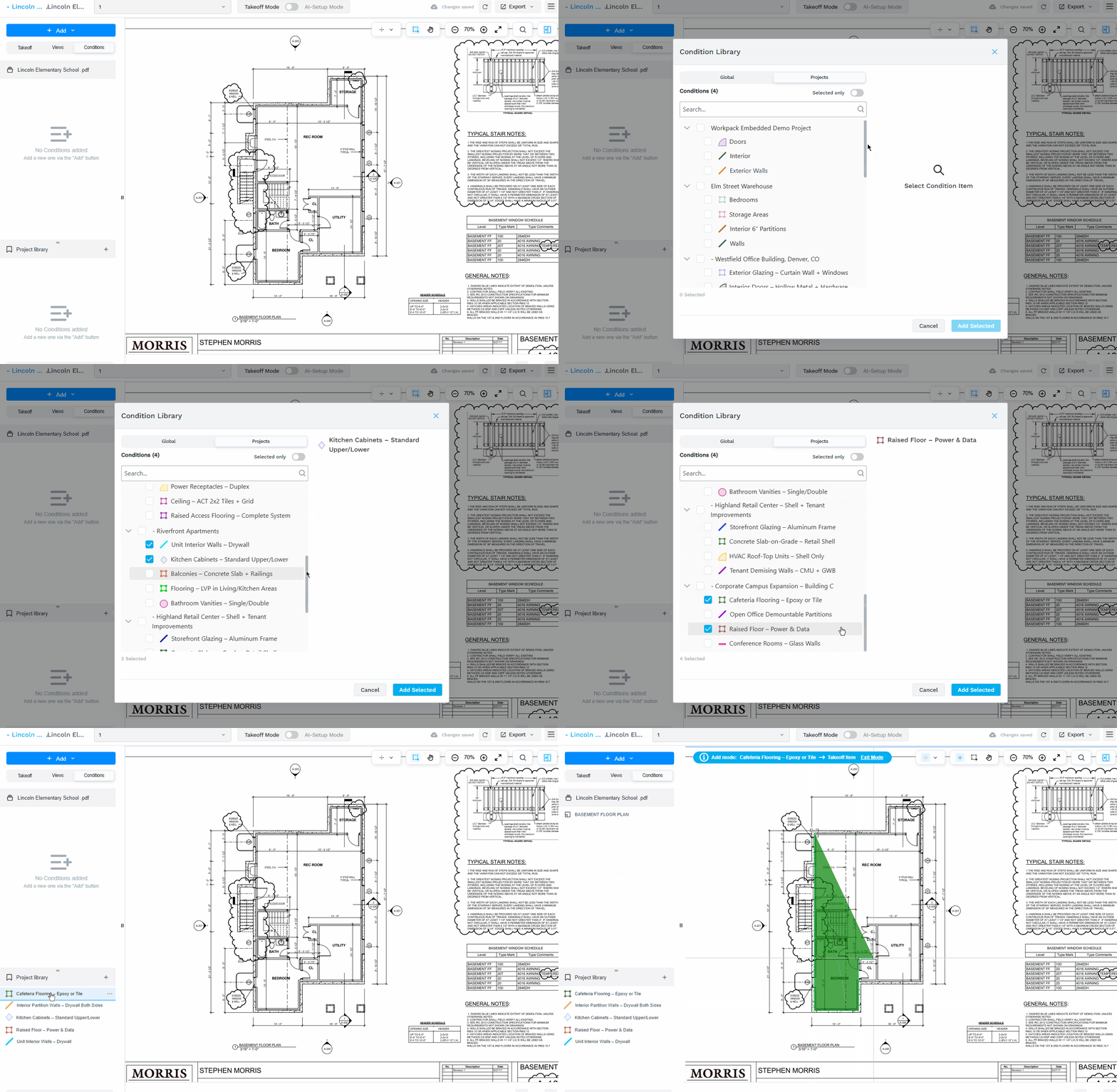
- The Project Library gained a new Tab called Projects, which lists all user projects:
-2.png?width=670&height=602&name=image%20(7)-2.png)
-
Users now can load Conditions from any project they have previously worked on:
Navigation Panel for Drawing Sets
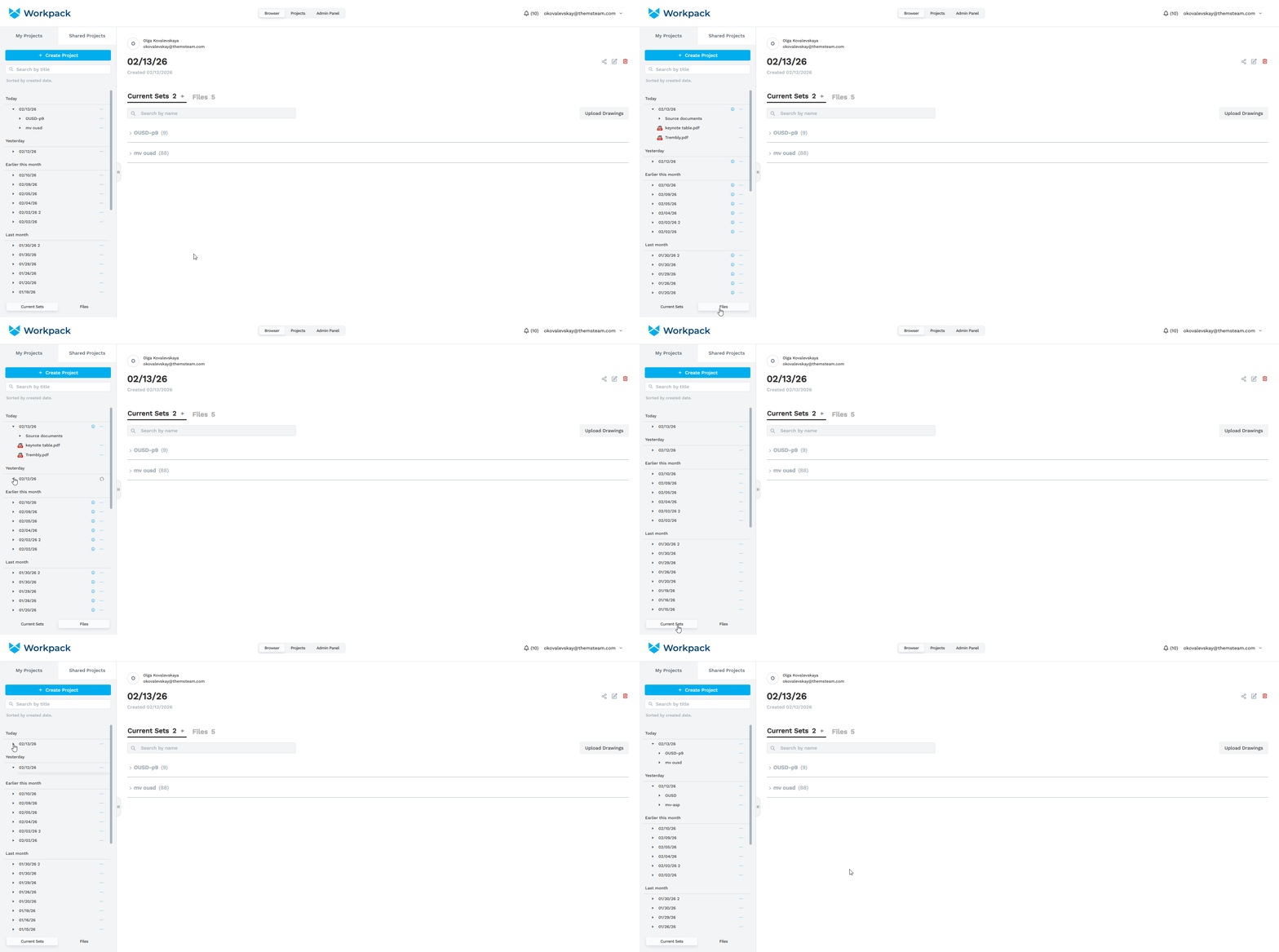
- When you switch from the Files tab to the Current Sets tab, the navigation panel switches to Sets mode. In this mode, expanding a project displays a list of current sets instead of documents.
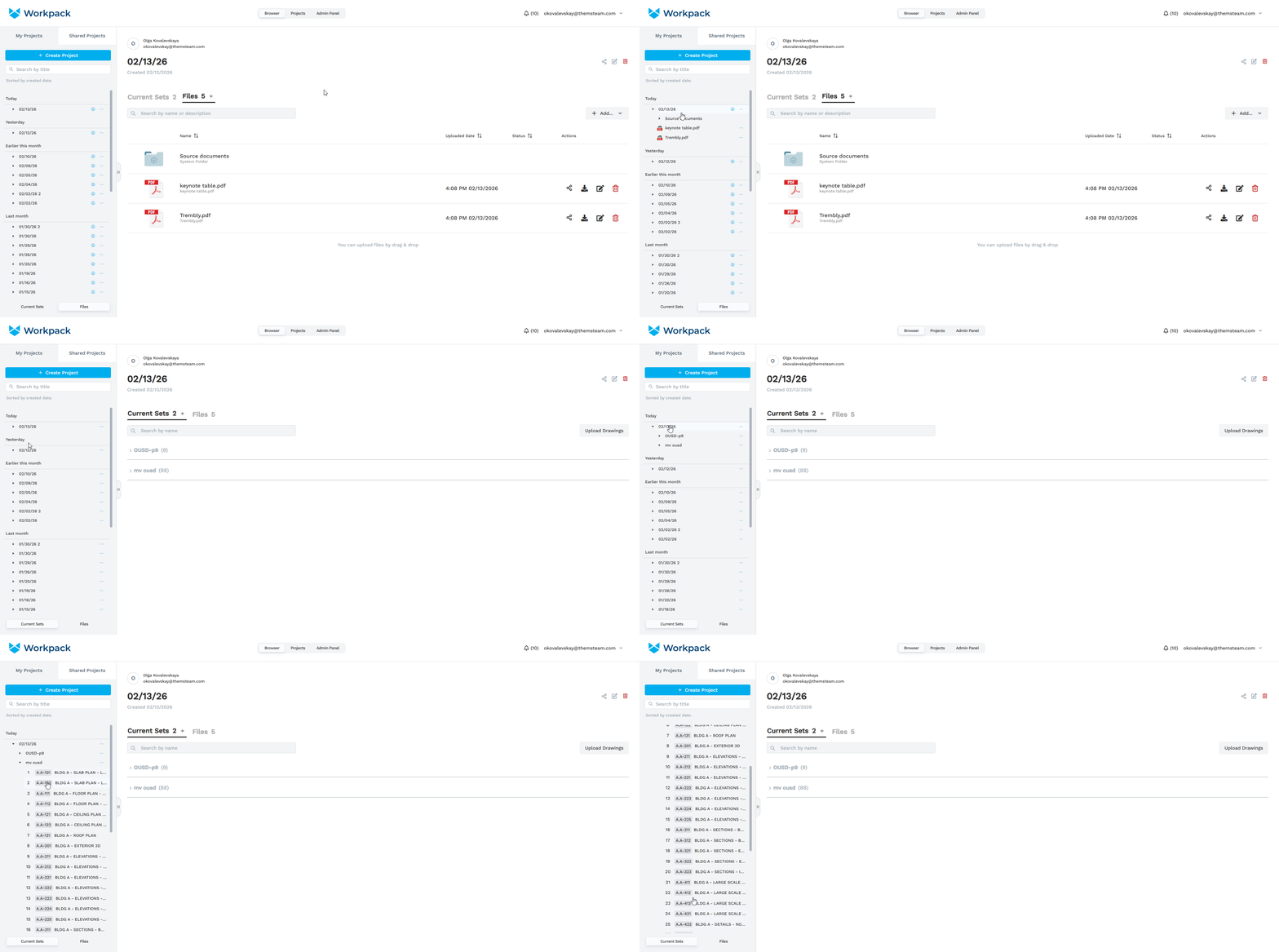
- You can change the mode of the navigation panel with the Current Sets/Files switch at the bottom. Switching from there will not change the active tab in the main screen.
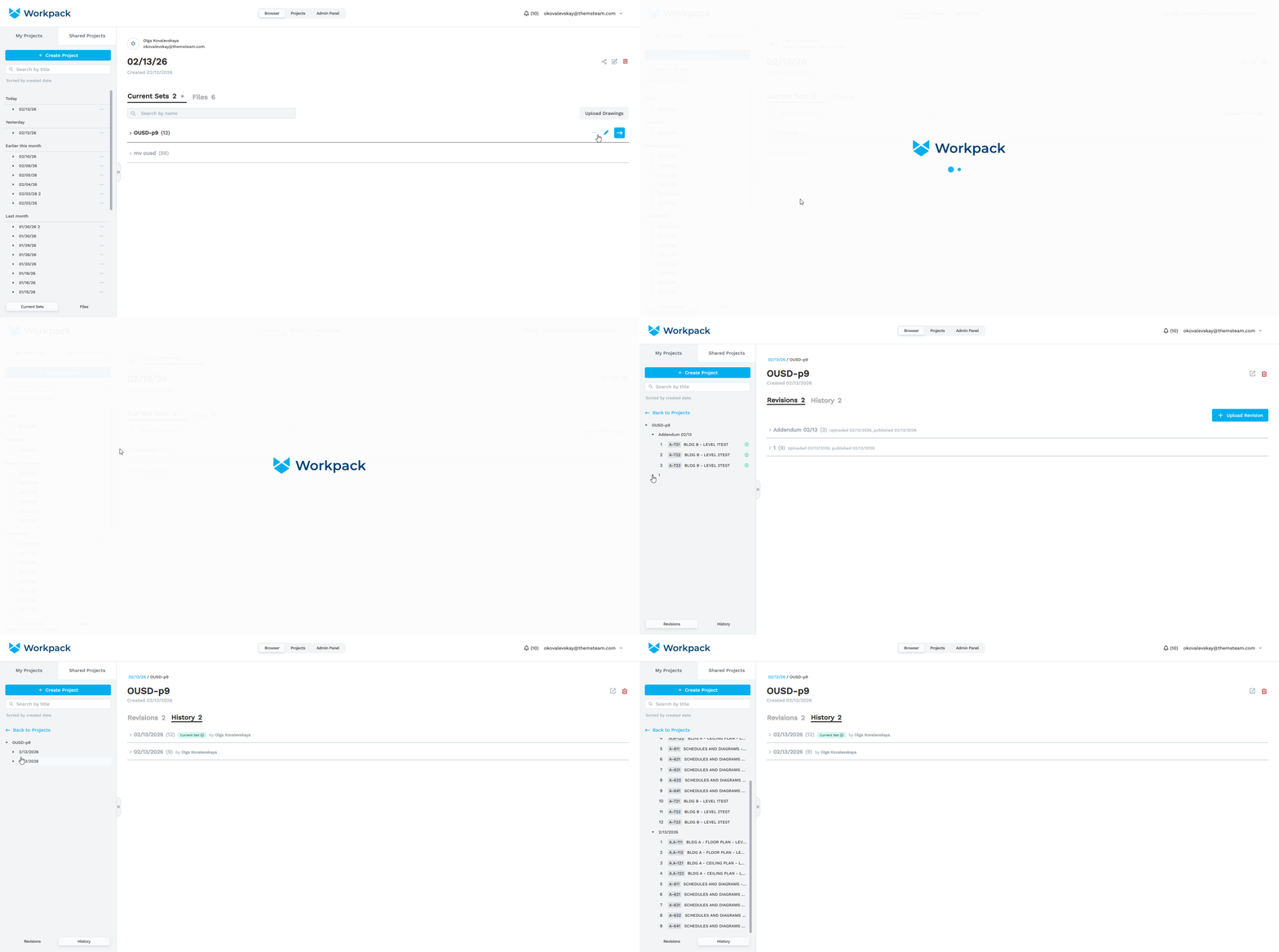
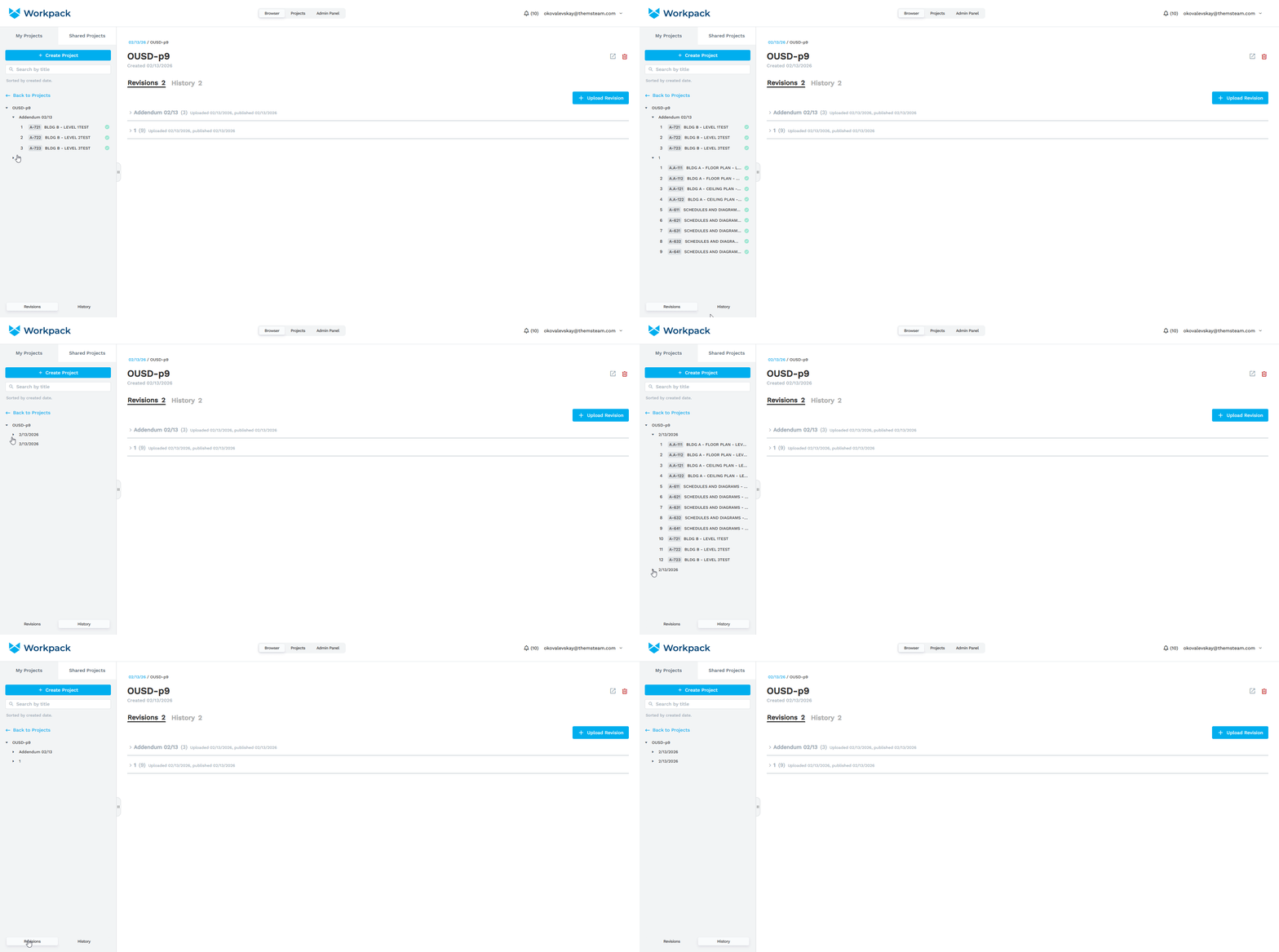
- When you open a drawing set (the Revisions/History page), the navigation panel displays the list of the set’s revisions or current set versions, as appropriate. Expanding a revision or current set version shows the list of sheets it contains.
- You can also change the mode of navigation there with the Revisions/History switch at the bottom of the navigation panel. This will not affect the active tab in the main screen.
Other Ways to Open Sets in Viewer
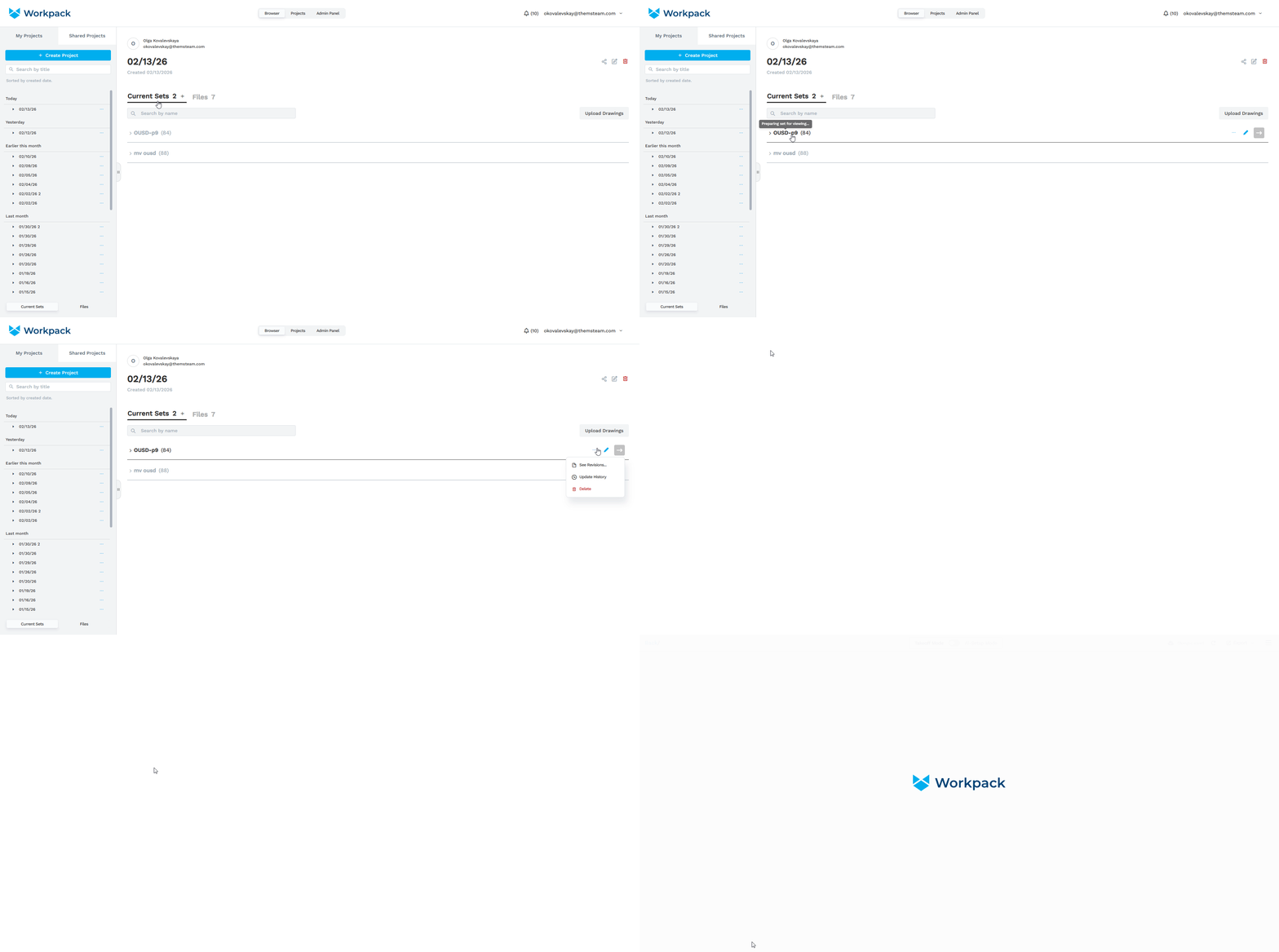
- To make opening a set in the viewer more convenient, we added a button next to the three-dot menu and the Edit Set button.
- We also made the set name clickable, allowing the set to be opened in the viewer directly.
- While the document is being generated, the buttons are disabled and display a tooltip.