Update Overview:
Features:- Feature: Drawing Sets: Adjust Calibration (WO-5950)
- Feature: Custom Attributes (WO-6028)
- Feature: Copy Conditions (WO-5992)
- Feature: Drawing Sets: Notifications on Current Set Update (WO-6011)
- Feature: Navigate to Next Page with Condition (WO-6031)
Release Notes:
Drawing Sets: Adjust Calibration
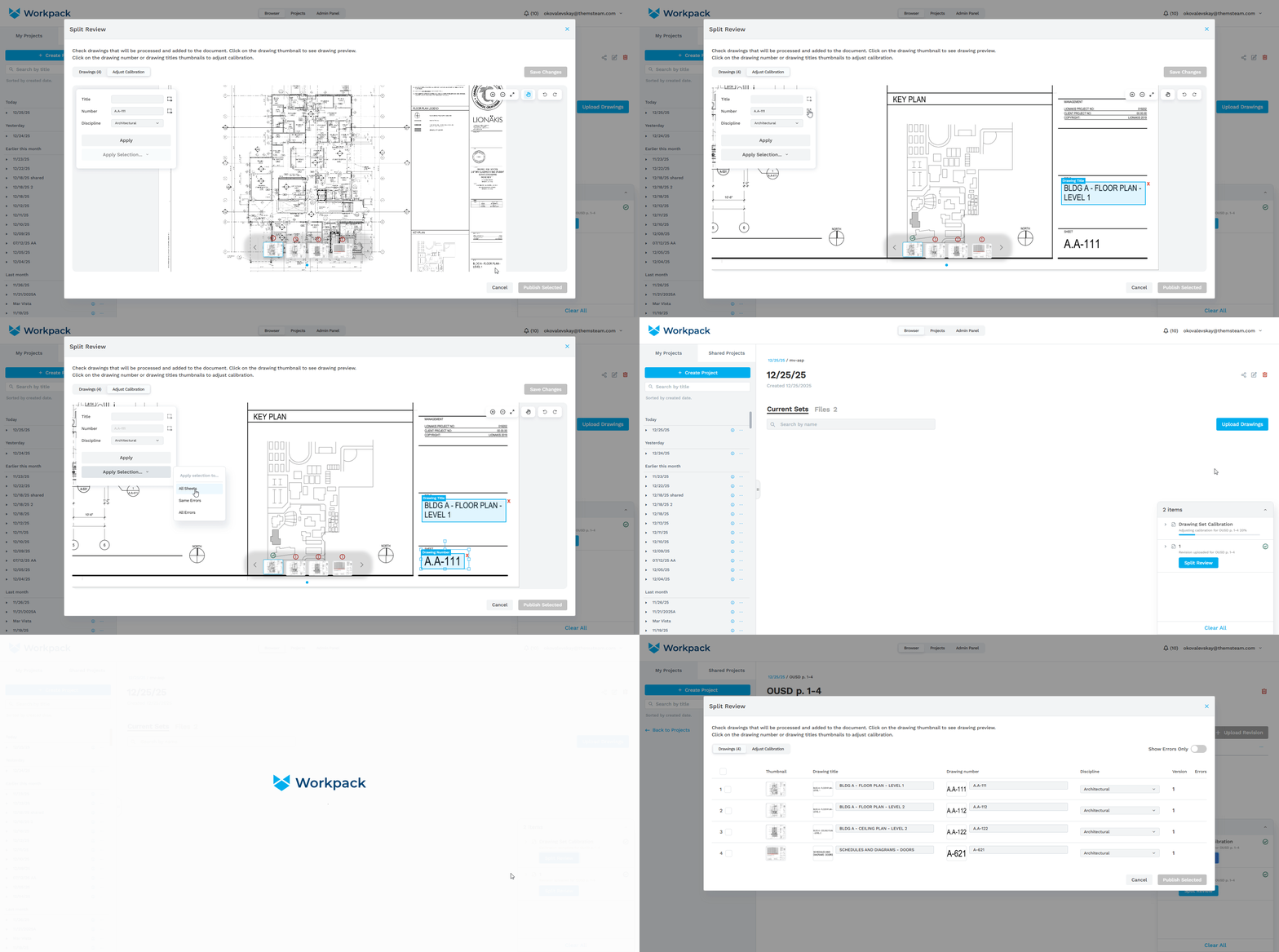
- Adjust Calibration is a feature that allows users to re-detect drawing numbers and titles in Split Review instead of editing them manually in cases where initial page classification didn’t work properly or at all (e.g. in files with less than 5 pages).
- To access this feature, switch to the Adjust Calibration tab or click on any of the title/number thumbnails in Split Review.
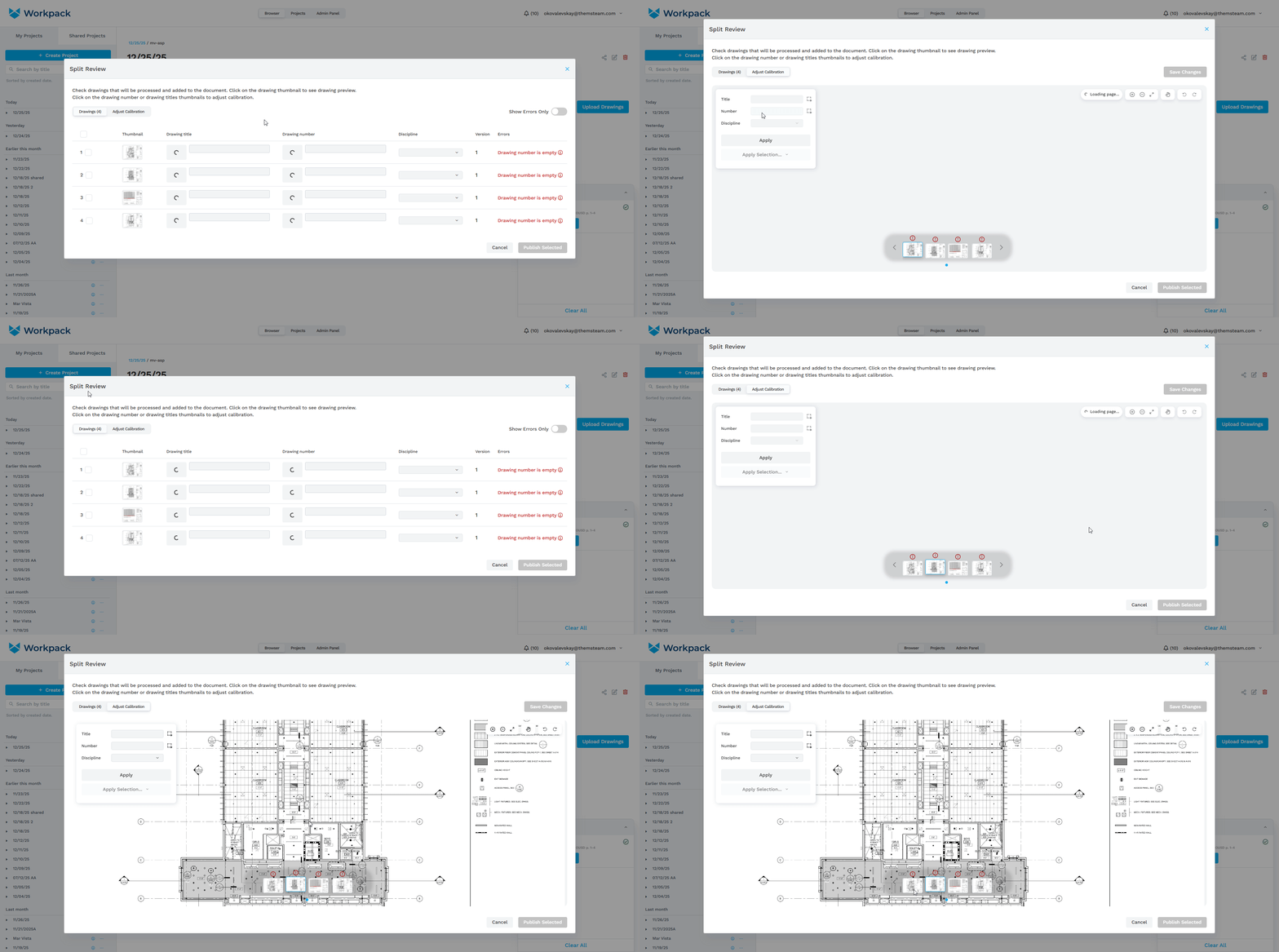
Once a drawing is loaded, you can set up bounding boxes for a title and/or a number. You can also edit titles, numbers and disciplines manually here.
- To edit a title, number or a discipline manually, enter the values in the text field and select a discipline from the dropdown. Then press the ‘Apply’ button.
- Now you can move on to the next page and do the same there. Once you’ve filled all the data and pressed ‘Apply’, press the ‘Save changes’ button in the top right corner. After that, all entered values will be saved - you can see them in the Drawings tab.
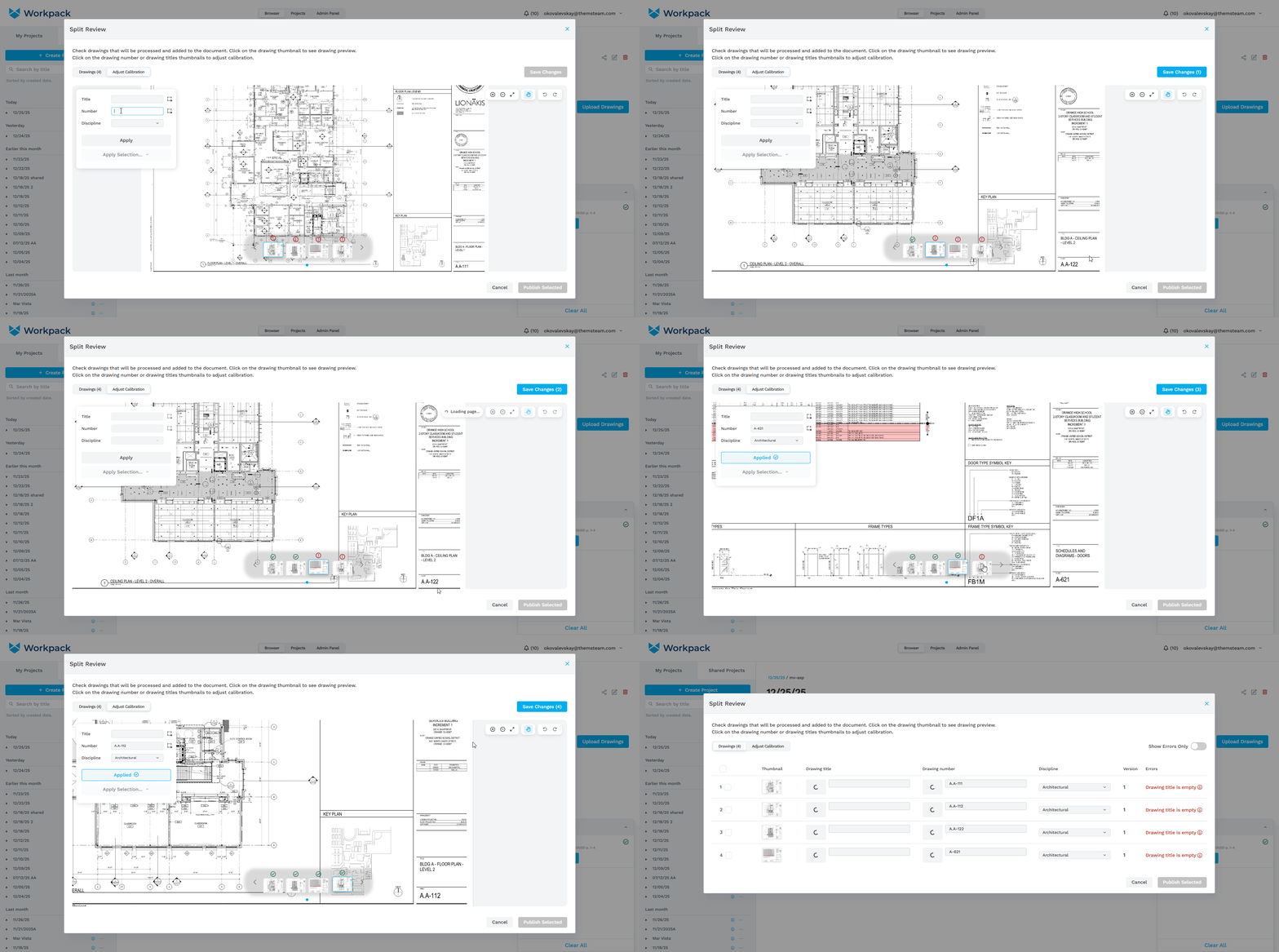
- To re-detect drawing titles and numbers based on bounding boxes, click the box icon next to the ‘Title’ text field and set up a bounding box around the area where the sheet title is located. Then do the same for the sheet number. (Or you can set up just one of those in case you don’t need both values re-detected). Press ‘Apply’.
- You can also set select a discipline, but if drawing numbers are re-detected, disciplines will be extracted from them. Now you can either move on to the next page and repeat the process or you can use the ‘Apply Selection’ feature to apply the placed bounding boxes to all pages (or all pages with errors, or all pages with the same error as the current page). In the end, press ‘Save Changes’ to start the calibration process. One it is finished, you will be able to review results from the ‘Split Review’ button in the progress tray.
Conditions: Custom Attributes
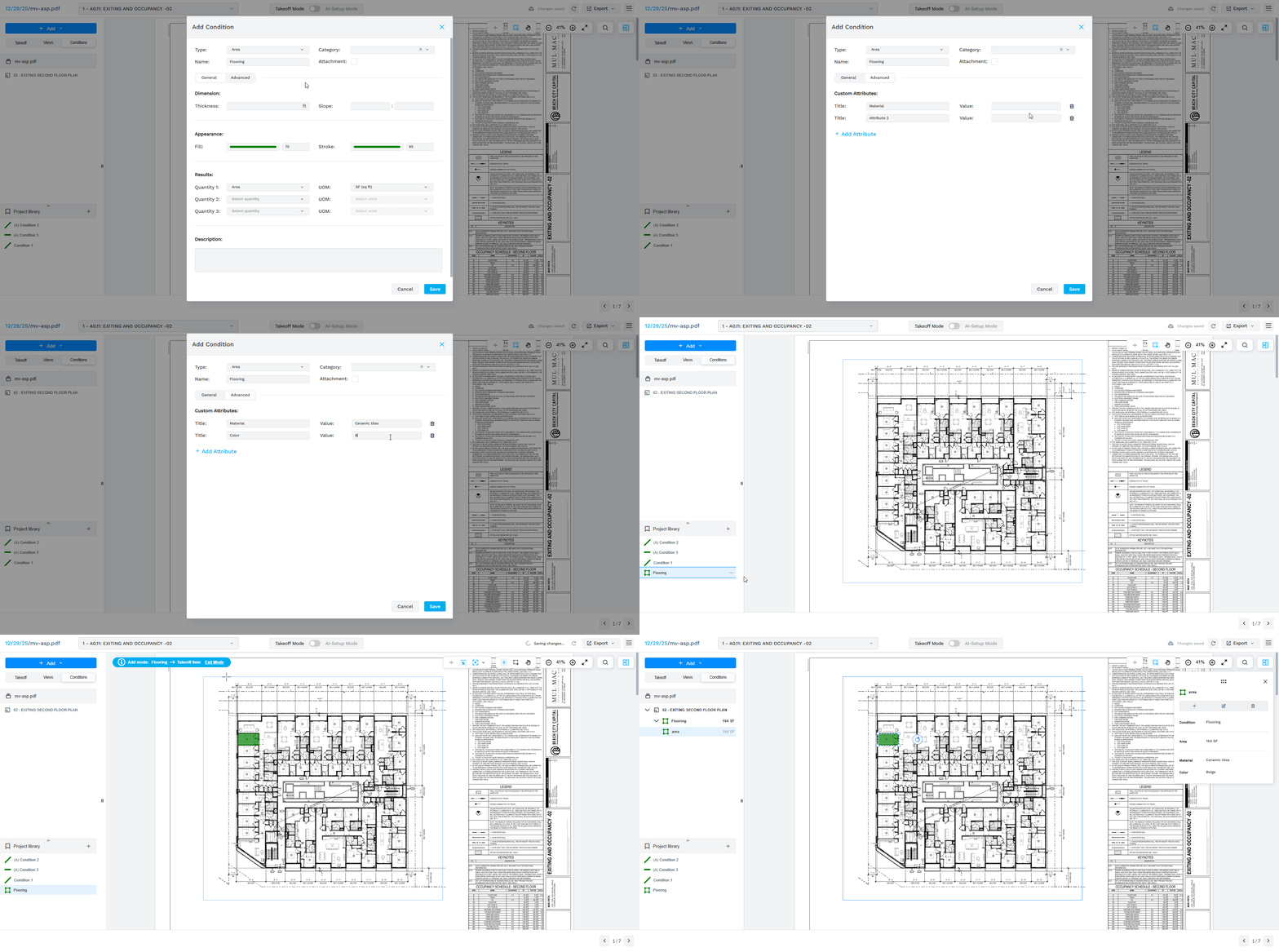
- Users can now add Custom Attributes to Conditions.
- To add a custom attribute, go to the ‘Advanced’ tab in ‘Add Condition’ window and click on the ‘Add Attribute’ button. Then you can fill in the title and value of each attribute. Up to three attributes are allowed for each condition. After all the fields are filled in, press ‘Save’.
- Custom attributes are displayed in the properties panel of the condition and the takeoff item.
Conditions: Copy
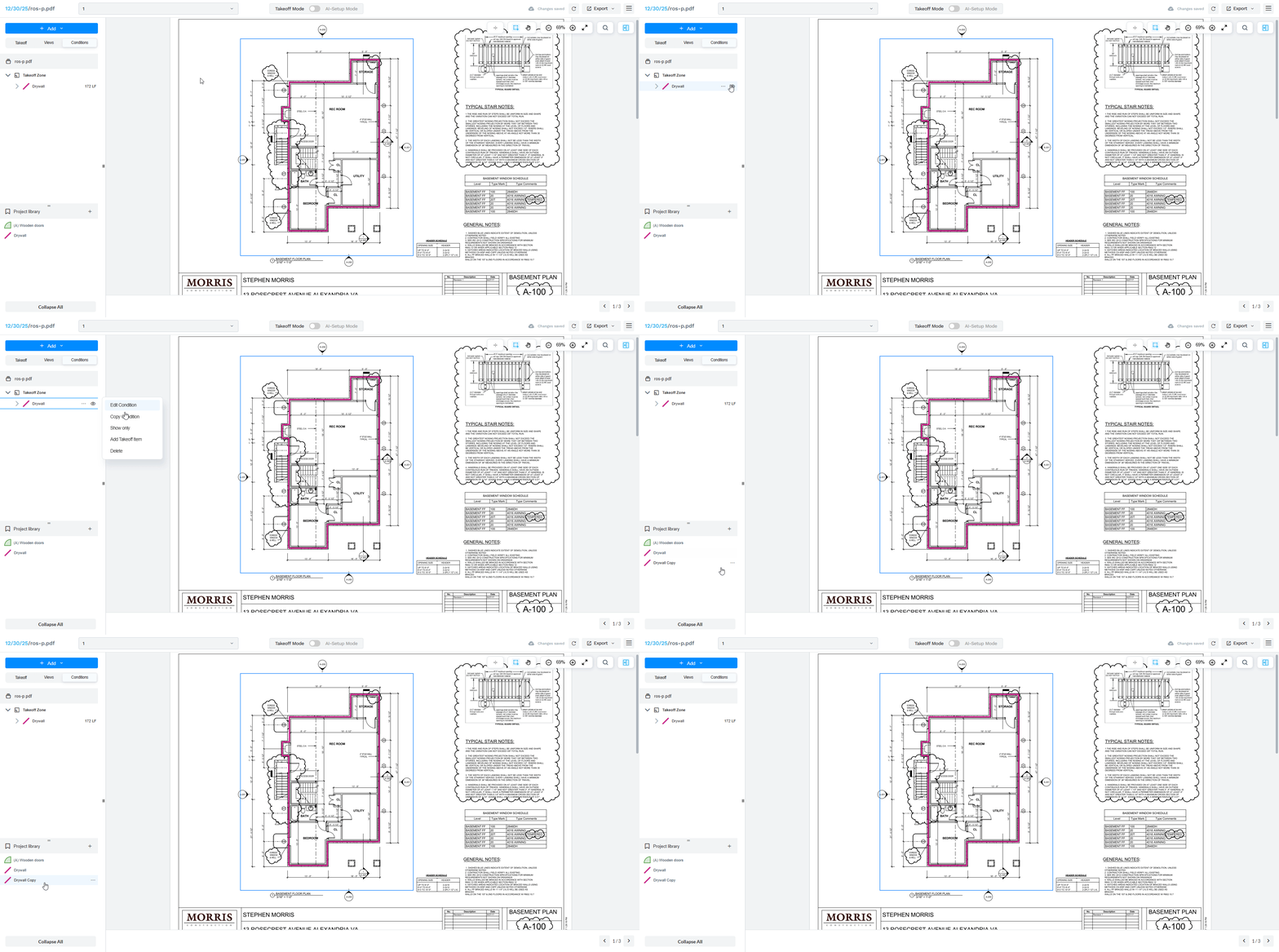
- Now conditions in the project library can be copied to make adding new conditions easier.
- Select the desired condition either in the project library or the TZ’s condition set, open the three-dot menu and press the ‘Copy Condition’ button.
- The copy of the condition will appear in the project library.
Drawing Sets: Notifications on Current Set Update
- Now, when a current set is updated with new revisions in a company-shared project, the user who is not the owner of the project gets a notification.
.png?width=368&height=146&name=image%20(39).png)
- The notification also stays in the stack and contains a ‘Check Update’ button, which takes you to the updated project.
KNOWN ISSUE: at the moment, when the project is opened from the notification, it shows the outdated version. The updated current set is shown after a page refresh. This will be addressed in an future update.

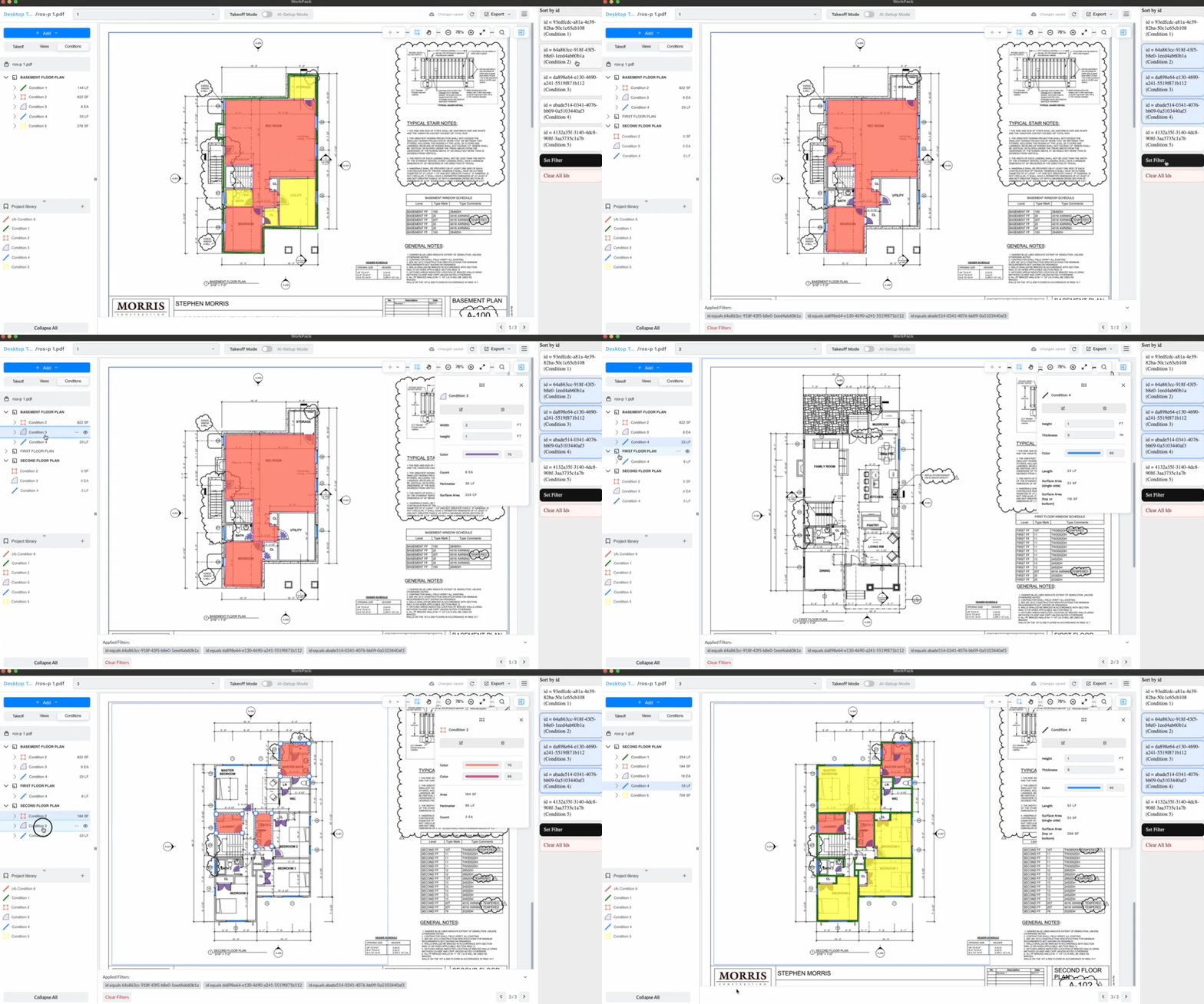
Navigate to Next Page with Condition
- When condition filters are received, they appear in the bottom navigation panel. From there, you can navigate directly between the pages that have the selected conditions in them.