
Update Overview:
Features:- Feature: Categories in Conditions (WO-5922)
- Feature: Drawing Sets: Revision View (WO-5800)
- Feature: Drawing Sets: Split Running in the Background (WO-5865)
- Feature: Conditions: Export to Excel (WO-5901, WO-5947)
- Feature: Conditions: Three results in Left Panel (WO-5878)
- Improvement: Hit Spacebar to Start Adding Takeoff Items (WO-5956)
- Improvement: Properties Panel Update (WO-5928)
Bug Fixes:
- Bug Fix: Split review: Can't Open Preview after Editing Drawings (WO-5963)
Release Notes
Categories in Conditions
-
Category is a property of a Condition so that Conditions can be structured visually with grouping by Categories:
.png?width=216&height=529&name=image%20(31).png)
-
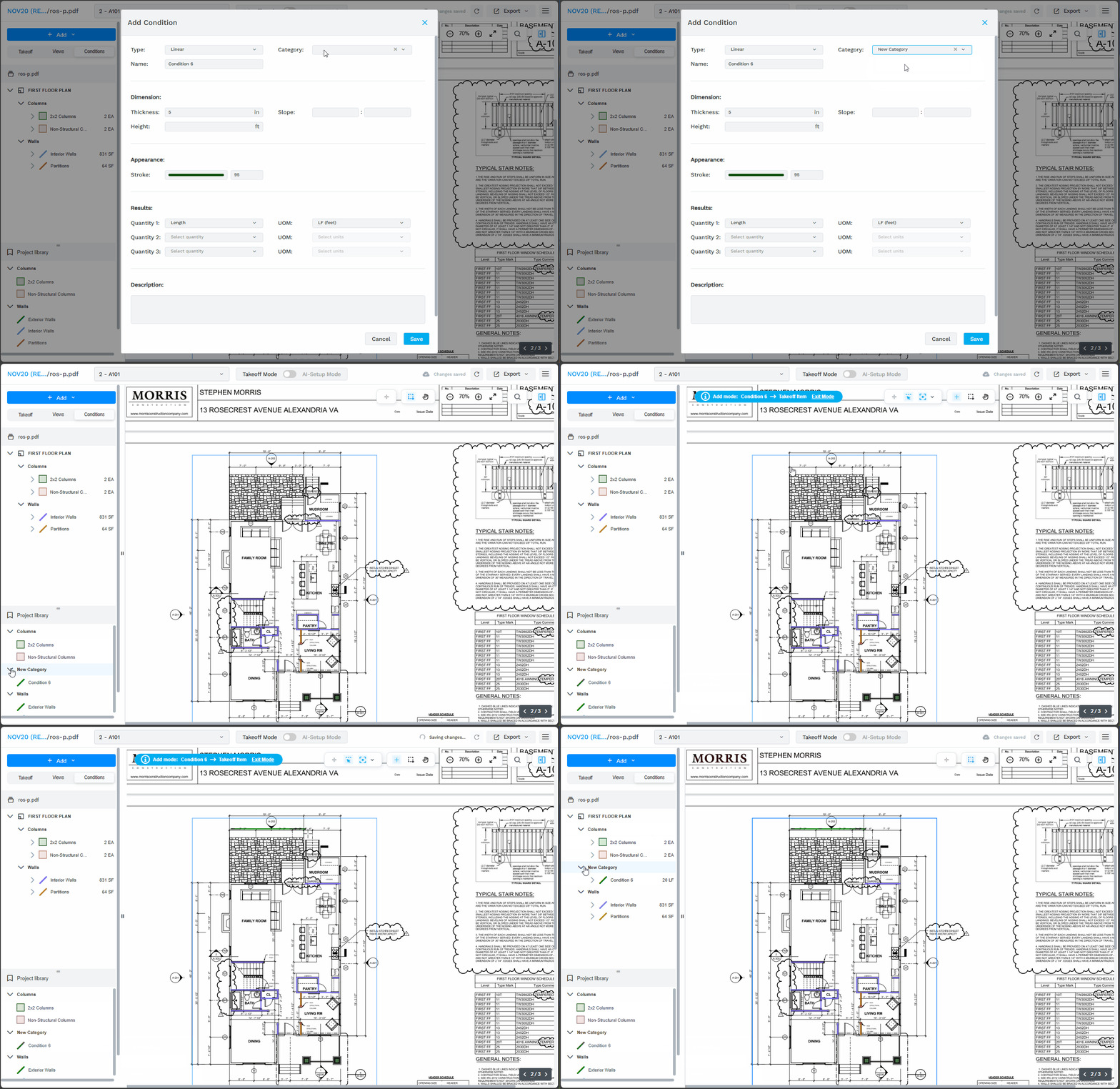
To add a Category, select an option in the top right corner of Add/Edit Condition screen, or type in a Category that is not in the list:
-
Categories in the list are project wide. If there are Conditions in the Project Set with some Category, it will appear in dropdown.
-
There are 4 default Categories: Walls, Doors, Windows, Rooms. They always appear from the start and even if there is no any Conditions with any of these Categories
Drawing Sets: Revision View
-
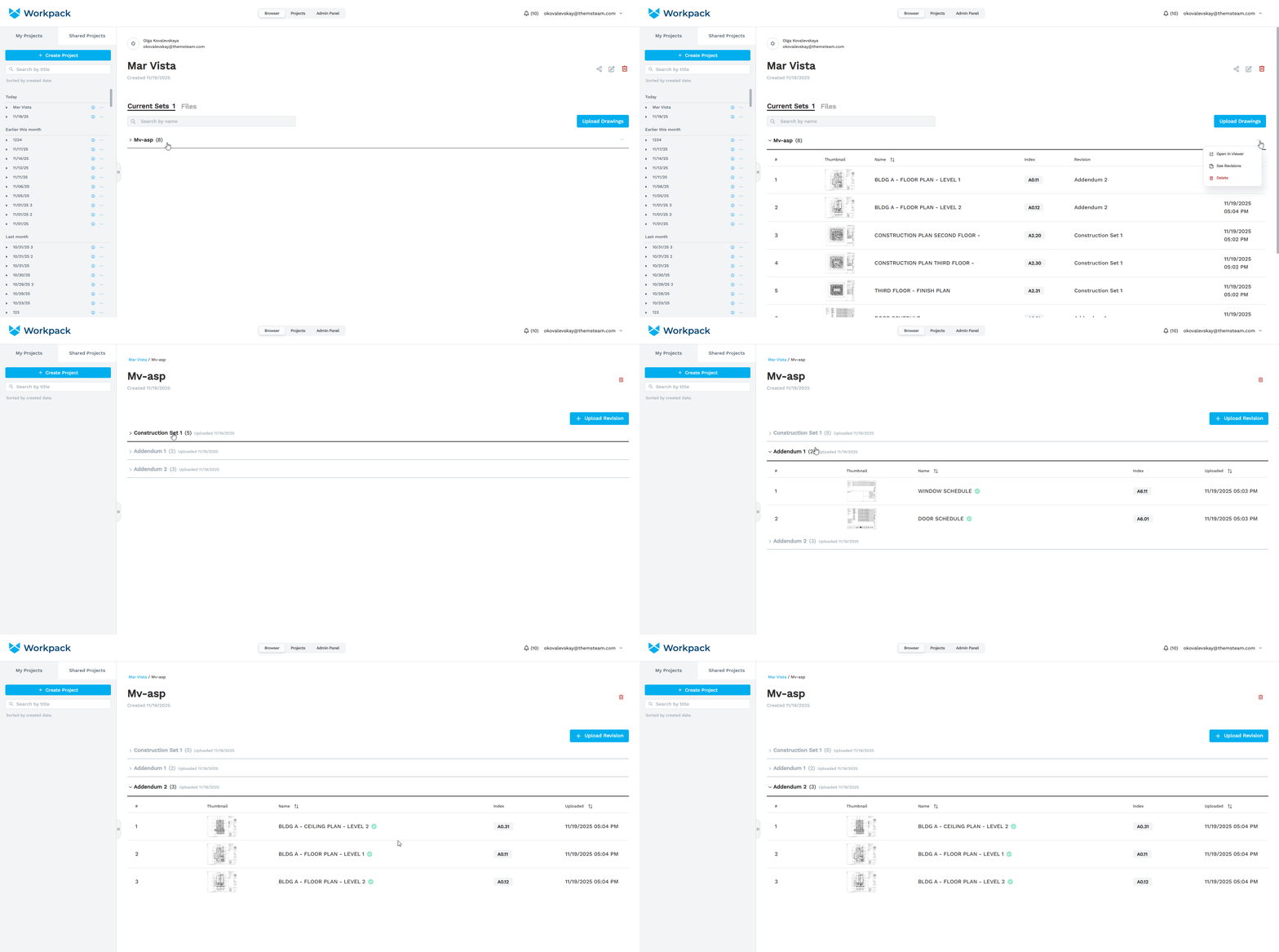
Now, for each Drawing Set you can view the list of all revisions. To open the list, click on the See Revisions option in the three-dot menu of a Drawing Set in the Current Sets tab.
.png?width=670&height=332&name=image%20(32).png)
-
You will be taken to a Revisions tab where all uploaded revisions of the set are listed. In each revision, the sheets included in the Current Set are marked with a green badge.
Drawing Sets: Split Running in the Background
-
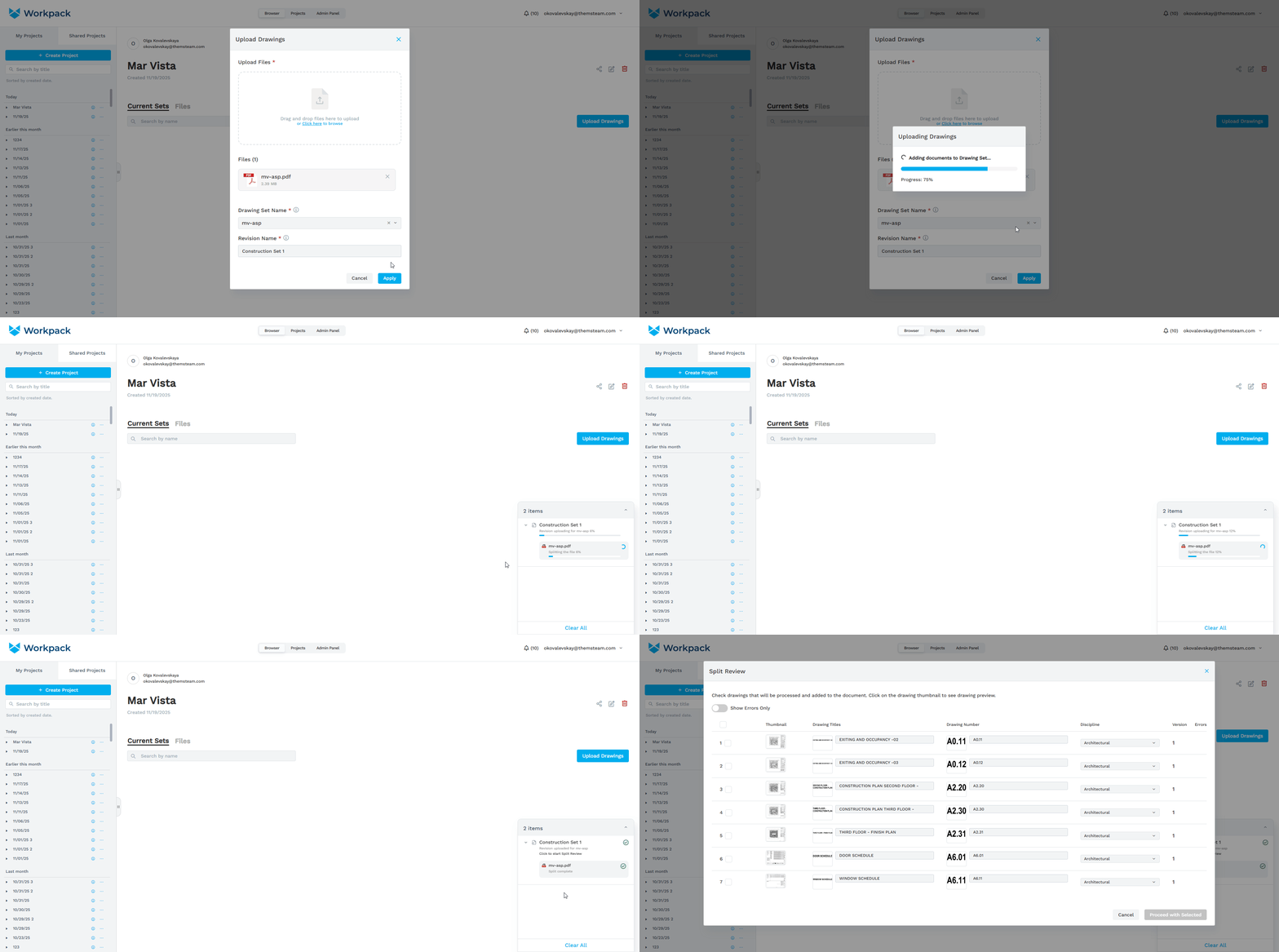
Now the user’s screen is not locked while Split and Page Classification are in progress. These processes are now reflected in the progress tray. Once a revision is ready for a review, the user can access Split Review straight from the progress tray.
Conditions: Export to Excel
-
The update adds an ability to export Conditions. To find it, click the Export button in top right corner of the window:
.png?width=222&height=290&name=image%20(33).png)
-
Excel export of Conditions applies to the entire document.
-
Export file contains ‘All Conditions’ tab and all tabs per each Condition.
-
All Conditions tab lists summed results values on each condition with a breakdown by takeoff zones:
.png?width=670&height=169&name=image%20(34).png)
-
Condition tabs list all takeoff items with all properties:
.png?width=670&height=197&name=image%20(35).png)
Conditions: Three Results in Left Panel
-
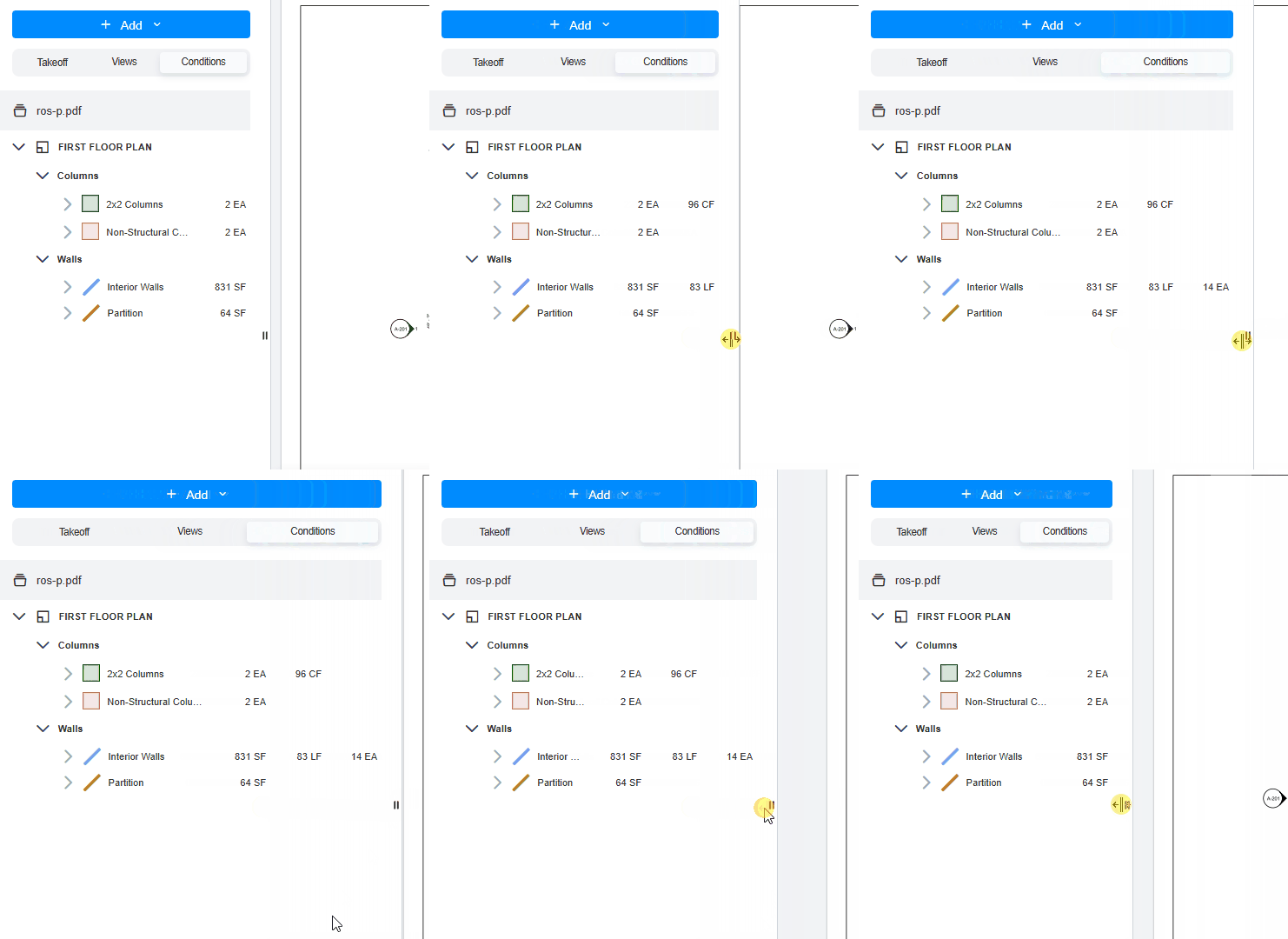
To see all results selected in Conditions settings, expand the Left Panel to the right:
Hit Spacebar to Start Adding Takeoff Items
-
Earlier, there was only one way to enter Adding Mode for Takeoff Items: Right Click + option ‘Add Item’
-
This update improves user experience adding another, a fast way to add items (which is already used in AI Takeoff): select a Condition or a Takeoff Item in the Left Panel and hit the spacebar:
.gif?width=670&height=453&name=conditions-add-items-spacebar%20(1).gif)
Properties Panel Update
-
Properties panel now can be turned off by clicking the icon:
.png?width=330&height=130&name=image%20(36).png)
-
Properties panel for Takeoff items (selected either in Viewer or in the Left Panel)
.png?width=316&height=468&name=image%20(37).png)
Properties Panel for Conditions (selected in the upper Left Panel):
- Users now can change the color
- Properties fields are now editable
.png?width=318&height=399&name=image%20(38).png)
Split review: Can't Open Preview after Editing Drawings
- Previously, Drawing Previews wouldn’t load after drawing titles, numbers, or disciplines were edited. Now this issue is fixed.