
Conditions is a Beta feature that lets you standardize takeoff items across projects and teams, acting as templates for appearance, properties, and measurement units. A Condition is defined with the following elements:
-
Appearance: Color, pattern, opacity
-
Measurement Units: Length, area, volume, count
-
Properties: Dimensions like height and thickness
-
Categories: Logical grouping for organization
Adding Basic Conditions to your Project
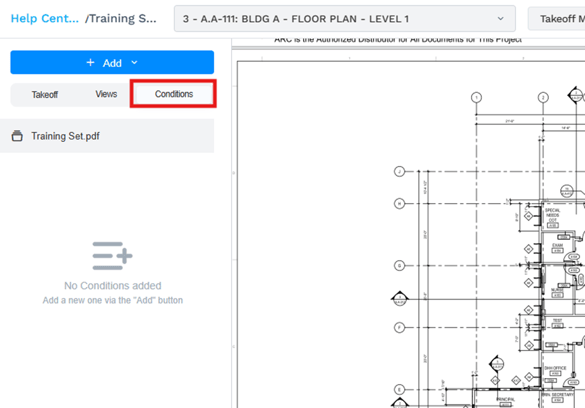
- To begin using Conditions, load a drawing in the PDF Viewer, then switch to the Conditions (Beta) tab in the panel on the left.
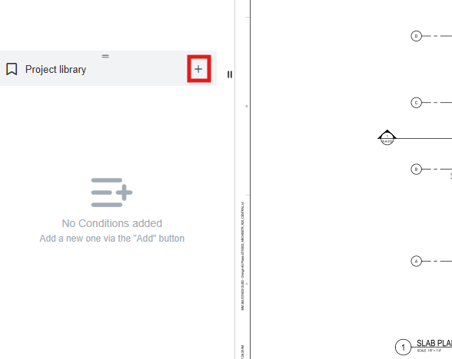
- Click the + button inside the Project library banner to see the Basic Set of default conditions.
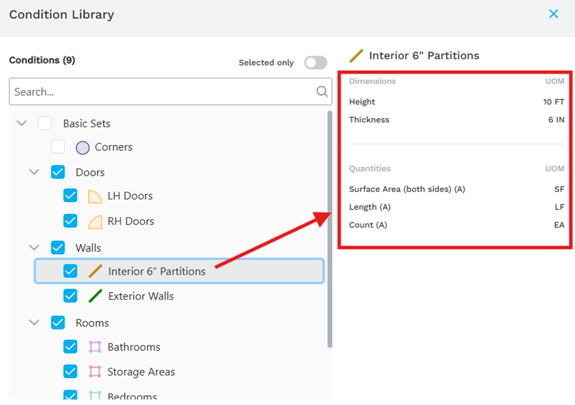
- These include conditions for Corners, Doors, Walls, Rooms and Windows.
- Click on a condition to highlight it – this will expose its configuration on the right.
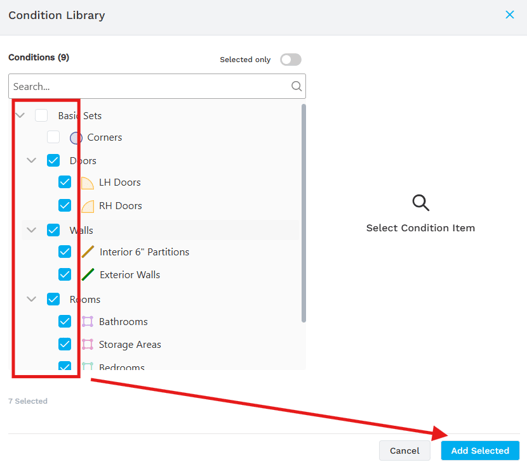
- Click the checkboxes on the conditions you’d like to add to your project, then click Add Selected.
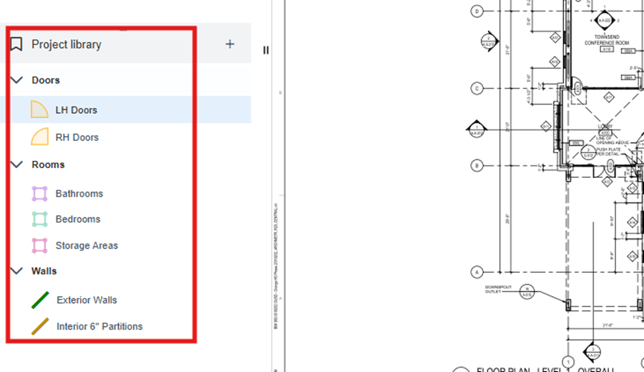
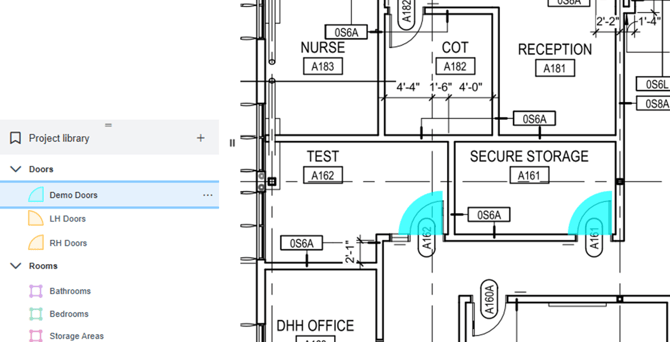
- Added Conditions will be listed under the Project library banner.
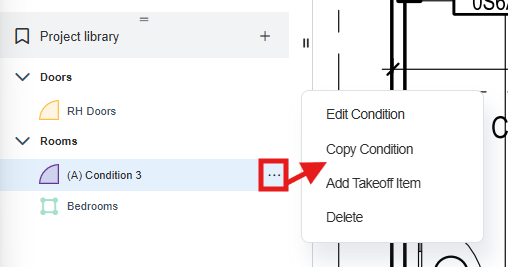
- Clicking the ellipses on a Condition will give you options to Edit, Copy or Delete that condition. The Add Takeoff Item option is how you initiate Add Mode and begin drawing takeoff to associate with that condition. More on that here.
Creating Custom Conditions
The real power of Conditions is in creating a rich set of user-configured Conditions that will map directly to the takeoff in your project. To create custom Conditions:
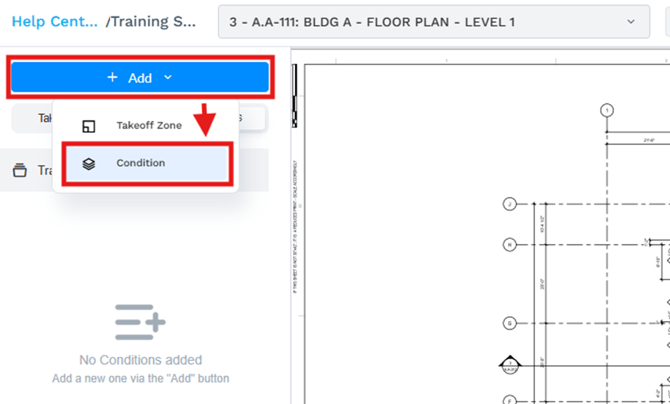
- Click the +Add button at the top of the left panel and select Condition.
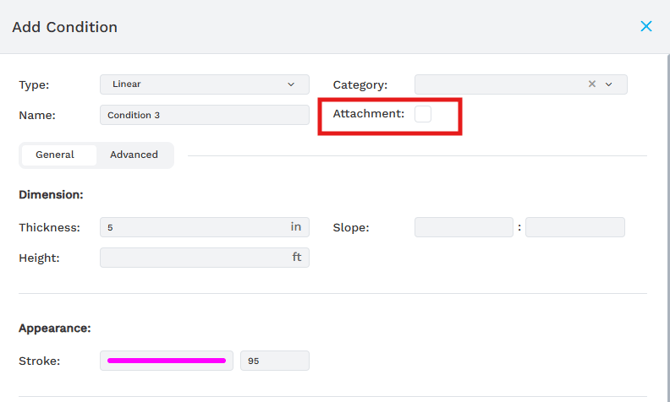
- The Add Condition screen offers a wealth of options for creating and configuring your custom Condition.
- Type: Choose between linear, area, and count takeoff
- Category: Define the intention of this Condition – walls, doors, rooms, and windows.
- Name: Name your condition appropriately.
- Attachment: Makes this an 'Condition Attachment'. See here for more info.
- Dimensions: Configure measurements like Thickness, width, height, and slope. These options change dynamically based on the selected Type.
- Appearance: Configure the stroke and fills color, or the shape of the Condition items. These options change dynamically based on the selected Type.
- Results: Define how this Condition will define quantities, like count, perimeter, surface area, and more. Also set the desired Unit of Measure.
- Description: Add more detail to the intended uses of the Condition.
More on Attachment Conditions
-
Condition Attachments work like 'backouts' in takeoff. They are takeoff items linked to parent Takeoff Items within other Conditions, letting parent measurements automatically include attachments for more accurate results. For example, attachment lengths can be subtracted from a parent Condition’s total length for precision.
- Any Condition type can be used as an attachment. Users can designate a Condition as an attachment when creating it, allowing flexible measurement structuring and linking.
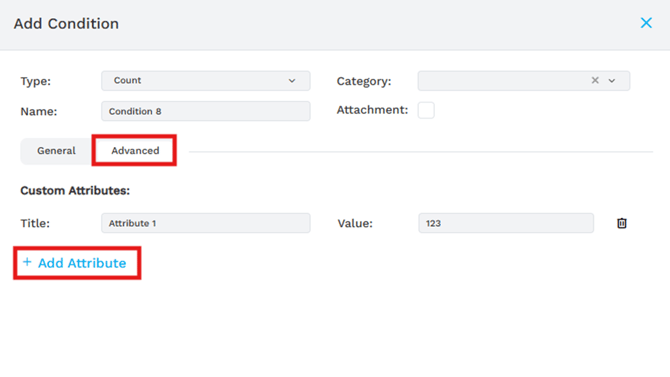
- Advanced: Switching to the Advanced tab will allow you to create and define custom attributes for your Condition beyond those offered in the General tab.
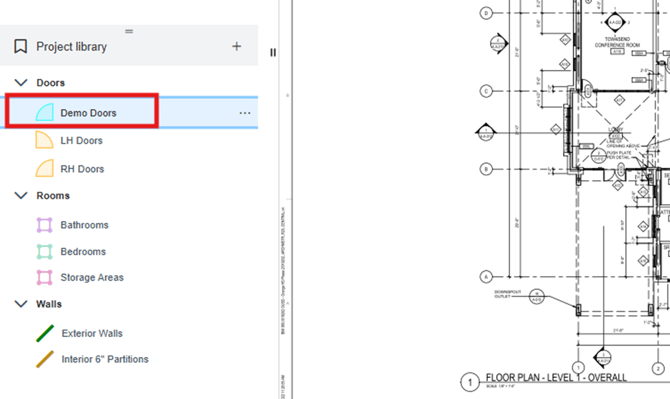
- Once created, your custom conditions will appear in the Project library list.
Using Conditions with Takeoff
- Click +Add and select Takeoff Zone.
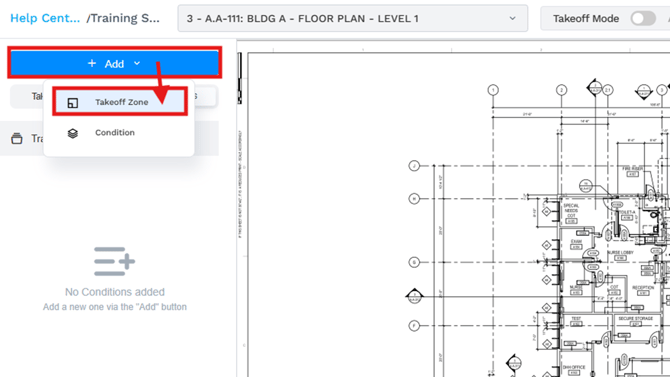
- Draw a takeoff zone so that it encompasses the entire area where you plan to draw takeoff.
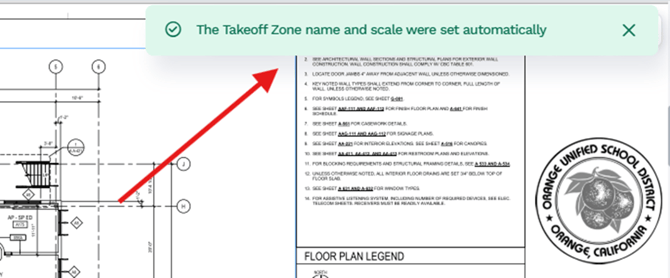
- After drawing your Takeoff Zone, you will see confirmation that the takeoff name and scale were set automatically.
- Click on a Condition to select it for takeoff.
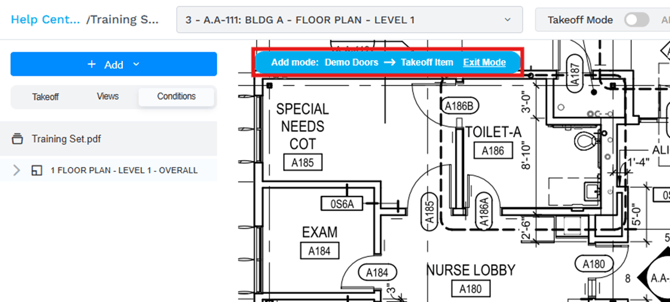
- Press the Space Bar on your keyboard to enter Add mode (or click the ellipses next to the Condition and select Add Takeoff Item). Add mode will be confirmed as shown:
- Begin sketching – drawing walls, areas, or count items.
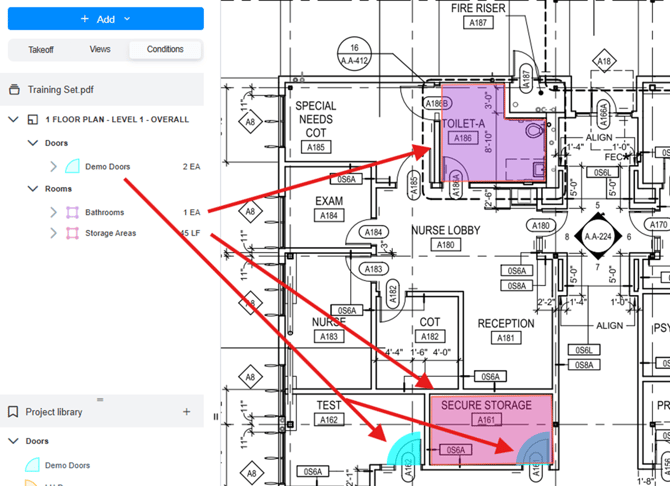
- Drawn takeoff items will be automatically added, categorized, and quantified in the summary on the left according to the Condition with which they are associated.
Lesson - Workpack/AI Takeoff Basic Training
You can find a step-by-step walkthrough of the Conditions workflow via the Beck Tech Training Portal:
Please email us to request access to that Lesson if you don't have it already.
Submit Your Suggestions to Help Improve This Article