
Bid Day allows users to add notes at multiple levels within a Bid Project to support clear communication and documentation between contributors. Notes can be recorded at the project level, the Bid Package level, and on specific elements such as line items and General/Trade Requirements within Bid Packages.
Project-Level Notes
Project-level notes are used for information related to the overall bid project.
To add a project-level note:
- Open the bid project.
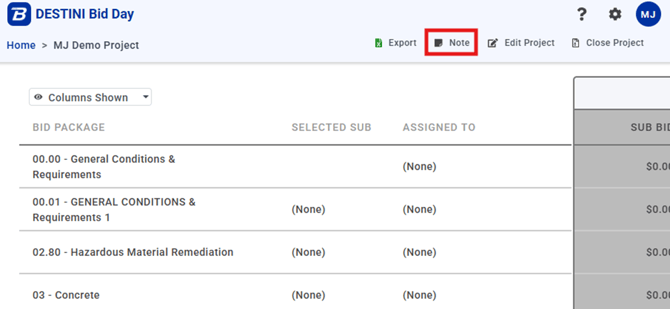
- Select Note from the main menu header.
Bid Package Notes
Notes can be recorded in the Bid Package where, for example you might summarize the overall status of the package.
To add Bid Package notes:
- Open the desired Bid Package.
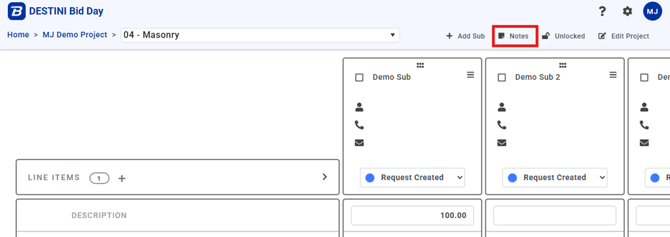
- Select Notes from the main menu header.
Viewing Bid Package Notes in the Bid Summary
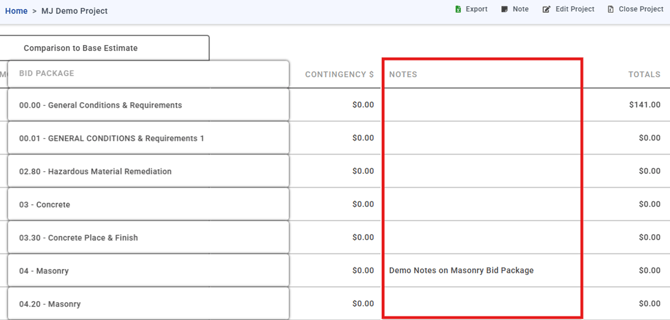
Notes entered at the Bid Package level are visible on the Bid Summary page in the Notes column, allowing reviewers to see package-level context alongside pricing information.
Subcontractor-Specific Notes
Additional notes can be added at multiple levels within each subcontractor bid for more granular tracking. These can include notes on line items, General Requirements, Trade Requirements, and overall notes specific to each subcontractor.
Line Item Notes
To add a line item note:
- Hover over the bid entry field for the line item.
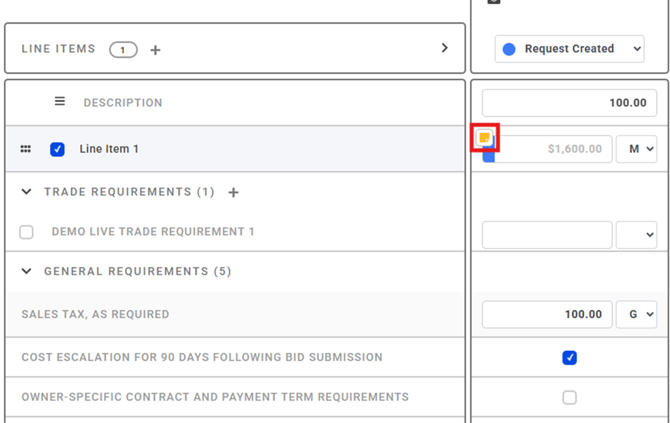
- Click the Notes icon.
NOTE: Notes can also be accessed by right-clicking the bid entry field and selecting Notes in the context menu, or via the keyboard shortcut Alt-N while editing that field.
General and Trade Requirements Notes
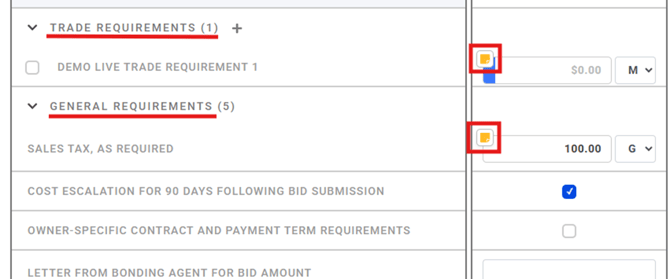
Users can add notes to General Requirements and Trade Requirements within a subcontractor bid that are of the Contributes to Bid type.
To add a note:
- Hover over the bid entry field for the requirement.
- Click the Notes icon.
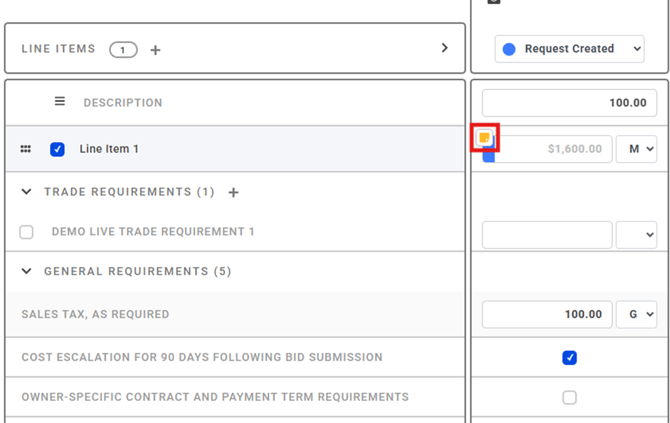
A yellow Notes icon will display on any line item, trade requirement, or general requirement that contains a note entry. Clicking this icon allows users to review or edit existing notes.
Subcontractor Notes
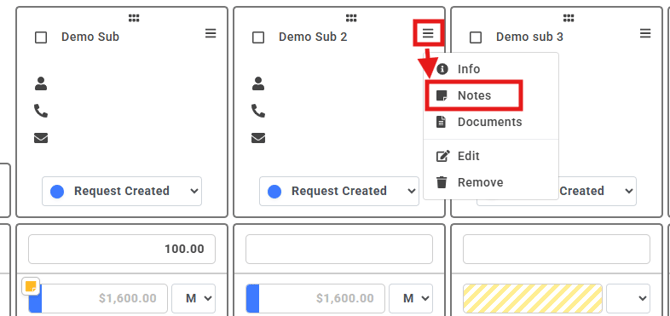
To leave a note on a subcontractor:
- Click the hamburger menu icon inside the sub header.
- Select Notes.
Saving a Note
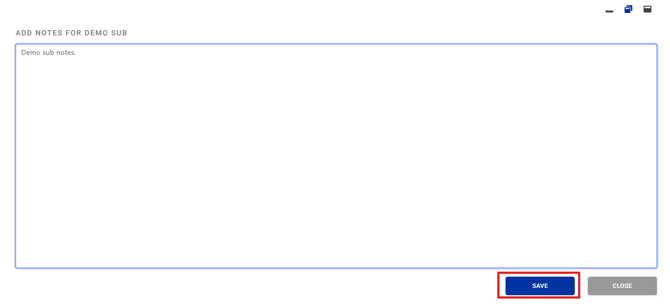
All notes in Bid Day use the same simple entry interface:
- A pop-up appears at the bottom of the screen.
- Enter or edit your note in the Add Notes field.
- Click Save to keep changes, or Close to exit without saving.
- Saved notes are updated for all users.
- Notes are limited to 4000 characters.
Submit Your Suggestions to Improve This Article