
The Bid Packages in a Bid Day project can be individually locked to prevent changes by other contributors to that project. This article explores two methods for managing Bid Package locks and outlines the key restrictions to consider.
Two Ways to Lock/Unlock Bid Packages
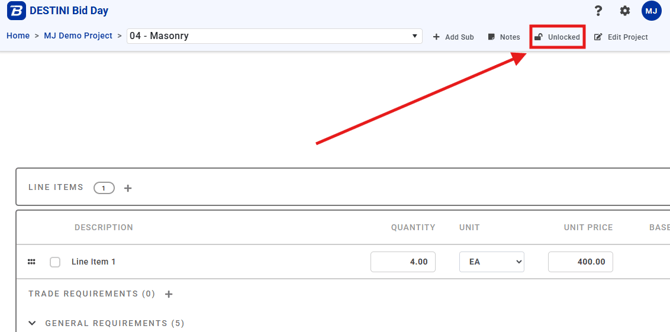
Within a Bid Package Edit Screen: Users are able to lock a Bid Package from within the Bid Package Edit screen (where line items can be added).
-
Click on the lock icon to the right to lock/unlock this Bid Package:
From the Project Summary Page: Users can also control Bid Package locking directly from the Bid Summary page.
-
Hover over a Bid Package to reveal the lock/unlock icon. Click on it to lock/unlock that Bid Package:
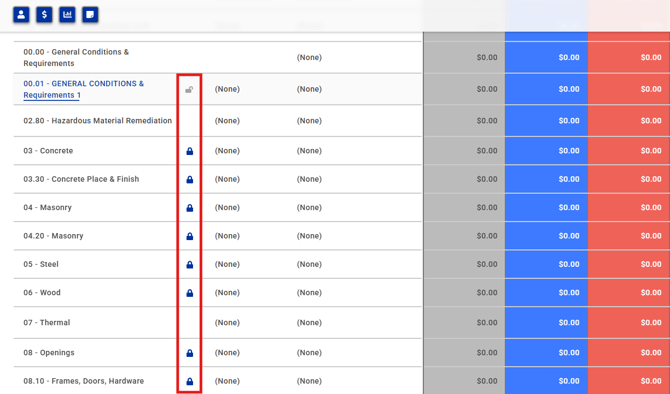
We added the ability to control Bid Package locking on the Summary page to:
-
Allow users to easily assess which Bid Packages are locked.
- Quickly lock/unlock multiple Bid Packages without having to navigate to each individual Bid Pack Edit screen.
Who Has the Lock on a Big Package?
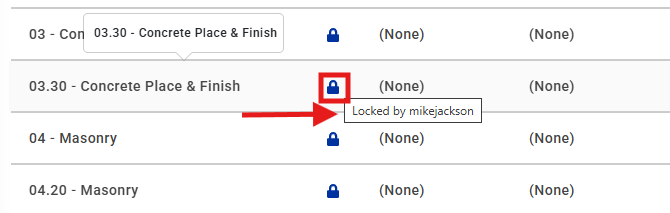
Users can view who holds the lock on a Bid Package at any time by hovering over the lock icon - a tooltip will appear exposing the username of the lock holder:
Bid Package Lock Restrictions to Note
Project Admins can:-
Freely lock and unlock all Bid Packages.
- Unlock Bid Packages that were locked by other users.
Project Contributors can:
- Lock Bid Packages
- Only unlock Bid Packages that they locked.
There are two key points here: Contributors cannot unlock Bid Packages that were locked by other users (the lock will be greyed-out). In addition, locking a Bid Package will not prevent Project Admins from unlocking and editing that Bid Package.
Thus, it is recommended that users make proper use of the Project Admin and Contributor user roles by restricting Project Admin status to the Project Owner and, if necessary, a select few team members, while granting all additional staff Contributor access. This will help maintain tighter control of projects with multiple users.
Related Articles
Here are some articles related to managing User Roles and Permissions:
Bid Day Admin Training
Bid Day Admins can learn more about User Permissions and their other administrative responsibilities by completing the Bid Day Admin Onboarding lesson via the Beck Tech Training platform.
LINK: Bid Day Admin Onboarding Lesson
If you are a Bid Day Admin user and do not have access to the Bid Day Admin Onboarding lesson linked above, please send an email to the Beck Tech Training Team.
Submit Your Suggestions to Improve This Article