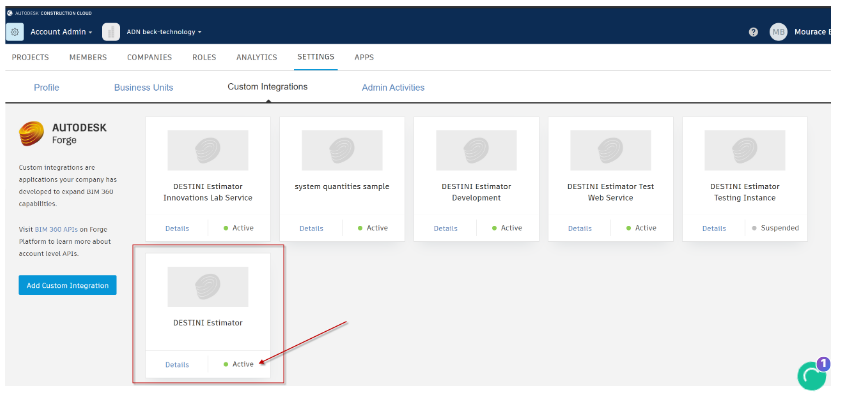
In order to access your Project buckets in BIM360 Docs or Forma (ACC), the Company's BIM360 Account Admin must establish a Custom Integration for the account. Once the Admin provides the necessary details, our Beck Technology Support Department will set up the application on our end, enabling Estimator to connect with Forma or BIM360 through the Autodesk API.
Setting up the Forma Account
Here are the step to set up Forma using the latest Autodesk instructions
Step 1: Access Hub Administration
Log in to your Forma hub, and go to Hub Admin.
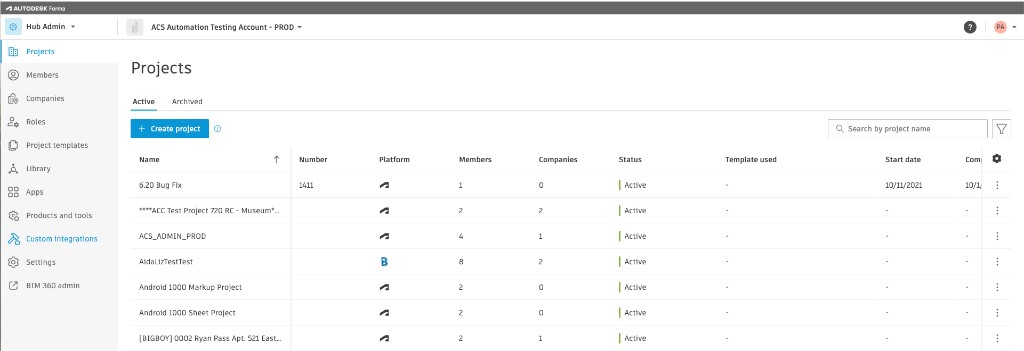
The Projects screen appears.
Step 2: Open Custom Integrations
From the left navigation, select Custom Integrations.
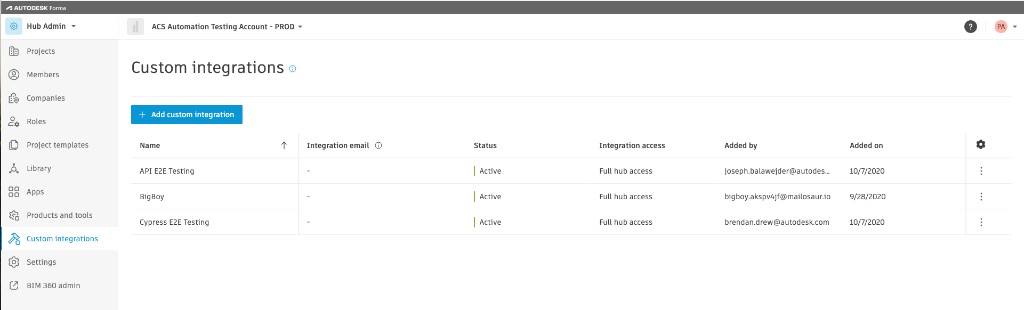
Select the Add custom integration button.
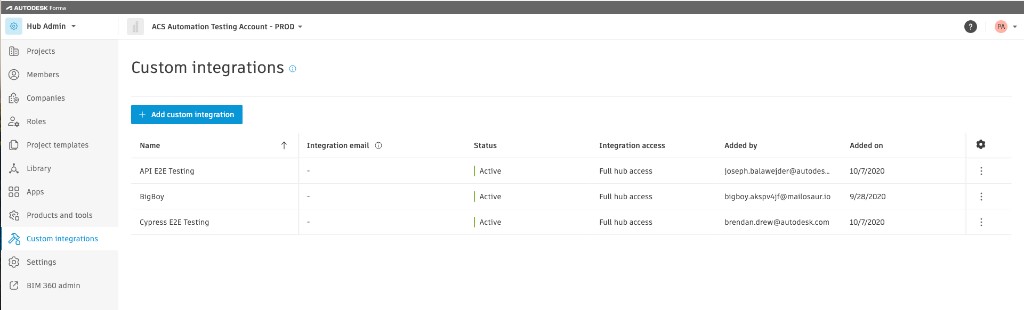
Step 3. Select the Data Management Integration
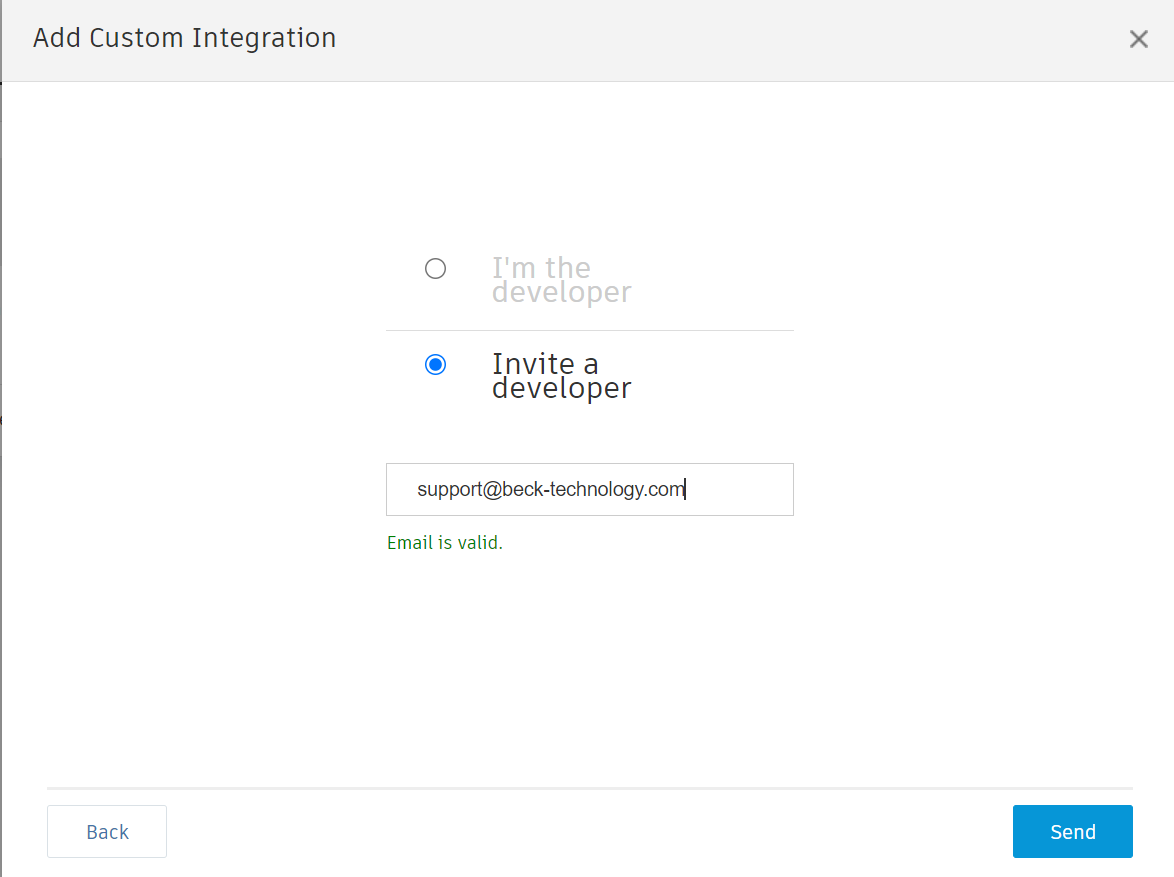
Step 4. Finally, check the Invite a Developer and add the email - support@beck-technology.com in the email field and we will fill out the necessary information Autodesk required.
BIM360 Document Management Setup
Even though the video focuses more on BIM360/ACC, the process takes you to the same Setting in the BIM360 Account Admin Setting page.
- From Autodesk Construction Cloud, click on the Settings gear
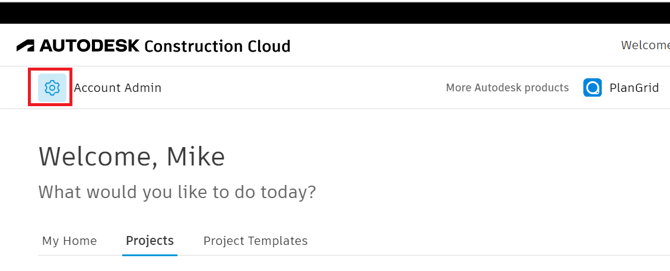
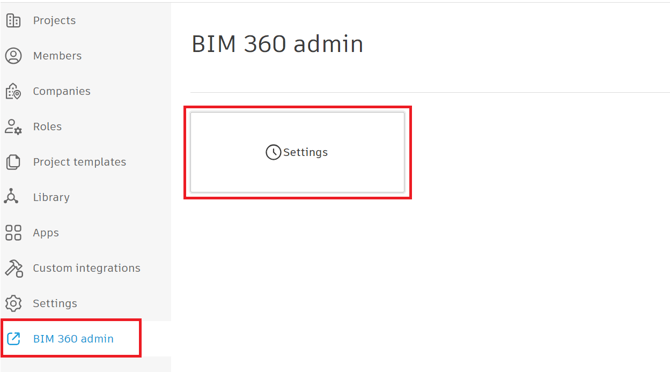
- In the left menu, click on BIM 360 admin, and then Settings.
- This will take you to the BIM 360 Docs settings page in a new browser tab. Navigate to the Custom Integration tab under Settings. If this tab is not there then the Admin will have to contact their Autodesk Rep and ask them to Enable the Custom Integration and the Forge API.
If the Autodesk Rep is not familiar with the process then this Autodesk article also has the steps listed.
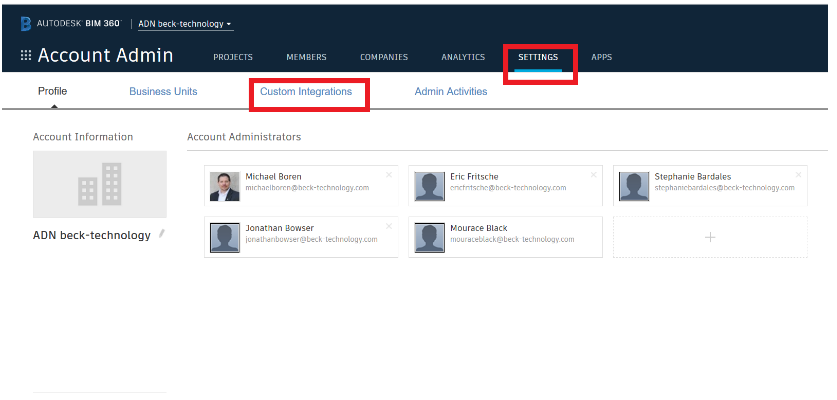
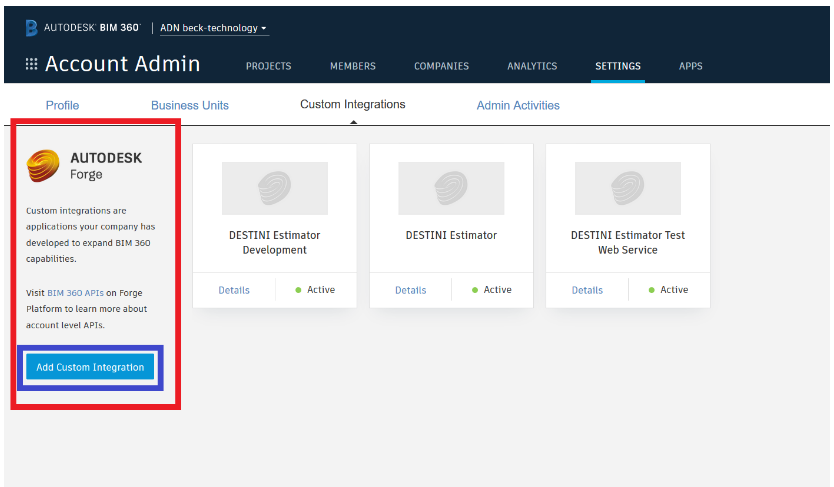
4. Next, click on the Custom Integration tab and click the Add Custom Integration button in the Forge API
5. Check the Document Management tab
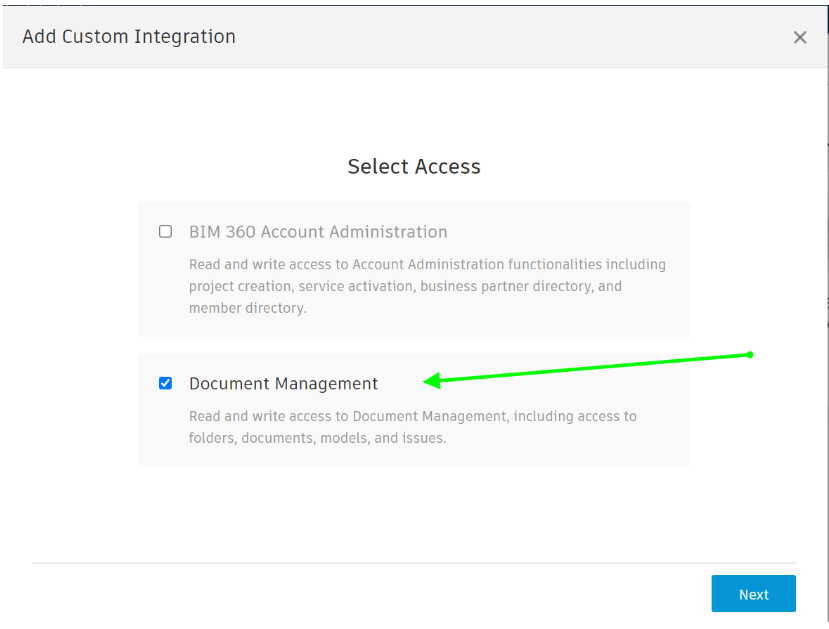
6. Finally, check the Invite a Developer and add my email - support@beck-technology.com in the email field and I will fill out the necessary information Autodesk required.
Once Beck Technology is finished filling out the information, the Account Admin will then approve the Estimator app on their BIM360 account. Once that is completed, the user will see the Project hubs in Estimator Takeoff Tab when they log in or refresh.
Approving Estimator in the BIM360 account
Here are the steps to approve Estimator.
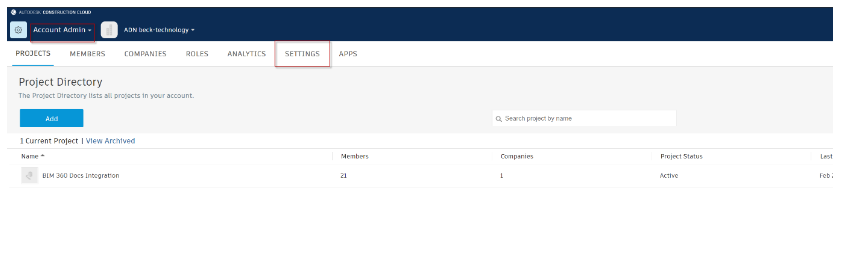
1. Log back into BIM360 > Account Admin > Settings
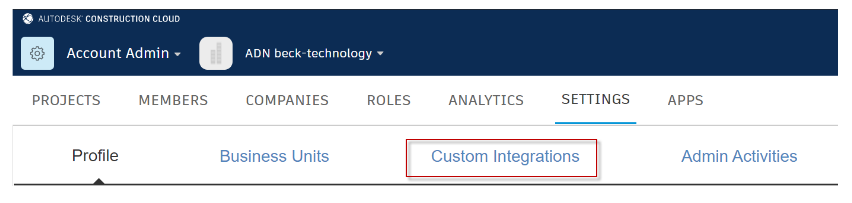
2. Next click on the Custom Integration tab
3. Click the Accept button to enable the application and that will allow Estimator to see the hub