
DESTINI Cloud helps prevent missed fees by alerting you when a Distributed fee is set up with an invalid distribution that causes the fee to calculate to $0. You can review the warning, fix the distribution, and if toggled on in Estimate Properties you can acknowledge the issue before closing the Fee Editor.
Overview
- Invalid distribution: A distributed fee setup that results in the fee calculating to $0.
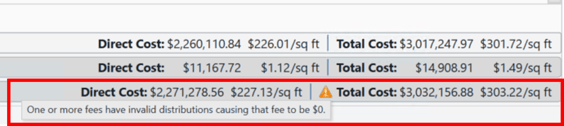
- Where you’ll see it: A warning triangle in the Fee Editor, and (optionally) a warning triangle next to Total Cost on the Estimate view.
- Optional enforcement: An Estimate Setting called Force Verify on Invalid Fee Distribution can require users to acknowledge the issue before closing the Fee Editor.
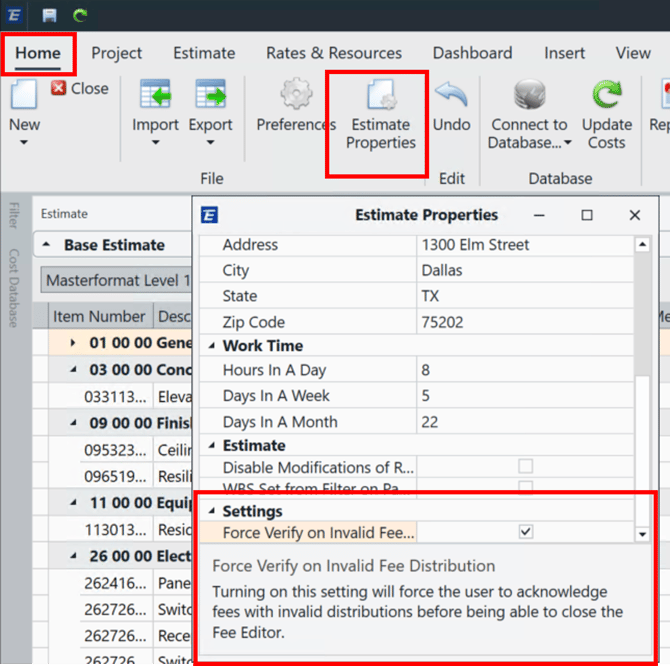
Enable Force Verify on Invalid Fee Distribution in Estimate Properties
In Estimate Settings, turn on Force Verify on Invalid Fee Distribution to require an acknowledgement whenever an enabled distributed fee has an invalid distribution.
What happens in the Fee Editor?
- When you apply an invalid distribution to a distributed fee, the fee is immediately set to $0 and a warning triangle is shown.
- If Force Verify on Invalid Fee Distribution is enabled and you try to close the Fee Editor while an enabled fee still has an invalid distribution, you’ll see a verification pop-up.
- Select Cancel to keep the Fee Editor open and make corrections.
- To close the Fee Editor anyway, check the acknowledgement box (this enables Proceed), then select Proceed. This closes both the pop-up and the Fee Editor.
Note: Fees that are turned off do not trigger the verification pop-up, even if their distribution is invalid.
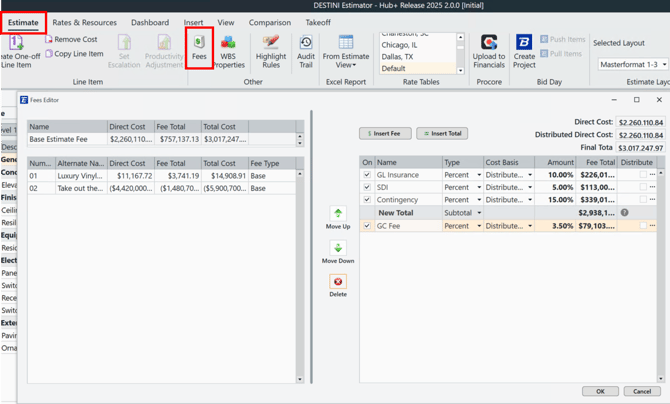 Open Fees Editor
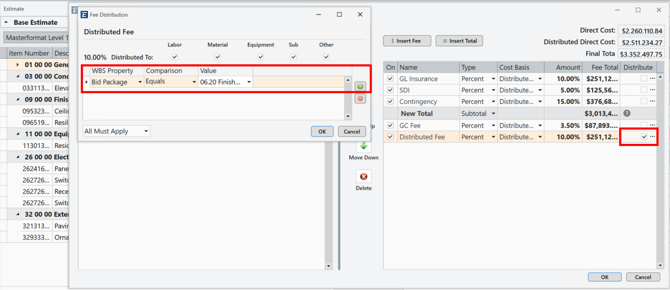 Configure Distributed Fee
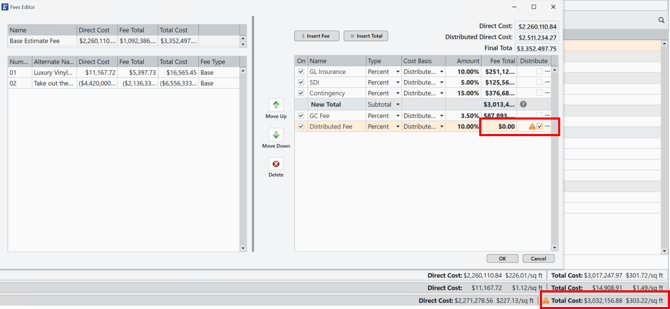 Distributed Fee Warning Will Display

Distributed Fee Acknowledgement
What you’ll see on the Estimate View Total Cost Footer
When Force Verify on Invalid Fee Distribution is enabled and at least one enabled distributed fee has an invalid distribution, a warning triangle appears next to Total Cost in the Estimate view.
Hover over the warning triangle to see: One or more fees have invalid distributions causing that fee to be $0.
How Alternates are Handled
- Accepted Alternates: If an Accepted Alternate has its own custom fee with an invalid distribution, the verification pop-up (in the Fee Editor) and the warning icon (next to Total Cost) will appear.
- Pending or Rejected Alternates: Invalid distributions in Pending or Rejected Alternates do not trigger the verification pop-up or the warning icon—whether the Alternate uses Custom fees or Base Estimate fees.
- Changes inside an Accepted Alternate: Editing an Accepted Alternate so that it creates an invalid distribution will also trigger the warning behavior.
Visibility in Audit Log
If you select Proceed to close the Fee Editor while an invalid distribution is present, DESTINI Cloud adds an audit log entry indicating that you chose to close after being warned.
Troubleshooting
- I don’t see the warning triangle next to Total Cost. Confirm Force Verify on Invalid Fee Distribution is enabled and the fee with the invalid distribution is turned on.
- I don’t get a verification pop-up when closing the Fee Editor. The pop-up only appears when the setting is enabled and an enabled fee still has an invalid distribution at the time you close.
- I have an invalid distribution inside an Alternate, but no warning shows. Pending or Rejected Alternates do not trigger warnings. Accept the Alternate to have its fees included in warning behavior.
Suggest an Improvement for this Article