
This article provides an overview of the most notable UI changes and where to find key functionality.
This article is comprised of two main sections:
Project Summary Page
Main Menu Banner
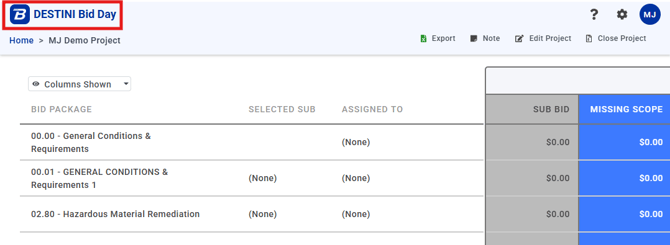
The main menu banner is designed to reduce visual clutter while keeping essential actions easily accessible.
Small logo- Frees up screen real estate for project content.
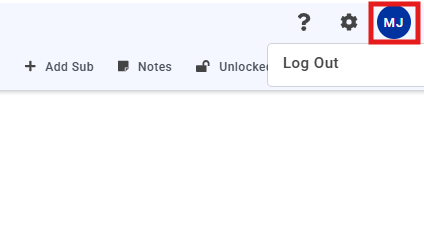
User profile icon
- Takes up minimal space.
- Provides access to the Log out option.
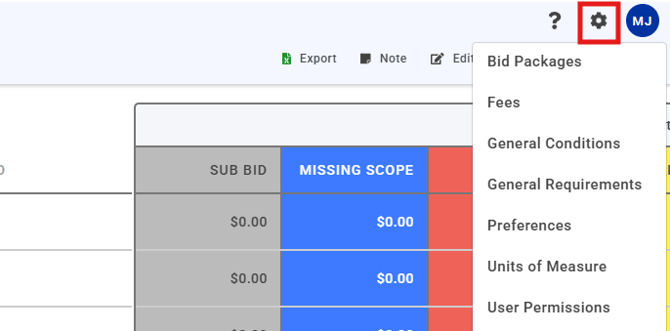
- Global settings that are available to Bid Day Company Admins only (regular Project Admins and Contributors will not see these options).
- Provides access to system-level editing of the following:
-
- Edit Bid Packages
- Fees
- General Conditions
- General Requirements
- Preferences
- Units of Measure
- User Permissions
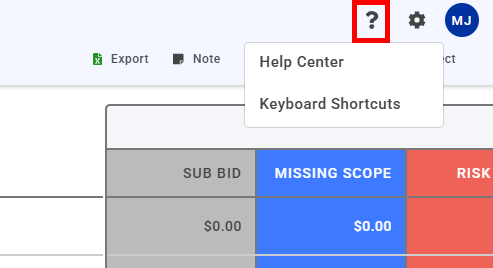
- Quick access to the Beck Technology Help Center.
- Access a list of keyboard shortcuts.
Main Menu - Project Screen Functions
Project-level options are displayed in a clear and intuitive way.
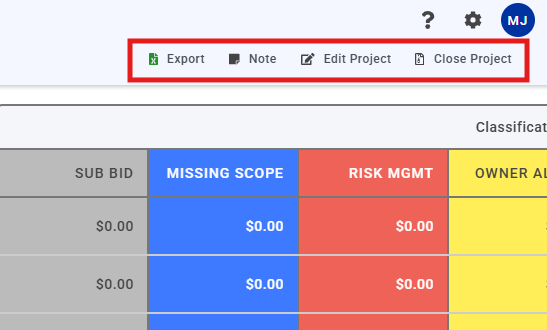
- Export
- Export the Project to Excel.
- Notes
- Add project‑level notes visible to other users.
- Edit Project
- Access project‑level settings, including:
- Project details
- Bid Packages
- General Requirements
- Alternates
- Fees
- User Permissions
- Access project‑level settings, including:
- Close Project
- Permanently closes the Project.
- Prevents any further changes.
- Warning: Closed projects cannot be reopened.
- Delete Project
- Frees the name of the project for re-use.
- The Project may not be opened, you will be redirected to the home page if you try to open the project.
- Admins can Restore the project.
- The project card will display a status of Deleted.
Columns Shown Menu
A Columns Shown dropdown is available on the Project Summary page. This allows you to tailor the Bid Summary view based on the information you need.
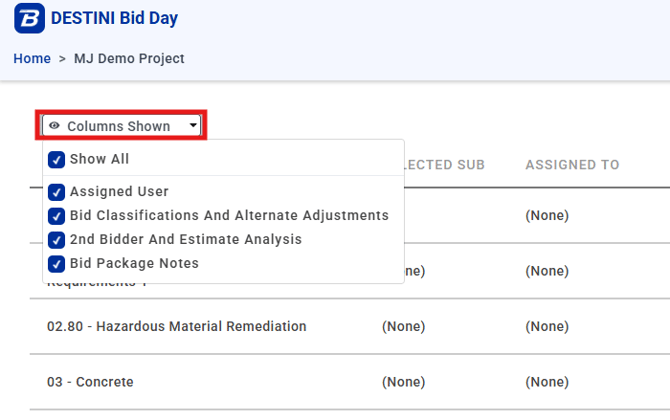
Use this menu to show or hide:
- Assigned User
- Bid Classifications and Alternate Adjustments
- Second Bidder and Estimate Analysis
- Bid Package Notes
Bid Package Page
Reviewing bids is easy and intuitive on the Bid Package page.
Main Menu - Bid Package Functions
When viewing a Bid Package, key actions are available directly from the main header.
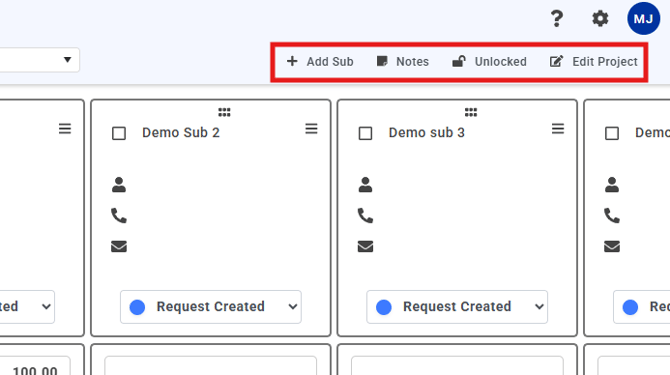
- + Add Sub
Add a new subcontractor to the Bid Package. - Notes
Add Bid Package–level notes that are visible to other users. - Unlocked / Locked
- Indicates the current lock status of the Bid Package.
- Click Unlocked to lock the Bid Package and prevent changes.
-
Edit Project
- Edit Project-specific details and settings, including assigning Bid Packages, managing General Requirements, Alternates, a Fees, and setting user permissions.
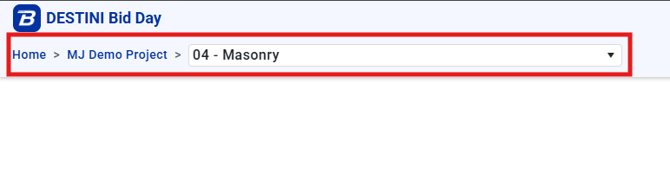
Breadcrumb menu
- Displays when you are inside a Project.
- Allows quick navigation between Projects and Bid Packages.
- Enables fast switching between Bid Packages without returning to the Project page.
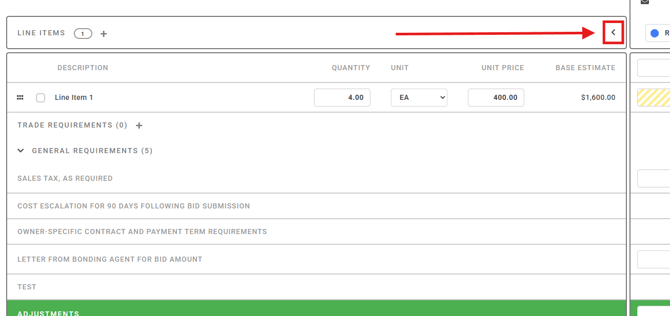
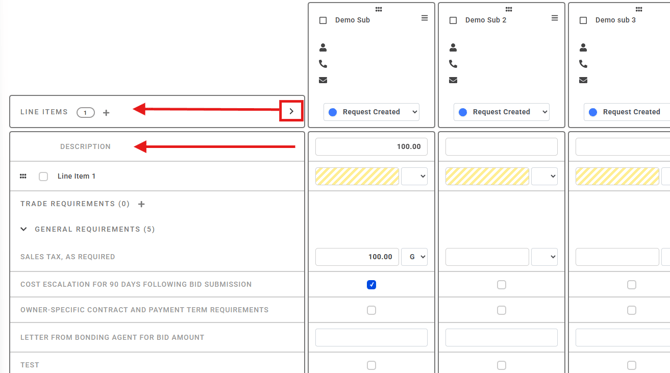
Collapse Base Estimate Columns
- A Collapse button is available when viewing a Bid Package.
- Collapsing the Base Estimate columns displays only the Description column.
- This frees up horizontal space for Bid columns.
Before Collapse:
After Collapse:
Line Items Header
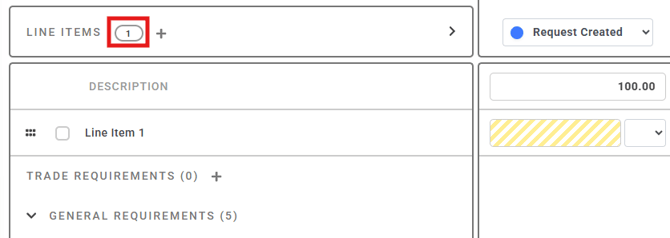
- Line Item Count badge
- Displays the total number of line items in the Bid Package.
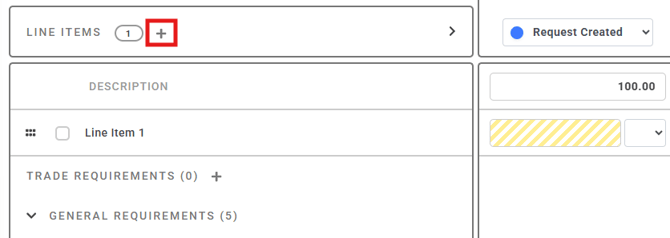
- + icon
- Used to add new line items to the Bid Package.
- Matches the behavior used elsewhere in Bid Day for adding rows.
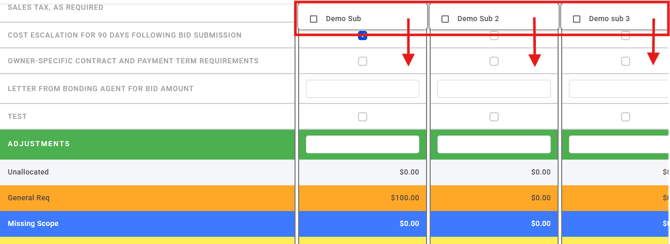
Horizontal and Vertical Scrolling
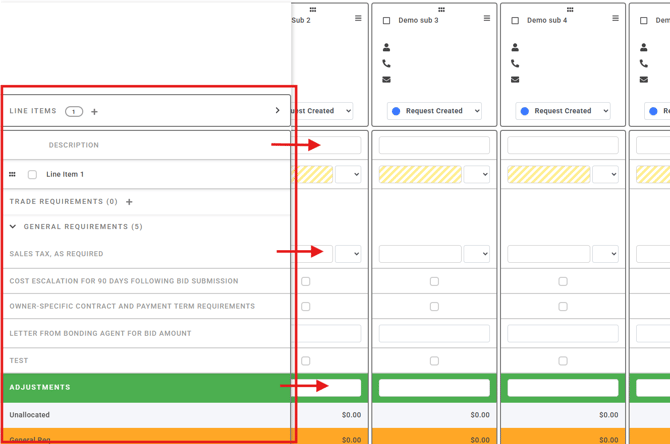
- Horizontal scrolling
- Base Estimate columns remain visible as you scroll.
- Makes it easier to reference Base Estimate data alongside Sub bids.
- Best used with Base Estimate columns collapsed.
- Vertical scrolling
- Sub company names remain visible while scrolling down.
- Improves side‑by‑side comparison of subcontractor bids.
Submit Suggestions to Improve this Article