
Bid Day users can add new Trade Requirements to a Bid Package at any time while a project is active. Unlike global Trade Requirements, which are predefined by your Bid Day company admin, these project-level Trade Requirements allow Project Admins and Contributors to respond quickly to scope changes, communicate in‑flight updates, and share trade‑specific expectations with estimating, procurement, and project teams in a live Bid Package.
NOTE: This article is a guide to adding project-level Trade Requirements to an active Bid Package. For instructions on how Bid Day company admins can add new global Trade Requirements to their Bid Day environment, see the article below:
Add New Project-Level Trade Requirements
- Open your Bid Day Project.
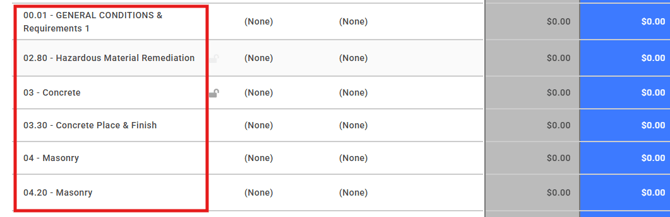
- Click into the Bid Package you want to update.
- In the Trade Requirements section, you will see:
- Global Trade Requirements (below in green).
- A '+' button for adding project-level Trade Requirements (below in red).
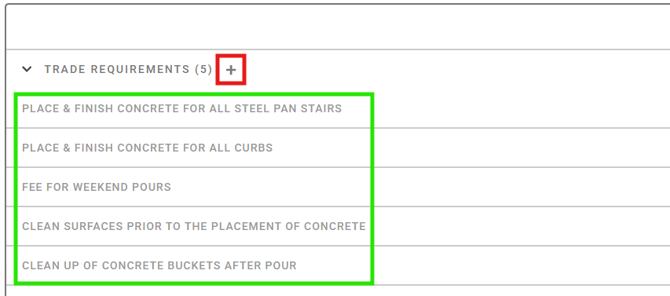
- Click the + button.
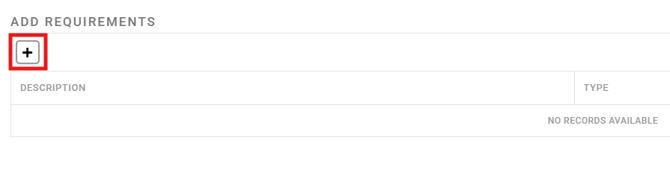
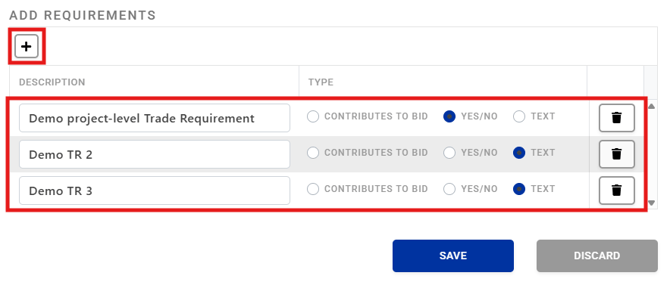
- In the Add Requirements pop-up window, click the + button to add a new Trade Requirement.
- Enter your Trade Requirement details:
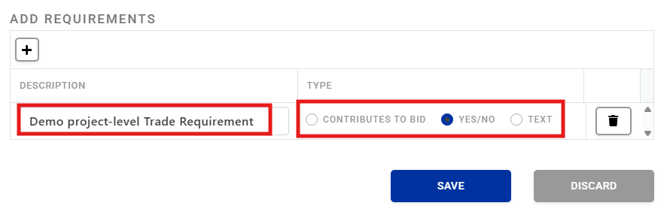
- Description: Enter an appropriate description for your Trade Requirement. This field is required.
- Type: Each Trade Requirement must be assigned a Type (defaults to Yes/No). The selected Type dictates the subcontractor's response format and how these values are presented in Bid Day:
- Contributes to Bid: A numeric value that adds to or subtracts from the bid total.
- Yes/No: A checkbox to indicate whether the requirement is included.
- Text: A free-text field for additional instructions or clarification.
- You can add multiple Trade Requirements at once by clicking on the + multiple times.
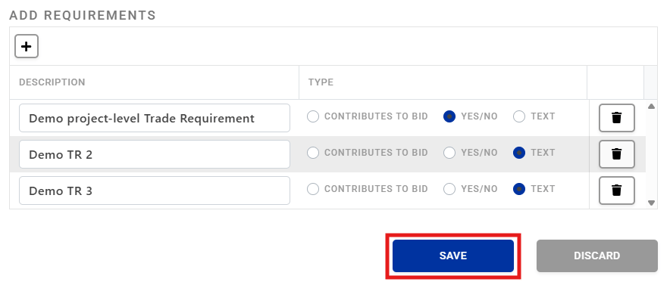
- Once all Trade Requirements are added, click the Save button.
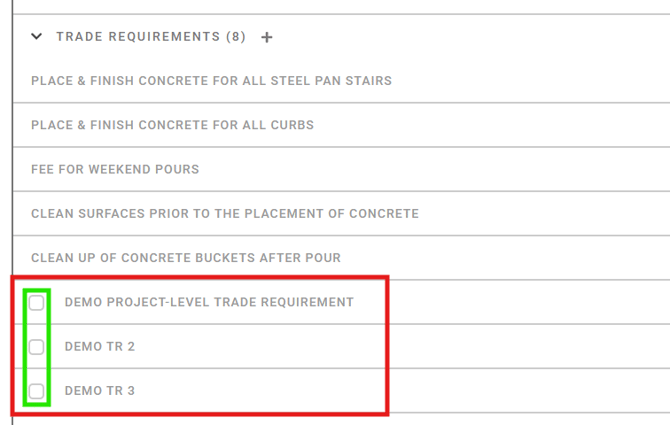
Once created, project-level Trade Requirements appear below the global Trade Requirements. They are also visually distinguished by the checkboxes on the left.
Edit / Delete Project-Level Trade Requirements
Project Admins and Contributors can easily edit or delete project-level Trade Requirements.
To delete a project-level Trade Requirement:
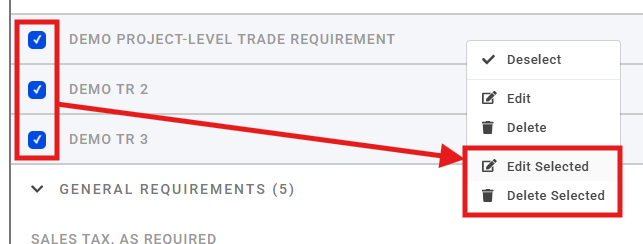
- Right‑click on a project-level Trade Requirement row to reveal a context menu.
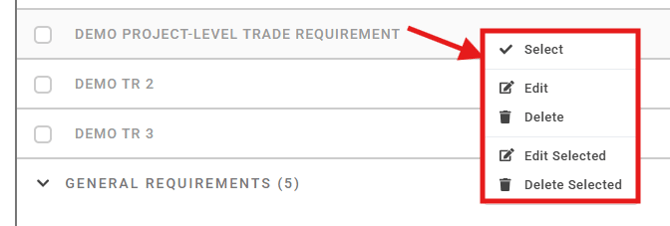
- Edit: Allows you to edit the description and type.
- Delete: Deletes the Trade Requirement.
- Edit/Delete Selected: Use the checkboxes on the left to select multiple project-level Trade Requirements, and then use these options in the context menu to bulk edit/delete them.
NOTE: Only Trade Requirements added at the project level can be edited/deleted this way. Global Trade Requirements cannot be removed from within a Bid Package.
Submit Your Suggestions to Improve This Article