
Bid Day has been upgraded to allow Project Admins greater control over the General Requirements in their active Bid Day projects.
Improved functionality was introduced to allow users to add new, project-based requirements at any time within an active Bid Package, improving flexibility in communicating scope changes, documenting decisions, and keeping bid teams aligned throughout the bidding process.
New General Requirements can be added at the project level via the Edit Project screen.
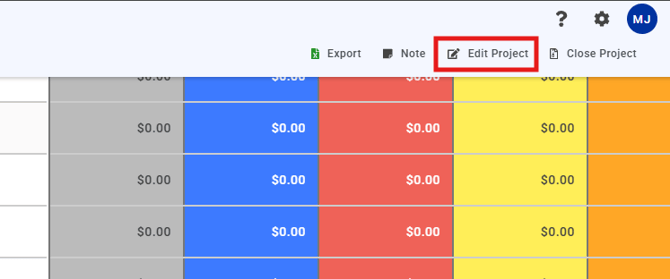
- From the main Project Summary screen, click Edit Project in the main menu banner.
-
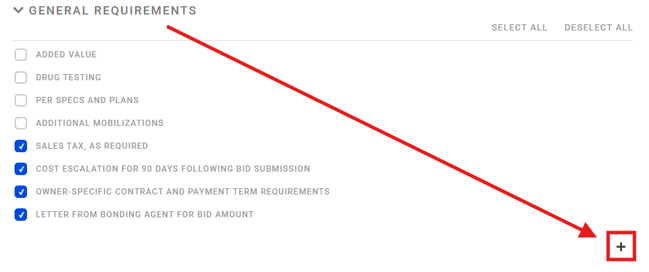
In the Edit Project screen, scroll down to the General Requirements section.
- Click the '+' icon at the bottom-right of the General Requirements list to add a new General Requirement to the project.
-
A new pane will appear, allowing you to name and configure your new General Requirement. Click Add when ready to add the General Requirement to your project.

These project-based General Requirements can be easily edited or deleted in the same Edit Project screen.
-
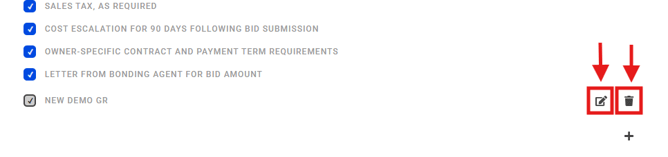
Locate your custom General Requirement in the list.
- On the lower-right, you can click on the Edit icon to make changes to your General Requirement, or click the Delete icon to remove it.
-
You will be asked to confirm deletion before the General Requirement is removed permanently.

Submit Your Suggestions to Improve This Article