
Drawing Sets is the latest way to upload and manage your drawings in Workpack. The significance of the Drawing Sets feature is the ability to upload new revisions of an existing drawing, replacing all or just select pages with a newer iteration of the drawings in your project.
How to Upload Drawings
To take advantage of the latest Drawing Sets feature, you must upload your files via the Upload Drawings option.
-
Locate and select your project in the My Projects or Shared Projects column.
-
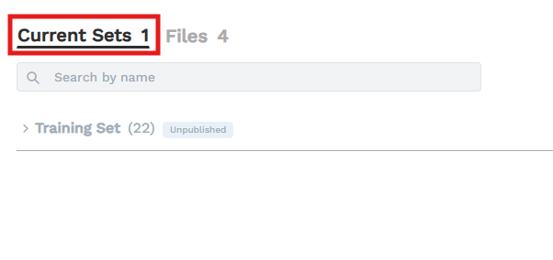
With your project open, switch to the Current Sets tab.
-
Click Upload Drawings.
-
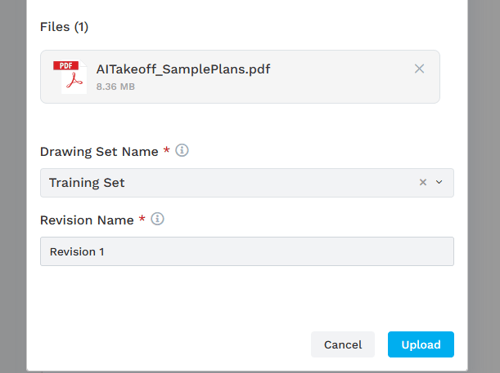
Drag-and-Drop your drawing files into the Upload Drawings window, or click the Browse prompt to browse and select files for upload.
-
Enter a Drawing Set Name and Revision Name, then click the Upload button.
-
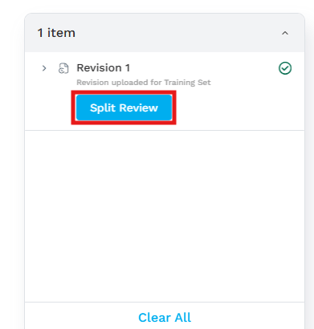
Once uploaded, click the Split Review button in the popup window.
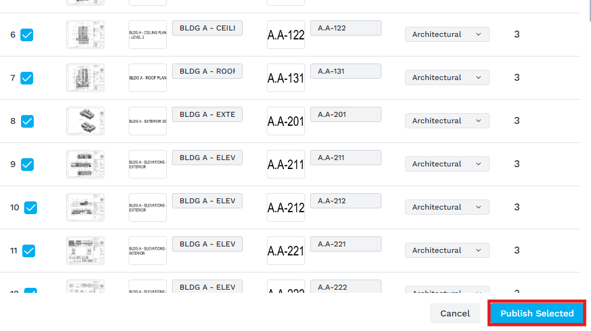
The Split Review page lets you review your drawings, as well as assign drawing numbers and a discipline to each page. This is also where you will be notified of any errors in the file. Until you complete this process, your drawing will exist in the project in an ‘unpublished’ state. This is okay - you can review and publish any unpublished drawing sets later.
- Once you have completed your review, select the pages you wish to publish to your project (use the upper-most checkbox to select all pages if desired) and click Publish Selected.
Introducing a Revision
Workpack makes it easy for users to introduce revisions to their drawing sets when the need arises.
- On the Current Sets page, click Upload Drawings.
- Drag-and-Drop your drawings files into the Upload Drawings window, or click the Browse prompt to browse and select files for upload.
- IMPORTANT: Instead of specifying a unique Drawing Set Name like before, this time, click the empty Drawing Set Name field and select the drawing set that you want to revise.
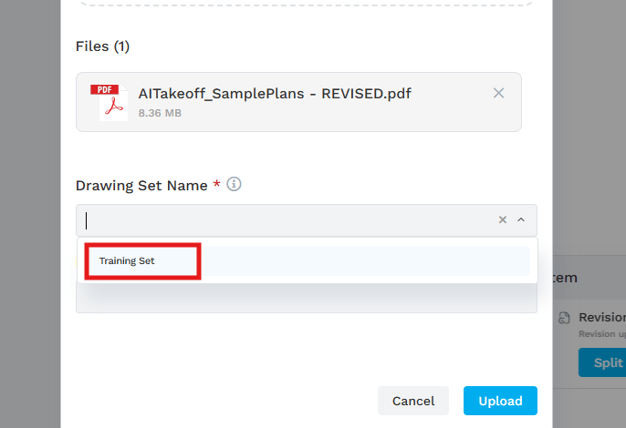
- Enter an appropriate Revision Name.
NOTE: Unlike the Drawing Set Name, the Revision Name is not critical to the linking of revised drawing sets - this is for user reference only.
- Click Upload.
- Once the upload is complete, click on the Split Review button.
- Now you can review and configure your pages and, most importantly, select the specific pages that you would like to roll into this revision. Pages not selected will be disregarded, and the pre-existing version of those pages will remain unchanged.
- Click Publish Selected.
Your drawing set will now be updated with the latest revision and you can starting working on takeoff in the new pages.
Unpublished Drawing Sets
If you upload a new drawing set, but do not click on Split Review in the popup, your drawing will remain unpublished, and you will see the below tag in your project.
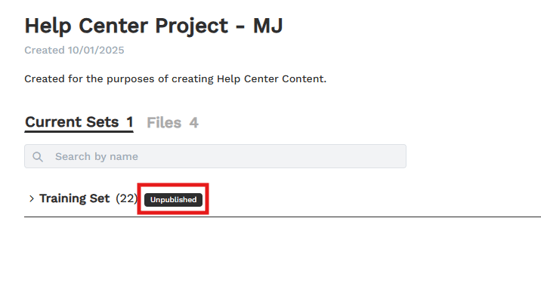
Don't worry, you can complete your Split Review at any time via the following steps:
-
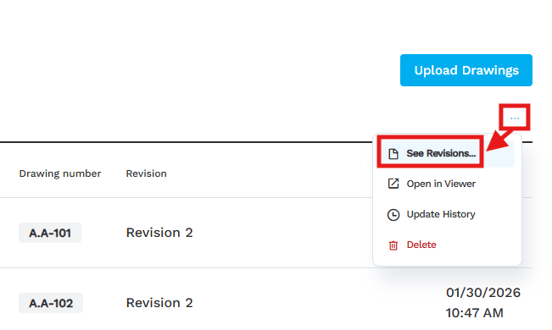
Click the ellipses to the right of the drawing set and select See Revisions.
- You will see a similar 'Unpublished' tag next to the recently uploaded drawing set.
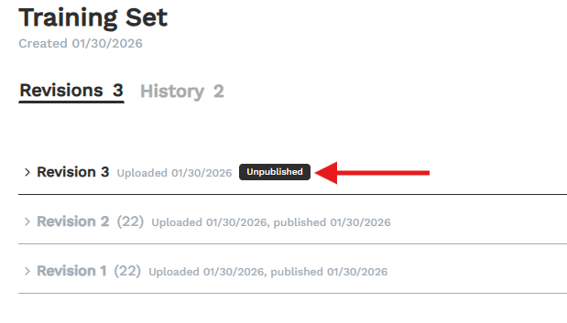
- Click on the affected drawing set. The Split Review button will appear to the right. Now, you can click Split Review to review and publish the revision.
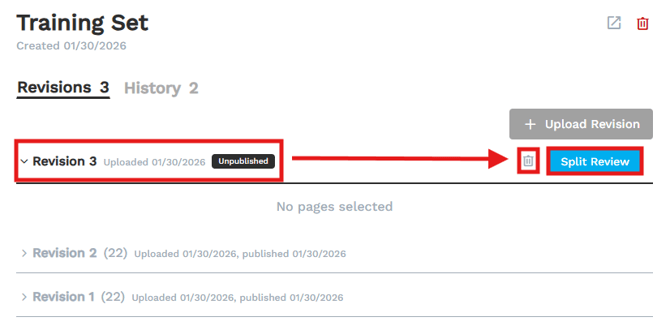
- Alternatively, you can click the Trash icon to discard the revision and remove it from the project entirely.
Lesson - DESTINI Takeoff Basic Training
For a deeper look at Workpack, including a more detailed walkthrough of the Drawing Sets workflow, click the link below to go to the Workpack / AI Takeoff Basic Training lesson in the Beck Tech Training Portal.
LINK: DESTINI Takeoff Basic Training
NOTE: Please email us to request access to this Lesson Path if you don't have it already.
Suggest an Improvement for this Article