
Attachments are a Beta Feature as part of Conditions within DESTINI Takeoff.
Attachments are Takeoff Items that are linked to a Parent Condition. They allow you to automatically adjust the Parent’s measurements based on the Attachment’s geometry (similar to a 'backout'). For example, you can automatically subtract the length of Attachment 'window' items from a perimeter wall's total length.
Things to know about Condition Attachments:
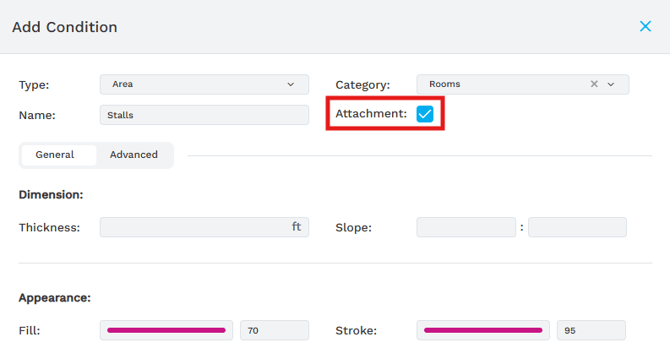
- Setup: Any Condition type can be designated as an attachment during the custom Condition creation process.
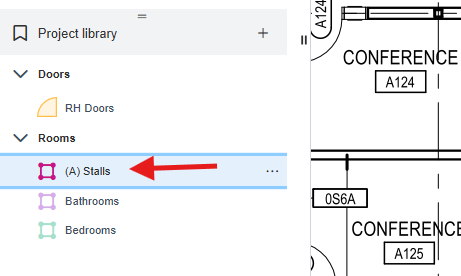
- Identification: Attachments are marked with an (A) prefix in the Project library list.
- Linking: An Attachment can be linked to one Parent at a time.
How to Create and Link Condition Attachments
- Create a custom condition, with the Attachment box checked.
- Click the Condition Attachment item in the left panel to highlight it.
- Press Spacebar on your keyboard to enter Add Mode. You will be prompted to select the parent condition.
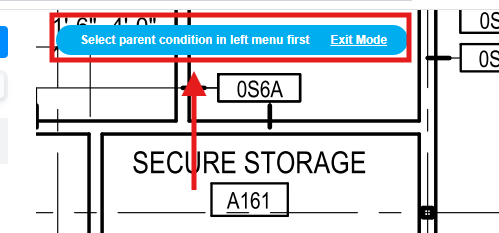
- Click the Parent Condition in the left panel to select it. Your selection will be acknowledge by the on-screen prompt.
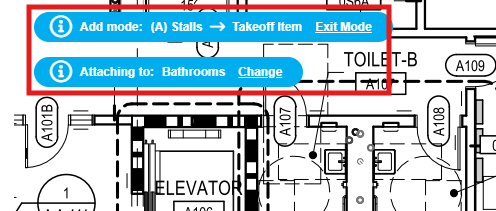
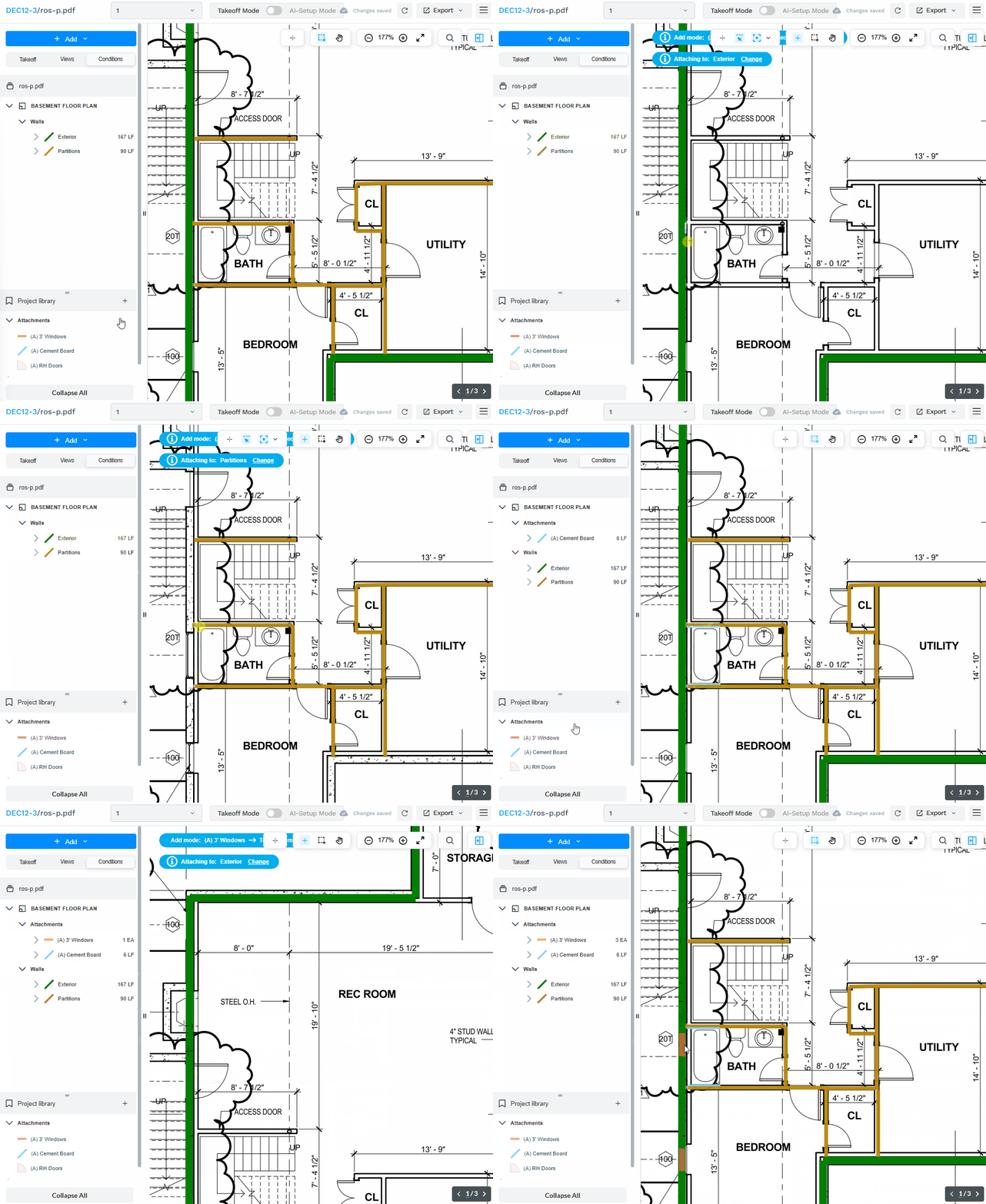
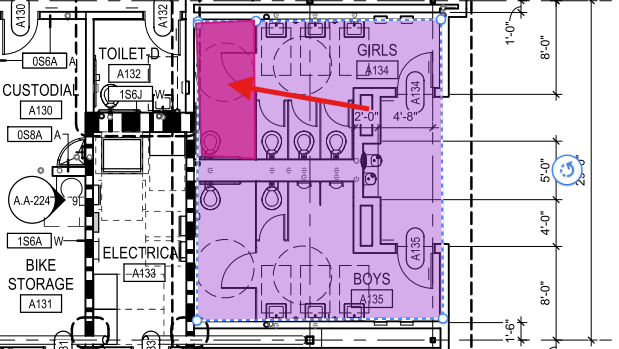
- Now draw your takeoff; in the below example we have linked our 'Stalls' Condition Attachment to a 'Bathrooms' Parent Condition , and then drawn a Stall within the area of the Bathroom.
More on Conditions
You can read more about Conditions in Workpack in the following article:
Lesson - DESTINI Takeoff Basic Training
You can find a step-by-step walkthrough of the Conditions workflow via the Beck Tech Training Portal:
LINK: DESTINI Takeoff Basic Training - Conditions and Manual Takeoff
Please email us to request access to that Lesson if you don't have it already.
Submit Your Suggestions to Help Improve This Article