
To maintain organizational consistency and adhere to corporate classification standards, Work Breakdown Structure (WBS) properties that are designated as Locked in DESTINI Cost Library are enforced as locked in DESTINI Cloud Estimator.
When a WBS property is locked, estimators can assign line items to any of the pre-approved property values, but cannot add rogue values, modify value names, or alter the WBS property structure within the estimate.
Key Benefits
- Data Consistency: Prevents accidental deviation from standardized company-wide coding structures across projects.
- Accurate Rollups & Reporting: Ensures reports, dashboards, and enterprise cost analytics remain reliable by preventing misspelled or unauthorized WBS values.
- Streamlined Estimating: Eliminates duplicate or near-duplicate classification tags created on the fly.
Identifying Locked WBS Properties
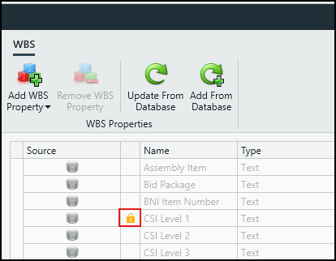
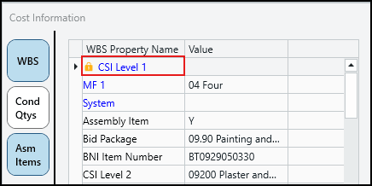
DESTINI Estimator displays a Lock icon next to any WBS property that has been locked in Cost Library:
- WBS Property Editor: The lock icon appears between the Source badge and the Name column.
- Cost Information View (CIV): The lock icon appears to the left of the property name in the WBS Properties panel.
- Estimate View Grid: Columns associated with locked WBS properties enforce dropdown validation.
Unlocked WBS properties display without a lock icon and can be managed as standard project-level properties.
Behavior in the WBS Property Editor
When opening the WBS Property Editor, management controls for locked properties automatically display in an inactive, read-only state.
What is Restricted for Locked Properties:
- Renaming Property: The Name field is disabled.
- Changing Default Values: The Default Value column is disabled.
- Adding, Editing, or Deleting Values: In the WBS Values Editor, the Add, Paste, Rename, and Remove controls and ribbon actions are disabled.
- Deleting the Property: The Remove WBS Property action is disabled. Hovering over the button displays a tooltip explaining that the property is locked and cannot be deleted.
What Remains Configurable:
- Sticky & Takeoff Enabled: You can toggle whether the property is Sticky or Takeoff Enabled for your project.
Assigning Values to Line Items
Estimators can assign locked WBS properties using both the Cost Information View (CIV) and directly within the Estimate View grid.
- Click the dropdown in either the CIV or Estimate View cell to select any existing, authorized value from the predefined list.
- If you attempt to type a custom value that does not match an existing item in the locked list:
- An inline validation error indicator (red ✕) appears in the cell.
- The following tooltip displays:“This WBS property is locked. Choose an existing value.”
- The entry is rejected, the cell automatically reverts to its prior value, and no changes are saved to the estimate.
Updating Cost Library Snapshots
When you refresh or update Cost Library data in your estimate:
- Lock State Synchronization: If an administrator locks or unlocks a WBS property in Cost Library, the lock state in the estimate updates automatically upon snapshot update.
- Existing Line Items Retained: If an estimate already contains line items with values assigned prior to the property being locked, those existing values are preserved and will not be overwritten or cleared during the update. However, any subsequent edits to those line items must use approved values from the locked list.