
Fee Categories provide a standardized, organization-level classification system for markups and fees. They function like a Work Breakdown Structure (WBS) for indirect costs.
While estimators frequently customize fee names to meet specific project, contract, or owner requirements (for example, Builder's Risk Policy – Phase 1), Fee Categories maintain an underlying, stable classification (for example, Insurance or Overhead & Profit). This ensures that indirect costs can be reliably tracked, aggregated, and benchmarked across all projects in dashboards, standard reports, EV reports, and Power BI.
Key Benefits
- Consistent Cost Benchmarking: Categorize markups into standardized buckets across projects regardless of individual fee naming conventions.
- Flexible Project Naming: Estimators retain full freedom to name and configure project-specific fees without breaking company-wide reporting standards.
- Enterprise Reporting & Analytics: Seamlessly group and summarize fees across multiple projects in company dashboards, EV reports, and Power BI exports.
- Centralized Governance: Fee categories are managed centrally by administrators in the Cost Library.
Assigning a Fee Category
You can assign fee categories to fees in both the Base Scope and Alternates.
- Open an Estimate in DESTINI Cloud Estimator.
- Click Estimate > Fees.
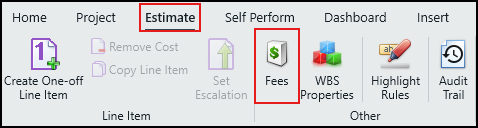
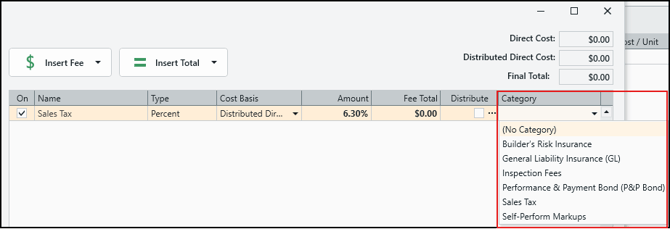
- In the Category column, click the dropdown and select a category for the fee.
- Click Close.
- The Category field is available for calculated fees (Lump Sum, Percent, Per Value, and Bond fees). Totals and Subtotals do not have a category field.
- Assigning a category is optional—fees can be saved with or without a category.
- Disabled fees can still have their category assigned or edited.
Alternate Fees
Fee categories are fully supported on Alternate fees:
- Custom Alternate Fees: You can assign, change, or clear fee categories independently on custom alternate fees within the Alternate Fees view.
- Synchronized Base Fees: If an alternate inherits or synchronizes fees from the base estimate, the assigned category carries over.
Cost Library Snapshot Updates
Fee category options are defined centrally in Cost Library. When a project's Cost Library snapshot is updated:
- Renamed Categories: If a category is renamed in the Cost Library, existing fees assigned to that category will automatically display the updated name after updating the snapshot.
- Removed Categories: If a category is deleted from the Cost Library, any fee previously assigned to that category will default to blank once the snapshot update is applied.
Visibility in Reporting and Dashboards
Fee Category data is exposed across all primary reporting and analytics surfaces (displaying the category name, or blank if unassigned):
- Dashboards: Available in both the
$$Fees$$and$$Alternate Fees$$dashboard sheets. - Standard & Custom Reports: Available as the
Categoryfield on fee models in the Report Designer, allowing reports to group or filter by markup category. - EV Reports: Populated across fee tokens, including standard fee tokens and
$$Alternate(s) Details with Fees$$. - Power BI Exports: Exported as a dedicated
Categoryfield on calculated fees for historical cost modeling and cross-project analysis.