
DESTINI Estimator supports conversion between imperial and metric units of measure, allowing users to switch estimate quantities without manually recalculating values. This article provides an overview of how unit conversion works in Estimator and explains how to properly configure units of measure in Data Manager to ensure accurate results.
Metric Conversion in Estimator
Estimator allows users to quickly convert line item quantities between imperial and metric systems directly within an estimate.
In the Estimate View, select one or more line items, then right‑click to open the context menu. Two conversion options are available:
- Switch to Metric
- Switch to Imperial
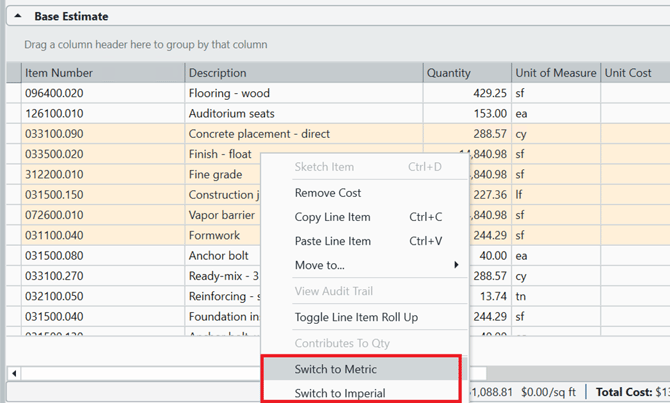
When selected, Estimator converts the quantities for the chosen line items based on the Standard Units of Measure and Alternate Units configuration in Data Manager. These must be correctly configured by your organization’s Data Manager administrator for metric conversion to function as expected.
Setting Standard Units in Data Manager
Different organizations often use different abbreviations for the same unit of measure. To enable accurate unit conversion, Data Manager must first understand which abbreviations correspond to which recognized units.
This is configured in Data Manager > Units of Measure using the Standard Unit column. The Standard Unit identifies which known unit of measure each abbreviation represents.
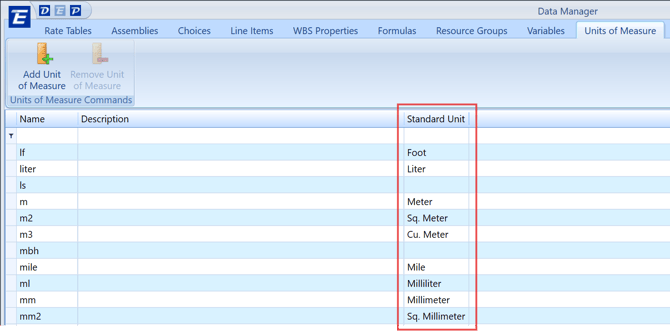
Available Standard Units
The following Standard Units are available for selection:
Linear Units
- Millimeter
- Centimeter
- Meter
- Kilometer
- Inch
- Foot
- Yard
- Mile
Area Units
- Sq. Millimeter
- Sq. Centimeter
- Sq. Meter
- Sq. Inch
- Sq. Foot
- Sq. Yard
- Acre
Volume Units
- Cu. Millimeter
- Cu. Centimeter
- Cu. Meter
- Milliliter
- Centiliter
- Liter
- Kiloliter
- Cu. Inch
- Cu. Foot
- Cu. Yard
- Board Foot
- Gallon
Weight Units
- Gram
- Kilogram
- Pound
- Ton (NOTE: If a line item uses a formula to represent a “Ton,” the associated Standard Unit must be FOOT)
Alternate Units and Metric Conversion
In Data Manager > Line Items, users can define an alternate unit of measure for a line item. This alternate unit enables Estimator to switch quantities between imperial and metric systems accurately.
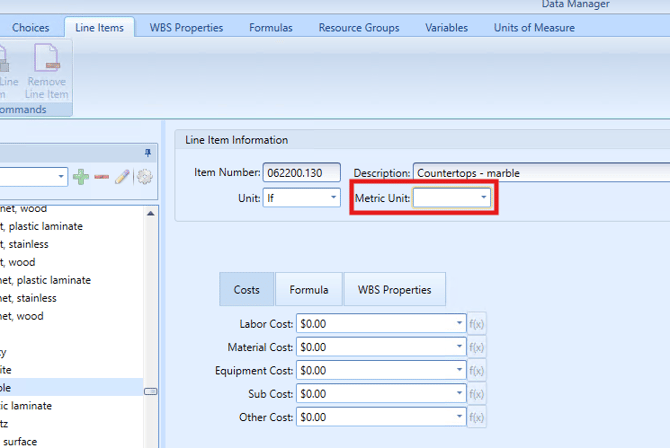
NOTE: The label on this field changes depending on the primary unit selected:
- If the primary unit is imperial, the field is labeled Metric Unit.
- If the primary unit is metric, the field is labeled Imperial Unit.
We will generally refer to this field as the Alternate Unit field.
Valid Alternate Units
The Alternate Unit dropdown only displays valid alternates, meaning:
- The alternate unit must be the same dimension as the primary unit (linear, area, volume, or weight)
- The alternate must belong to the opposite system of measure
For example:
|
Primary Standard Unit |
Valid Alternate Units |
|
Square Feet |
Square Meters |
|
Square Centimeters |
|
|
Square Millimeters |
NOTE: The Alternate Unit field will not appear if the selected primary unit does not have a compatible conversion. For example, EA (Each) does not support alternate units and therefore cannot be converted, so the Alternate Unit field is not shown.
Important Limitations
The unit conversion system cannot convert between unquantifiable units.
For example, the system cannot determine how to convert:
- Linear Feet → Number of Panels
These types of conversions must be handled within the quantity formula of the line item.
The Standard Unit and Alternate Unit features are designed specifically to allow users to switch estimate between metric and imperial systems—not to replace custom quantity logic.
Bulk Updating Alternate Units in Data Manager
To update alternate units in bulk:
- Export the database to Excel.
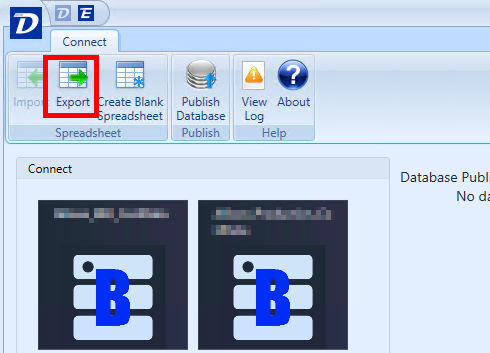
- Open the Line Item tab in the spreadsheet.
- Populate the Alternate Unit column with the appropriate unit Name to match the Units of Measure table in Data Manager or Units sheet in the export.
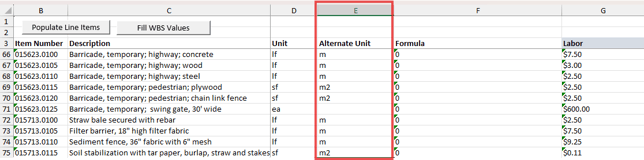
- Reimport the spreadsheet into Data Manager.
This process allows administrators to efficiently assign or update alternate units across many line items at once.
How Data Manager Processes Import Data
During an import:
- Any new units in the line items spreadsheet are added to the Units of Measure list.
- Leaving the Unit or Alternate Unit cells blank tells the import process to retain the existing value; it will not be cleared.
For line items:
- The import validates the Alternate Unit against the primary unit.
- If the alternate unit is not valid, it will be cleared during the import.
A Note on Deleting Units of Measure
When deleting a unit of measure, the user must select a replacement unit.
- If a line item’s primary unit is replaced and the alternate unit remains compatible, the alternate unit is retained. Otherwise, it is cleared.
- If a line item’s alternate unit is replaced and the new alternate unit is compatible with the primary unit, it will commit to the database. Otherwise, the alternate unit is cleared.
Submit Your Suggestions to Help Improve This Article