
Sticky WBS Properties in DESTINI Estimator are designed to make estimating faster and more consistent when working across repeated conditions such as buildings, floors, or bid packages. Instead of manually reassigning the same WBS values every time you add cost, Sticky WBS Properties allow you to specify that a WBS value automatically applies to new cost items as you work.
They are called “sticky” because once a value is set, it remains in effect for subsequent actions until it is changed or turned off. This behavior helps reduce repetitive data entry and minimizes the risk of assigning costs to the wrong location or classification.
What Makes a WBS Property “Sticky”?
Any text-type WBS Property in an estimate can be marked as sticky via the Set as Sticky Value option in the WBS Properties editor.
NOTE: As a best practice, we advise that you only set estimate-specific WBS properties as Sticky so you don’t unintentionally override default values from the Cost Database.
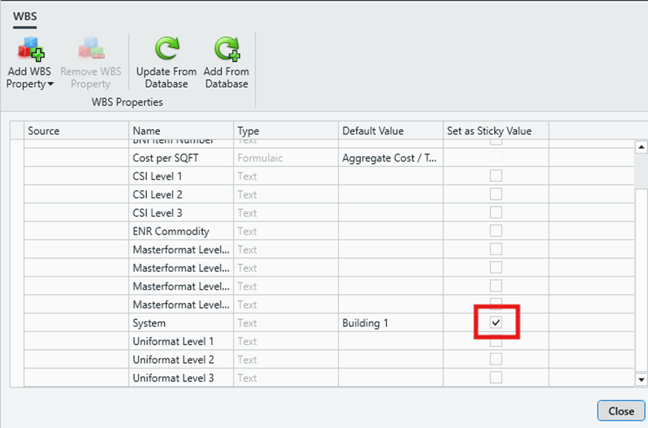
Sticky WBS Properties are most useful when estimators need to apply the same work across multiple locations, quickly reclassify costs as an estimate evolves, or avoid repetitive manual updates to WBS assignments. When used intentionally, they help streamline workflows, improve consistency, and maintain clear control over how costs are organized within the estimate.
In the Cost Information View (CIV), sticky WBS values are visually indicated in blue text. This visual cue helps estimators quickly recognize when a property is being overridden. Sticky WBS Properties will also appear at the top of the list.
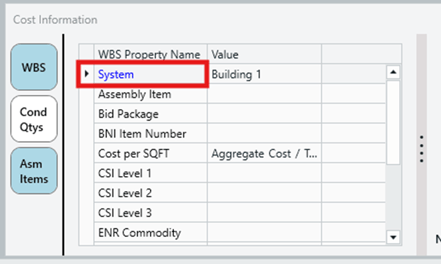
Adding Line Items
Before adding a line item, you can update a sticky WBS Property to reflect a new value in the CIV, such as a different building or floor. Once the line item is added, it automatically carries that updated value, eliminating the need for manual reassignment after the fact. The last sticky value selected is carried forward for all additional line items, until it is manually changed.
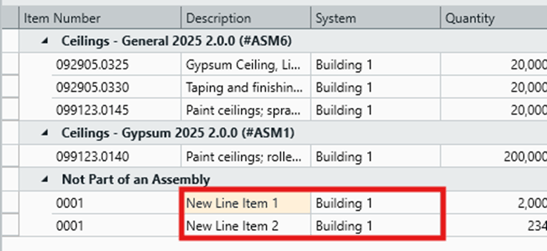
Special Considerations for Assemblies
- When reclassifying a Sticky WBS Property on single line item within an assembly (for example, changing System from Building 1 to Building 2), the change will be applied to all line items in the assembly, not just the one being edited.
- In the below example, we changed Gypsum Ceiling to Building 2, and the other costs in the same assembly were automatically updated.
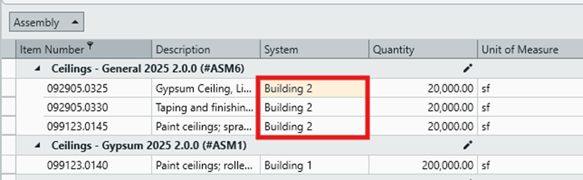
- If your intention is to apply the change to that line item only, the Set as Sticky Value option should first be disabled on that WBS Property.
Submit Your Suggestions to Help Improve This Article