
This article explains how to troubleshoot login issues in DESTINI Cloud Estimator that occur when the application cannot find a valid license. It provides steps to diagnose and resolve the issues associated with the following error messages:
Before you proceed, close all DESTINI Cloud applications.
Estimator Was Unable to Contact the License Server
Error: You open DESTINI Cloud: Estimator and see the following error message:
"Estimator was unable to contact the license server. You cannot open or create an estimate. You can update your licensing by selecting the Get License button on the main ribbon."
Troubleshooting steps: This message typically means you need to sign into DESTINI Cloud Estimator again.
- Click the Get License button. Estimator prompts you to log in using either Active Directory or your DESTINI account credentials. If clicking the Get License button returns an error, see the next section in this article.
- Choose the login method required by your corporate policy.
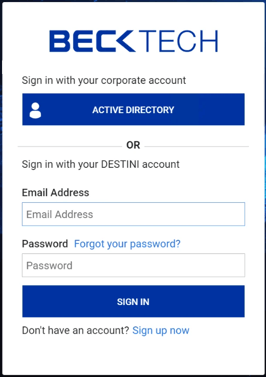
- Active Directory (recommended and most common): Click the Active Directory button and then enter your corporate credentials (the same email and password used to login to your computer).
- Sign in with your DESTINI Account: This authentication method is used by clients who don't have Active Directory configured at a corporate level. Enter your email and password and click SIGN IN. If this is your first time signing into Estimator, click Sign Up Now and follow the prompts to create your account using your company email.
If these steps didn't resolve the issue, proceed to the next set of troubleshooting steps. Deleting the msalcache.bin3 file, as described in the next procedure, will remedy the problem if you're experiencing multiple issues or if you didn't receive an error message at all.
License Not Checked Out
Error: The previous troubleshooting steps returned an error, or you open DESTINI Cloud: Estimator and see the following error message:
"License Not Checked Out - A license could not be checked out. Please try again. If this problem continues, contact support."
Troubleshooting steps: Reset the license file using the following procedure:
- Open Microsoft File Explorer and paste the following folder path into the navigation bar:
%appdata%\DESTINI Cloud - Windows automatically navigates to the following folder:
C:\Users\Your_Username\AppData\Roaming\DESTINI Cloud - Locate and delete the msalcache.bin3 file.
- Close and relaunch Estimator.
- When prompted, login to the system.
- If you are still unable to access a license and login, create a support ticket. For more information, see Support Ticket.
Estimator's License is Expired
Error: You are certain you have an active license, but you open Estimator and see the following error message:
"Estimator's license is expired. You cannot open or create an estimate. You can update your license by selecting the Get License button on the main ribbon."
Troubleshooting steps: Delete the license file cached locally on your computer. This procedure is similar to the previous procedure, though you will delete a different file.
- Open Microsoft File Explorer and paste the following folder path into the navigation bar:
%appdata%\DESTINI Cloud - Windows automatically navigates to the following folder:
C:\Users\Your_Username\AppData\Roaming\DESTINI Cloud - Locate and delete the cached license file that ends with ".lic". The file name consists of random letters and numbers.
- Close and relaunch Estimator.
- When prompted, login to the system.
- If the problem persists, delete the msalcache.bin3 file from the same folder, relaunch Estimator, and login again.
- If you are still unable to access a license and login, create a support ticket. For more information, see Support Ticket.