You can quickly determine if DESTINI Cloud Estimator dashboards are missing costs by viewing the Direct Cost Check cell on the Summary, System Breakdown, and Estimate Comparison dashboards. 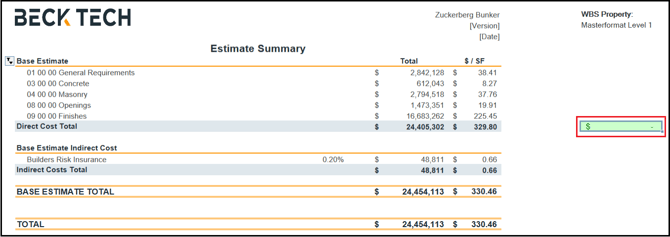
If the cell displays a pink value, then there is a difference between the direct cost in your estimate and the Direct Cost Total in your dashboard.
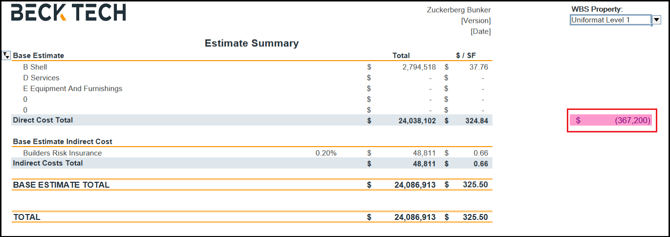
If totals are missing (or if they appear inaccurate), the cause is most likely incorrect or missing WBS properties in your estimate. For dashboards to properly display totals, all WBS properties specified in your estimate must match the properties and values specified on the Classifications sheet on the Dashboard View.
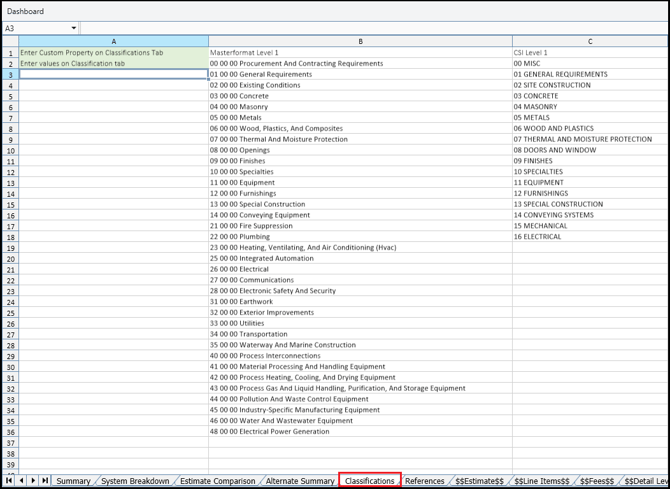
If you specify a WBS property in your estimate that doesn't exist in the Classifications sheet, the corresponding line items won't be totaled in the Dashboard View. If you change a WBS property name in an estimate and if it doesn't match the property name in the Classifications sheet, the line items won't be totaled in the Dashboard View. Here are some common issues that cause this problem:
- A user types a WBS property name for a line item and adds a hyphen (-) or an ampersand (&) in the name that doesn't exist in the Classifications sheet.
- A user accidentally enters a space in a WBS property name.
For example, the Classification sheet above includes an entry of 23 00 00 Heating, Ventilating, And Air Conditioning (Hvac). If a user entered 23 00 00 Heating, Ventilating, & Air Conditioning (Hvac) in their estimate, all line items assigned that WBS property wouldn't be totaled in the Dashboards View.
If you see these issues while using a standard dashboard instead of a custom dashboard you received during Onboarding/Implementation, you could have custom WBS properties or values that don't match the standard dashboard.
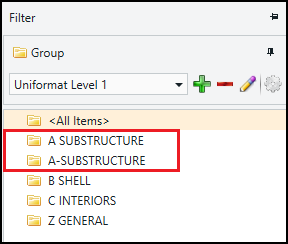
You can locate incorrect WBS properties using the Filter tab on the Estimate View.
- Open an estimate in DESTINI Cloud Estimator.
- Click the Estimate View.
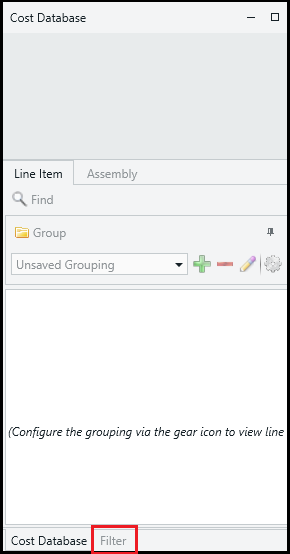
- At the bottom of the Cost Database View, click the Filter tab.
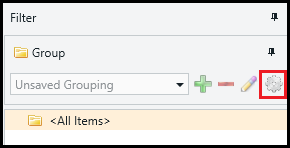
- Click the gear icon. The Configure Grouping dialog box opens.
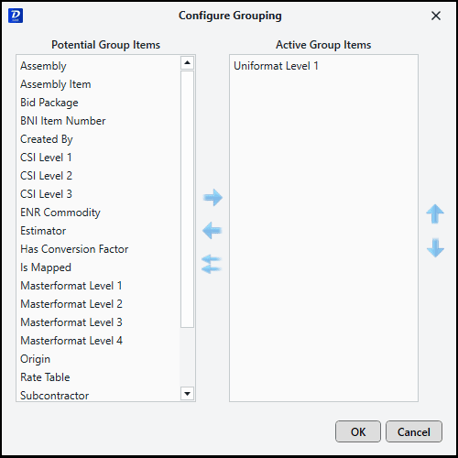
- Add a standard WBS property such as Uniformat Level 1 to the Active Group Items and click OK.
- Carefully review the filter groups for duplicates. Look for extra spaces, spelling errors, symbols that aren't included in the Classifications sheet in the Dashboard View. Then update the WBS properties for those line items so it matches the property listed in the
- Classifications sheet.