
If no options are available in the System drop-down on the System Breakdown Dashboard, this indicates that System WBS values have not been defined or assigned to line items in the estimate.
The System Breakdown Dashboard can only display systems that:
- Exist as WBS values, and
- Are actively assigned to line items in the estimate
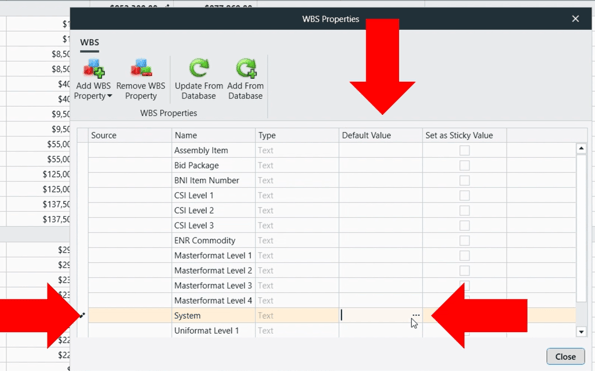
Open WBS Properties
- In the Estimate View, select WBS Properties from the top ribbon
- The WBS Properties configuration dialog opens

Edit System WBS Values
- Locate the System WBS Property
- Under the Default Value column, select the ellipsis ( … )
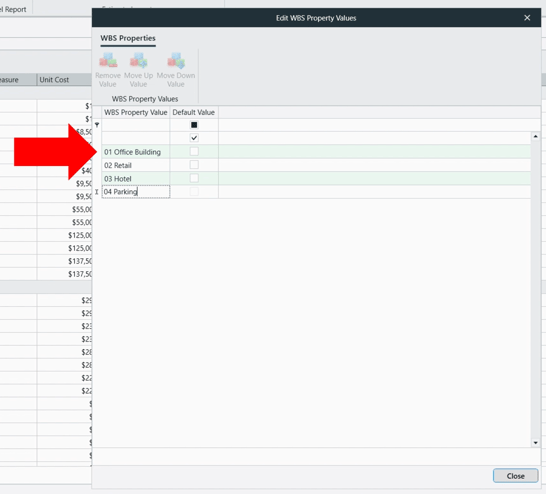
- The Edit WBS Property Values dialog opens
Add System Values
- Enter the System WBS values required for your estimate
- Values can be typed manually or pasted using keyboard shortcuts
- These values represent the systems or areas you want summarized on the dashboard
- Select Close to save the values and close each dialog
Assign System Values to Line Items
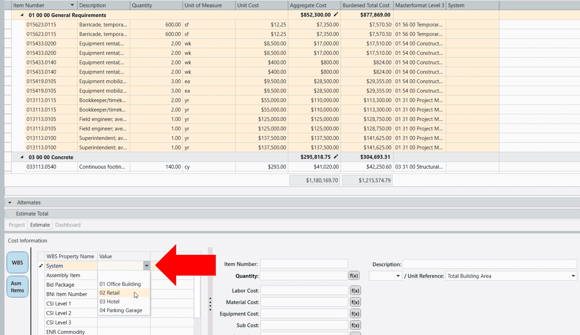
Return to the Estimate View, then:
- Select the line items that should be associated with a System
- Open Cost Information View (CIV)
- Choose the appropriate System WBS value
Repeat as needed until all relevant line items are assigned.
Verify Dashboard Population
Once System values are defined and assigned:
- Return to the System Breakdown Dashboard
- Confirm that System options now appear in the drop-down
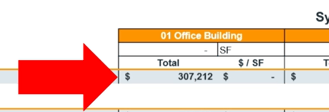
- Select a System and verify that costs populate correctly

Validate Totals
To validate the results:
- Use filtering or grouping in the Estimate View to isolate a single System
- Compare the Burdened Total Cost column to the corresponding total shown on the System Breakdown Dashboard
If the values match, the dashboard is functioning as expected.
Suggest an Improvement for this Article