
#N/A Error on the Summary Dashboard
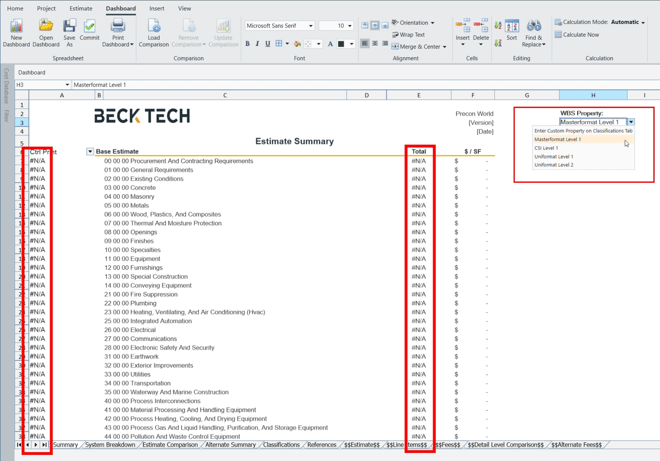
An #N/A result on the Summary Dashboard usually indicates a mismatch between the Dashboard Format selection and the WBS Property Names configured on the Classifications sheet.
In DESTINI Cloud, the Summary Dashboard can only summarize data using WBS Properties that are:
-
Defined on the $$WBS Properties$$ sheet, and
-
Match exactly on the Classifications sheet
How to Troubleshoot an #N/A Result
Check the Dashboard Format Selection
-
On the Summary Dashboard worksheet, verify the selection in the Dashboard Format menu (cell H3).
-
Confirm the selected WBS Property is one you expect to summarize by
-
If the selection looks correct, continue to validating the Classifications setup
-
Save the Summary Dashboard for Troubleshooting
- Select Save As.
- Save the dashboard to Excel.
- Open the saved Excel file to review formulas, references, and data flow.
All troubleshooting steps below should be completed in the Excel file created using Save As.
.gif?width=577&height=309&name=ezgif.com-animated-gif-maker%20(1).gif)
Review the $$WBS Properties Sheet$$
- Navigate to the $$WBS Properties$$ sheet in the saved Excel file
- (Unhide the sheet if necessary.)
- Copy the values listed in Column B
These values represent the valid WBS Property Names available to the dashboard.
.gif?width=578&height=309&name=ezgif.com-animated-gif-maker%20(2).gif)
Compare Values on the Classifications Sheet
- Go to the Classifications sheet
- Paste the copied WBS Property Names somewhere off to the side for reference
- Compare those values to the headers in Row 1 of the Classifications sheet
Validate Property Names
Confirm that:
- Property Names in Row 1 match exactly with the WBS Properties list
- There are no typos, extra spaces, or naming differences
- Only WBS Properties intended for summarization are included
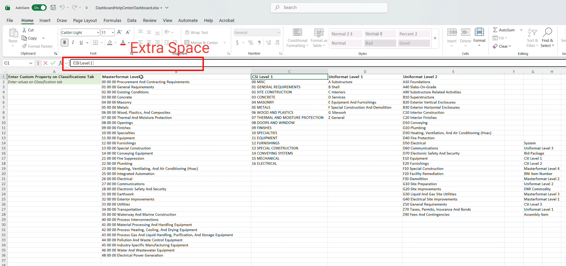
Beck Technology recommends summarizing only 1–2 levels deep. Not all WBS Properties need to be included on the Classifications sheet.
Review the Summary dashboard in Excel. Since you saved the file from DESTINI Cloud: Estimator, the data from the estimate came, too. The changes you made to reconcile the WBS property names will be immediately reflected in the Excel workbook on the Summary dashboard.
Final Check: Open the Dashboard in DESTINI Cloud: Estimator
- Save the Excel file after making corrections
- Return to DESTINI Cloud: Estimator
- Open the updated Excel file/dashboard
- Select Open Dashboard in the Ribbon
- Find the file you modified
- Review the Summary Dashboard
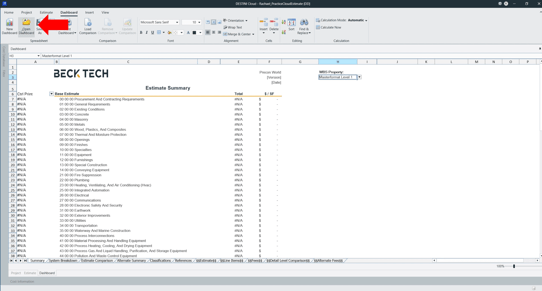
If the WBS Property Names now align correctly, the #N/A result should be resolved.
All dashboard changes should be made in the Excel file, not directly in the DESTINI Cloud: Estimator dashboard. Once the corrected file is opened in Cloud, the updated Summary Dashboard configuration will be applied. This will aid in team collaboration and SOP development.
Suggest an Improvement for this Article