
Cells that are number data types will Sum in the footer of the screen in a similar fashion to Excel. This can be extremely valuable, when doing a quick check of specific line items that may be within a larger grouping or across groupings.
Press the CTRL + mouse click to select several cells, the SUM shows up in the footer of the screen. While you must be in Estimate View to use this function, the result is on the main screen, not confined within the Estimate View.
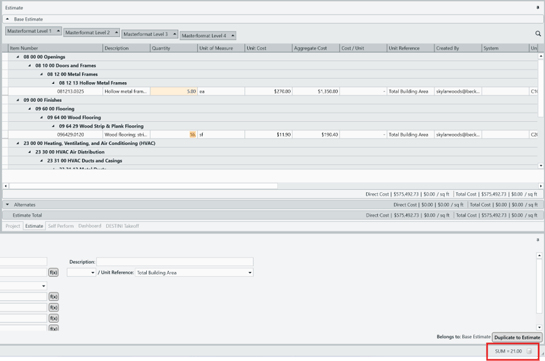
In this example, we are selecting the quantity of two line items, which sum to 21.
It is important to select similarly categorized numerical data. For instance, if you select Quantity and Cost numeric data, both will be summed and present in the SUM = value indicator. This would be a nonsensical value since quantity and cost added together do not logically sum together.
Suggest an Improvement for this Article