
References Sheet Overview
The References Sheet is a critical component of the workbook and drives much of the dynamic behavior throughout the dashboards. It centralizes settings, lookups, and formulas that allows the data summarized in the dashboard to update automatically.
Editable fields in this sheet are clearly indicated. Green cells can be updated as needed, yellow cells support expanding lookup values by dragging them down, and grey or white cells are locked to preserve core logic.
References Sheet Sections
The References Sheet contains the following sections:
- Universal Settings
- Additional Lookups
- System Breakdown
- Estimate Comparison
- Alternate Summary
- Fee Table
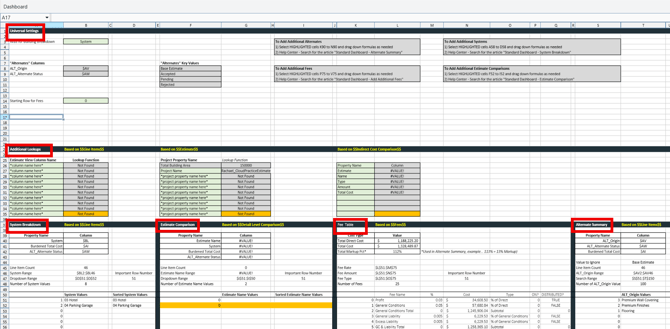
Columns I - S in the Universal Settings section contain key information that controls how several of these sections can be edited. These columns also provide guidance on how each section in the References tab can be expanded, allowing users to extend lookup values while preserving the underlying structure.
The References Sheet plays a critical role in maintaining correct column references when changes occur in the estimate. For example, when Custom WBS Properties are added, the $$Line Items$$ sheet columns may shift. The References Sheet ensures formulas continue to reference the correct columns despite those changes.
Important Notes
- Declared terms must exactly match the WBS Properties and Values used in the $$Line Items$$ sheet.
- Extra spaces (before or after a value) can prevent matches and cause unexpected behavior. Ensure all values are clean and free of trailing spaces.
Universal Settings Section
Universal Settings define how key estimate attributes - such as systems, alternates, and statuses - are recognized and used across dashboards.
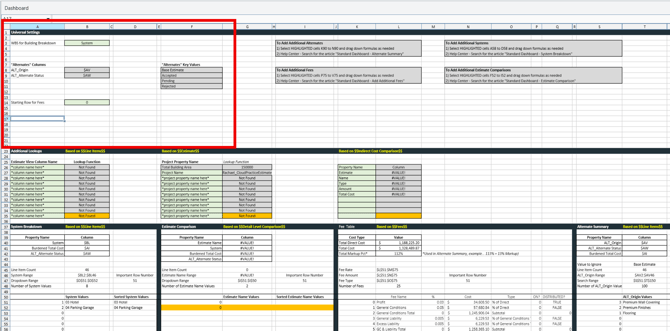
Alternate Identification and Status
Alternates in DESTINI Cloud are identified using dedicated alternate fields:
- ALT_Origin identifies whether costs belong to the Base Estimate or an Alternate
- ALT_Alternate Status defines the status of each alternate
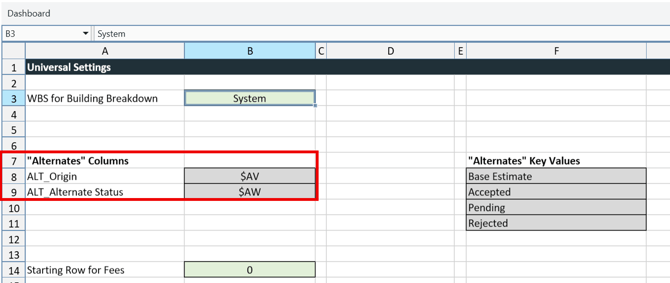
Supported Alternate Status values include:
- Base Estimate
- Accepted
- Pending
- Rejected
These values control how alternates are filtered, summarized, and included in calculations throughout the application.
Ensure Alternate Status values are applied consistently to allow dashboards and summaries to populate correctly.
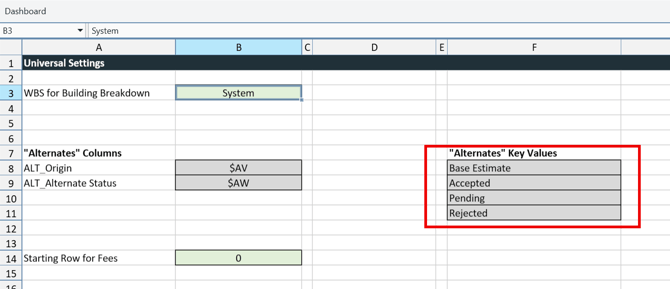
Additional Lookups Section
The Additional Lookups section allows you to define extra Estimate View Columns or Project Properties that can be referenced in formulas throughout the dashboards.
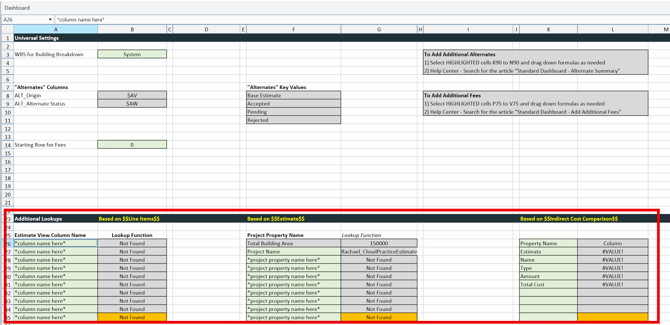
Estimate‑Level Data
Estimate fields can be identified to support dashboard groupings, labels, and comparisons.
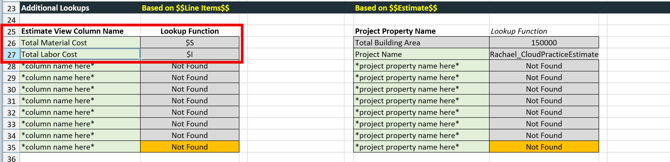
Estimate View Lookups
- Cells A26–B25 allow additional column lookups from the $$Line Items$$ sheet.
- Entering a WBS Property name in Column A will automatically returns the correct column reference in Column B
- This is useful for estimate‑specific data such as an Owner Bid Package required for deliverables.
- For example, Total Labor Cost in column $I
Project Properties
Project Properties may be included to support reporting and summary views. Common examples include:
- Total Building Area (used for Cost per SF calculations)
- Project metadata displayed in dashboard headers or deliverables
These values pull from the Project View.
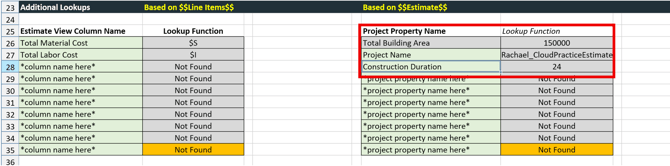
Project Property Lookups
- Cells F26–G35 allow Project Property lookups from the $$Estimate$$ sheet.
- These values are commonly used in dashboard headers or general information sections.
- Total Building Area is required to calculate Cost/SF on the Standard Dashboard.
An additional lookup section based on $$Indirect Cost Comparison$$ is available. This allows Fees to display within the Base Estimate Indirect Cost section of the Estimate Comparison dashboard.
System Breakdown Section
System Breakdown configuration identifies the system values used in the estimate and determines how estimate data is summarized and displayed within the System Breakdown Dashboard.
-
Systems are derived from Cloud configured WBS structures
-
Total system costs include Base Estimates and Accepted Alternates
-
The Standard System Breakdown dashboard displays up to eight systems by default
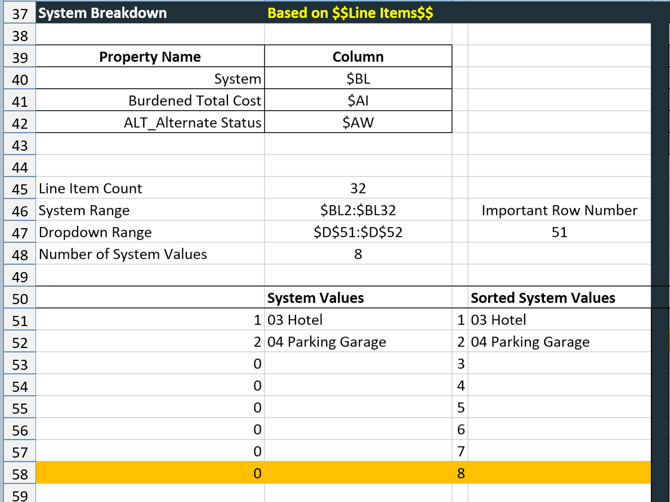
Additional lookup rows may be added by extending the existing lookup rows to retain formulas.
To add more lookup rows, select the bottom row of the lookup section (highlighted in yellow), then click and drag the row downward. This inserts additional rows while preserving the lookup formulas and functionality.
Estimate Comparison Section
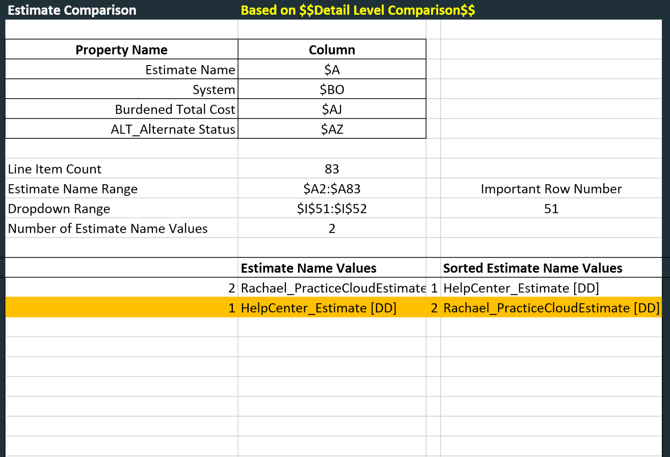
This configuration enables cost and scope differences to be reviewed at a high level.
Estimate Comparison allows multiple estimates within a project to be viewed side by side.
Estimates loaded via the Load Comparison button on the Dashboard View Ribbon are populated automatically in this section.
- Data refreshes when the comparison is updated
- Standard comparison views support two estimates, with the option to include more as needed
Alternate Summary Section
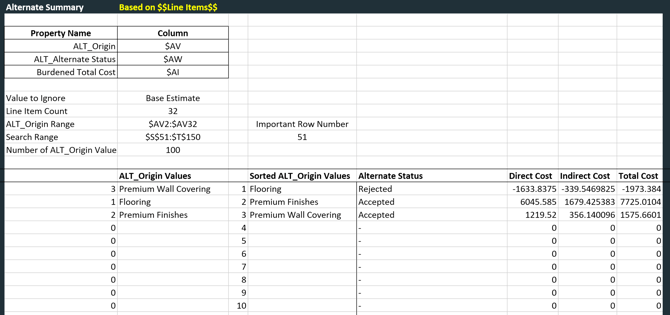
Alternate information is managed through Cloud specific fields and is reflected automatically across dashboards.
Key Alternate Behavior
- Alternate Names are sourced from ALT_Origin
- Alternate Status values are sourced from ALT_Alternate Status
- Burdened Total Cost and indirect costs are calculated dynamically based on current settings
Dashboards rely on these values to group, summarize, and compare alternates accurately.
Standard dashboards support up to 40 alternates, with the ability to extend as needed.
Fee Table Section
Fee Configuration controls how indirect costs are calculated and displayed.
Fee Attributes
Fees include the following elements:
- Fee Name
- Percentage
- Calculated cost
- Fee type
- On/Off status
- Distributed Fee indicator
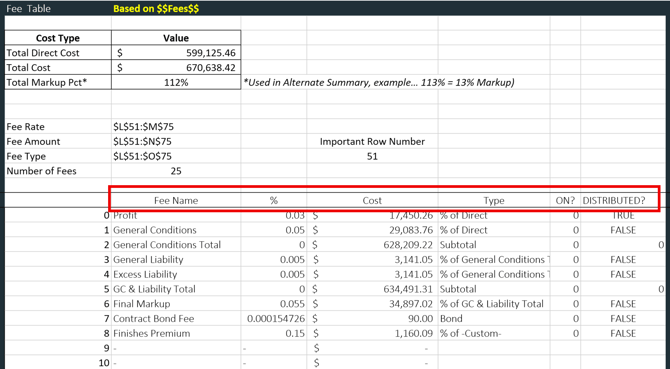
All fee settings are managed through the Fee Editor in DESTINI Cloud
Fee Calculations and Dashboard Usage
- Total Direct Cost reflects all direct construction costs
- Total Cost includes both direct and indirect costs