
The Classifications sheet in the Standard Dashboard controls the list of WBS Properties, along with their associated values, that are available on the Summary, System Breakdown, and Estimate Comparison sheets.
To make use of the Standard Dashboard with your estimates, one of the most crucial steps is to ensure that this sheet is kept up to date, reflecting the WBS Properties utilized by your organization.
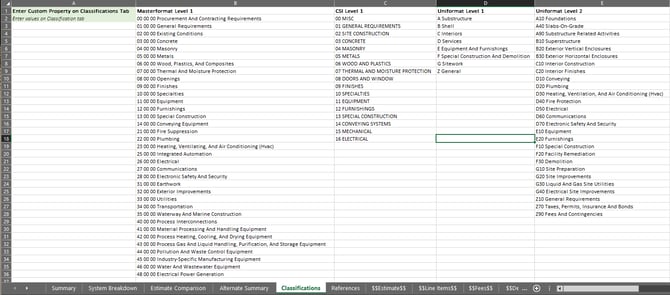
In the Classifications sheet, you will see:
Row 1: The exact name of your WBS Property.
Rows 2 and beyond: The exact values for each WBS Property.
If you are utilizing our Hub cost database, the existing WBS Properties will be a perfect match. If you built out a custom cost database, you may have similar properties, but the names and values may not match exactly. It's absolutely VITAL that any WBS Property on the Classification tab aligns precisely with your data, so don't hesitate to overwrite the default information.
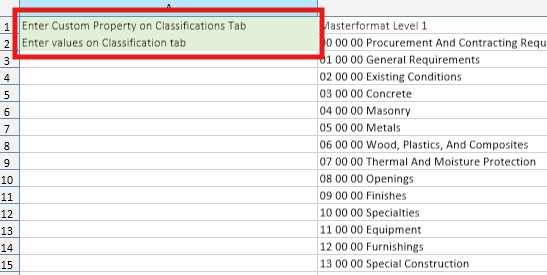
If you have entirely new WBS Properties that need to be added, you can utilize column A (replacing the green placeholders) to introduce a single new WBS Property. A full guide to this process is below.
Add a New WBS Property
Here are the steps to adding new a WBS Property to the Classifications sheet in the Standard Dashboard.
Open the WBS Property Values List
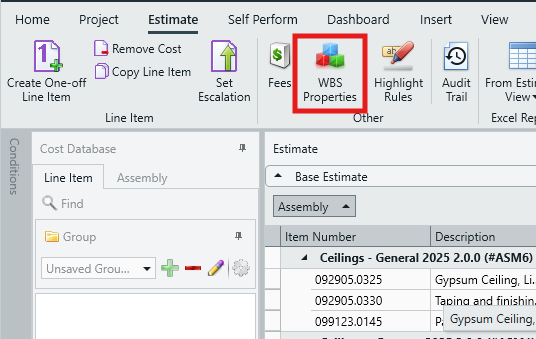
- In the Estimate View, click the WBS Properties button to open the WBS Properties editor.
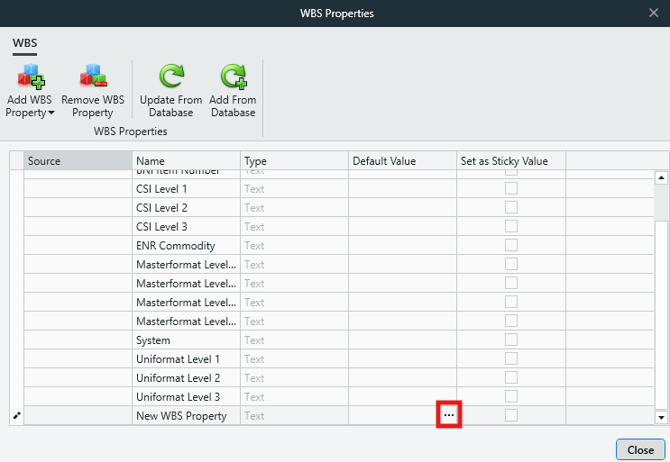
- Locate the WBS Property that need to be added to the Dashboard.
- Click in the Default Value cell, then click the ellipsis (three dots) to open the WBS Property values list.
Copy the Existing Values into Excel
- Click into the row header in the list.
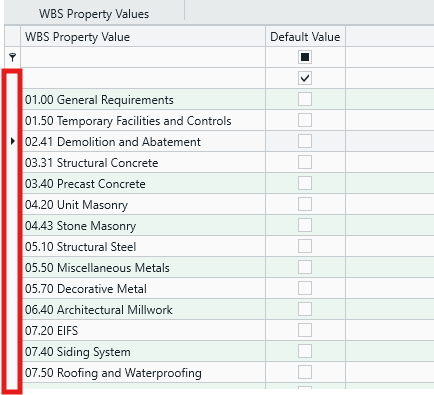
- Press CTRL+A to select the entire list.
- Press CTRL+C to copy the values.
- Open Microsoft Excel.
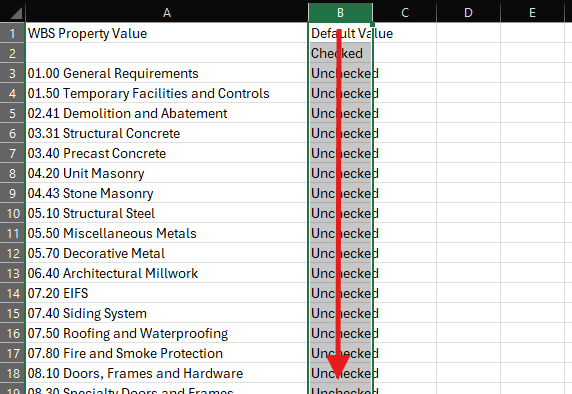
- Paste the values into the blank worksheet by pressing CTRL+V.
- Delete the Default Value column.
Export Your Dashboard to an Excel File
- In Estimator, export your Dashboard to Excel using the Save As button in the main ribbon.
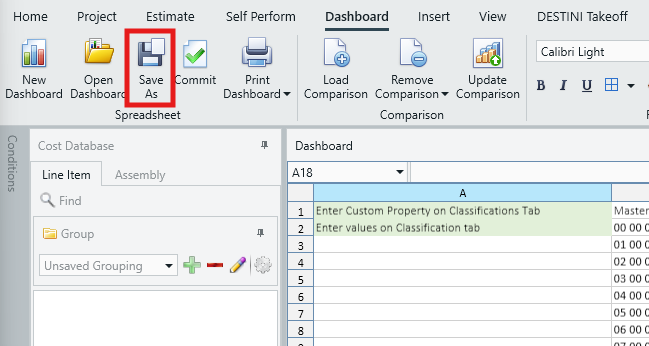
- Open the saved dashboard file in Excel.
Update the Classification Sheet
- Navigate to the Classifications sheet.
- Copy the values from the temporary Excel sheet we prepared earlier into the column A, starting from A2.
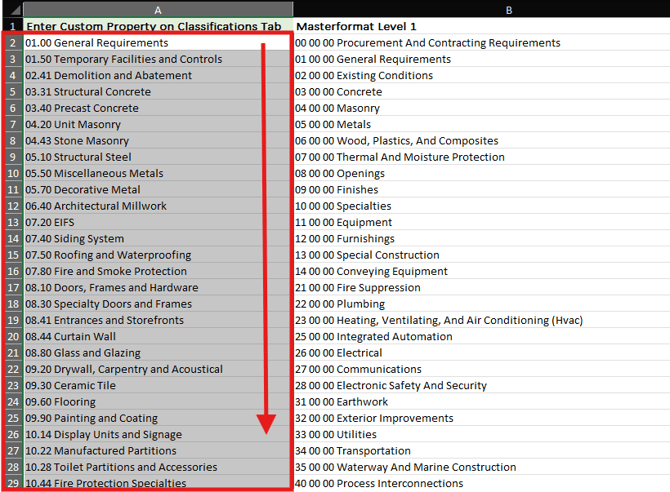
- Enter the name of the WBS Property into Cell A1, ensuring spelling and capitalization match the estimate exactly.
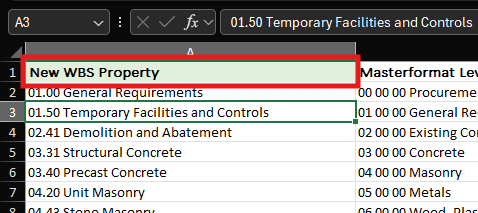
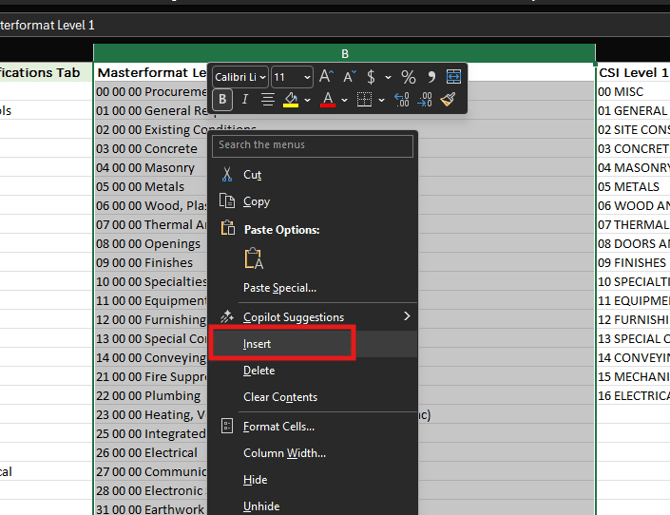
NOTE: Using column A is easiest if you only need to add one new WBS Property to the Classifications sheet. If you need to add more WBS Properties, select column B and then right-click and Insert a new column.
If your new WBS Property has 50 or fewer values, you're now done editing the Dashboard and can skip to the 'Import Your Updated Dashboard' section of this guide.
Conversely, if your new WBS Property has more than 50 values, you will need to expand the available columns in the Summary, System Breakdown, and Estimate Comparison sheets to support the extra values, as detailed below.
In this example, we have 55 values, so we will expand those sheets for an additional five rows.
Update the Summary Sheet
- Go to the Summary sheet.
- In the Base Estimate section, highlight the number of rows you need to add (in this example, five rows). These rows can be selected anywhere in the middle of the table.
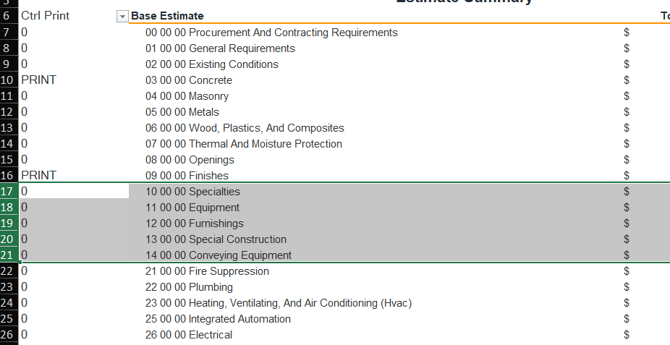
- Right‑click the highlighted rows and select Insert.
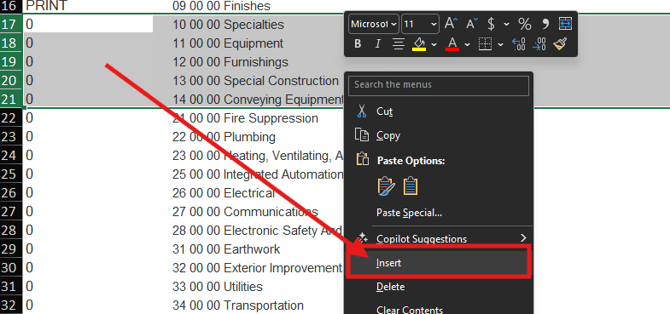
- Highlight the row directly above the newly inserted rows.
- Click and drag from the lower‑right corner of the selection down to the bottom of the table.
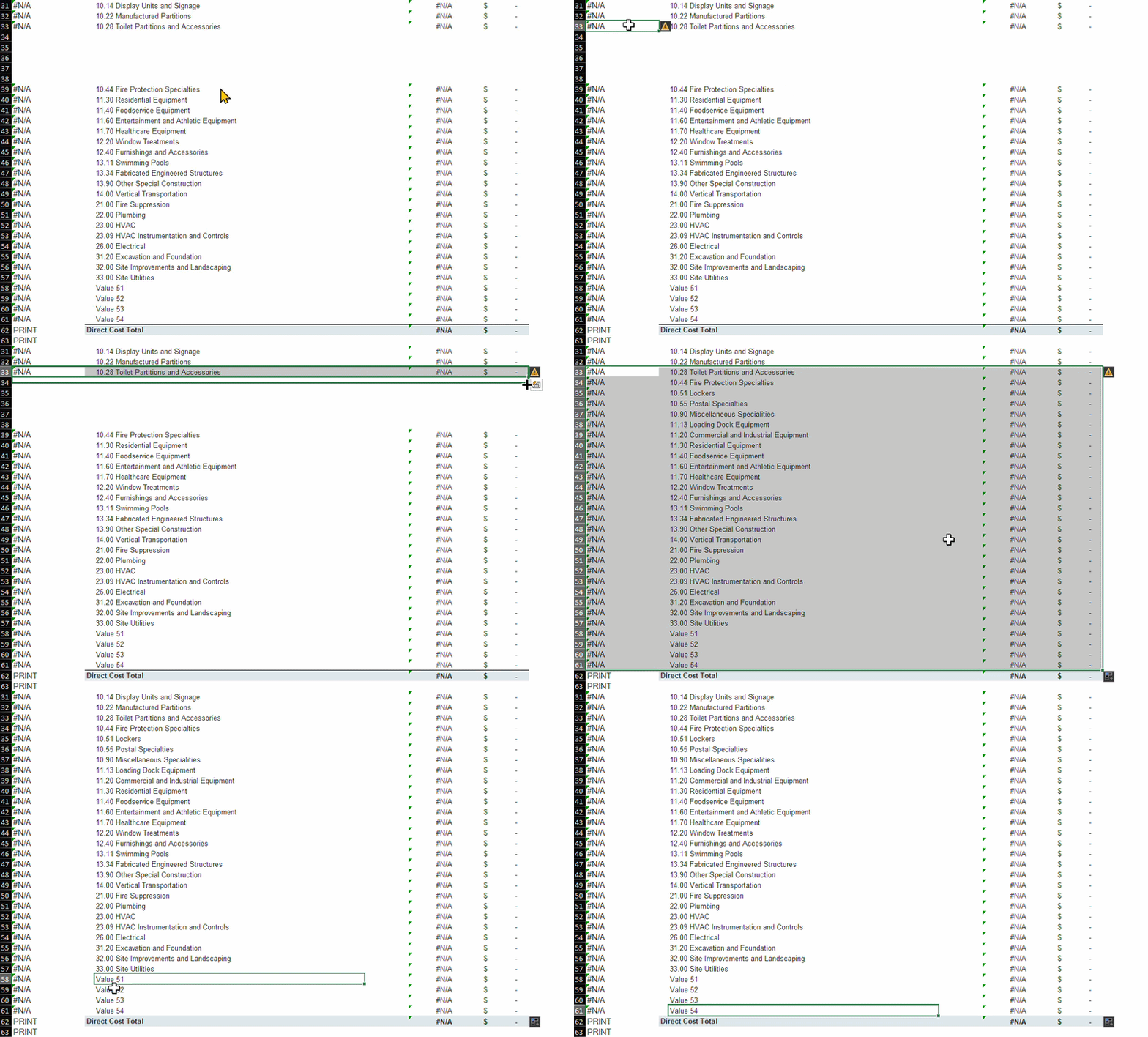
As shown above, this will expand the available columns to support the expanded list of values.
Repeat in the System Breakdown and Estimate Comparison Sheet
- Navigate to the System Breakdown sheet.
- Locate the Base Estimate section.
- Repeat the steps in the previous section to add the required number of rows.
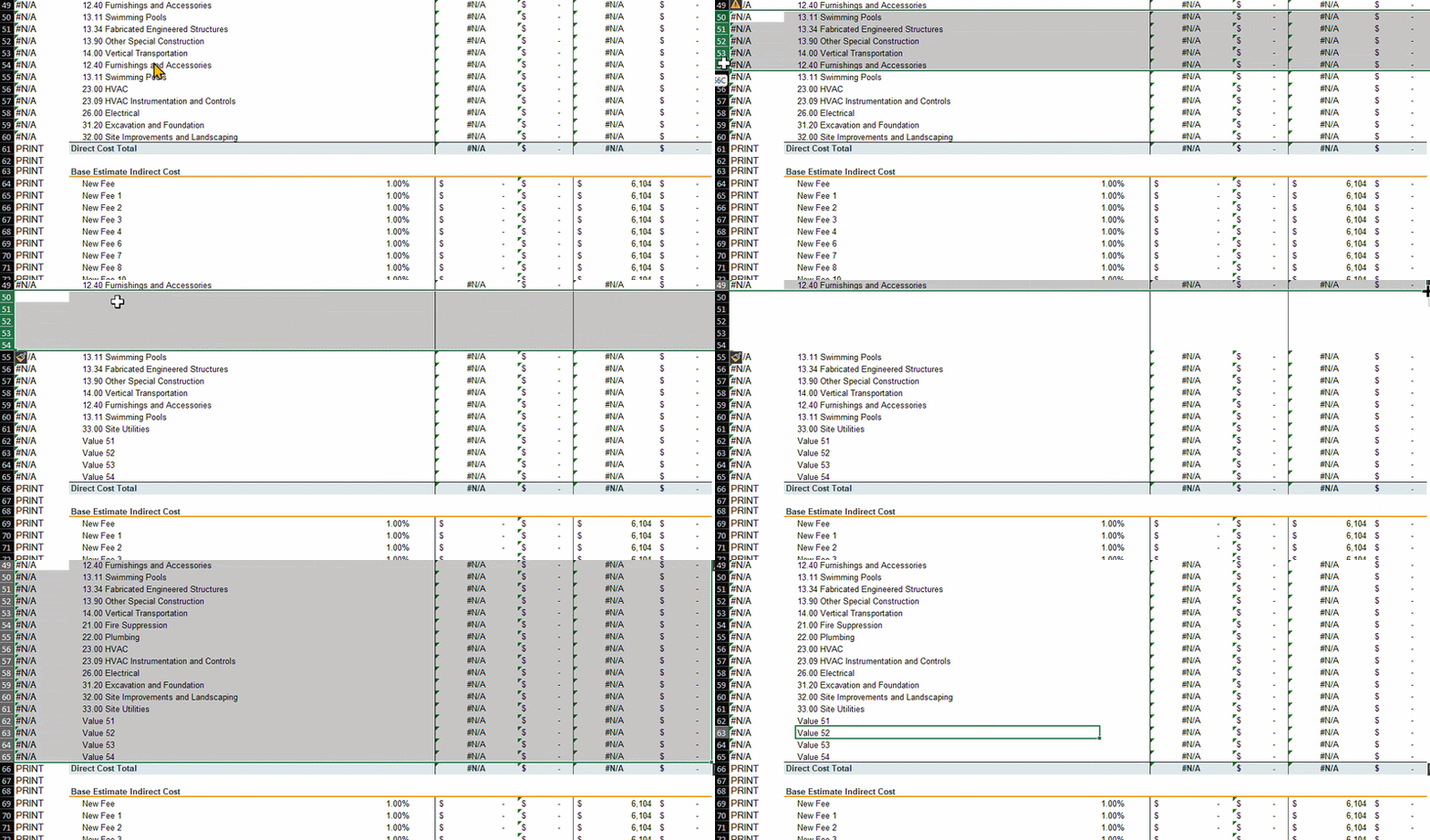
- Navigate to the Estimate Comparison sheet and locate the Base Estimate section.
- Repeat the steps again to add the required number of rows.
Import Your Updated Dashboard
- Save the changes made in Excel.
- Close the workbook - skip any compatibility checks if prompted.
- In Estimator, navigate to the Dashboard View.
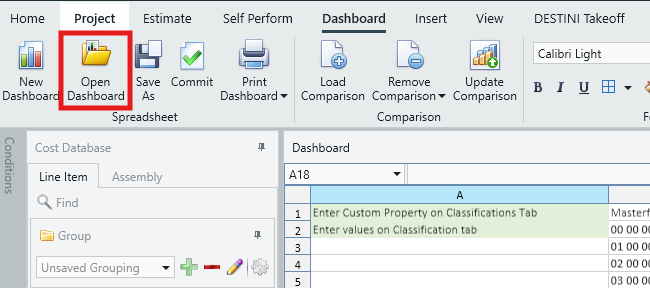
- Click Open Dashboard in the main ribbon and open the updated Dashboard file.
- Verify that all WBS Properties and their values now appear in the dashboard.
Submit Your Suggestions to Help Improve This Article