
By default, the Standard Dashboard workbook for DESTINI Estimator supports up to 25 fee rows. In some scenarios, however, organizations may need to expand this limit to support a larger number of fees and fee subtotals.
This article walks through the steps required to modify the Summary and System Breakdown dashboards so they can display more than the default 25 fee rows.
When You May Need to Expand the Fee Limit
Every line of data in your fee table counts against the default limit of 25 rows. This includes every fee (on or off, distributed or not) and every subtotal.
If your organization uses any of the following workflows, you may encounter this limitation and need to modify the dashboard:
- Heavy use of subtotals for calculation purposes
- A high number of distributed fees to support specialized workflows
- A significant number of optional or region‑specific fees that are turned off by default
Step-by-Step
In this example, the estimate contains 30 fees. We will expand the dashboard to support five additional fee rows beyond the default limit.
Step 1: Export the Dashboard to Excel
- In Estimator, select Save As and export the dashboard to Excel.
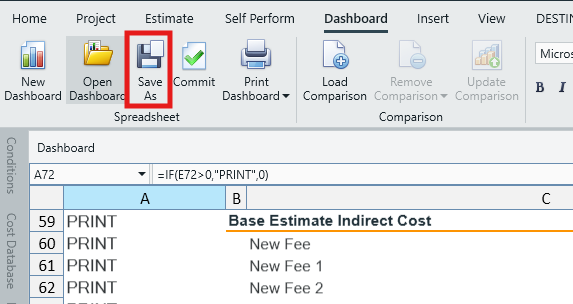
- Open the exported workbook in Excel.
Step 2: Extend the Fee Table on the References Sheet
- Go to the References sheet.
- Review the instructions at the top of the sheet for adding additional fees.
- Locate the Fee Table section (in this example, it's in columns K through Q, but this is subject to change over time).
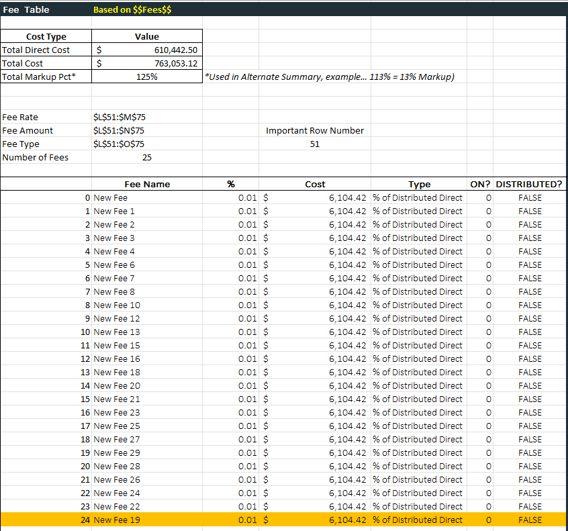
- Select the yellow‑highlighted cells for the existing fees.
- Grab the lower‑right corner of the selection and drag the formulas downward to add the required number of additional fee rows (below, we add five rows).
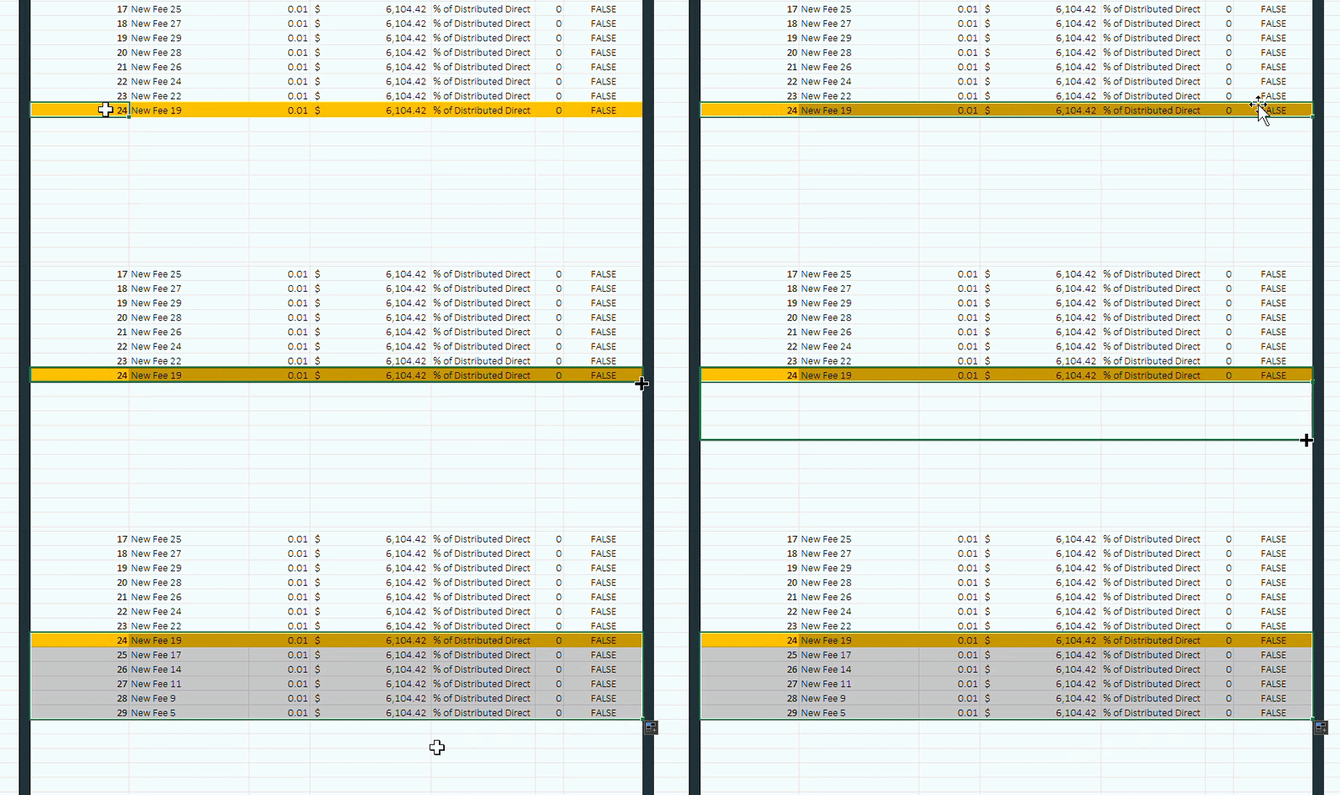
The new fee rows appear immediately and are now available for use by the dashboard.
Step 3: Update the Summary Sheet
Next, update the Summary dashboard so it can display the additional fees.
- Go to the Summary sheet.
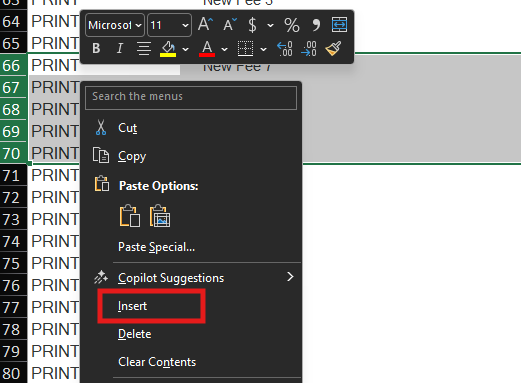
- In the Base Estimate Indirect Costs section, highlight the number of rows you need to add (in this example, five rows). These rows can be selected anywhere in the middle of the table.
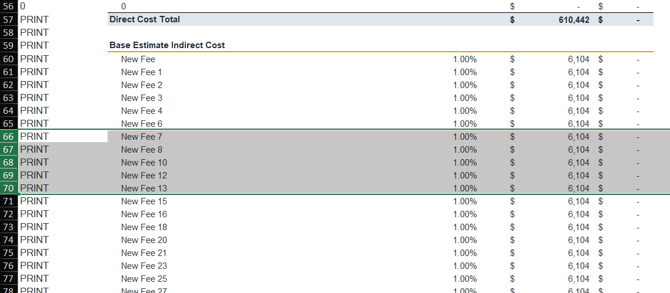
- Right‑click the highlighted rows and select Insert.
- Highlight the row directly above the newly inserted rows.
- Click and drag from the lower‑right corner of the selection down to the bottom of the fee table.
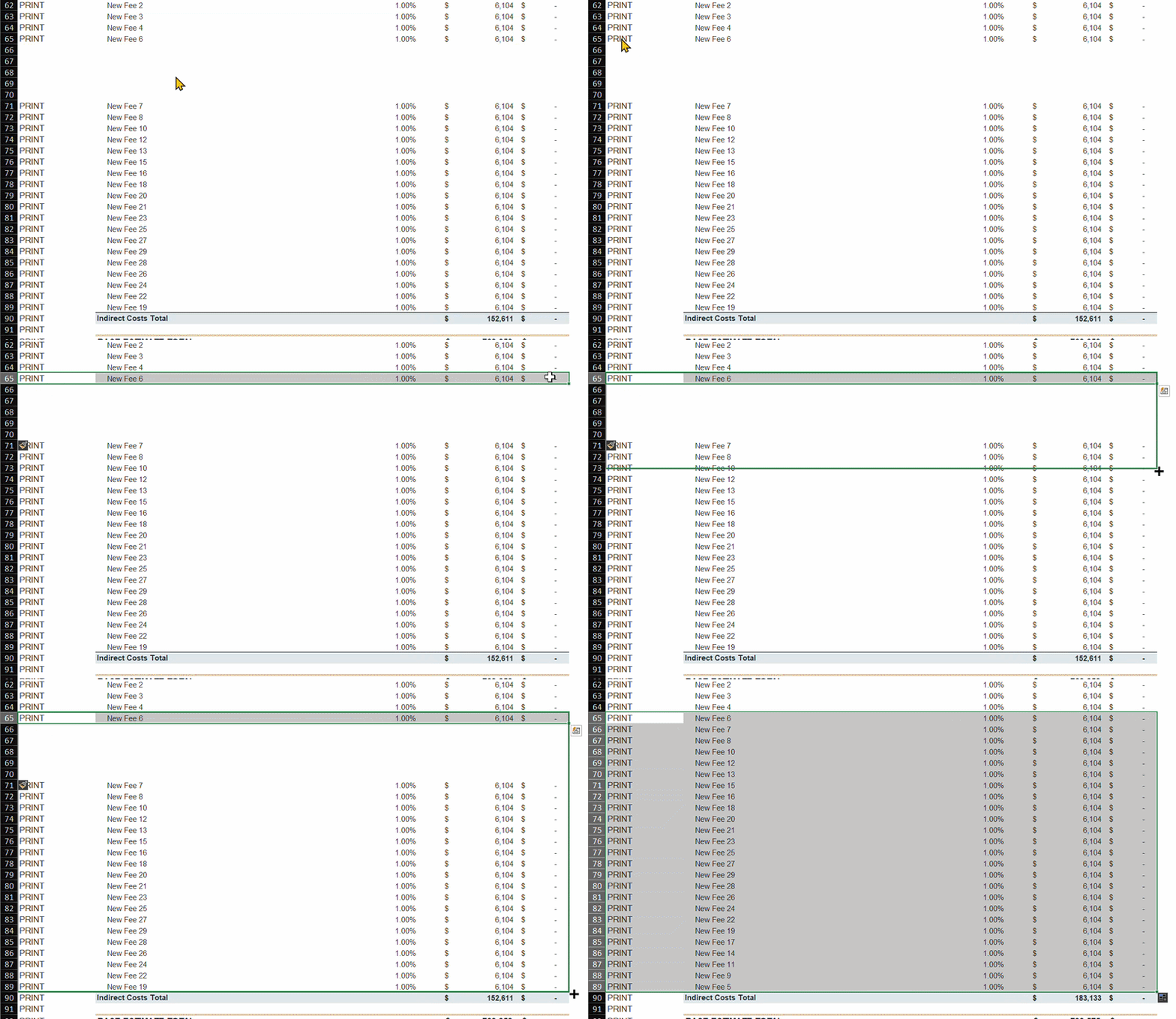
All indirect fees should now appear correctly in the Summary.
Step 4: Update the System Breakdown Sheet
Because the System Breakdown follows the Summary logic, it must also be expanded.
- Go to the System Breakdown sheet.
- Scroll down to the Base Estimate Indirect Cost section.
- Highlight the number of rows you need to add (matching the number added on the Summary sheet). These rows can be selected anywhere in the middle of the table.
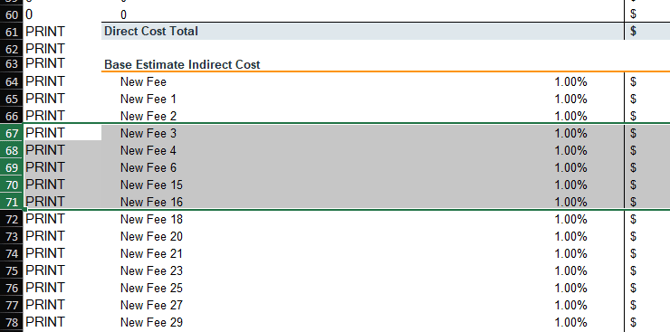
- Right‑click the highlighted and select Insert.
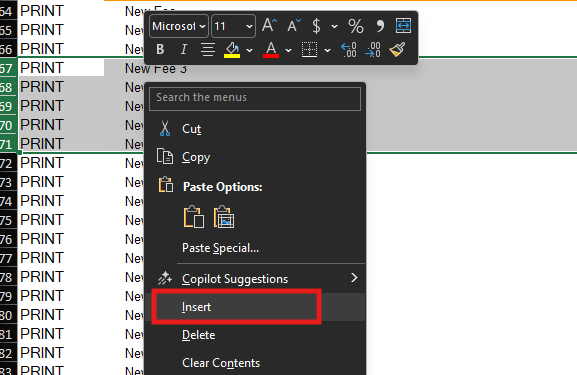
- Highlight the cells for the upper‑most fee row in the table.
- Click and drag from the lower‑right corner of the selection down to the bottom of the fee table.
- NOTE: Some columns were hidden in the animation below for legibility purposes.
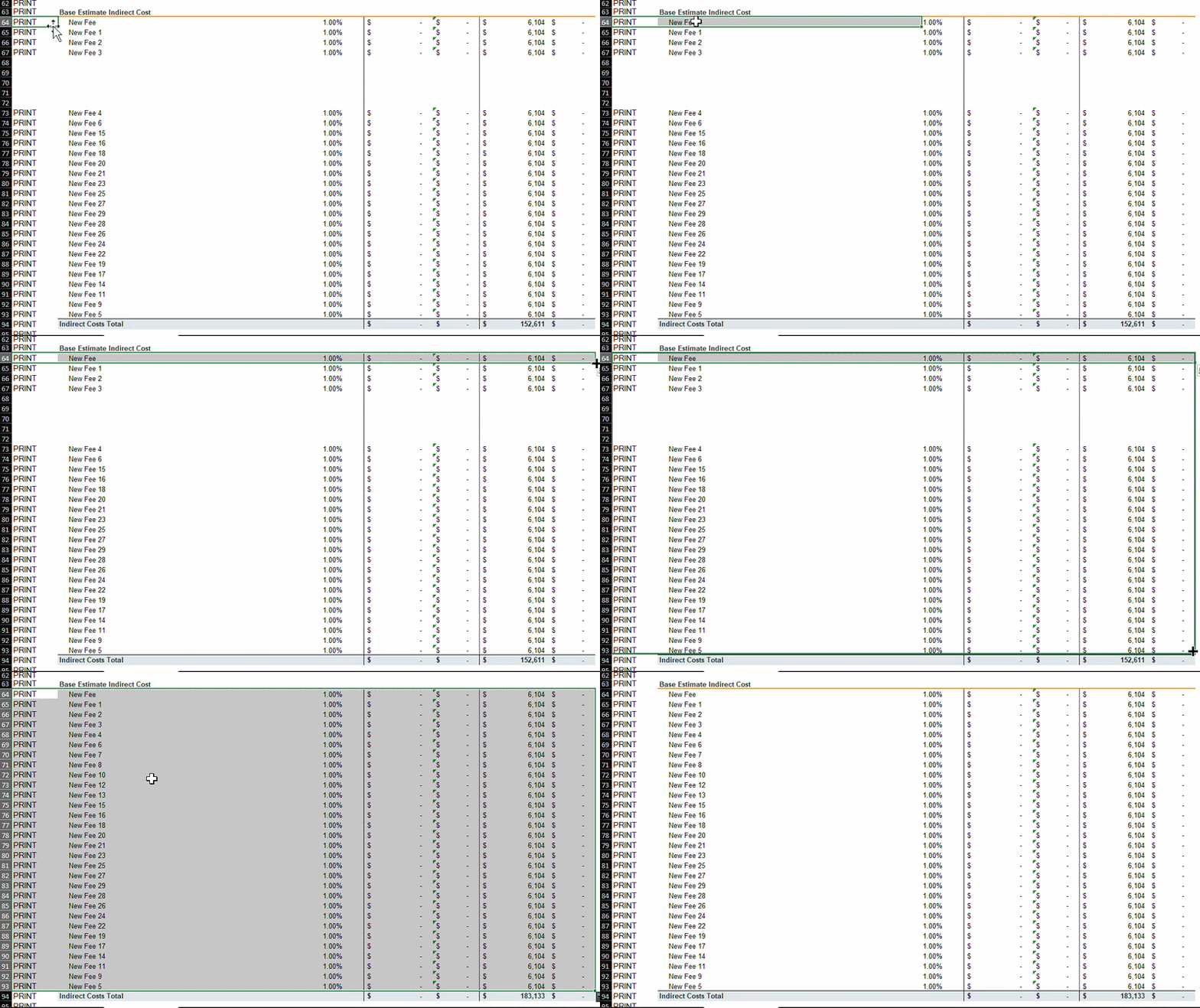
All fees should now display correctly in the System Breakdown.
Step 5: Save and Reopen the Dashboard
- Save the Excel file.
- Close Excel (skip the compatibility check if prompted).
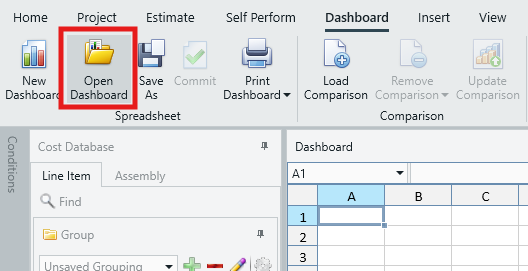
- In Estimator, select Open Dashboard and open the updated Excel file.
- Confirm that:
- All fees display correctly
- Totals are accurate across the dashboards
Result
The Standard Dashboard now supports more than 25 fee rows, allowing you to work with expanded fee structures, additional subtotals, and complex fee configurations without losing visibility or accuracy.
Submit Your Suggestions to Help Improve This Article