
For demonstration purposes, the following steps outline the process for reordering the Sub and Equipment columns within the Details section in LMSEO report.
You can apply the same steps to reorder any report columns.
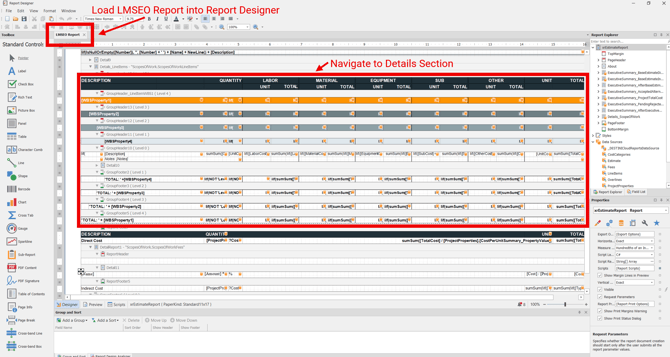
Open the Report in the Designer within DESTINI Cloud
-
Launch the Report Designer from DESTINI Cloud
-
Load in Cloud LMSEO Report
-
Scroll down and navigate to the Details section of the report
Ensure you open DESTINI Cloud reports within DESTINI Cloud. Opening them in Legacy will corrupt them and make them unusable.
Reorder the Sub and Equipment Header Cells
-
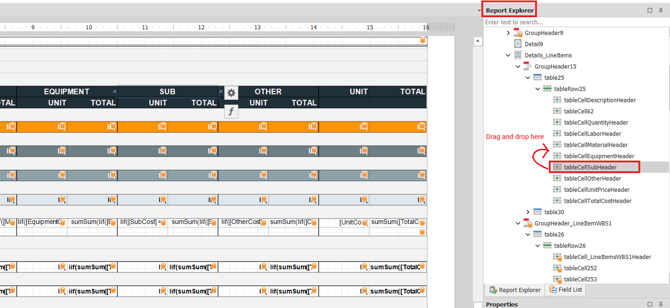
Click on the Sub Header cell
-
The Sub Header cell is positioned fourth from the right in the report layout.
-
-
Navigate to the Report Explorer section located on the top right
-
You will see corresponding ‘tableCellSubHeader’ already highlighted
-
-
Drag and move the cell one position above the ‘tableCellEquipmentHeader’
-
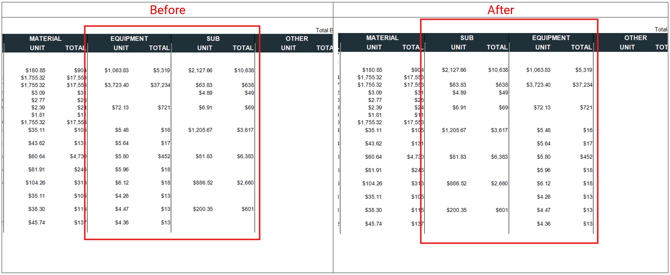
You will see that the cells have swapped their places in the report layout.
-
Reorder Sub and Equipment Cells in Group Bands
-
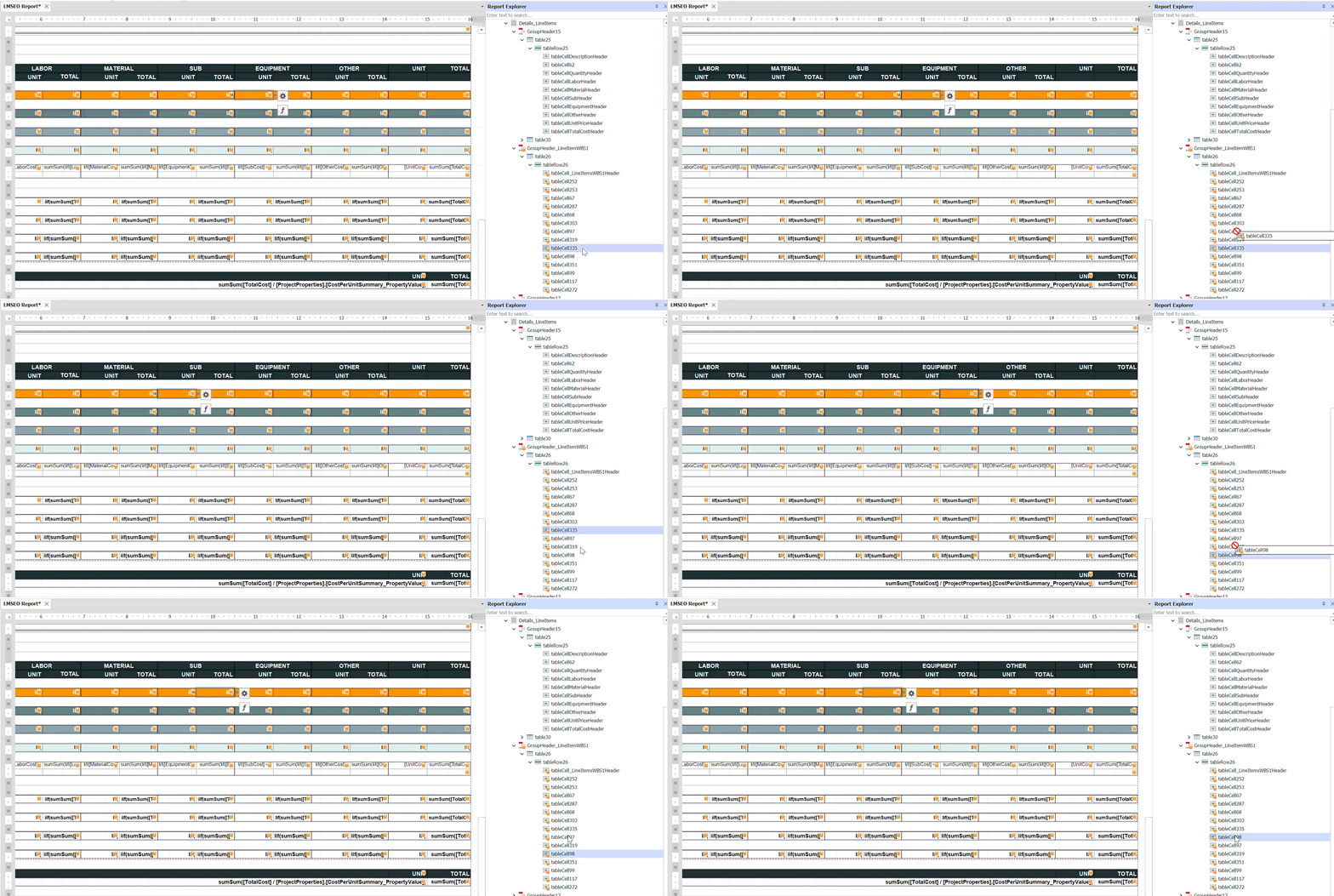
Move on to the next band, GroupHeader_LineItemWBS1 and click on the original Sub Unit Cost cell
-
The Sub Unit Cost cell is the sixth cell from the right, labeled ‘tableCell335’.
-
-
Drag and place the cell two positions above so it sits in the correct column
-
Proceed to drag and drop the original Sub Total cell (‘tableCell98’) two positions above
-
Repeat the above steps for all the Group header/footer bands under the Sub and Equipment columns
Save and Run the Report
-
Save and run the report in DESTINI Cloud: Estimator
Note: Dragging and dropping allows you to move table cells, but only within the same band
Suggest an Improvement to this Article