
This article explains how to remove WBS footers from the line item details section. With a few simple adjustments, you can configure the report to display WBS headers only above your line items.
This approach consolidates WBS property information and reduces the overall page count.
1. Open the Report Designer
-
-
In DESTINI Cloud: Estimator, open an Estimate (any estimate, it doesn’t matter which).
-
Navigate to the Home View.
-
In the main Ribbon, click on New Report…
-
Report Designer will be launched
-
2. In the Report Designer, open your report template file
-
-
Click the Open button
-
Navigate to the location of the report template file (.repx) that you want to modify.
-
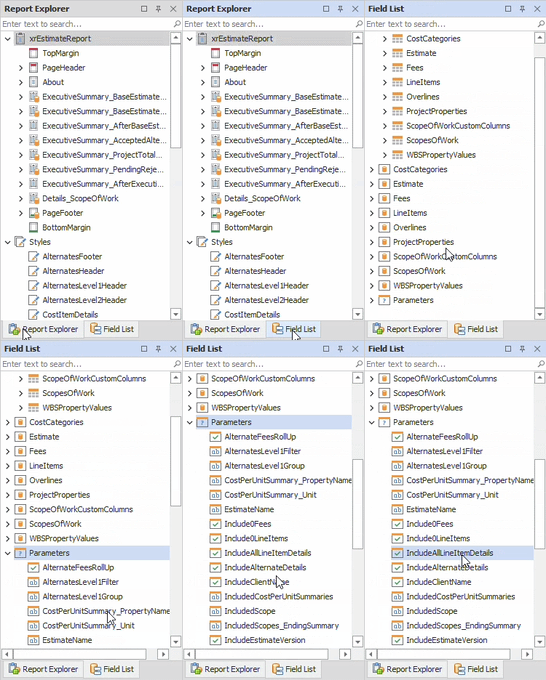
3. On the right side of your screen, open the Field List
-
-
Locate the Report Explorer on the right side of the screen.
-
Using the tabs, switch to the Field List.
-
4. At the bottom of the Field List, expand Parameters and select IncludeAllLineItemDetails
5. On the bottom right side of your screen, locate the Properties panel.
6. Inside the Properties panel, apply the following changes
-
-
Visible = Unchecked
-
Value = No
-
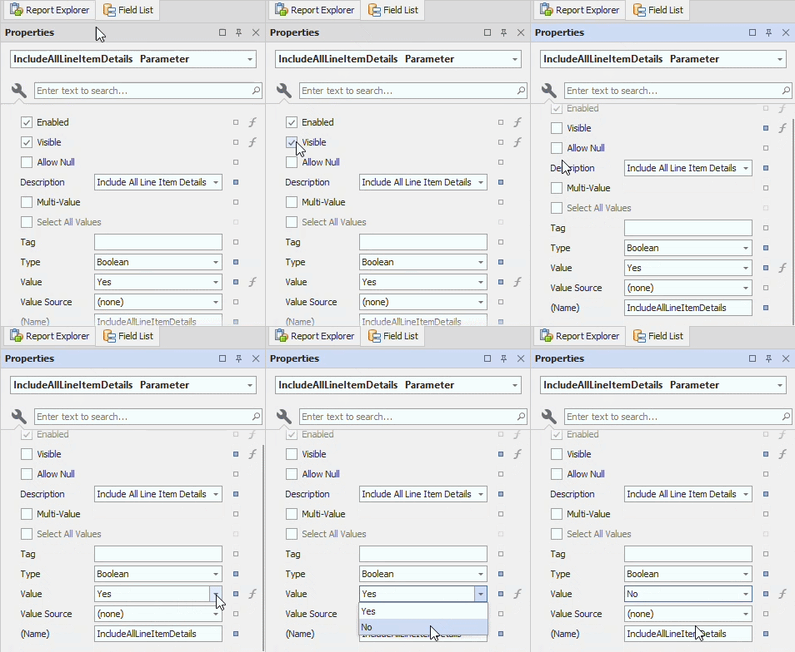
Setting the IncludeAllLineItemDetails Value to No affects the conditional visibility of certain parameters. The following steps will remove this dependency to ensure all other parameters display correctly.
7. Navigate back up to the Field List panel. Inside the Parameters section, locate and select IncludeLineItemNotes
8. Navigate back down to the Properties panel. Locate the Visible property and click the Function button on the far right.
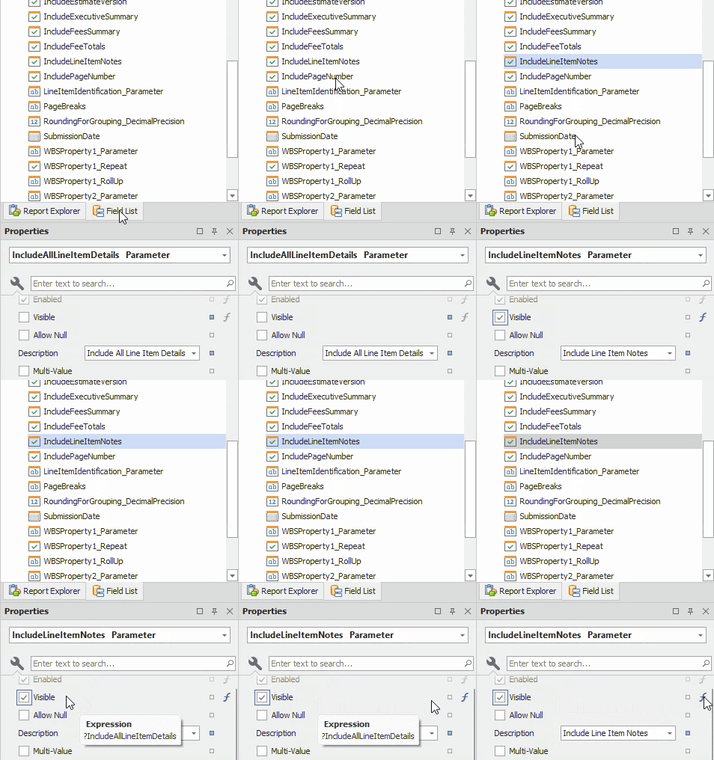
9. Inside the Expression Editor window, clear all contents and click OK.
10. Repeat Steps 7-9 for the parameter called LineItemIdentification_Parameter
With the parameters configured, a minor update in the Designer ensures the line items display correctly.
11. Inside the Designer in the middle of your screen, locate and select the line item’s band after the WBS4 group header.
12. With the band selected, click the Function button on the right.
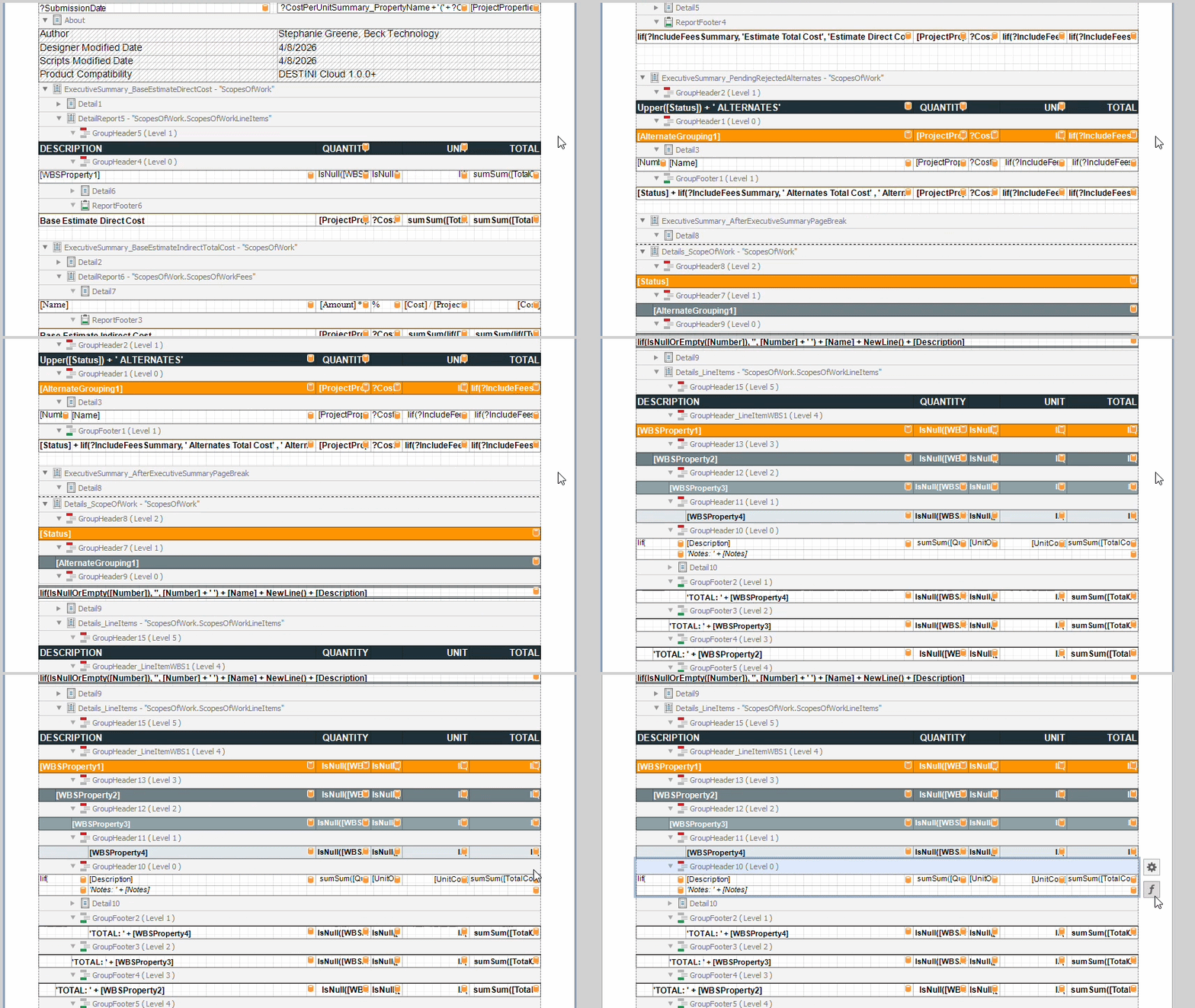
13. Inside the Expression Editor window, select Visible on the bottom left side of the window.
14. Inside the expression, remove the first line
?IncludeAllLineItemDetails &&
Here is the resulting expression
iif(IsNullOrEmpty(?WBSProperty1_Parameter), true, !([WBSProperty1]
in (?WBSProperty1_RollUp))) &&
iif(IsNullOrEmpty(?WBSProperty2_Parameter), true, !([WBSProperty2]
in (?WBSProperty2_RollUp))) &&
iif(IsNullOrEmpty(?WBSProperty3_Parameter), true, !([WBSProperty3]
in (?WBSProperty3_RollUp))) &&
iif(IsNullOrEmpty(?WBSProperty4_Parameter), true, !([WBSProperty4]
in (?WBSProperty4_RollUp)))
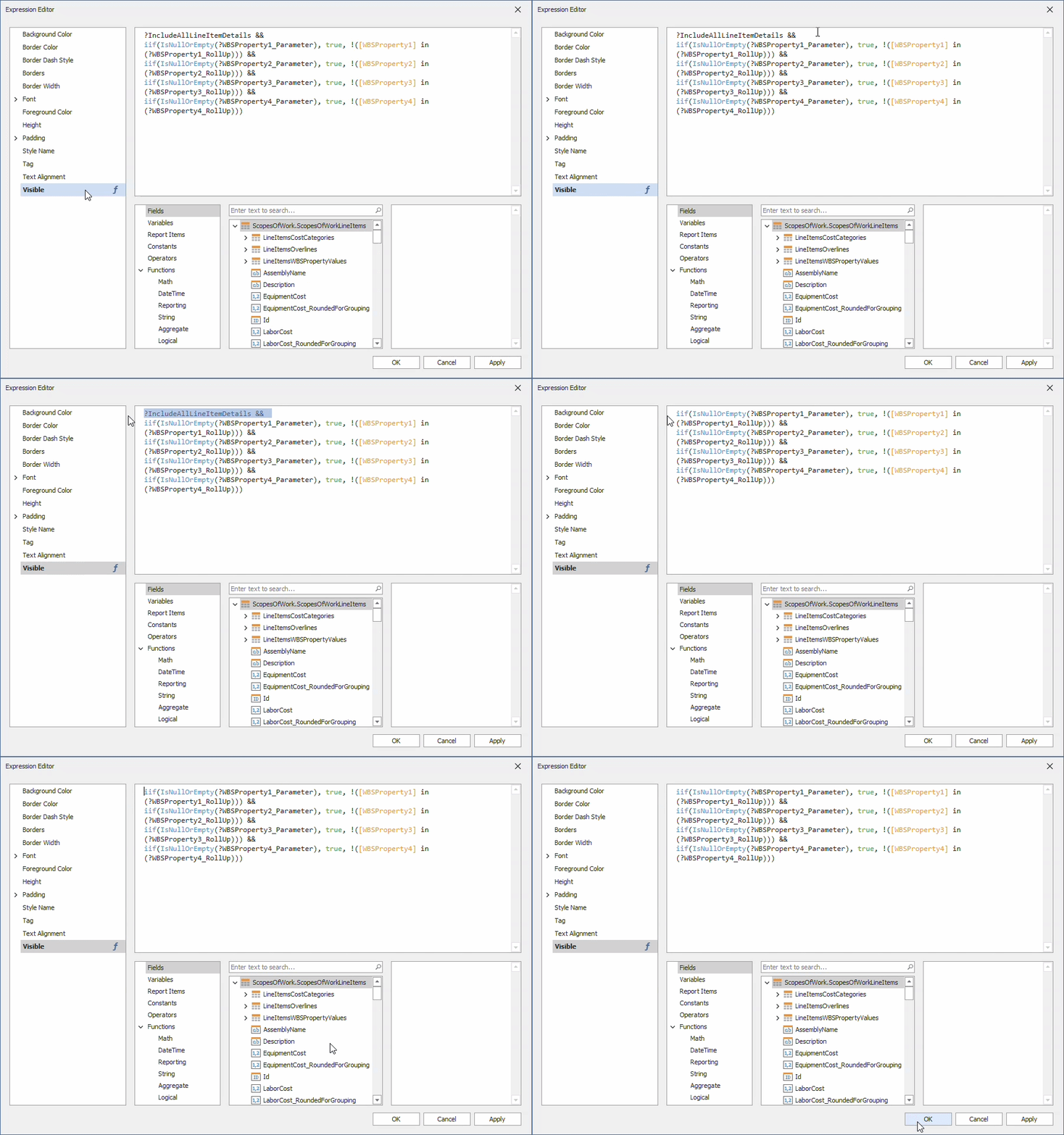
15. Click OK
16. Save and run your report in DESTINI Cloud: Estimator
Suggest an Improvement for this Article