
How to Remove the Item Number from a Cloud Report
Reminder: Cloud Reports must be opened and edited in DESTINI Cloud
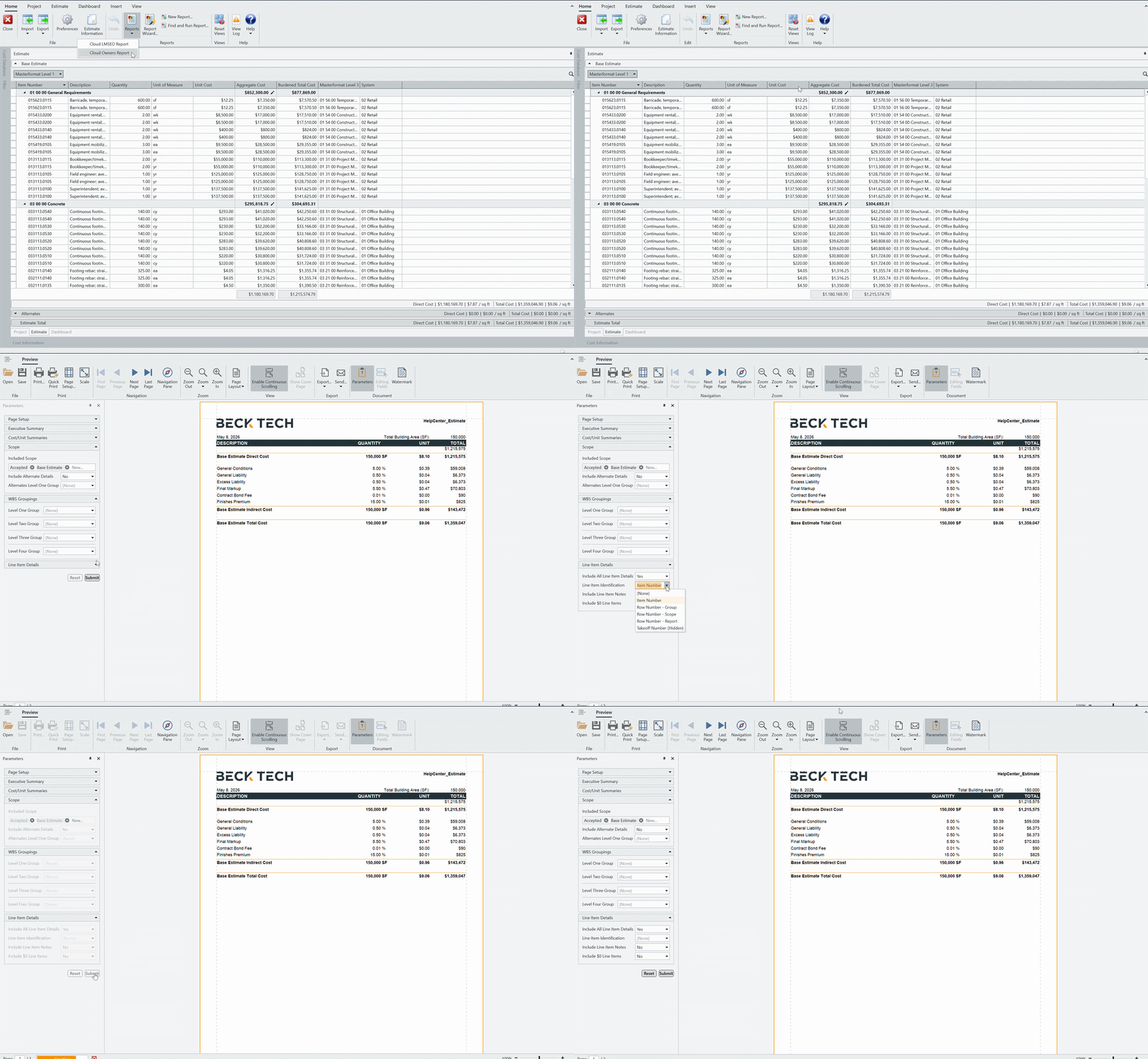
Remove Item Number at Runtime
- Inside Cloud, run your report
- When the Report Previewer window opens, locate the Parameters panel on the left side of your screen.
- Expand the Line Item Details group
- Set Line Item Identification to (None) using the drop-down
- Click the Submit button
Update the Parameter’s Default Value
-
Open the Report Designer
-
In Cloud, open an Estimate (any estimate, it doesn’t matter which).
-
Navigate to the Home View.
-
In the main Ribbon, click on New Report…
-
Report Designer will be launched
-
-
-
In the Report Designer, open your report template file
-
Click the Open button
-
Navigate to the location of the report template file (.repx) that you want to modify
-
-
On the right side of your screen, open the Field List
-
Locate the Report Explorer on the right side of the screen.
-
Using the tabs, switch to the Field List.
-
-
At the bottom of the Field List, expand Parameters and select LineItemIdentification_Parameter
-
On the bottom right side of your screen, locate the Properties
-
Clear the Value field contents and press the Enter key on your keyboard.
-
Save and run your report.
.gif?width=670&height=361&name=ezgif.com-video-to-gif-converter%20(2).gif)
Suggest an Improvement to this Article