
It may be helpful to re-arrange or add a project property to the page header of a banded report for identifier information to your client.
Go to the Home tab in DESTINI Cloud: Estimator
Launch the Report Designer from the Report Wizard by selecting New Report and opening the Report file
Best practice: Work from a copy of the file and not the one that the team is using in Production. Once you are finished with your updates, publish the file to the Production location for the team's use.
Add a Project Property to Page Header
or jump to Re-arrange Properties
You may add a Project Property using a calculated field or any other data field to the page header with a drag and drop into the blank cell. We are going to add Lead Estimator to our page header.
-
Add a row to the header: Right-click the table Choose → Insert → Row Below
Right-click to choose Insert → Row Below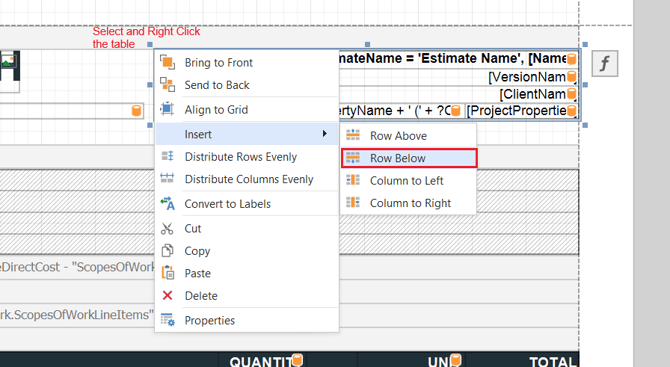
-
Click on the blank cell created when the row was added
-
Click the silver gear
-
Type in the Text to be displayed to the left of the property. In our case, it is Lead Estimator:
-
Navigate to the Field List panel
-
Locate ProjectProperties or the appropriate data category that you would like to add to the report
-
Right-click and select Edit Calculated Fields
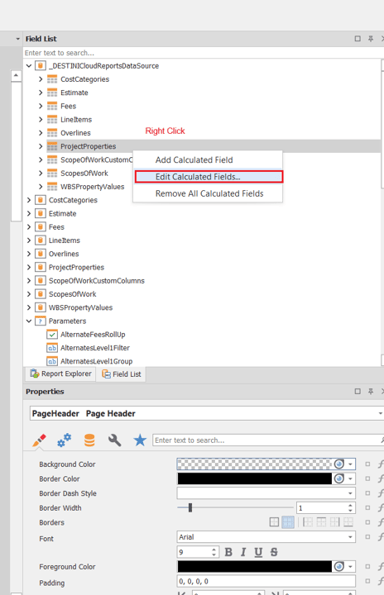
-
In the Calculated Fields window, click Add
-
Enter the required details for the new calculated field:
-
Name: Use a clear, descriptive name, no spaces in the naming convention
-
Data Member: ProjectProperties
-
Data Source: _DESTINICloudReportsDataSource
-
Expression: IsNull([][[PropertyName] == 'Lead Estimator'].Single([StringValue]),'' )
-
Field Type: String
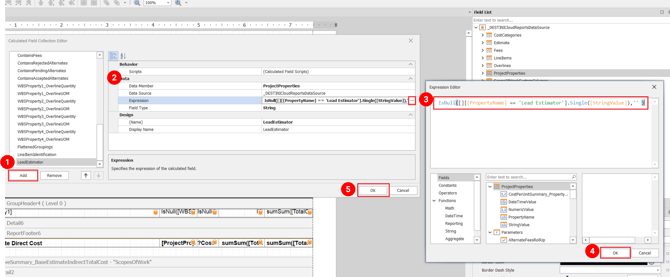
-
Note:
-
Make sure the Project Property is spelled exactly how it's named in the Project View, Property Pane
-
If your Project Property is either NumericValue or DateTimeValue use that in the expression after .Single([ ]) in place of StringValue
10. Click OK to commit the changes
11. Drag and drop the field into the Page Header table row where you want it to appear 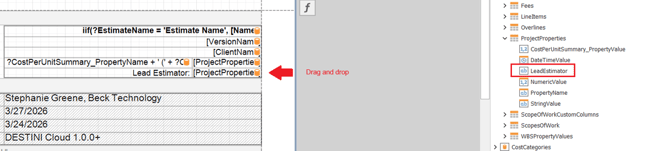
Re-arrange the Fields in the Page Header
-
In the Page Header, select the existing table
-
Right-click to choose Insert → Row Below
-
Click the silver gear icon on the field you want to move
-
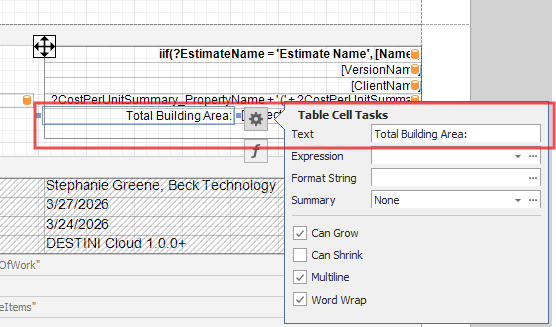
Copy Text and paste it in the blank field
-
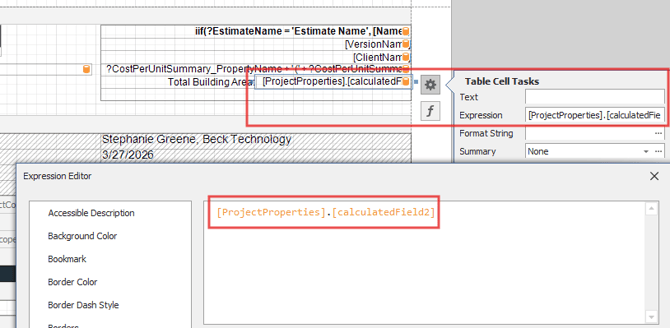
Copy Expression and paste it in the blank field
-
Right-click the empty space
-
Choose Delete Row
-
Adjust the About tab by dragging the edge up, to remove the additional space left behind.
-
Save the Report
-
Run the Report in DESTINI Estimator to confirm your changes

Suggest an Improvement for this Article