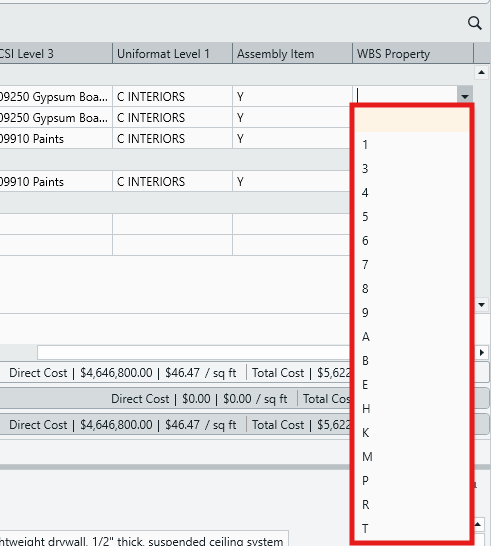
WBS Property values are displayed in the order in which they are created. When a WBS Property contains a long list of values, finding a specific value can be difficult without alphabetical sorting.
Although individual values can be repositioned using the Move Up and Move Down buttons in the WBS Properties editor, this method is not practical for reorganizing an entire list. This article outlines a simple workflow that uses Excel to quickly sort all WBS Property values alphabetically.
Sort WBS Property Values Using Excel
Open the WBS Property Values List
- Click the WBS Properties button to open the WBS Properties editor.
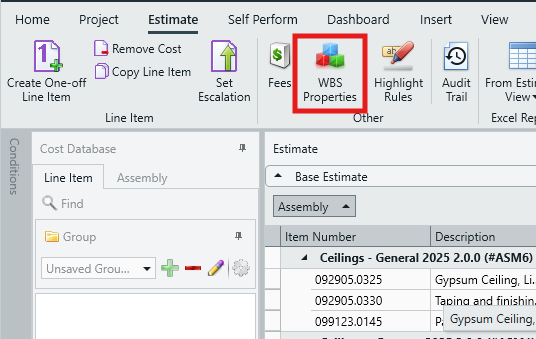
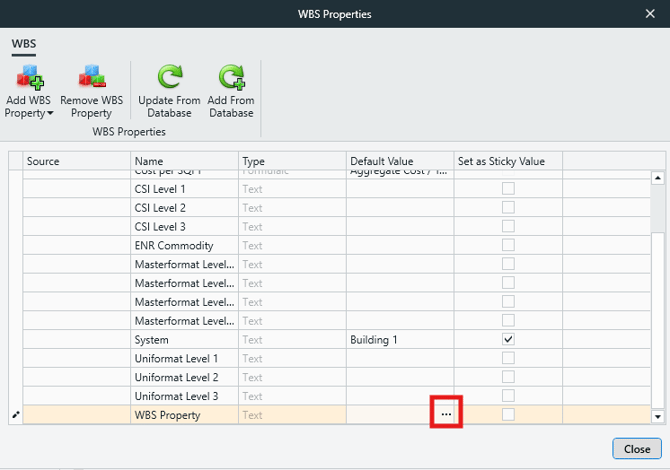
- Locate the WBS Property you want to modify.
- Click in the Default Value cell, then click the ellipsis (three dots) to open the WBS Property values list.
Copy the Existing Values
Here you can see we have a list of values that are completely out of order.
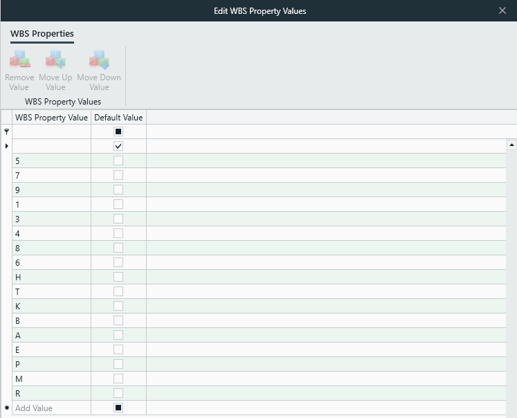
- Click the top value in the list.
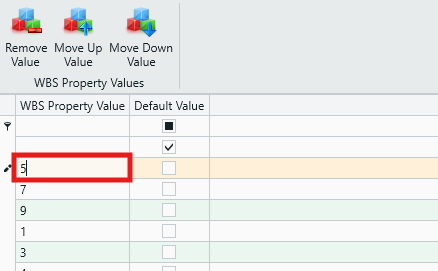
- Hold the Shift key, then click the bottom value to select the entire list.
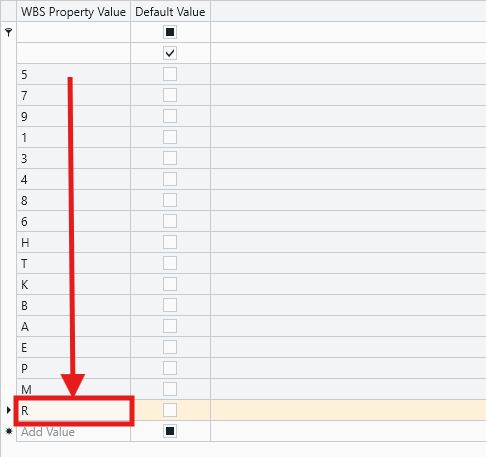
- Press CTRL+C to copy the values.
Sort the Values in Excel
- Open Microsoft Excel.
- Paste the values into a blank worksheet by pressing CTRL+V.
- For the purposes of this guide, the values are assumed to be pasted starting in cell A1.
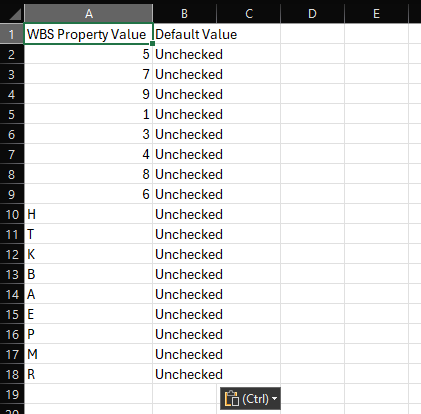
- Delete the Default Value column (Column B).
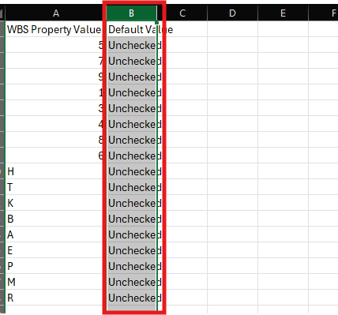
- Delete the header row (Row 1).
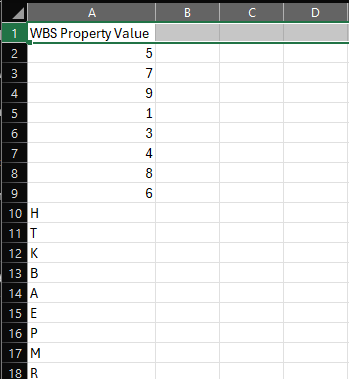
- Select Column A to highlight the list of values.
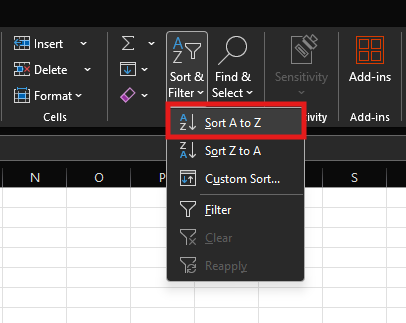
- Click Sort & Filter, then select Sort A to Z.
- The values are now sorted alphabetically.
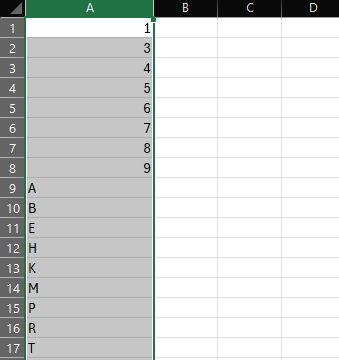
- Press CTRL+C to copy the sorted list.
Replace the Values in Estimator
- Return to Estimator and select the existing values in the WBS Property list.
- Click Remove Value to delete the selected entries.
- NOTE: If the Remove Value button is disabled, this is because the system does not allow the list to be completely empty. In this case, leave one value in place, remove the rest, and continue.
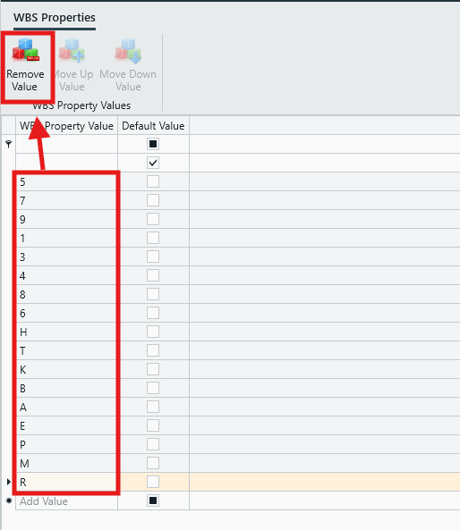
- Click into the Add Value cell.
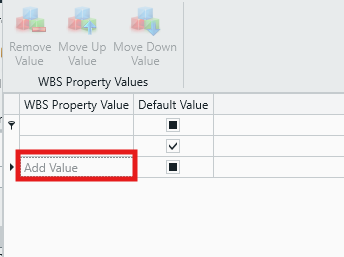
- Press CTRL+V to paste the alphabetized list from Excel.
- If you were required to leave one original value behind, delete it now.
- The WBS Property values are now in alphabetical order.
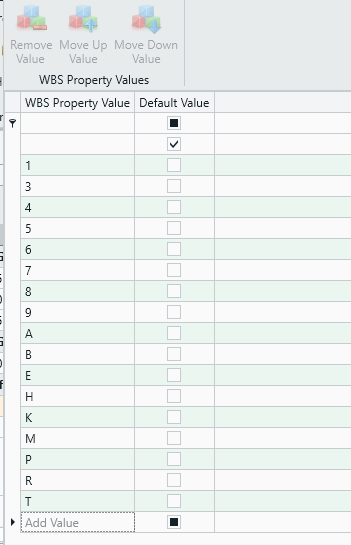
- The new value order is replicated in the Estimate View.