
This article offers a quick explanation for the Invalid defined name error that can occur in the Project View, and the steps for a simple solution.
Error: SpreadsheetGear - Invalid defined name
The "invalid defined name" error can occur in the Project View when trying to link a Project Property while having an invalid character in the name of a sheet. Here is an example of the error.
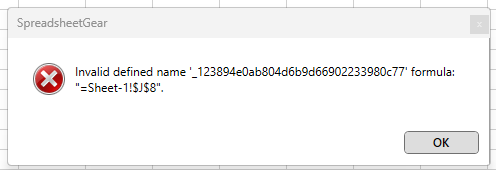
In most cases, this error is caused by having a dash (-) in the name of one the of sheets in the main Project View, but there may be other characters that can cause this error.
This is a technical limitation of SpreadsheetGear, and not a bug in Estimator.
To fix the error, you need to remove the dash (and any other potentially problematic characters) from the sheet name. Here are the steps:
-
Click OK in the error popup window to clear it.
-
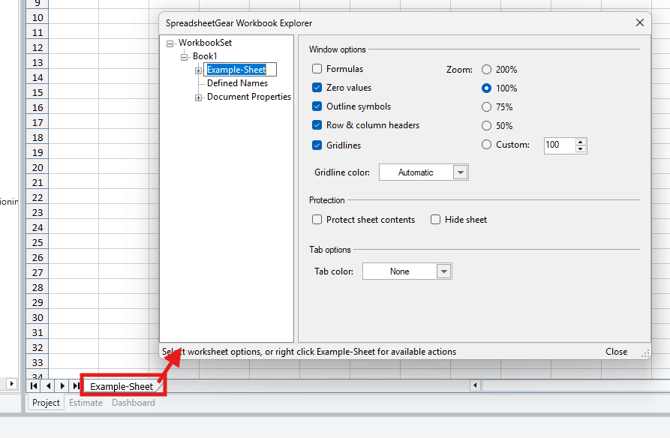
Double-click on the affected sheet tab to open the SpreasheetGear Workbook Explorer window.
-
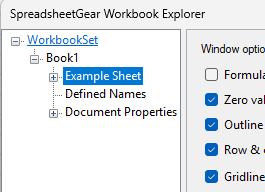
Remove the dash (or any other potentially invalid characters), and press Enter on your keyboard.
-
Click Close.
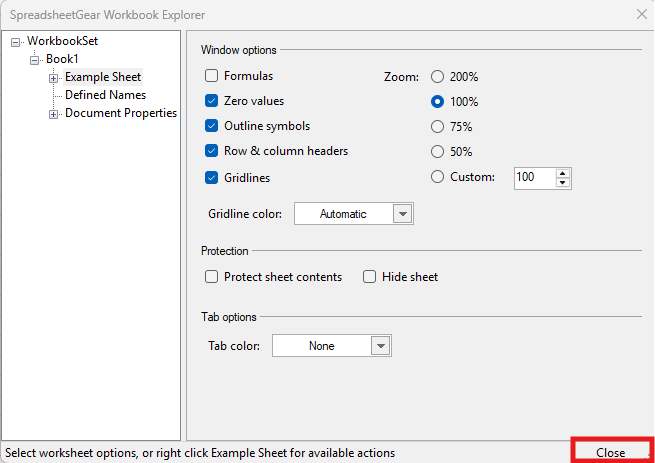
You should now be able to link Project Properties without error.
Suggest an Improvement for this Article