
Mapping AI Takeoff items to Conditions allows you to transfer AI-detected quantities into structured Condition Takeoff items. This helps ensure AI results are accurately reflected in your project’s Conditions workflow.
Enter Mapping Mode
Users can tie AI Takeoff items to one or more Conditions by entering Mapping Mode. In this mode, AI Takeoff items can be associated with Conditions in the Project library.
-
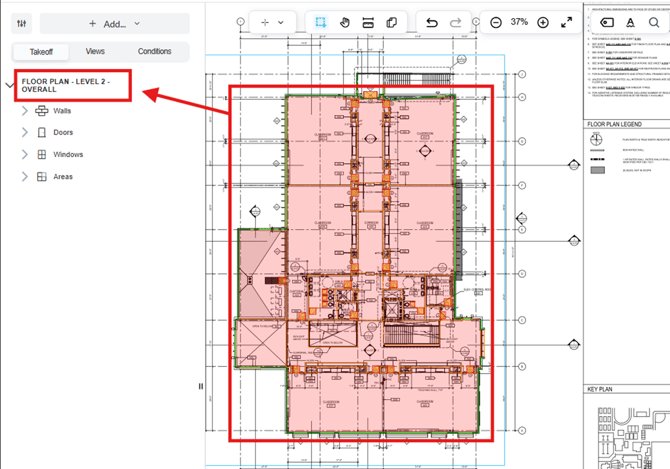
Here is an example of a page that has been processed by AI Takeoff. You can see the Takeoff Zone in the panel on the left, with the detected takeoff items grouped below it.
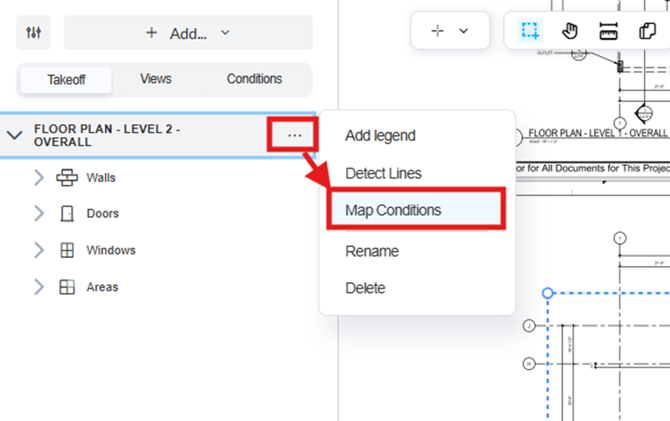
- Click the three-dot menu for the Takeoff Zone in the left panel.
- Select Map Conditions to enter Mapping Mode.
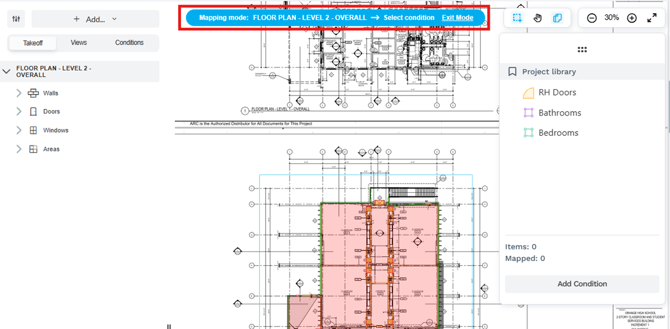
- Mapping Mode is confirmed via the blue badge at the top of the screen.
- The Project library panel appears on the right. All Conditions from the Project library are loaded.
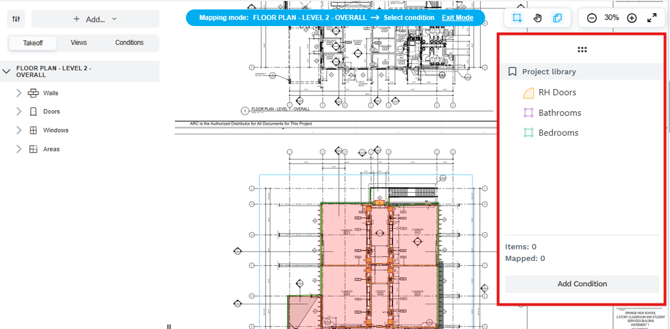
- If necessary, you can create new Conditions directly from this panel by clicking Add Condition.
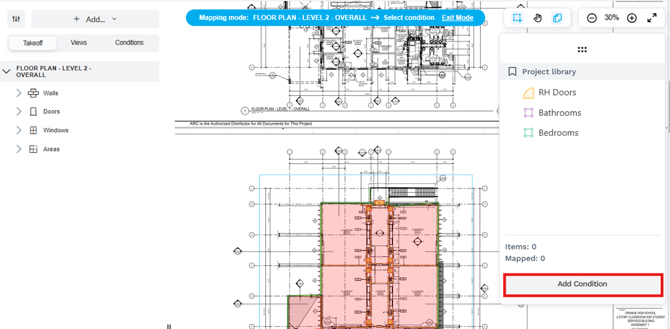
Map AI Takeoff Items to Conditions
- Click a Condition in the Project library panel to select it. Your selection will be confirmed in the blue badge.
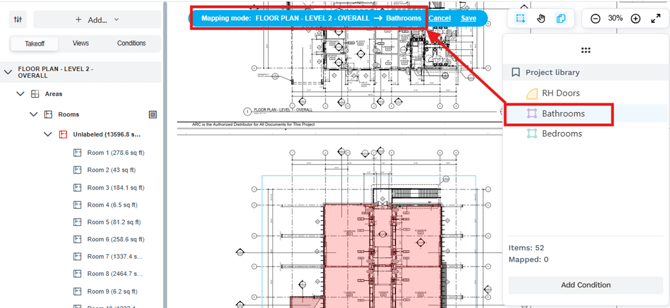
- After a Condition is selected, AI Takeoff items are automatically filtered so that only items of a compatible type remain visible.
- Select the AI Takeoff items you want to map. You can do this in two ways:
- Click the takeoff items directly in the drawing. Or…
-
- Click the takeoff items listed in the left panel.
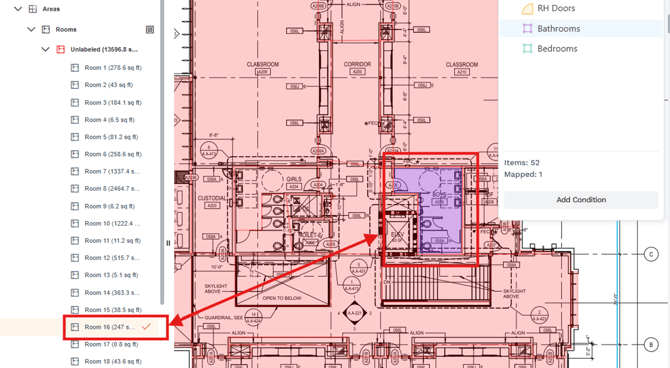
- Selected items change to the color of the active Condition, and a checkmark will show next to the item in the left panel.
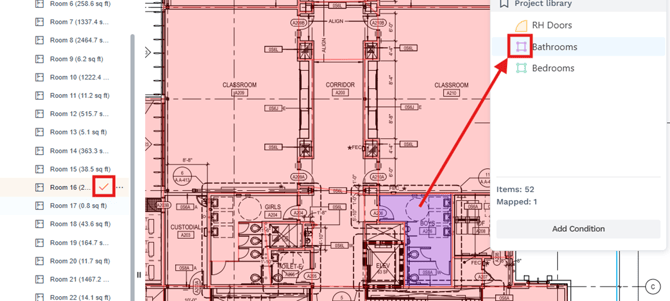
- Once all selections are complete, Click Save in the blue badge at the top of the screen.
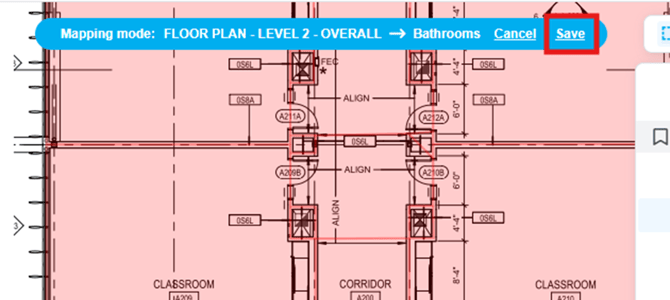
- Mapping Mode ends and your selections are applied.
TIP: AI Takeoff items can be mapped to multiple Conditions.
After Saving
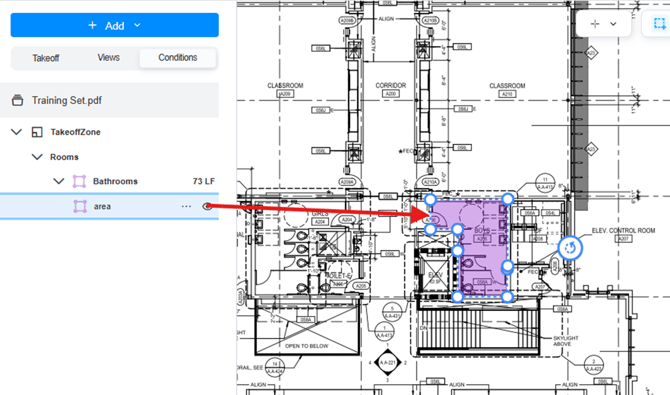
- You are redirected to the Conditions tab.
- The Conditions Takeoff now reflects the newly created items.
Submit Your Suggestions to Help Improve This Article