
-
There is now a new setting at the estimate level to enable or disable unit conversions.
-
Conversions are always a one-time, instant operation when they occur (no more “active conversion” state).
-
The old popup from Legacy about losing an active conversion has been removed.
The New Estimate-level Setting
At the estimate level, you now have a setting found in the top right corner of the screen within the gear button that controls whether changing the Unit of Measure (UoM) on cost items will automatically convert quantities. The full name of the setting is Enable Automatic Unit Conversions.
-
The setting can be:
-
Enabled (default)
-
Disabled
-
When you create a new estimate, unit conversions are enabled by default. You can change this in your estimate’s settings at any time.
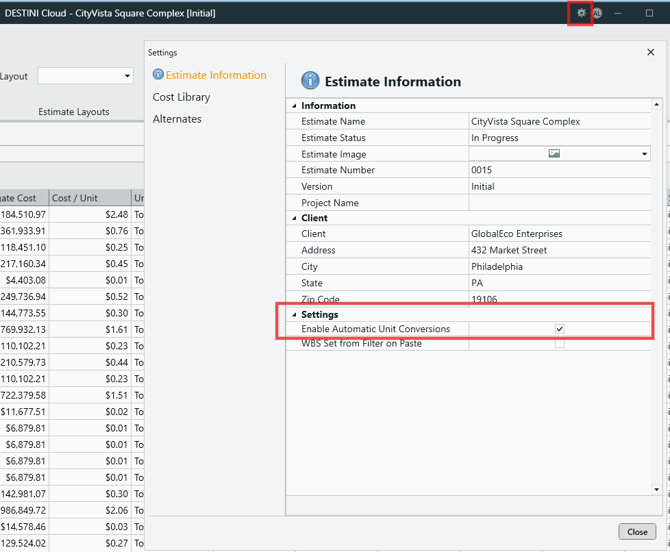
When Unit Conversions are ENABLED (default)
With unit conversions enabled, changing the UoM on a cost item can automatically adjust the quantity, depending on whether the item uses a formula.
1. Cost items without a formula
For a cost item (line item) that does not have a formula:
-
When you change the UoM:
-
The quantity is converted once, instantly based on the appropriate conversion factor.
-
The original unit is not retained.
-
There is no ongoing or “active” conversion tracked in the background.
-
Example
If you change a cost item from SF to SY, the conversion of 90 SF to 10 SY will occur
-
DESTINI Cloud converts the quantity to the equivalent amount in the new unit as a one-time operation.
-
After the change, the item simply has a new quantity and unit — there is no separate conversion factor you can “lose” later.
2. Cost items with a formula
For a cost item (line item) that uses a formula:
-
When you change the UoM in a way that would require a conversion:
-
You are warned that:
-
The existing formula will be lost.
-
The item will become a hard (constant) quantity.
-
-
You are given a choice to:
-
Continue (proceed with conversion), or
-
Cancel (keep the original UoM and formula).
-
-
If you choose to continue:
-
DESTINI Cloud flattens the formula into a constant value (evaluates it once).
-
That constant value is then converted according to the unit conversion.
-
After this, the item no longer has a formula; it just has a fixed quantity in the new unit.
-
-
What this means in practice
-
You stay in control of whether a formula is sacrificed for a conversion.
-
You’ll never lose a formula silently; you must confirm the change.
When Unit Conversions are DISABLED
When you turn the estimate-level unit conversion setting off:
-
Changing the UoM on any cost item
-
Does not change the quantity.
-
Does not change or remove the formula, if one exists.
-
-
DESTINI Cloud will simply update the unit shown, without doing any math or conversions.
Example
-
If a line item is 10 LF, and you change the unit to SY with conversions disabled
-
The quantity stays 10.
-
Any existing formula stays exactly as it is.
-
This mode is useful if
-
You prefer to manage conversions outside DESTINI Cloud.
-
You’re using UoM purely as a label and don’t want automatic quantity changes.
Removal of “Active Conversion” Behavior
In Legacy, there was a feature to actively convert. This behavior has been removed.
With this change:
-
There is no longer a concept of an “active conversion” attached to an item.
-
The previous popup warning about losing an active conversion has been removed.
-
All conversions are:
-
One-time
-
Applied at the moment you change the UoM (if conversions are enabled).
-
This simplifies the model: you either perform a one-time conversion or you don’t, based on the estimate-level setting and your confirmation (for formula-based items).
Summary
-
A new estimate-level setting controls unit conversions.
-
Enabled (default)
-
Non-formula items are converted immediately when UoM changes.
-
Formula items prompt you before flattening the formula and converting.
-
-
Disabled
-
UoM changes do not affect quantities or formulas
-
Suggest an Improvement for this Article