
The following steps create a simple app deployment of DESTINI Cloud via Microsoft Intune using the Microsoft Store as its source. Key elements of this deployment:
- By using the Microsoft Store as the app source, this allows the DESTINI Cloud app to automatically apply updates.
- Once the App is created inside of Microsoft Intune, the app could take anywhere from a couple of minutes to an hour to be deployed.
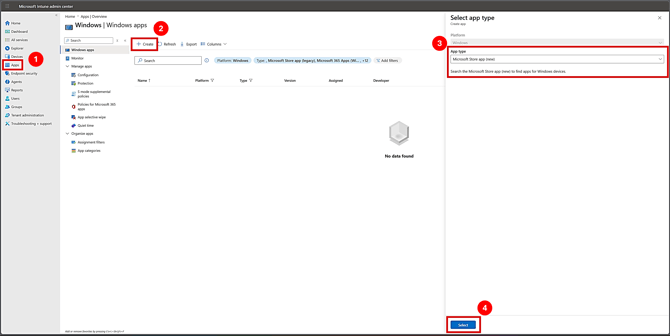
Create a New Windows App from the Microsoft Store
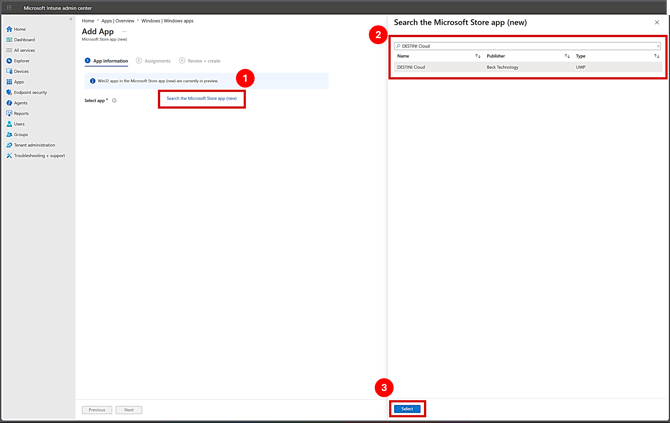
Locate and Select DESTINI Cloud as the Microsoft Store App to Install
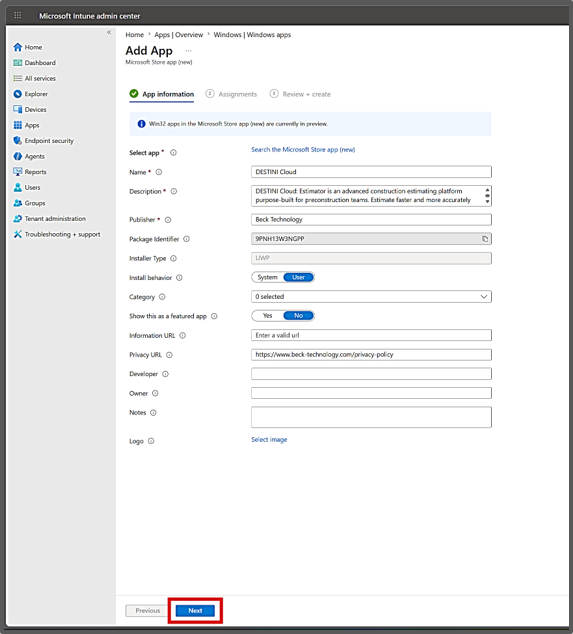
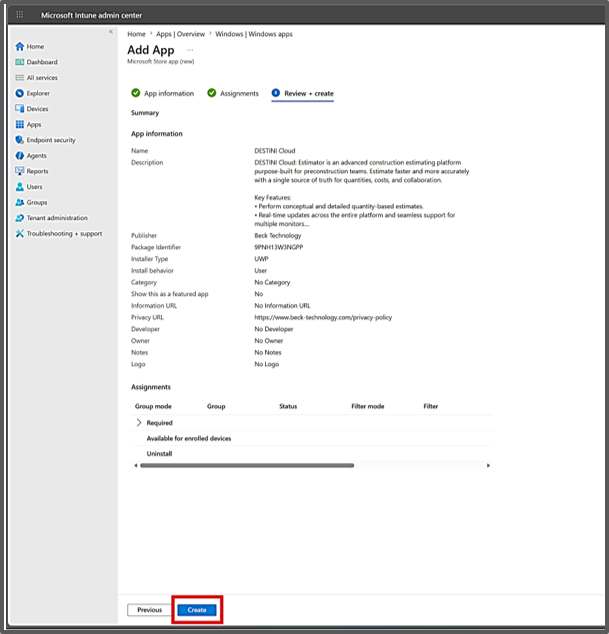
Confirm Details
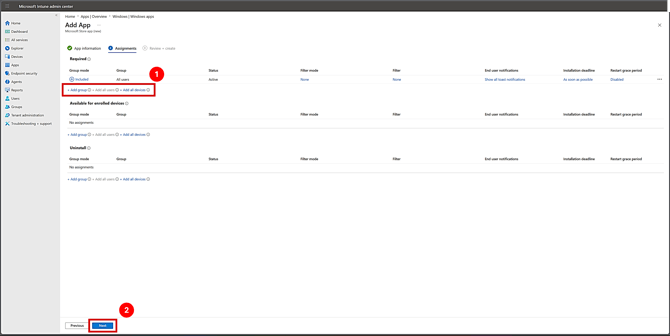
Assign the App for Deployment
Assign the app following your company’s policies. If there are no governing policies for assignment, it is recommended to perform a targeted deployment of DESTINI Cloud by assigning a group containing the appropriate users.
Create the Deployment
Suggest an Improvement for this Article