
The Subcontractor Directory is your organization's centralized database of subcontractors in DESTINI Bid Day. It stores the following in one location:
-
Company information
-
Contacts
-
Trade assignments
-
Service regions
-
Certifications
-
Prequalification details
With this information stored in one location, teams can reuse subcontractor records across projects instead of maintaining separate lists for each bid package.
Using the Directory helps teams:
- Quickly locate subcontractors by company name or trade
- Identify the correct bidding contact
- Review prequalification and risk information
- Track certifications and expiration dates
Access the Subcontractor Directory
To open the Subcontractor Directory:
- From the Home page, open the Settings menu (the gear icon at the top right of the page).
- Select Directory.
- Review the companies listed in the Directory.
Use the Search field to find subcontractors by company name or trade.
Add a Company
To create a new subcontractor record:
- Click + Company.
- Enter the company information in the fields provided. You must assign at least one Primary Trade to each company. Available trades are based on the Bid Packages configured by your organization.
- Click Add.
The company is added to the Directory.
Add a Contact
The Contacts tab stores the individuals associated with a subcontractor company.
- Select the Contacts tab.
- Click + Add Contact.
- Enter the contact's name and available contact information.
- Assign a Role Tag, if applicable.
- Click Add.
Each contact can have only one role, and each role can be assigned to only one contact within a company.
Assign a Bidding contact whenever possible. The Bidding contact's information is automatically displayed on the bidder card when the subcontractor is added to a Bid Package.
Contacts that have not been verified for 12 months or longer are marked as Stale, helping administrators identify records that may need updating.
Record Prequalification Information
The Pre-Qualification tab allows you to track information used to evaluate subcontractors before awarding work.
To complete prequalification information:
- Select the Pre-Qualification tab.
- Choose a Pre-Qualification Status.
- Enter the Prequal Expiration date.
- Enter insurance information.
- Add bonding, licensing, financial, and safety information.
- Add applicable certifications.
- Select a Risk Flag.
After the expiration date passes, Bid Day automatically changes the status to Expired.
Risk Flags
Use Risk Flags to quickly identify the subcontractor's risk level:
| Risk Flag | Description |
|---|---|
| Green | Low risk |
| Amber | Medium risk |
| Red | High risk |
The selected Risk Flag appears as a badge at the top of the company record.
Add a Directory Company to a Bid Package
Companies stored in the Directory can be added directly to Bid Packages.
To add a subcontractor from the Directory:
- Open the project and select a Bid Package.
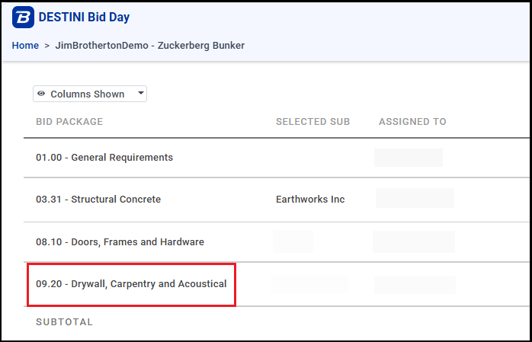
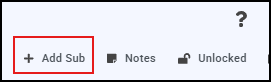
- In the top right corner, click + Add Sub.
- Search for or select the company.
- Confirm the bidding contact information.
- Finish adding the subcontractor.
Companies assigned to the Bid Package's trade appear first in the selection list. If a company does not exist in the Directory, you can enter a custom company name.
If an administrator selects a company that is not currently assigned to the Bid Package's trade, Bid Day may prompt them to add that trade to the company's Directory record.
Import Companies
Administrators can use an Excel template to add or update multiple subcontractor records simultaneously.
Importing updates to an existing company replaces its contacts, certifications, trades, and service regions with the information contained in the workbook. Ensure the import file includes all information that should remain associated with the company.
To import companies:
- In DESTINI Bid Day, click the gear icon at the top right of your screen and then click Directory.
- Click Download Template.
- Review the instructions on the README worksheet.
- Enter company information in the appropriate worksheets.
- Use the same Company Ref value to link company, contact, and certification records.
- Save the workbook.
- Return to the Directory and click Import.
- Upload the completed workbook and review the results.
If a Company Ref already exists, the matching company record is updated. A new Company Ref creates a new subcontractor record.
Best Practices for Maintaining the Directory
To keep subcontractor information accurate and useful, review Directory records on a regular basis.
Administrators should:
- Update prequalification, insurance, license, and certification expiration dates.
- Re-verify contacts marked as Stale.
- Confirm that each company has an active Bidding contact.
- Review Risk Flags whenever company information changes.
- Verify that companies are assigned to the correct trades.
Keeping the Directory current helps ensure that bid invitations, bidder communications, and subcontractor evaluations are based on accurate and up-to-date information.