
The Project View offers a singular place to track the key metrics of a project. The properties can be used to identify/categorize estimates for historical analysis, as well as to drive quantities/analysis in the Estimate View.
Some example properties include:
- Total Building Area
- Total Site Area
- Project Type
- Project Duration
- Number of Keys (for hotel)
- Number of Spaces (for garages)
Using a standard set of properties sets your estimates up for consistent 'apples to apples' comparisons in cost history. DESTINI Hub+ Power BI files depend on Estimate Properties to model data correctly, as well.
The Project View is a data entry point in DESTINI Estimator. It does not consume data from other locations within the program i.e. Estimate View cannot round trip data to Project View.
The left side of the screen is the data input spreadsheet. Excel-like named ranges may be utilized to create drop-down lists. Excel formulas may be included to make calculations, etc.
The right side of the screen is the Property Pane. These properties are the containers for the data that may be used downstream in Estimate View, Dashboard, Reports, and Power BI. Essentially, they can be considered column names, fields, properties for overlines, or variables to use data elsewhere.
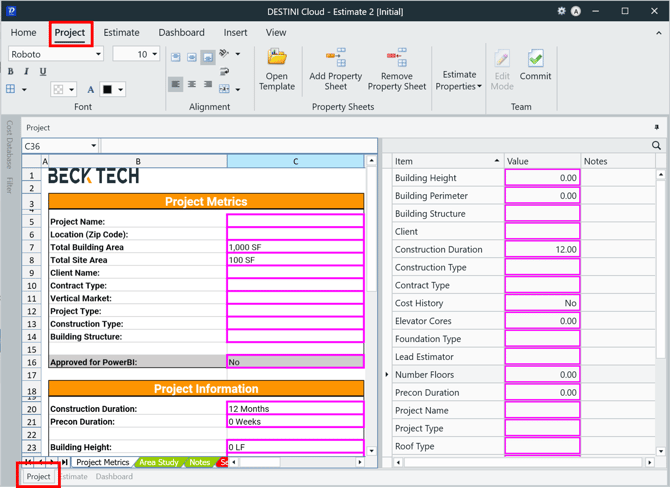
You can begin editing the spreadsheet side of Project View in either of these ways:
- Click directly into a cell and start typing, which turns on Edit Mode
- Click Edit Mode in the Project View ribbon
- Edit Mode makes the edits exclusive to the person, no one else can edit while another user is in Edit Mode.
- If the user in Edit Mode closes the estimate, others will be able to enter Edit Mode with no issue.

When edits are complete, click Commit to release the sheet from editing and to make the changes available to the rest of the team.
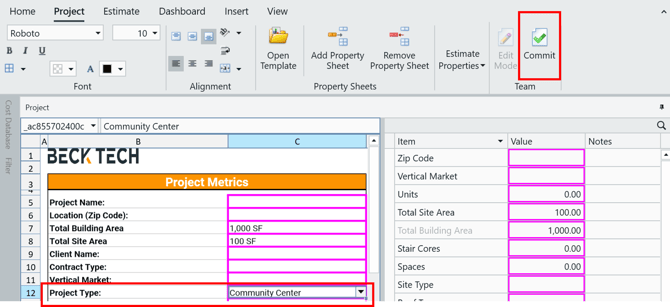
The Project View spreadsheet may only be edited by one person at a time. A message will pop-up if someone else is already editing the view and you click into the spreadsheet. The Edit Mode button and the spreadsheet will be disabled while someone else is editing.
The DESTINI Hub template includes the Project View used for Basic Training. DESTINI Hub+ customers receive a more robust Project View which includes a Staffing Calculator and a sheet for Boilerplate Clarifications that works in tandem with a Clarifications Banded Report. If you are interested in exploring Hub+, please speak with your Account Manager. If you are already a Hub+ subscriber check out the lesson in the Training Portal to learn more about the content that is available.
Estimate Properties
Estimate properties may be added in the Project View through two mechanisms:
-
Click the Add Property button in the ribbon, then give the property a name.
- Click a cell in the spreadsheet on the left side of the screen, then click Tag Cell.
Tagging cells is typically the most efficient method for adding properties to the property pane, while also making the spreadsheet entry seamless.

Estimate Properties may be utilized as variables within the Formula column of Estimate View or Quantity formula within the CIV to populate line items en masse. The system generated properties of Total Building Area and Total Site Area can be applied to many line items to drive a conceptual estimate.
Estimate Properties are also utilized within Reporting to serve as Cost/Unit when Overlines are not employed.
Setup Sheet
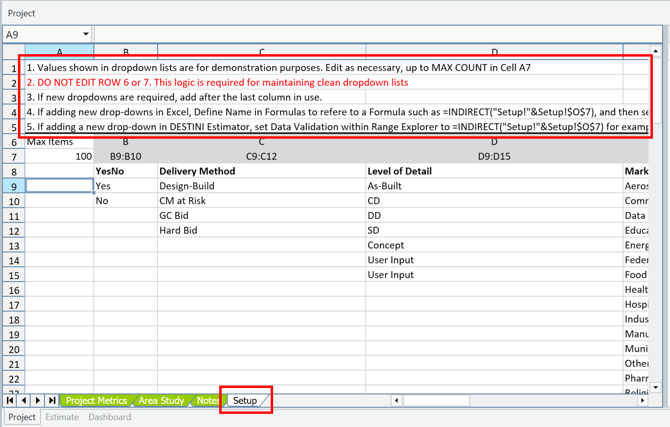
The DESTINI Hub template includes a Setup sheet within the Project View Workbook. The Setup sheet is used to drive drop-down, validated lists within the Project View to ensure consistent data entry for estimates.
The first few rows of the Setup sheet provide instructions for updating or adding lists for use. The Intermediate: How to Build an Estimate Template lesson, section 6 also has detailed instructions for updating the Setup sheet.
Search and Sort in the Property Pane
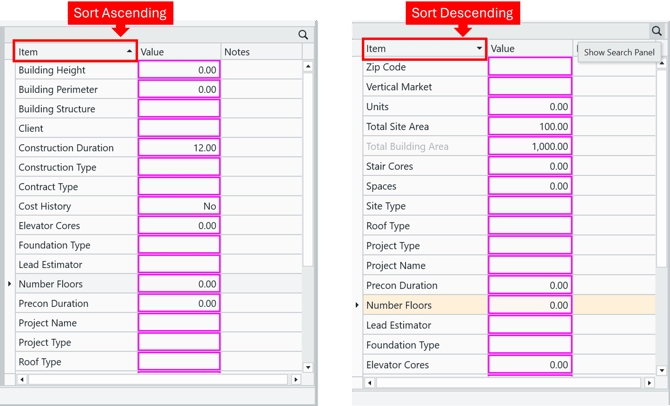
The columns in the Property Pane: Item, Value, and Notes may be sorted alphabetically ascending or descending by clicking on the column header. This is helpful since the project properties are added to the bottom of the list. If it is more beneficial for the user to see the properties in the order of the spreadsheet, then a leading number (01, 02, etc.) will assist with the order needed when sorting is used.
Properties may also be searched by clicking the magnifying glass in the tool bar of the Property Pane. Just type in a few characters of what you are looking for and press Enter. Edits may be made while in search mode.
Open Template
Even though there are options to Add and Remove sheets within DESTINI, we recommend creating new Project View workbooks in Excel, then opening them in DESTINI. Creating named ranges and validated cells is streamlined within Excel.
If you are starting a template from scratch, then opening a Project View workbook that was created in Excel via the Open Template button on the ribbon is a good way to start.
Once the workbook is included in the spreadsheet side of Project View, you may Tag cells to add the properties to the Property Pane.
If there are already properties in the Property Pane, then best practice is to copy and paste in any edits to the sheets in the workbook from Excel in order to retain the links with the Properties. Opening a new Template (Project View Workbook) will disconnect the links from Estimate Properties.

Need more details? We have step-by-step lessons in the Training Portal
DESTINI Cloud Basic Training: 08 - Project View
Intermediate: How to Build an Estimate Template This is a legacy lesson, but most of the concepts are the same.
Suggest an Improvement for this Article