
The Cost Information View (CIV) provides detailed insight into cost items and Assemblies as you build and manage an estimate. This view gives users quick access to WBS values, line item properties, and Assembly staging tools—all in one place.
Configuring Your CIV
The main CIV window displays cost information related to the selected line item(s) in the Estimate View. The CIV also features two other components that can be revealed or hidden at any time: WBS Properties and Assemblies.
On the left side of the CIV are two buttons which are used to reveal or hide these components to suit the task at hand.
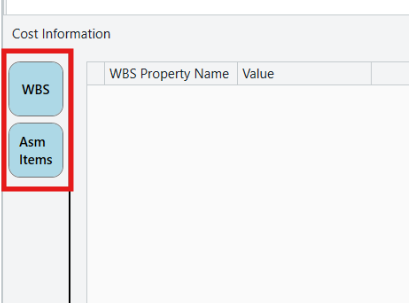
- Click a button to reveal the associated component.
- WBS: WBS Property values table
- Asm Items: Assembly item management (questions and staging)
- When activated, the button background changes from white to blue.
- Each component of the CIV is separated by a slider bar, which can be repositioned to expand or contract each window to your liking.
Cost Information View Windows
When you select a line item in the Estimate View, each component of the CIV will be instantly populated with a specific aspect of cost data. Here’s a breakdown of each component of the CIV:
1. Main Cost Information Window
The main window of the CIV displays automatically when a line item is selected in the Estimate View.
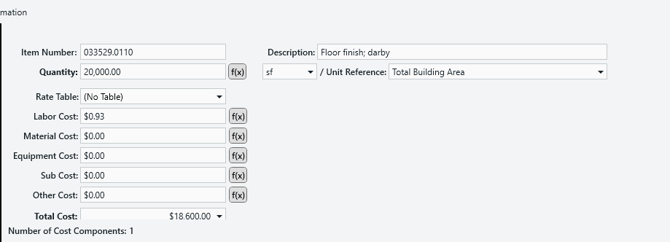
- Displays all essential cost information for the selected line item.
- Includes fields for:
- Line Item number
- Description
- Quantity
- Unit Reference
- Rate Table
- Labor, Material, Equipment, Sub, and Other Costs
- Total cost
- When making a change in any of these fields, tabbing out will immediately apply the change to the selected line item(s).
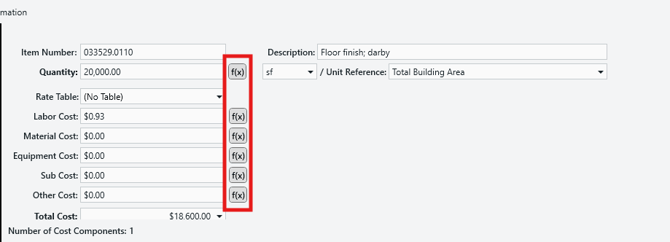
- The Quantity field, as well as all the Cost fields, can be driven by a formula. Click on the ‘f(x)’ button next to any of those fields to set a formula.
2. WBS Properties
The WBS Property window allows users to modify WBS properties for the selected cost item(s) in the Estimate View.
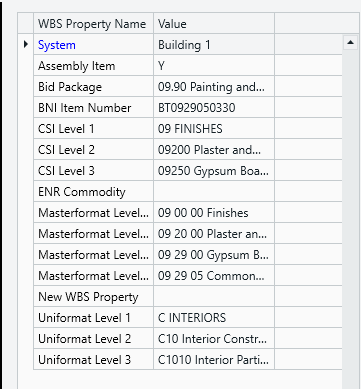
- Revealed when the WBS button is activated.
- WBS values can be edited directly within this table.
- Any Sticky WBS values appear in blue text.
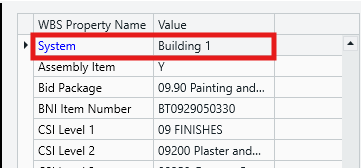
- Sticky WBS entries are always displayed at the top of the WBS Property list, making them easy to identify and reuse.
3. Assembly Items
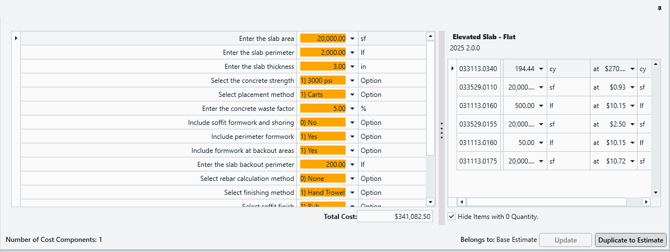
The Assembly Items window is the hub for adding, configuring, and applying Assemblies to your Estimate. When working with Assemblies, the CIV reflects how individual selections influence the resulting cost structure. As Assembly questions are answered, a list of related costs is displayed to show which line items are included and how the Assembly is being built. This provides transparency into the Assembly logic and helps users understand how costs are generated.
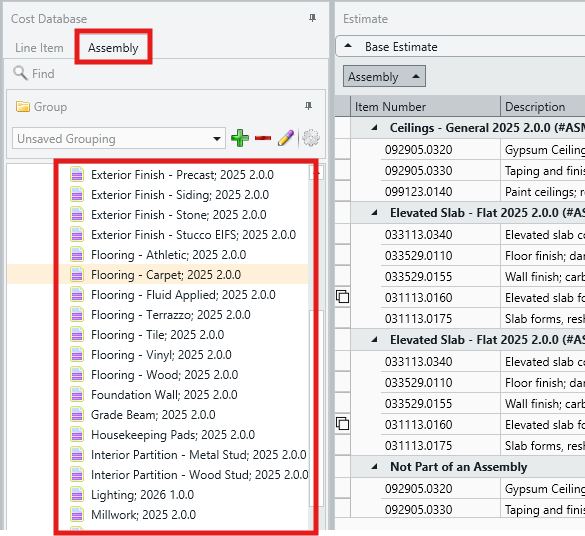
- Select an Assembly in the Cost Database View > Assembly tab.
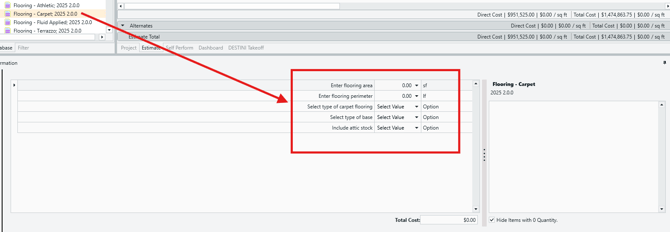
- The Assembly component of the CIV is populated with the Assembly questions.
- When providing answers to Assembly questions, the relevant line items are staged in real-time.
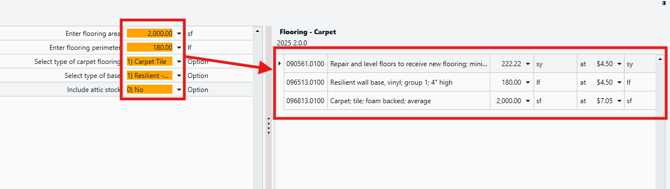
- Click Add to Estimate to commit the staged line items to the estimate.

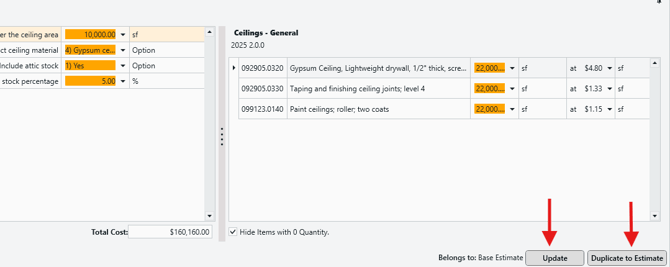
Assemblies that have been added to the estimate can also later be recalled into the CIV. This gives users the opportunity to make changes to the current Assembly, or duplicate the entire Assembly (with or without changes).
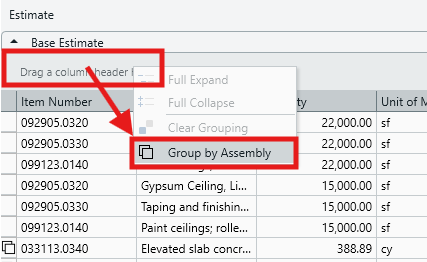
- In the Estimate View, right-click on the Grouping header and select Group by Assembly.
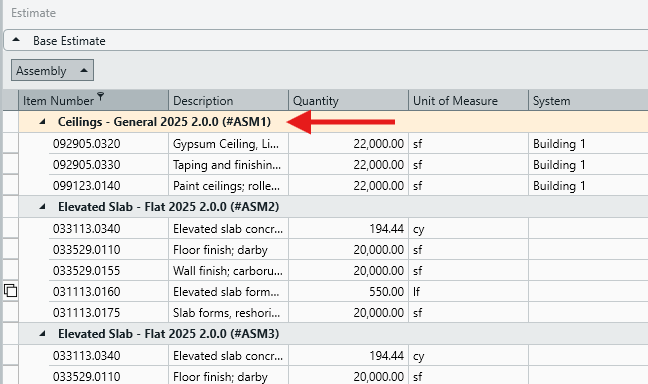
- Select an Assembly overline.
- That Assembly will be called into the CIV for editing.
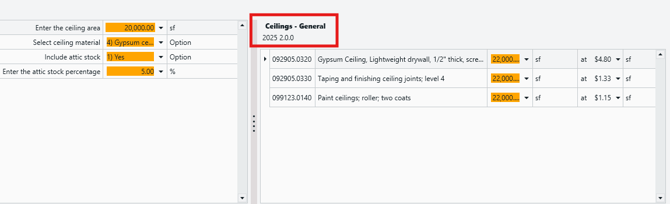
- Change answers to questions to affect the staged line items. Then:
- Click Update to apply changes to the current Assembly in the estimate.
- Click Duplicate to Estimate to create a copy of the entire estimate with the new data.
Submit Your Suggestions to Help Improve This Article