
Adding and Configuring a Bond Fee
-
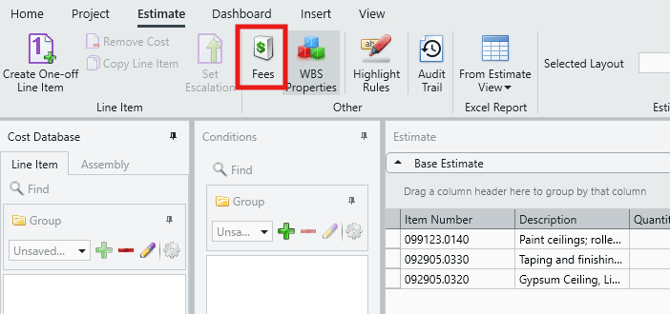
Navigate to the Estimate View and click on Fees in the main ribbon.
-
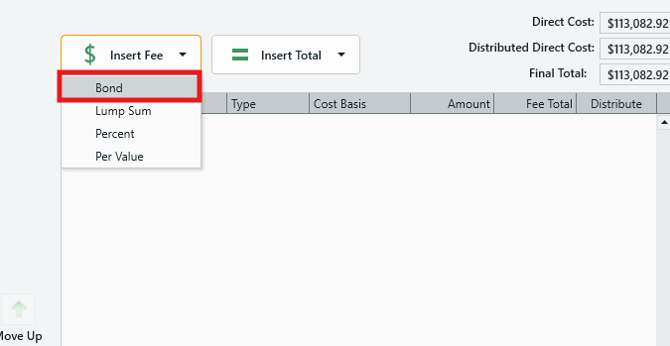
In the Fee Editor, click Insert Fee and select Bond.
-
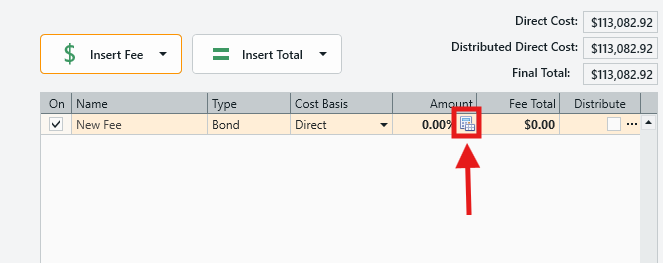
Click on the Calculator icon that appears in the Amount column to open the Bond Editor.
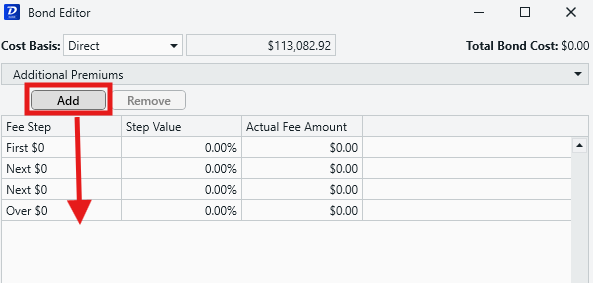
Now we will create the Fee Steps for the bond. We will demonstrate this feature with four Fee Steps.
-
Click Add three times to create a total of four steps.
-
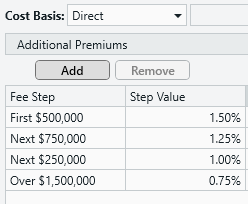
Set the Fee Step and Step Values as follows:
-
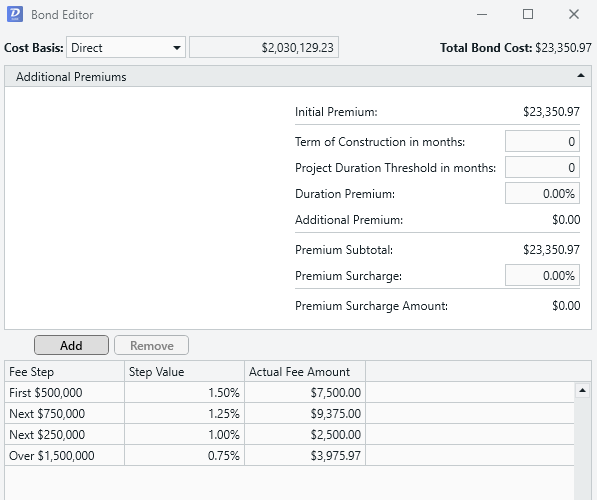
First Fee Step: $500,000 - Step Value: 1.50%
-
Next Fee Step: $750,000 - Step Value: 1.25%
-
Next Fee Step: $250,000 - Step Value: 1.00%
-
Over Fee Step: $1,500,000 - Step Value: 0.75%
-
-
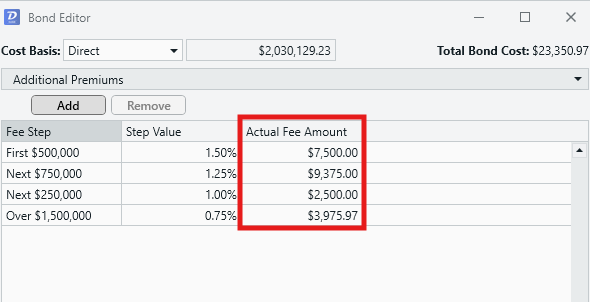
You’ll see that the Actual Fee Amount column immediately shows how much the fee adds when it’s calculated against your current Direct Costs.
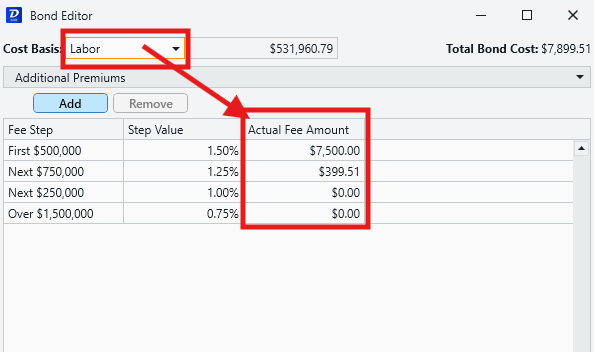
- The Bond Editor window also conveniently provides a dropdown to change the Cost Basis for the fee without having to back out to the main Fee Editor. This is useful for immediately seeing how the selected Cost Basis impacts each Fee Step amount.
Additional Premiums
- Open the Additional Premiums dropdown.
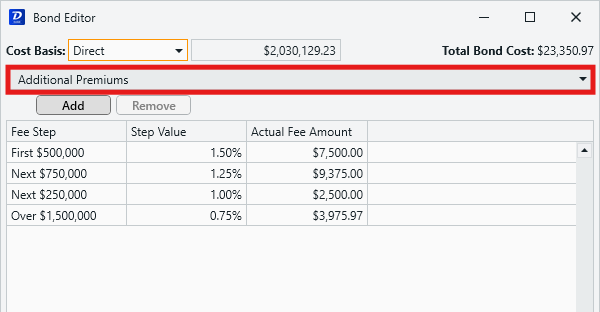
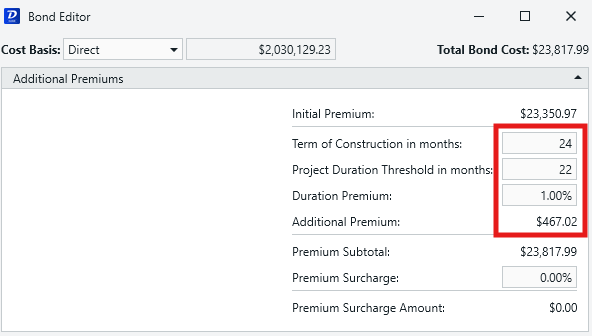
- This is where you can enter the Term of Construction and set a Project Duration Threshold, along with a Duration Premium.
- The Additional Premium field displays the calculated value of any applied premiums.
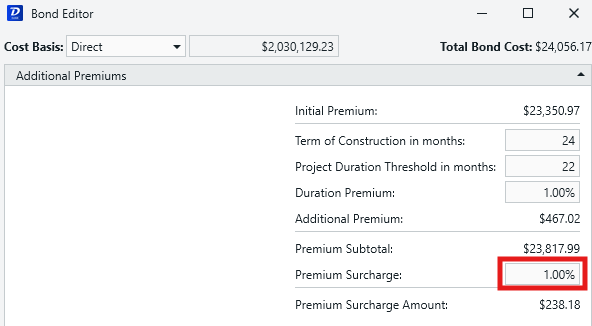
- You can also set a further Premium Surcharge.
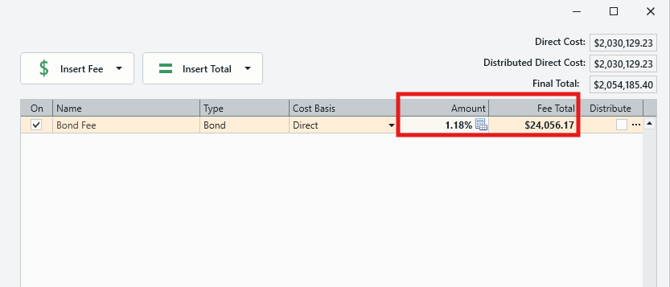
Premiums will be summed with the fee total, and an overall percentage will be displayed in the Amount column in the Fee Editor.
Submit Your Suggestions to Help Improve This Article