
Subtotals in the Fee Editor allow you to calculate fees—such as profit—on top of other fees rather than directly on the estimate’s direct costs. This can be used to calculate things like profit on fees or profit on profit.
This article explains how to insert a subtotal, apply fees against it, and understand how fee order impacts calculated values in Estimator.
Setting Up Standard Fees
Begin by creating the standard fees that will be included in the subtotal calculation.
- Navigate to the Estimate View.
- Click Fees in the main ribbon to open the Fee Editor.
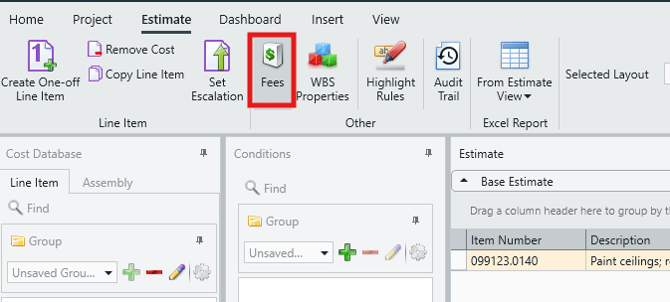
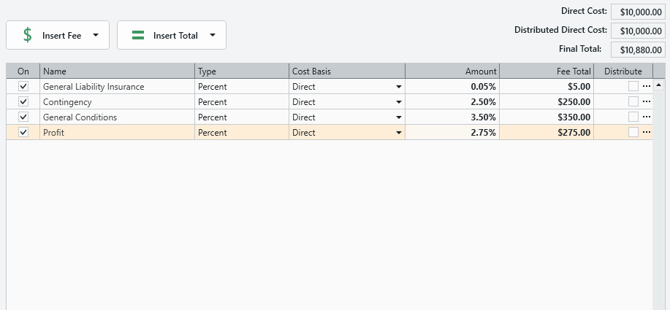
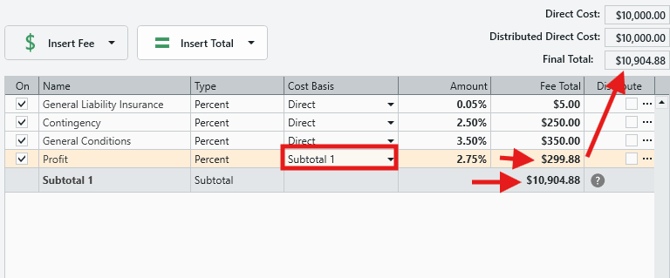
- Add the following example fees, each one a Percent-type fee with a Direct Cost Basis (see example screenshot below):
- General Liability Insurance – 0.05%
- Contingency – 2.50%
- General Conditions – 3.50%
- Profit – 2.75%
At this stage, all fees are calculated against the estimate’s direct cost, and the total cost for each fee is displayed in the Fee Total column.
Inserting a Subtotal
To calculate a fee on top of other fees—or to include fees within your profit calculation—you’ll first need to insert a subtotal.
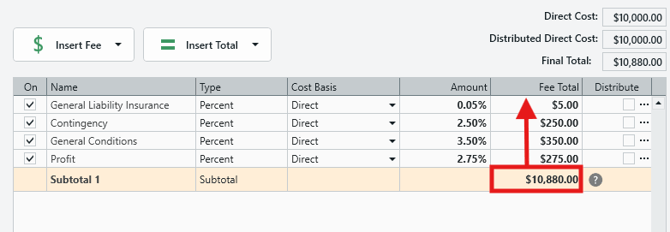
- In the Fee Editor, click Insert Total and select Subtotal.
- A new subtotal row will be added.
- The subtotal represents the sum of the direct cost and all fees listed above the subtotal.
NOTE: See the section ‘Subtotals vs. Running Totals’ to learn how they differ.
Calculating Fees Against the Subtotal
After inserting the subtotal, you can use it to change how a fee is calculated.
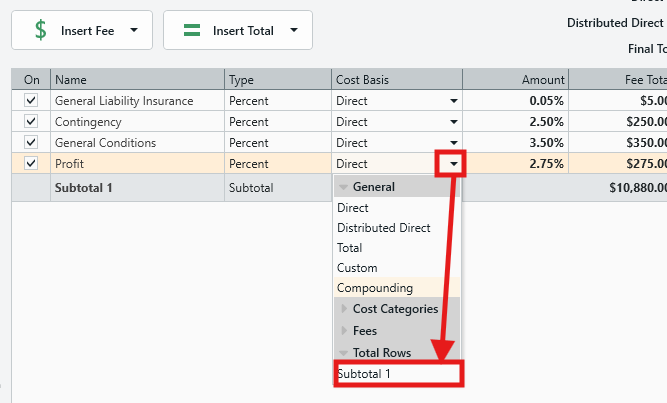
- Locate the Profit fee.
- Click the cell in the Cost Basis column, click Total Rows, and select the subtotal.
When this change is applied:
- The profit amount increases because it is now calculated on a larger base figure.
- The subtotal value also increases to reflect the updated fee total.
Reordering Fees and Subtotals
The order of fees and subtotals directly affects the calculation results.
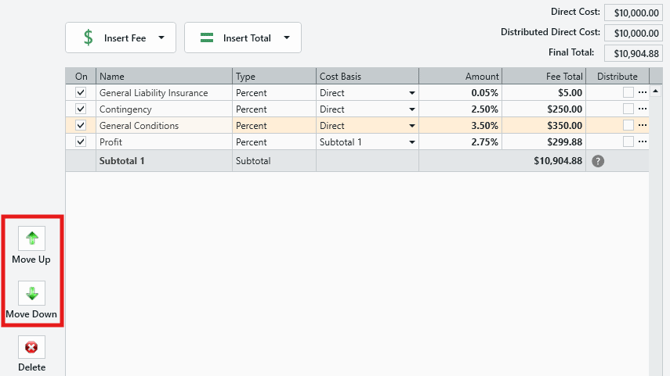
- Use the arrow controls on the left side of the Fee Editor to move fees or subtotals up or down.
- Fees placed above a subtotal are included in that subtotal’s calculation (along with the direct cost).
- Fees placed below a subtotal are excluded from it.
For example:
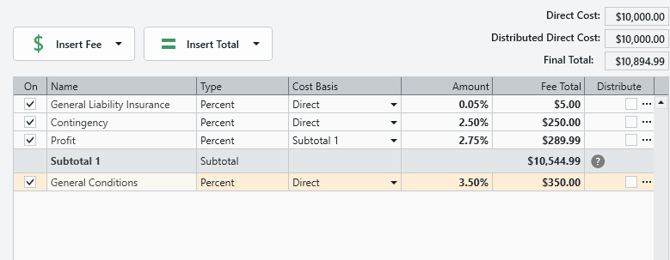
- If General Conditions is moved below the subtotal:
- The subtotal value decreases.
- The profit calculated from that subtotal also decreases.
- The General Conditions fee remains unchanged, since it is still calculated on direct cost.
Subtotals vs. Running Totals
Both subtotals and running totals display the combined value of the direct cost plus any fees listed above them in the Fee table. The key difference is how far up the table each calculation looks.
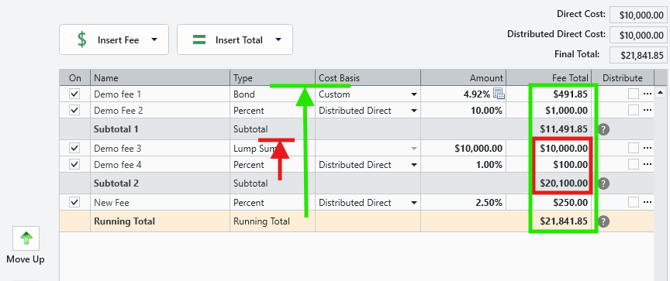
- A subtotal only calculates the direct cost plus fees between itself and the next subtotal above it. Once a subtotal is reached, the calculation stops.
- A Running Total calculates the sum of the direct cost and all fees above it, regardless of how many subtotals exist in between.
As you can see in the example below, Subtotal 2 (red) only calculates up to (but not beyond) Subtotal 1. Meanwhile, the Running Total (green) calculates on all fees above it (including direct cost).
You can think of a subtotal as a checkpoint and a Running Total as a running balance:
- Subtotals create segments in the Fee table.
- Each subtotal only reflects the direct cost and fees within its own segment.
- A Running Total ignores those segments and always reflects the full accumulated total above it.
Submit Your Suggestions to Help Improve This Article