
DESTINI Cloud Estimator reports support rolling up line items by WBS Property. In the following screenshot, the line-items are not displayed, but their quantities and totals have been rolled up to the Masterformat Level 1 and 2 group headers.
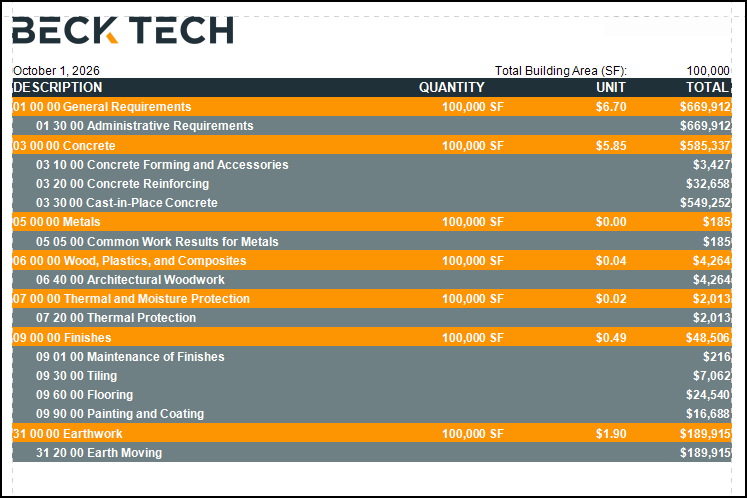
By default, WBS Property group headers use the same formatting regardless of rollup settings. If you prefer, you can configure each WBS Property group header to use the same style as the rolled up line-item row. Here's an example: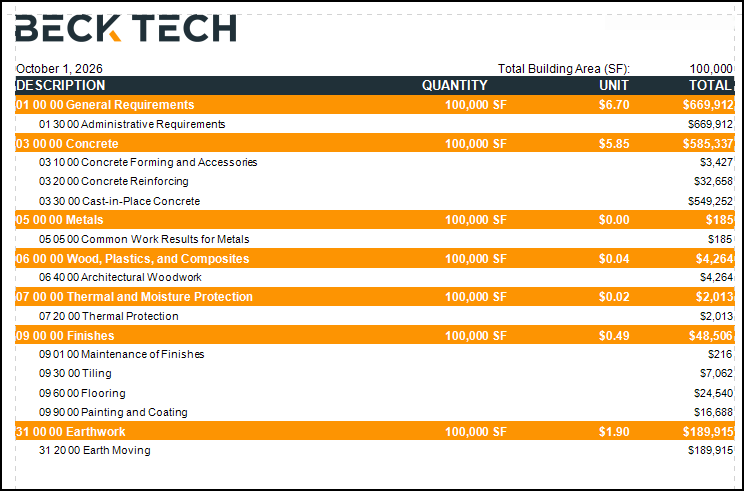
This article describes how to update the style of each WBS Property group header based on your WBS Property rollups. For more information about working with styles, see, Change Fonts and Colors in Your Report with the Styles Editor.
- Open an estimate in DESTINI Cloud Estimator.
- Navigate to Home > New Report. Report Designer opens.
- Click File > Open.
- Navigate to the folder with the report template file (.repx) you want to modify.
- Click the .repx file to open it.
- In Report Explorer on the right side of your screen, search for and select GroupHeader_LineItemWBS1.
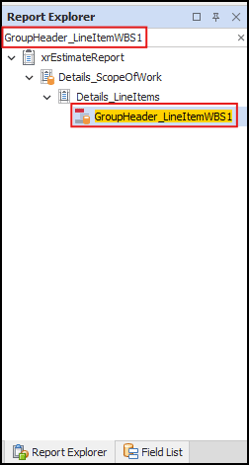
- In Designer in the middle of your screen, locate the selected GroupHeader band from the previous step.

- Click the Function button to the right.
- In Expression Editor, select Style Name in the left pane.
- Paste the following expression and click OK:
Iif([WBSProperty1] in (?WBSProperty1_RollUp), 'CostItemDetails', NOT ?IncludeAllLineItemDetails AND IsNullOrEmpty(?WBSProperty2_Parameter), 'CostItemDetails','WBS1Header')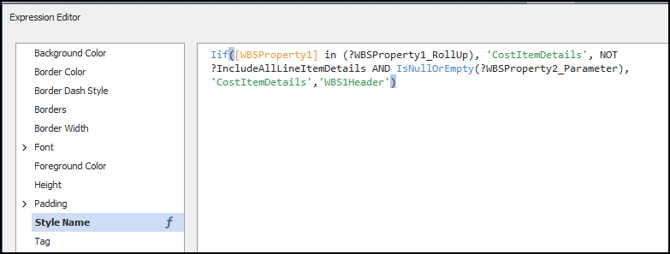
- Using the following table, repeat Steps 6-10 to update each WBS Property GroupHeader band.
Grouping
GroupHeader Band
Style Name Expression
WBSProperty1
GroupHeader_LineItemWBS1
Iif([WBSProperty1] in (?WBSProperty1_RollUp), 'CostItemDetails', NOT ?IncludeAllLineItemDetails AND IsNullOrEmpty(?WBSProperty2_Parameter), 'CostItemDetails','WBS1Header')
WBSProperty2
GroupHeader13
Iif([WBSProperty2] in (?WBSProperty2_RollUp), 'CostItemDetails', NOT ?IncludeAllLineItemDetails AND IsNullOrEmpty(?WBSProperty3_Parameter), 'CostItemDetails','WBS2Header')
WBSProperty3
GroupHeader12
Iif([WBSProperty3] in (?WBSProperty3_RollUp), 'CostItemDetails', NOT ?IncludeAllLineItemDetails AND IsNullOrEmpty(?WBSProperty4_Parameter), 'CostItemDetails', 'WBS3Header')
WBSProperty4
GroupHeader11
Iif([WBSProperty4] in (?WBSProperty4_RollUp), 'CostItemDetails',
NOT ?IncludeAllLineItemDetails, 'CostItemDetails','WBS4Header')
- Save and run your report.
- In the Report Viewer Parameter pane, locate the WBS Groupings section.
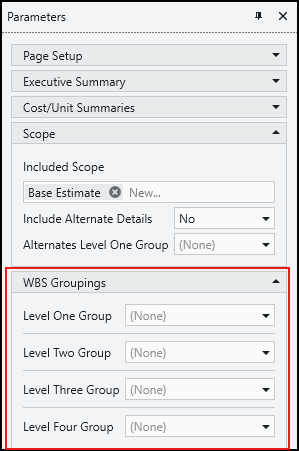
- For Level One Group, select a group.
- For Level Two Group, select a group.
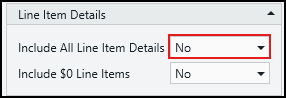
- In the Line Item Details section, for Include All Line Item Details, choose No.
Optionally, you can roll up at a specific level using the following fields.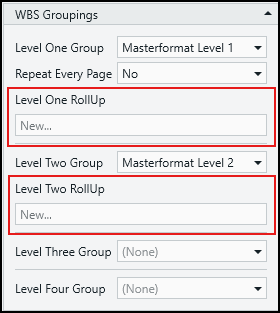
- Click Submit.
The style of the rolled-up GroupHeaders matches the line-items section.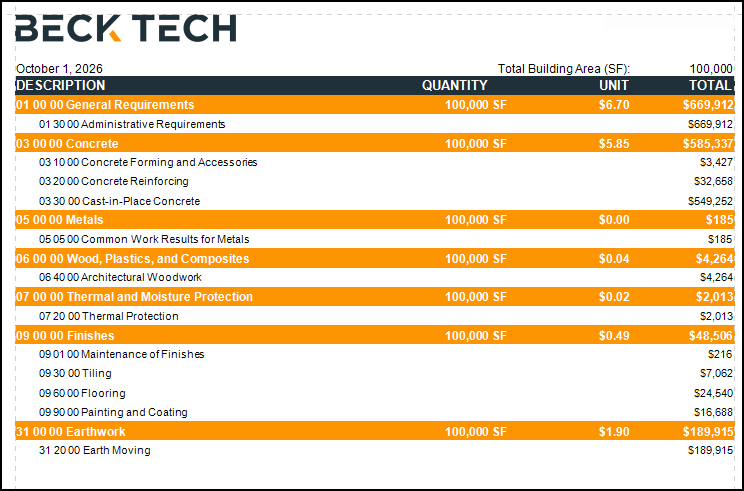
Related Articles
How to Show All Cost/Unit Summaries in a Cloud Report
How to Use the Cost Per Unit Summary