
Before opening a Legacy DESTINI Estimator Dashboard in DESTINI Cloud, review and update the associated legacy Excel worksheets to ensure they are compatible with the Cloud Dashboard framework. Legacy Dashboards often contain references, formulas, and worksheet names that are no longer supported in DESTINI Cloud and must be corrected prior to opening.
This article describes the required updates for all Legacy Dashboards.
Why Dashboard Updates Are Required
DESTINI Cloud uses a different data structure and naming convention than legacy DESTINI Estimator Dashboards. Dashboard workbooks that reference outdated column names, worksheet names, or lookup formulas may fail to display accurate data.
Review and update each Dashboard workbook before opening it in DESTINI Cloud.
Update the References Worksheet
-
Open your Legacy Estimator Dashboard in Microsoft Excel.
- Use the scroll sheet options at the bottom of Excel and locate the $AlternateFees$ worksheet.

-
In the ribbon, click Review > Unprotect Sheet.

- Right-click the $AlternateFees$ worksheet and click Rename.
- Change the name to $Alternate Fees$ (add a space between the words).
- Click the References worksheet.
-
In the ribbon, click Review > Unprotect Sheet.
-
Press Ctrl + F on your keyboard to open the Find dialog box.
- Click the Replace tab. Replace all instances of either Aggregate or Aggregate Cost with Burdened Total Cost.
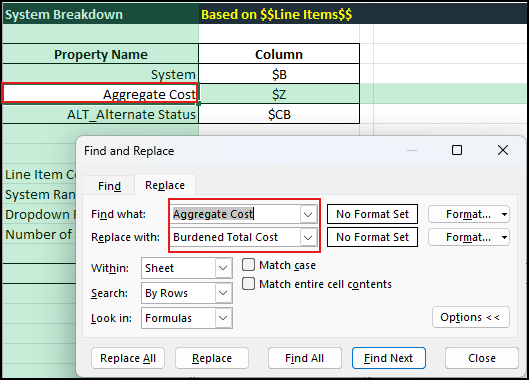
- If applicable, replace all lookups or formulas that reference Total Cost with Burdened Total Cost. For example:
Legacy Column Name
DESTINI Cloud Column Name
Total Labor Cost
Burdened Total Labor Cost
Total Material Cost
Burdened Total Material Cost
Total Equipment Cost
Burdened Total Equipment Cost
Total Subcontract Cost
Burdened Total Subcontract Cost
- In the Fee Table section, click the cell beneath ON?.
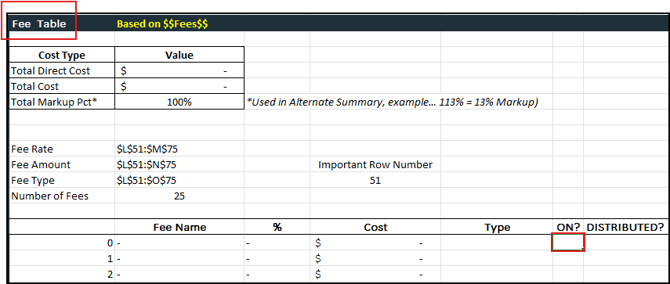
- In the Formula bar, change 10 to 8.
 The updated formula displays in the first cell beneath ON?.

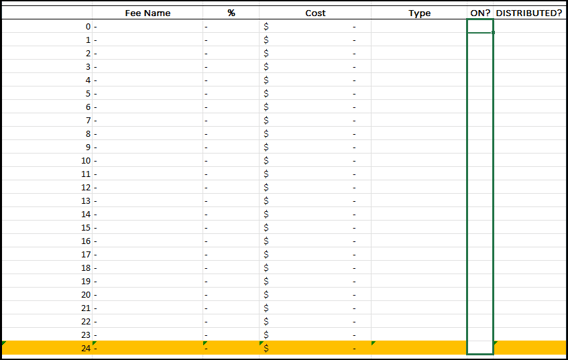
- Click the cell handle in the bottom right corner of the first cell and drag it to the bottom of the column. This updates the formula to use 8 instead of 10 for all rows in the column.
- In Alternate Summary section, click the cell beneath Indirect Cost.
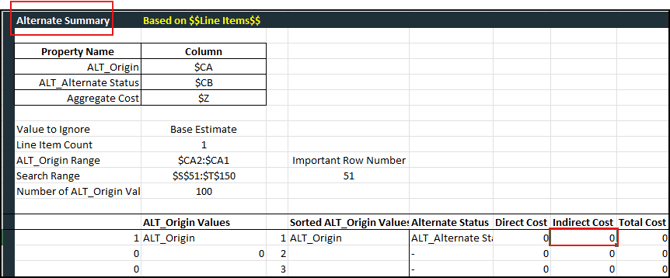
- In the Formula bar, change P:P to N:N.

The updated formula displays in the first cell beneath Indirect Cost.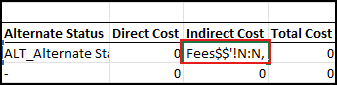
- Click the cell handle in the bottom right corner of the first cell and drag it to the bottom of the column. This updates the formula to use N:N instead of P:P for all rows in the column.
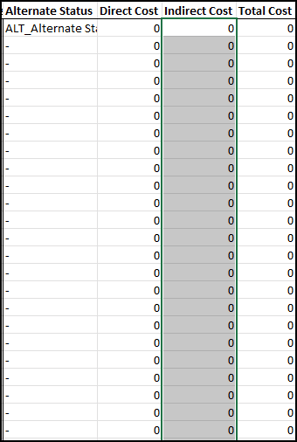
- Save your changes in Excel.
Verify Dropdown Controls Throughout the Workbook
After updating the References and $Alternate Fees$ worksheets, import the Excel spreadsheet into DESTINI Cloud Estimator to ensure all dynamic dropdown controls function correctly.
- Open an estimate in DESTINI Cloud Estimator.
- Click Dashboard > Open Dashboard.

- Select the updated Legacy spreadsheet.
Verify WBS Property Dropdowns
Confirm that all WBS Property dropdown selections populate correctly and return valid data.
Verify System Dropdowns
Confirm that all System dropdowns display available systems and update Dashboard results appropriately.
Verify Estimate Dropdowns
Confirm that all Estimate dropdowns function correctly and return expected estimate data.
Verify Alternate Summary Dropdowns
In the Alternate Summary Dashboard, verify that the Direct and Total dropdown is functioning correctly and updates calculations and visualizations as expected.
Once these updates have been completed and validated, the Dashboard workbook is ready for use in DESTINI Cloud.