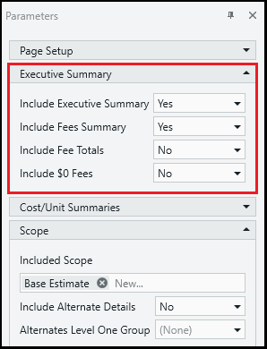
To simplify configuration, DESTINI Cloud organizes related report parameters and options into groups within the Parameters panel. Some parameter groups are collapsed by default, but you can customize this behavior.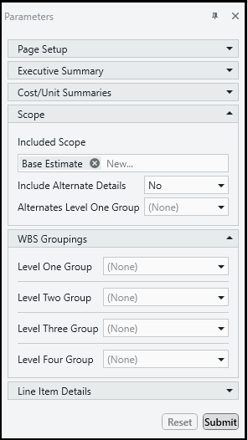
Use the following procedure to specify whether parameter groups are expanded or collapsed by default.
- Open an estimate in DESTINI Cloud Estimator.
- Navigate to Home > New Report. Report Designer opens.
- Click File > Open.
- Navigate to the folder with the report template file (.repx) you want to modify.
- Click the .repx file to open it.
- On the right side of your screen, click the Field List tab at the bottom of Report Explorer.
- Scroll to the bottom of the Field List tab.
- At the bottom of the Field List, right-click Parameters and select Edit Parameters. The left pane includes all parameter groups displayed in the Parameters panel in Report Viewer.
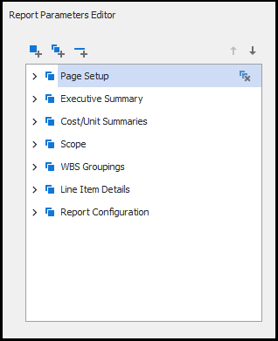
- Select the parameter group you want to modify, for example Executive Summary.
- In the middle of the window, select or clear Expanded.
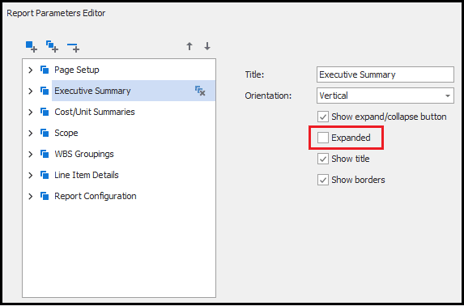
- (Optional) Repeat these steps as needed for additional groups.
- Click OK.
- Save and run your report. When Report Viewer opens, the configured group(s) display as expanded or collapsed depending on the changes you made.